ORDERS MANAGEMENT
- Sending New (and/or urgent) orders to the supplier
- Sending new order, without corrections, to the suppliers
- Sending new order, with corrections (not optimized), to the supplier
- Sending new (optimized) order to the supplier
- Divide product order amount
- Adding an item to a new order, which is going to be send to supplier
- Sending new order for alternative supplier
- Combining new orders
- Optimizing new orders, in orders list
- Other settings, sending new order to the supplier
- Coordinate of orders "To be sent" with branch/store staff.
- Creating new orders
- Special orders of clients / reservations (PTO)
- Sending New (and/or urgent) orders to the supplier
- Orders
- Special orders of clients (PTO2)
- Saving order
- New order, but not sent the same day
- Management of orders, with "restrictions" (only when the function is turned on)
- Sending order to the supplier
- Arriving confirmation of ordered stock (goods receiving/confirmation)
- Coming orders corrections
- Observation of late delivered orders
- Cancellation of arrived orders (removing)
- Sent orders history
- Suppliers supply schedule
The system generates orders according to set order schedule, which have to be sent the same day (we recommend to send orders in the first part of the working day). The system creates order if need to order at least 1 item.
We recommend to use "Auto Send", after setting this parameter system will form and send orders by e-mail for supplier automatically (you can set conditions for the supplier, when orders are sent automatically. See Order optimization).
Sending New (and/or urgent) orders to the supplier
1. In menu point “Orders” choose orders type “To be sent” (or click “Orders to be sent” in users tasks list).
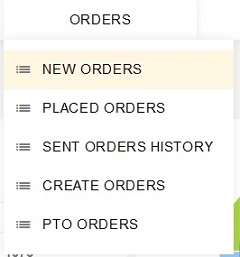
2. New window opens, where you see a list of scheduled orders or manually generated orders for suppliers (if you opened the window through the taskbar, you will see only these orders for which you are responsible).
3. Click the pencil  to enter the order:
1) The order shows the list of items, which system offers to order.
2) Item, which is in the order for the first time, becomes yellow. New item, which will be marked in yellow, has the mark NEW and has never been in the order formed by the STOCK-M system. Pay attention to such items, especially if the "primary" filling of the store shelves is required - whether the ordered quantity is not too low / high.
3) If the supplier has defined supply conditions (written note in supplier card) - these terms are visible in the upper part of the new order (information field), for example: set minimum total order quantity or minimum order amount.
4) At the bottom of the order you can see marked order lines measurement unit, amount, amount of money, volume and weight, by which you will know if supply conditions are met.
5) In the opened order window, you can select the columns you would like to see on the adjustable order. Default fields are:
- SKU code;
- Item description;
- Primary quantity – system suggested quantity to order;
- Quantity – ordering quantity (in this column you can edit ordering quantity, values are highlighted);
- Available quantity – left free central warehouse quantity, after order creation. Values are red in columns "Available quantity" and "dedicated quantity" if free balance = 0 (only when the supplier is a central warehouse).
- Dedicated quantity – distributed central warehouse balance during orders creation process.
NOTE - available quantity and dedicated quantity are calculated during the first twenty-four hours of data exchange and not recalculated manually by correcting/creating orders.
6) Remark to SKU – you can write a comment/remark for every order item separately in this field.
7) If order not sent (placed) yet, so you can export it to xls or csv, by clicking the icon  or export it to any specified form, by clicking button
  . If you made changes in the order – don’t forget to save changes before exporting the order.

Sending new order, without corrections, to the suppliers
If you don‘t need to make any corrections in the order, so after opening new order click  (by default all lines are marked).
Sending new order, with corrections (not optimized), to the supplier
1. If you need to correct ordering quantities, so after opening new order, put the cursor in the column „Quantity“ and click  in this line where correction must be done.
1) In the screen you will see a table, where will be asked to specify the reason, why do you change the quantity of ordering item, also you will have to write the quantity, in box „New quantity“, which you want to order.
2) In the table, which opens you also see what is the minimal ordering quantity (USQ) and how many units fit into the palette. According these parameters the system check if your new written quantity make full USQ and/or full palette.
3) If specified quantity don‘t make full USQ and/or full palette, the system suggest values (numbers), which would make full USQ and full palette values (the system suggests smaller and bigger full USQ, full palette values).
4) When you want to confirm, click  .
.
2. After making all changes and marking lines, which you want to send (place), click .
Sending new (optimized) order to the supplier
1. If you need to optimize your order by transport, amount, weight, volume, or quantity, click the "Optimize" button in the upper right corner of the window.
1) When you click on the "Optimize" button, new table will open, where you can choose "Optimize by supplier settings" or "Optimize by parameters" by setting parameters as well as writing your value as optimization target manually below or choose "Reduce number of lines till... ".
2) If you want to optimize your order, the lines not necessary need to be ticked. These positions, which quantities were changed in the order, will not be optimized.
3) If it is necessary to make any corrections in the order, it have to be done before the optimization:
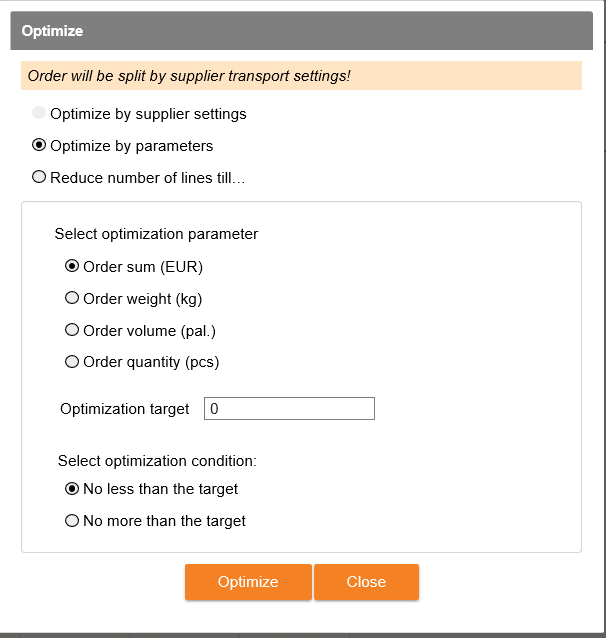
2. After selecting “Optimize by supplier settings” in opened table, order is optimized by settings, specified in supplier’s card. Order quantities change so, that it would fill transport optimally and would compose an amount.
1) If transport filling (optimization) threshold was not reached (i.e. order size, when order will be increased if this order size will be reached) – order will not be optimized.
2) If order is composed from more than 1 transport and for each transport need separate order, then:
- It must be set “split order according to transportation batch” for supplier (in supplier card);
- !!! IMPORTANT, if after the optimization, you will make corrections in the order again, then order will not be splitted by transport. This function works only for the first optimization of the order.
3. After selecting „Optimize by parameters”:
1) It is allowed to optimize by the amount of money, weight, quantity and volume, for both, to the big and to the small side. Select optimization type:
- by order sum (EUR);
- by order weight (kg);
- by order volume (palette);
- by order quantity (unit/pcs).
2) Write optimization target into empty field, which is in the bottom of the table.
3) Select optimization condition to the closest target value by reducing or increasing the order;
- no less than the target;
- no more than the target;
4) Select  .
.
5. When you do optimization and other changes (after it), click  or .
or .
IMPORTANT: optimized quantities will not be written if you will close the order without saving changes or if you will not send it (order).
Divide product order amount
If orders for the supplier are formed frequently, but the delivery / delivery time is long, there is no need to order the entire buffer immediately with the first orders. It is possible to create several orders in one delivery time and thus reduce the amount of ordered goods. In other words, “to fill the buffer” not immediately, but in several deliveries (divide the ordered quantity of one item in time over several orders).
It is possible to enable the setting so that in case of frequent but long deliveries, the entire buffer would not be ordered at once in one order. If at least 2 regular orders can be formed during the delivery time, then a maximum limit is applied to the ordered quantity, which is calculated according to the ratio of delivery frequency and duration and the buffer. The maximum quantity also includes a PTO and a reservation so that ordered quantity was not restricted for special needs.
Important: The possibility to use this function has to be agreed separately and setting of this function works company-wide. If necessary, contact the project manager.
Adding an item to a new order, which is going to be send to supplier
If you need to add an item, that has not been placed in the order, which has to be sent to the supplier (for example, the item is a novelty, or you add a special order, made by customer, to the regular order, when that customer's special order is for item not supported at storage location), then click  and write that quantity, which you want to order. After adding all desirable items select or .
Sending new order for alternative supplier
1. If you need to send a part of the generated order to an alternative supplier (eg. for order limit), select the alternative supplier from the drop-down list from which you want to order and adjust the arrival date.
2. If you don‘t need to correct the order, click .
3. If you need to correct ordering quantities – do in this way, as it is written above (look - Sending new order, with corrections (not optimized), to the supplier).
4. If you do not need to correct the quantities, you only need to send only part of positions (some of the items). Mark the positions with a tick, which you want to order, click .
5. You can also add positions to your order, which were not in the order for the main supplier (look - Adding an item to a new order, which is going to be send to supplier).
6. Order, for alternative supplier, you can save. By saving alternative supplier order you will be asked to write the reason and you can form a new order from lines, which were not marked.
- If the check mark is ticked (by default check mark is not ticked), then quantities are decreasing in the initial order of the main supplier, while marked items and quantities are saved in the new order (for the main supplier). It is not necessary to choose the reason.
- If there is no check mark, the marked items and quantities are saved in the order and the remaining part of the order is removed.

Combining new orders
Multiple orders can be combined into one, in new orders window.
It is allowed to combine several orders from the same warehouse - suppliers can be different.
To combine several orders into one:
- In the new orders window, select the orders you want and click the button "Combine orders".
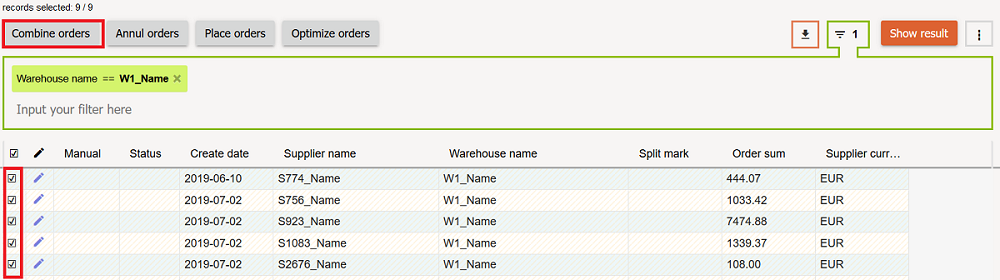
- In the window that opens, fill in the required data - supplier selection is required.
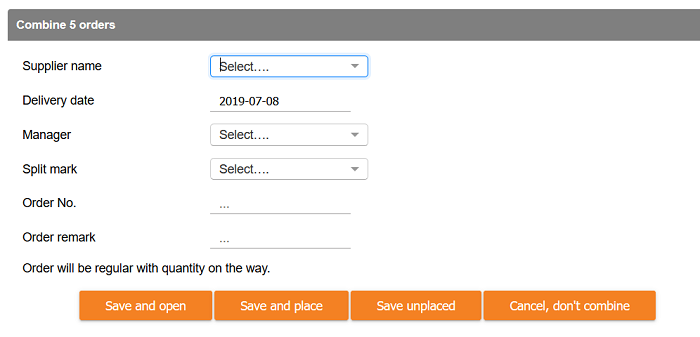
- After completing required fields, you can "Save," "Save and Open", "Save and Send" combined order or cancel started combining action.
- After combining orders, all marked orders will be combined into one. It is unable to reset primary orders.
Optimizing new orders, in orders list
In the "to be sent" orders list, select orders that need to be optimized by common parameter and click the button  .
.
Choose how do you want to optimize orders, the way to optimize your orders and optimize conditions, in the window that opens.
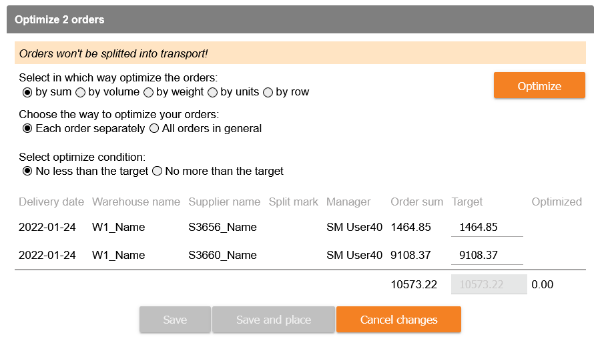
When you are choosing the way to optimize, you can choose the way how to do it:
· Each order separately. In this case, the purpose must be specified for each order separately.
· All orders in general - the purpose must be specified one for all orders in general.
After clicking the button orders will be optimized according the specified terms and you will be able to Save, Save and Send them or Cancel Changes.
Other settings, sending new order to the supplier
1. If you want to write a remark, which must be seen by the supplier, who will get the order (for example: to deliver goods before exact hour, to certain place and exactly day and so on), then in the new order window in the field „Order remark“ write necessary text (in the new order in the field „REMARK“ written text is displayed in standard order form, which is sent to supplier (information for supplier)).
2. If you found out that the supplier has temporarily changed the order fulfillment time (especially if the order time has extended), then in the new order window, change the order delivery date (type or select from the calendar).
3. If you need to change the order number of the new supplier, enter the order number you want in the field "Order no." If you leave this field empty, then system will give order number automatically, according order number format and numbering, specified by the supplier.
4. If you need to cancel the order, mark all lines, click  . On the screen that appears, select the reason why do you want to cancel the order and click "Confirm".
Coordinate of orders "To be sent" with branch/store staff.
If there is a need to coordinate created (but not yet sent) orders ("To be sent" in StockM) with other people - employees of branches/stores, contact the StockM team, we will make the necessary settings. You will need to specify the users who will be given this right.
This is an additional chargeable module, activated only for the entire StockM program.
Such users will be able to edit, offer quantities, enter information in the order window in the new "Offered quantity" column. After saving the corrections, the original user will see the corrected, recommended amounts in red. He will only have to confirm, agree or not with the new quantities and send the order.
If there are several orders, you will be able to see the recommendations in the general list: Orders -> Approval of offers, so that you do not have to go to each order separately.
Creating new orders
1. The new order is generated manually not according to the set orders schedule only in these cases when there is no possibility to send the order, because of some reasons, according to the schedule (for example, order is sent earlier because of the supplier's holiday, etc.) or goods parameters are changed and need to create order with new values.
2. In menu item "Orders", select "Create orders":
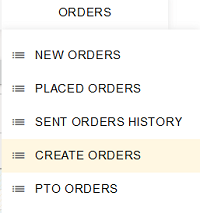
3. In the new opened window you have to select what order you want to create. When you create regular order: select, what are storage places, what supplier and which splitting marks (if orders are splitted according marks) order you will form, click „Create a new one“.

1) When you select a split mark, the order is formed only for that mark.
2) If you want to create an order for all splitting marks, select all splitting marks.
3) If you place a check mark next to "Today's orders only", only today's orders will be created.
4) The checkmark “Autoplace” can be placed only if a checkmark “Today’s orders only” is placed..
- If placed, the order will be sent automatically as soon as the regular order is created. If the order cannot be sent due to the optimization settings to the supplier, it will appear the “New orders” window to be reviewed and sent by the responsible user manually.
- If not placed, the order will be moved to the “To be sent” window to be sent manually.
4. New formed orders appear near all "New Orders". Near such orders will appear an image  , orders will be sent as regular orders (see: Sending New (and/or urgent)orders to the supplier).
Special orders formation
Special order is formed only then, when is accepted and must be executed big client one-time order, promotion or demand is increasing shortly for other reasons.
Select “Create a new one” in menu item “Orders”. In the window that opens, select the section “Special order”.
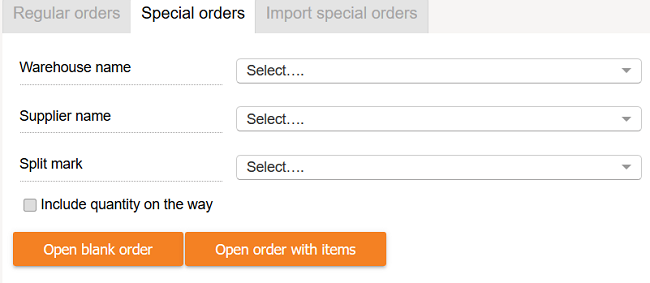
1. In the table that opens, select which supplier, to which storage place and for which splitting mark you want to place the order.
2. If you need to estimate ordered quantity for future orders (for example, pre-order preparation for the supplier holidays) - put the check mark on "Include quantity on the way". If the ordered quantity does not need to be evaluated and the ordered quantity does not influence other regular orders (for example, customer's special order) - do not put the check mark.
3. Then select one of these options:
- Open empty order. Opened order will be filled with the main order information and you will add goods by clicking the button . Filter goods, which you want to order, mark them and click "Add Items to Order".
- Open order with goods. In created order there are all goods of that supplier (DTO / DTA).
4. At each item, click on enter the quantity, which you want to order. When you click on pencil, a table “New order quantity SKU” will open, where you should enter desired new order quantity. After entering the quantity, ordered item quantity in pallets and USQ is calculated automatically.
5. Once you have set the quantities you want to order, click .
New special orders import
The function can be used:
- when many special orders are sent to specific customers (special orders are sent without quantity on the way);
- when short-term promotions are held and a specific order quantity is agreed with the supplier, during which the goods are delivered once (special orders are sent with quantity on the way);
You can import xls, by using this function, in which can be filled orders from different warehouses, different suppliers.
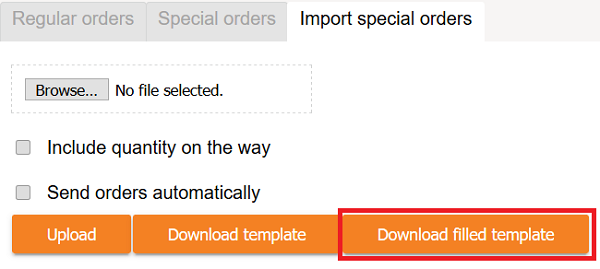
After putting the check mark on "Include quantity on the way" - will be created orders with quantity on the way.
If you will not put the check mark on "Include quantity on the way" – orders will be created without quantity on the way.
If you will put a check mark on "Send Orders Automatically" - the orders will be created and sent automatically to the suppliers.
If you will not put the check mark on "Send Orders Automatically" – orders will be formed and saved in new orders window.
If you click „Download template“, you will be able to get empty template of special order.
If you click „Download filled template“, new window will open, where you can select warehouse, supplier, split mark. Also you can select if delivery date will be taken from supply schedule or entered manually.
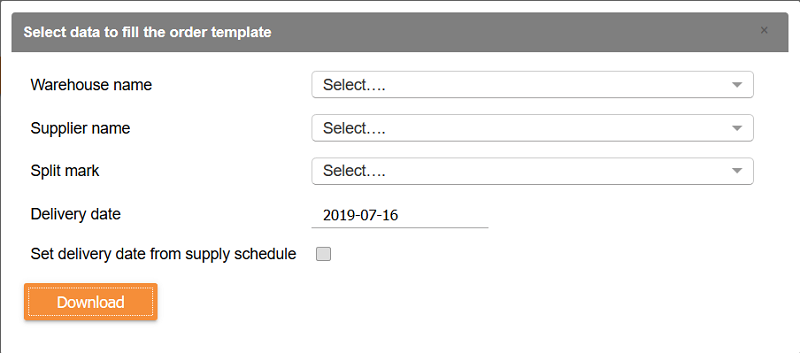
Template filled with selected information:

Required fields, to fill, are:
- Supplier code (if this xls field will be empty, order can be sent to the main supplier);
- Warehouse code;
- SKU;
- Ordering quantity;
- Arrival date (if for the same warehouse and for the same supplier will be given different arrival dates, so different orders will be formed for the supplier);
- Remark to SKU (field is not required, but if it will be filled, will be visible in orders window remarks near the item and in the form, which is sent to supplier, if this is agreed);
- Order remark (field is not required, but if will be filled, will be visible in orders window remarks and in the form, which is sent to supplier);
- Split mark (field is not required, but if will be filled, will be visible in orders window. If for the same warehouse and for the same supplier, items will be given different splitting marks, so different orders will be formed for the supplier).
If duplicates occur during the upload of the template (same SKU in several lines), the program informs about it. If necessary, you can sum up the ordered quantity of duplicates (just confirm the request).
Sent orders are visible among placed orders.
Return of overstock to the company's central warehouse.
1. In StockM is opportunity to form return orders for overstock items from warehouses / stores to the central warehouse. In StockM: Orders -> Create a new one -> Return Orders
To place a return order, you must specify:
- a central warehouse to which you will return overstock;
- warehouses / stores (and / or warehouse levels) from which returns must be made;
- it is possible to indicate which groups of items will participate in the return (if none is selected, all are considered to be marked),
- from what percentage of the BB indicator (balance and buffer ratio) items have to be returned (less than 100% cannot be specified).
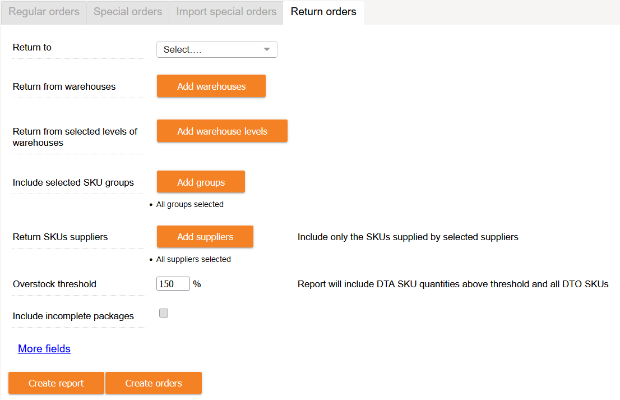
In other words, the percentage indicates that the excess items above it are returned.
IMPORTANT: In order to return the items from the warehouse / store, it is necessary to create a supplier with the same supplier code as the warehouse code (Supplier code = Warehouse code).
Other mandatory conditions:
• the item does not participate in the promotion in the branches / stores from which it is returned;
- the item does not have a CD status in the central warehouse;
• the product does not have the mark of being out of range or sold out (OUT, CLN).
2. When forming orders for the return of overstock items, instead of creating an order, there is possibility to generate an excel form / report based on a special order form.
Additional information columns are visible in this form. You can edit the list of items in it. Upload the final list / form via Import special orders. Only the information from the first 8 columns will be uploaded (as in the special order form).
You can find the placed orders in the "New orders" window.
If the receiver of the overstock items return order is a central warehouse, then:
- the columns will be filled in the excel form / report: Receiver BTB, Receiver's balance, Receiver's buffer;
- Receiver‘s code will be the central warehouse code (not the central warehouse as the supplier code).

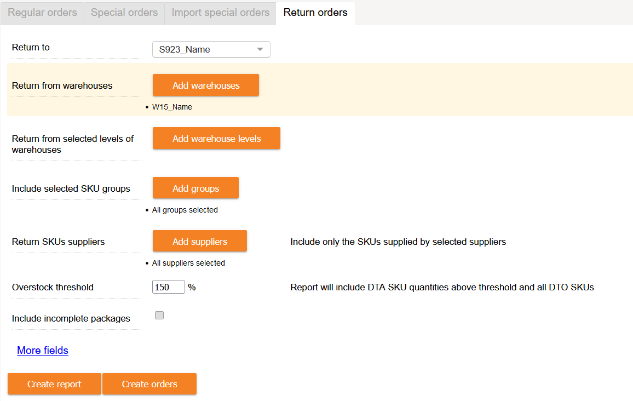
To create an initial list of goods, the user will have to fill in the fields shown below:
Creating new card in StockM
1. If you need to send a special order to supplier or order an item, that is not in StockM yet, then you can create an item card directly in StockM.
2. In inventory window click button  .
.
3. In opened window fill all necessary data. Required fields are marked *:
IMPORTANT! This card will be created in StockM, don’t forget to create it in accounting. The code for this item in StockM and accounting MUST match, that data would be renewed/updated.
Other settings, sending a special order to the supplier
1. Special orders arrival date is counted according specified supply time in supplier card.
1) If there are several arrival times on the supplier's card, then it is taken the longest arrival time. If the supplier does not have an order scheduling or does not specify an order completion time, then after creating special order, arrival date will be automatically set as tomorrow day.
2) While you create special orders, don‘t forget to check special order arrival date. If needed, you can correct the date.
2. If you want to write a remark, which supplier must see, which will get special order (eg. to deliver goods before certain hour, to the certain place and at exact day, and so on), then in the special order window, in the „Remark“ field, write required text (in new window, in the field „REMARK“, written text is displayed in a special order form, which is send to supplier (information for supplier)).
Special orders of clients / reservations (PTO)
There are 2 types of reservations in StockM: from the existing stock in the warehouse (IOH) and special orders of customers / reservations PTO (from not existing IOH).
PTO orders / reservations in StockM can be entered manually or received via pto.csv file from accounting. They are visible: StockM -> Orders -> PTO Orders.
- StockM checks what delivery date is indicated.
- In the separate field “Activate before X d.” the number of days before the delivery date to activate the order can be specified, i.e. when the order must become active and can be started. If in the field “Activate before X d”:
- nothing is specified, the field is empty, the PTO order will be processed immediately and it will be included in the nearest order to the supplier;
- 0 is entered, the goods will be ordered with the last order, which will arrive before the specified delivery date;
- a certain number of days is entered, the order will become active in such a number of days before the “Delivery date” and will be included in the next order to supplier after this activation.
- It is possible to specify the number of days of validity of the PTO order „Delete after X days“. The number of days can be entered in StockM, in the PTO orders window, or uploaded via pto.csv file.
- After the specified number of days after the „Delivery date“, the PTO order / quantity will be removed automatically or no longer included in the orders to the supplier.
- If the field „Delete after X days“ is empty, the order has no expiration date.
Quantities of items in the PTO reservation are added to the regular order formed for the supplier according to the schedule.
Upload PTO orders to StockM via form.
Records from file/template can be loaded in PTO order field. Template can be downloaded by clicking:

When uploading a file/template, new PTO records are created and existing ones are edited:
- If no creation date is specified for new records, the current date is used by default.
- The delivery date cannot be earlier than the creation date.
- SKU code – warehouse code - order No combinations cannot be duplicated.
- Order quantity cannot be negative.
- The order number must be indicated.
- The warehouse code and SKU record must exist in that warehouse;
- The delivery date and the ordered quantity must be indicated only for the records to be newly created;
- Empty fields in the file, do not update the values, leave the former ones;
- To cancel the number of validity days, enter "-1".
Special orders of clients (PTO2)
PTO order - a one-time order of the customer's buyer that is not executed from the current balance.
PTO order can be:
• entered manually in StockM;
• imported manually from an excel table template;
• received in pto.csv file via data exchange.
In the STOCKM system, the quantities of items in the PTO records are included in the orders formed by StockM.
• PTO order for supplier is executed according to a regular supply schedule along with a regular order.
• An urgent PTO order for supplier is sent as a separate independent order
Order entry mechanism:
The balance is not taken into account when forming PTO orders. Each PTO record is unique and is placed in orders in separate lines accordingly. The same order document can contain several lines with the same SKU code and different PTO numbers (then it is possible to trace the execution of each buyer's order based on the PTO order number and status). The PTO is placed in the StockM order for supplier according to the usual supply schedule, the lines are attached to the same document along with DTA items orders, except for urgent PTO orders. |
The PTO quantity is ordered only once (the system tracks the status and ensures that the PTO quantity is ordered only once next to DTA item regular quantities). |
| It can be specified whether to evaluate MOQ and USQ by rounding upwards next to each PTO record (even if there are multiple lines of the same SKU). If not specified, StockM will order exactly the amount that is recorded (will not take into account MOQ and USQ). |
Urgent orders A sign of urgency may be indicated for each PTO record. An urgent PTO order is formed separately from the supply schedule, in separate documents. Once you start the urgent order creation process, orders for supplier are immediately created for all PTOs that are marked as urgent. |
Supply chain Orders are automatically processed throughout the chain (RWH -> CWH -> Supplier) If the PTO record is entered at region warehouse (RWH) for an item that is supplied from a central warehouse, the system will first form an order for the further supplier (on schedule or urgently), regardless of the balance in the central warehouse (CWH). Only when the corresponding line in that order is closed (the items will arrive at the CWH and will not remain in the quantity on the way) the formation of the final chain order from CWH to RWH begins. The same PTO record (with the same PTO order number), entered for the final chain, participates in orders of both chains. |
PTO process:
- PTO record is entered in the StockM system (from accounting; by hand or through a template); Hand: Orders -> PTO Orders -> New and then we are filling in the required data.
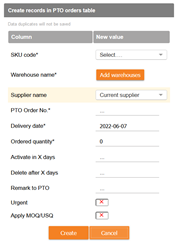
2. StockM deducts when to start the WTO order according to the specified delivery date.
3. According to the regular schedule, an order is formed for the external supplier (in case of an urgent order, it is executed without waiting);
4. A line with PTO quantity is added to the newly created order for the supplier (even if there is a balance in the warehouse, this means nothing);
5. Once the order is placed to an external supplier, a quantity on the way to the central warehouse occurs;
6. The order arrives at the central warehouse, or it is declared that it did not arrive, i.e., there is no quantity left on the way. This signals to the system that an internal order can be formed;
7. An internal order is formed according to the schedule (in case of an urgent order, it is executed without waiting) if PTO order was received from RWH.
8. A line linked to the same PTO record is added to the newly created internal order. Quantity may be limited by the balance in the center (if there are settings to estimate the CNT balance (on the supplier card));
9. Once the internal order is placed, the quantity on the way occurs at the point where the PTO record is entered;
10. The order arrives, there is no quantity on the way, the balance is received from the accounting system;
11. As the PTO record is still valid, it reserves the balance at RWH that has arrived, so that part of the balance does not prevent the ordering of how much is missing to the buffer for regular storage in the warehouse;
12. The reduced balance (sold) of what was ordered by the PTO is updated from accounting;
13. The PTO record is removed or discontinued from accounting, or the specified number of days from the entered delivery date passes.
Indications of validity and activity of PTO:
- Field "Active" - indicates that the system contains such a PTO record and is pending (actions not started);
- Field "In Progress" - indicates that the PTO quantity is currently involved in the order process.
PTO order states:
Not started If the "Activate before X days" field specifies X days, the PTO will start running (status will change to "In progress") X days before the delivery date. If the number of days is not specified, the PTO is considered valid from the date entry into the system, regardless of the dates that’s mean - the items are included in the nearest order to the supplier. If 0 is entered, then the items will be ordered with the last order, which will arrive before the specified delivery date. |
In queue of orders to CW The line with the quantity will be included in the nearest external order for supplier; the order can be created, but not yet placed. |
Quantity on the way to CW The order formed in the previous step was placed and has not yet been closed. |
Delivered to CW A line placed in the previous step was closed: arrived or did not arrive, the quantity on the road was canceled. Only from here will the PTO be able to access the direct (internal) order. The further behavior of the system is analogous to the state in the "In queue of orders". |
In queue of orders A line with an PTO quantity will be included in the nearest direct (internal – regional) order. The order can be created, but not yet placed. If delivered from a central warehouse, "Delivered to CW" will be displayed instead of this state. |
Quantity on the way The order formed in the previous step was placed and has not yet been closed. From here, it will no longer be ordered under the PTO, but the amount of PTO reserves the quantity on the way (to RWH) and the balance so that DTA orders for regular storage will continue to work without counting them. |
In balance A line placed in the previous step was closed: arrived or did not arrive, the quantity on the road was canceled. No new orders are formed according to the PTO, the balance reservation is valid. |
Closed by StockM If "Delete after X Days" is specified, the PTO will expire after X days after the date of delivery. If the number of days is not specified, the PTO will remain valid as long as the record is active in the system, but will no longer order it. |
Closed by ERP/Manager The functionality of the PTO is stopped, the record does not take part in the system. This status is reached when the transfer of the PTO is stopped from the ERP or records are removed manually. |
PTO record management: entry to the system, removal:
PTO records that have been in effect remain in the system permanently. They cannot be deleted, only deactivated. Even after deactivation, no more than one PTO record can appear in the system for the same item with the same PTO order number.
The principle of data exchange:
- All data that must be present in the entire system in that moment must be transferred for one data exchange. PTO records in the StockM system for which data have not been transferred are deactivated. That is, if you created 10 PTO orders yesterday and 5 today, you must submit 15 orders (if they are still active).
- Data tables prepared for data exchange with the same date in the title must contain all active PTO entries.
In the presence of data tables with different dates, only the latest date is imported. If no data tables are transferred, the changes will not take effect.
- The unique identifier consists of: SKU code, warehouse and PTO number. In the case of different rows of data with the same code combination in data exchange, one version of the data is imported from them, regardless of the quantity, and the quantity is summed from the rows corresponding to that version.
User action restrictions:
The user cannot change the PTO record in the "Closed by StockM" state, i.e., after X days after the delivery date. Until then, the change of the record is not prohibited, but the changes are not affected after the order has been placed.
Creating Orders based on PTO records:
- When you create an unsent and unadjusted (the new one) StockM order, it will update the PTO lines with quantities. Changes to PTO records do not affect placed orders and do not create new orders after one-time placement but affect future DTA orders because they function as a balance reserve.
- There is a system warning indicating that the amount of PTO placed does not match the current PTO quantity. Warning checks only placed orders. The quantity in the PTO orders window (with a rounding check mark, if any) with the quantity placed is checked.
- After adjusting the unsent StockM order, it is frozen, and after that, when creating regular orders for the same supplier, a second order is created, regardless of the first one, because the first one is not on the way. In this way, multiple order lines can appear based on the same PTO record. The system will not allow you to place an order as long as such lines exist, even if not sent.
Creation and re-creation of urgent orders for supplier:
- Urgent PTO orders are created separately from regular orders for supplier, they are not included regular orders.
- Order creation according to urgent PTO records can be done manually or on schedule.
- After marking records in the PTO list and starting the creation of urgent orders, orders are re-collected from all urgent PTO records for suppliers or for split subdivisions of their items, which are touched by marked urgent PTO records. In other words, selecting one supplier's item an order is re-created from the urgent PTO entries for all items of that supplier.

- As with regular orders, the manager's adjusted and saved order is not touched, a new one is created next to it.
Urgent orders are created as a recommended blank, but are not automatically placed, remain in the list of new orders.
SKU recurrence in the order:
- A single order document can contain several lines with the same SKU, formed according to different PTO records, and there may be one line for the SKU code not according to the PTO. There cannot be two lines with the same SKU not according to the PTO, or according to the same PTO record. When you enter the PTO for the same SKU code in several departments, a separate order line will appear in one order document for an external supplier for each record.
- In case of automatic order confirmation (receipt), when the same item is ordered simultaneously in several lines or several documents, the SKU quantity received in the warehouse is divided and recorded for each line in the order of priority. The quantity obtained by ALT codes during the same process is also recorded on the corresponding order lines.
- In the case of PTO orders, the ordered.csv file must pass the appropriate PTO number, so that the system can identify which order lines to overwrite.
Saving order
If you need to review the order, created in STOCK-M, one more time, for example, for another responsible user, or this order agree with the supplier (quantity, price) and send it later, then on the new order window click .
Saved order will be visible among new orders and near it will be visible the image  .
.
New order, but not sent the same day
If an order was formed and not sent to the supplier on the same day, regardless of whether the order has been saved or the order will remain unchanged: order date, delivery date and ordered quantities will remain the same, as at the time of order creation. If the order was not saved, it can be recreated only by creating new orders via the menu item "Create orders". Created order must be sent to the supplier (see: Sending New (and/or urgent) orders to the supplier).
Management of orders, with "restrictions" (only when the function is turned on)
1. For each item is calculated the maximum permissible stock level (based on sales) every day, for the expected period. "Order limit" - is the limit of order, which is calculated by deducting the balance of item, quantity on the way (based on the MOQ and USQ), from the limit.
During promotions/season period, describing the periods (see: Rules for period determination), limits are calculated by multiplying the sales from the coefficient, which is agreed with the managers.
- if ordered quantity (which is usually calculated according specified buffer for the item) is bigger than order limit, then STOCK-M system does not allow for employee to send the order. This order can be sent to the supplier by decreasing ordering quantity to "Order limit":
- If in the new order, in the column „Order limit“, you will put a check mark, so items ordering quantity will be automatically decreased to the limit;
- The check mark is is placed only for those items, which ordered quantity > "Order limit";
- If „Order limit“ < 0, then ordering quantity will be = 0;
- after removing the check mark "Order limit", ordered quantity of the item will be returned to the primary quantity, suggested to order by STOCK-M;
- for items, whose ordered quantities will be decreased to the limits by ticking the box in the column "Order limit", will be assigned automatic reason of order change " Quantity reduced to limit ".
OR (if you still need to send an order, bigger than counted limits)
- after ticking the items with a check mark, save the order and request that the order would be confirmed by an employee, who has the right to send the order, exceeding the limit.
- Before saving an order, the order can be optimized according to the required optimization conditions.
- Saved order will be in the window „New orders“ with an image .
2. If for the order is set "Auto send", then the system check if "automatic order sending conditions" are met, before sending the order.
- if the conditions for automatic order shipment are met, but in the order are items, which ordered quantities exceeds the ordering limit, then the amount of ordered goods is automatically reduced to the limit and the order is automatically sent to the supplier.
Sending order to the supplier
For suppliers to receive orders via email:
1. Provide an e-mail to each supplier, if the supplier needs to receive an order e-mail. E-mail can be specified in the supplier's card or near each order formation schedule separately.
2. EMPLOYEE, WHICH CONFIRM THE ORDER, TAKE THE RESPONSIBILITY, THAT ORDER WILL REACH THE SUPPLIER.
Orders are created for the main supplier according schedule, however inside the new order you can choose another supplier, for which you want to send the order. After clicking on the "arrow" in the supplier field, will drop the list of active suppliers.
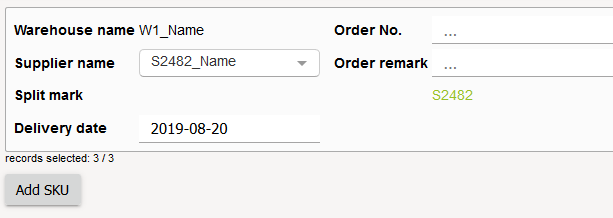
3. Once an order is sent, it is moved to the Incoming Orders window. Placed orders window now.
It is possible to resend the order by e-mail in the Placed orders window. Clicking on the green envelope in the list next to the desired order will open a window asking if you want to forward it. After confirmation, the program will forward the order according to all its settings.
This function is also available to resend multiple orders at once – place the check mark on the desired orders and click „Resend orders“.
If the e-mail cannot be sent, the red envelope will light up.
Arriving confirmation of ordered stock (goods receiving/confirmation)
After agreement with customer on confirmation of incoming orders, it is not necessary to confirm orders in STOCK-M manually.
1. The arrival of orders is confirmed (received/registered), when ordered inventory arrives to the storage place.
2. In menu item „Orders“ select type of order „Placed orders“.
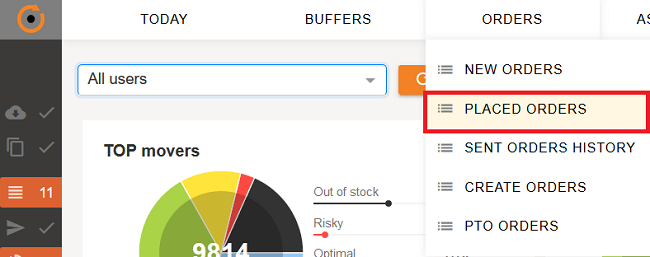
3. In the window that opens, you see a list of orders, sent to the supplier (the user can see only those orders, sent to suppliers, that are delivered to the storage place, assigned to user).
Orders are sorted by delay. At the top of the list are the most risky (most delayed) orders. Meaning of Delivery Status field:
BLACK – order is already late.
RED – order can delay or have to come right now.
YELLOW – order is in the halfway.
GREEN – new order.
% number shows how much time left until the delivery deadline, promised by the supplier.
1) You can see a picture of a blue truck or human being near the order status window, which means:
- The picture of truck
 shows, that orders with quantity on the way (regular and special orders with quantity on the way), in which quantities of ordered goods are valued by forming other orders (valued quantity on the way
- The picture of human
 shows, that it is a special order (without quantity on the way) and quantities of good, in this order, will not be valued, while forming other orders (not valued quantity on the way).
2) In placed orders window you see green or red envelope – it is an indicator, showing if an order was sent to a supplier successfully:
- If near sent order there is green envelope – order was send successfully for specified receivers from email server;
- If near sent order there is red envelope – order was not sent for specified receivers from email server. You have to click with a mouse on this indicator – the system will resend the order (when the order will be sent successfully, a green envelope will appear).
4. After clicking , you will come inside the coming order:
1) If you received all order with quantity that was ordered, click  (all lines in opened order are marked, by default). Such order you can confirm without entering inside: mark all arrived orders in placed orders window and click
  ;
;
2) If you received part of order with quantities, which was ordered, then put check marks on arrived positions, click  ;
;
3) If you received part of ordered quantity, click , which is in the field „Just arrived quantity“. In the table that appears on the screen, enter arrived quantity, press "Change quantity";
4) !!! IMPORTANT. If for the supplier is set "partial delivery" of order (i.e. the supplier can execute the order in several times), then not arrived quantity will stay in the system to wait for the next part of the order. If for the supplier is not set “partial delivery” of order, then left part of the order will be removed automatically. What part of the order is already arrived, you can see in the list of Placed orders, in the column “Completed”. In this column you can see what percent of orders are already arrived.
Coming orders corrections
1. Orders are corrected when supplier changes ordered quantity (this correction is necessary that ordered goods quantities would be as more correct as possible in the system, to which system corresponds when it makes other orders from that supplier. Highly recommended when a long delivery time is agreed with the supplier).
2. In the menu item "Orders" menu, select order type "Placed orders".
3. In the window that opens, you will see a list of orders, sent to the supplier (user see only those orders, sent to suppliers, that are delivered to storage location, assigned to customer).
4. After clicking the pencil, you will enter the adjustable order :
1) If you want to change ordered quantity, you have to click , in the box „Incoming quantity“;
2) If you want to add an item, which was not ordered, but supplier will deliver it, then click button :
- a filter appears on the screen where you should enter the item (fragment) you want to add. After filtering the item, tick it and click
 . An item will appear in placed order with 0 quantity;
- Enter ordered quantity and click to save changes:
- Items, which quantity = 0, will be removed from the order, during saving process
- Changes will be made only STOCK-M, don‘t forget to inform the supplier about added item (make changes in accounting program).
3) If you got necessary and important information about your ongoing order, you can enter such information in the box "Order remark". You'll see that remark when you open coming/placed order or in the coming orders window in column "Order remark" - information field.
4) If the supplier changed order number or for any other reasons order number was changed, correct order number also in the coming order, in the field "Order No." (it is especially IMPORTANT when with the customer is agreed automatic order confirmation/registration, according order number or formed file for orders correction/registration, which is manually loaded into STOCK-M).
5) Placed orders status – „Supplier has confirmed the order“. For some orders is necessary additional control if supplier got and confirmed the order. For this is coming/placed order status „Supplier has confirmed the order“.

- It is possible to put a check mark inside the coming order as well as in orders list.

- In placed orders the field is also visible, but it is not possible to edit it.
6) When you will make any changes, don‘t forget to it.
Observation of late delivered orders
Sent orders are monitored, if the supplier is not late to deliver sent the order to him.
1. In menu point „Orders“ select type of orders „Placed orders“ (or in the window „Today“ click „Delayed orders“).
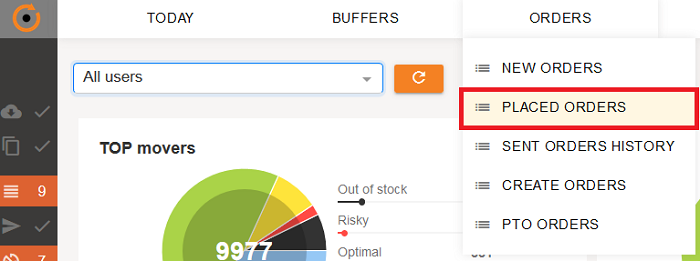
2. In the window, which opens, you can see the list of orders, which was sent to the supplier (user see only these sent orders, to the suppliers, which are delivered to the warehouse, which is assigned for user.
- Near delayed orders to deliver you see red clock
 .
.
3. Call for that supplier or contact in other way, which delay to deliver the order, and find out why (for what reason) the supplier was not able to fulfill your order and when is he going to fulfill it – what is new arrival date.
1) When you will know the new arrival date, click on the red clock or on the delivery date field, which is near delayed orders in coming (placed) orders window;
2) Choose new arrival date, when the supplier will deliver the order, and save changes;
3) Order „Delivery status“ is not recalculated according new arrival date (i.e. even if present delivery date is not started yet – delivery status will be black), such order is marked in yellow color among other coming orders.
Cancellation of arrived orders (removing)
Orders are removed, when the supplier refuse to execute earlier confirmed order.
1. In menu point „Orders“ select type of order „Placed orders“.
2. In the window that opens you can see the list of orders, which were sent to the supplier (the user see only those placed/sent orders for suppliers, which are delivered to storage place, assigned to user).
3. When you click the pencil , you will enter inside the order, which you want to remove: mark all the lines of order (when you open the order all lines are marked by default), and click .
OR
Remove orders by not going inside the orders: in the Placed orders list mark all necessary orders and click  .
.
Sent orders history
If you want to check/review the order, which is already executed/completed or was annuled, then you can find it in window „Sent orders history“.
In this window you can see the day when the order was sent, what is expected order arriving day (i.e. that day, when the order had to come according specified supply shedule), actual arriving (date, till which exactly arrived completed order (i.e. was confirmed/registered), date of annulment (if the order was annuled).
Also, in the list it is possible to see order amount in money, volume, weight, responsible manager and etc. – you need to choose which fields you want to be visible.
After clicking the pencil you can see all content of order (order can‘t be edited).
If the order did not arrive on time, within the specified period, and the manager changed the delivery time, so when the order will come, he will be visible in yellow background on this window, which means that the order was delayed. If the delivery date was not changed and the order is closed after the delivery date, a clock will be visible next to the order .
By default, when you open the window „Sent orders history“, all orders, which were sent during last month, are filtered.
If you want to see other orders, fill in search criterias in filter and change sent date/or specify other necessary information.
Suppliers supply schedule
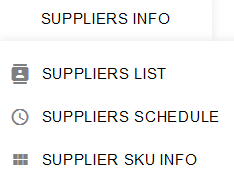
If you want to see supply schedules of all suppliers (when orders are formed/placed for suppliers). Select Suppliers info → Suppliers schedule:
1. In the window (filter) that opens, select which suppliers, storage places and etc. Orders formation schedules you want to see, click  :
:
NOTE. In this window you will see only these suppliers, for which is specified orders formation schedule.
The list of supply schedules can be exported. If you want to export the list, press :
1) When you select the standard xls or csv format, all visible columns will exported.
2) When you select "Download XLSX (supplier form)", you will download a list of all suppliers (for which is created at least 1 order formation schedule) and their parameters.
2. If you want to change order formation schedule, you can do it by placing the cursor on the required line or by marking desired line and clicking  .
.
1. In the window that opens fill in the fields, which you want to change. In the window that opens, fill in the fields you want to change. You can edit several selected schedules at once in the list. Remember to save all changes, which you made.
3. When you click on the pencil , you will open a new card of that supplier, in which line of schedule you are.
More about suppliers and their parameters look: Supplier settings.