DAILY TASKS WITH STOCKM (DASHBOARD)
Daily reports of exchange data ( "Data import" ) and orders ("New Order") you can see in StockM window on dashboard and also via menu:
• TODAY -> Data import. In this window you see information about the renewal of warehouses (you have seen such information in the Data import letter till now);
• TODAY -> Orders created. In this window you see a list of orders that should have been created (according to schedule and demand) but not created.
If data exchange occurred successfully – you can work with StockM.
When you login to the system, during data exchange, you can see notification “It is recommended not to work, data exchange is in process”.
„Today“ – Tasks and indicators
Every user, who login to StockM see his tasks and indicators. Every user every day in dashboard have to check and complete these tasks till specified time (recommended to do during the first part of the day). For virtual user „Unassigned manager“ assigned items cards and orders, which is unclear who belongs to (for which manager) – it is possible to review his tasks by selecting menu item: Today --> ALL USERS TASKS.
1. There is a list of daily tasks on the left side of the window (while job is not done – you can see orange numbers or exclamation point near it):
1) Data exchange. Contact system administrator urgently – we recommend to start to work with the system only when data will be renewed successfully. Some part of data might be renewed, then we recommend to work with those storage places, where data were renewed (information, which storage places were renewed, you see in e-mail “Data import OK/Error/Warning).
2) Orders created - orders were not created according to set orders formation schedule. Part of orders can be created. Usually the main reason of not created/partly created orders – not renewed data or it is not enough of balance in central storage place to fill regional storage places (information, in which storage places orders were not created/partly created, you see in e-mail “Orders import OK/Error/Warning). If there is another reason why orders were not created, contact system administrator.
3) New orders (e.g. 10) – according schedule new orders are created, but not sent to suppliers. If you click this note, it will take you to the window, where you will be able to manage and send orders.
4) Orders sending error (e.g. 2) – it means that orders did not reach receivers (e-mail with order could not be send from mail server). In this case near placed order appears “red envelope”, you need to click on it with the mouse and order will be sent again (when order is sent successfully, a “green envelope” appears near placed order). While order is in shipment process/on the way – “yellow envelope” appears near order. If its color doesn’t change longer than 1 minute – contact system administrator.
5) Delayed orders (e.g. 3) – there are 3 orders on the way, which didn’t come to specified date. You will open placed orders and delayed orders window, by clicking this note. If orders didn’t come yet, write new coming date.
6) Unconfirmed orders (e.g. 2) - it means there are 2 unconfirmed supplier orders. In supplier card section “Order data” there is setting „Supplier has to confirm the order in xxx days” – number of days, during which supplier has to confirm the order. By default – 0, it means that additional confirmation from supplier is not necessary. When the number of days, which are specified in supplier card, pass, after the order has been shipped – order is included into the list of delayed to confirm.
There is a checkbox inside placed order:

· You can put a check mark inside the coming order and in the order list.
· The field is visible among orders also, but not under the editorship.
7) Uncompleted SKU data (e.g. 20) – there are 20 new or “recovered” items, which belong to manager. When you click on this name, you will enter into new items buffer window, where you need to fill missing data of new or “recovered” items.
8) Buffers to decrease (e.g. 5) – system suggests to decrease buffers for 5 items, because stock level is too big. After clicking on this inscription, you will go to buffers to decrease window, where you need to reduce the product buffers.
9) Buffers to increase (e.g. 10) – system suggests to increase buffers for 10 items, because stock level is too low, items might be in lack or already are in lack. After clicking on this inscription, you will go to buffers to increase window, where you need to increase the product buffers.
10) Warnings - these are critical system errors that need to be corrected, otherwise will be formed incorrect orders / orders will not be formed, etc. You can see such errors through Taskbar → Warnings → Critical warnings.
2. The timer below the tasks list shows how much time left to finish daily tasks (for example, up to 4 p.m.). After 4 p.m. your manager will get an e-mail, informing which tasks have been done, which not.
3. On the right side of the window there are the indicators of the situation in the company (or what is the situation with items of individual manager):
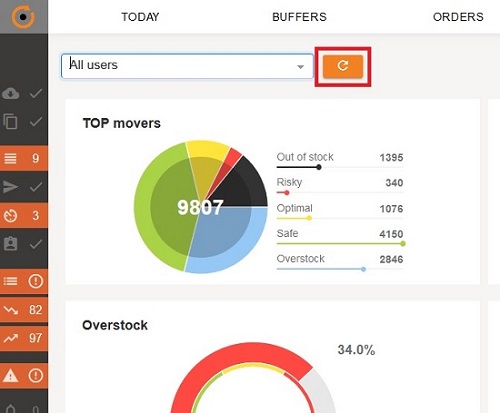
1) A movers, New SKU. Period items – the graphs show what is the situation today with these items (DTA items, they have to be in the storage place), i.e. in which buffer zone is the balance. When you move the mouse on each color, you will see how many item names are in each part of the buffer zone.
- Black color shows how many item names are missing today. Clicking on this part of the graph will bring you to the "Assortment" window, where you will see only the missing items.
- Blue color shows how many item names are in surplus today. Clicking on this part of the graph will bring you to the "Assortment" window, where you will see only surplus items.
- Red color shows how many item names are in risk zone today. Clicking on this part of the graph will bring you to the "Assortment" window, where you will see only these items, which can quickly run out.
- Yellow color shows how many item names are in the optimum zone today. Clicking on this part of the graph will bring you to the "Assortment" window, where you will see only these items, which balance is optimal.
- Green color shows how many item names are almost full buffer. Clicking on this part of the graph will bring you to the "Assortment" window, where you will see only these items, that have a full/almost full buffer.
Look to these items, especially pay attention to black items: if orders are made for them, if orders are not made – can you order these items earlier, without waiting for supplying schedule time?
2) Overstock (currency from customer accounting)– what is the percentage of surplus stocks in all company (or individual manager) stocks, (weekly rate);
3) Lost sales (currency from customer accounting) – what is the percentage of lost sales from all company (or individual manager) items turnover (weekly rate).
4) Turnover (d.) – shows for how many days there are all company stock (or individual manager) in storage places (weekly rate).
5) Orders today – provided list shows how many lines in orders were sent without any correction (by system), how many lines have not been sent yet, how many lines have been sent with corrections, and how many lines have been canceled.
6) Order reasons – provided list shows for what reasons ordering quantities were changed, items removed from orders. There are given 5 the most common reasons and how many times they were chosen to correct ordered quantity.
Do not forget to press the button  , when you check window "Today". When you click on it, part of rates will be renewed (A group, New SKU, SKU's in promo/seasons items and order line information).
User Taskbar updates automatically - you don't need to update it.