Changes for page AKCIJOS NUSTATYMO TAISYKLĖS
Summary
-
Page properties (1 modified, 0 added, 0 removed)
Details
- Page properties
-
- Content
-
... ... @@ -390,10 +390,47 @@ 390 390 391 391 * After the end of the promotion, the PQ and the promotional display quantity are set to zero. 392 392 393 -== „ Kanibalų“ grupės prekės ==393 +== „Cannibal“ group items == 394 394 395 - „Kanibalais“vadiname prekes,kurios akcijosmetu“atiminėja“vienakitospardavimus.395 +"Cannibals" are the items that "eat" sales of each other during the promotion. The "Cannibals" items are managed in the same way as other items in StockM. They have their own buffer in a specific warehouse/store/branch. However, in order to manage such items during a promotion automatically, you must combine them into a group: 396 396 397 - Prekės „Kanibalai“ valdomostaippat,kaip irkitosprekėsesančiosStockM.Josturi savo buferįkonkrečiamesandėlyje/parduotuvėje/filiale. Tačiau norint automatiškai suvaldyti tokiasprekesakcijosmetu, reikia jas sujungti į grupę:397 +create item group: StockM -> Other -> SKU group -> New 398 398 399 -* sukurti prekių grupę: StockM -> Kita -> SKU grupės -> Naujas 399 +[[image:creat.PNG]] 400 + 401 + 402 +• Specify the name of the group; 403 + 404 +• Place a check mark to make the group active; 405 + 406 +• Enter the "eaten sales" coefficient (<1). The coefficient shows how much the quantity ordered will decrease for an item that is not participating in the promotion: 407 + 408 +○ 0 – indicates that there is no „cannibalism“; 409 + 410 +○ 1 – cannibalism 100 %, that means if there are 2 products in a group and there is a promotion organized for one item, it takes away („eat“) all sales of the other product; 411 + 412 +○ For example 0,5. If sales increase by 10 units, entering a coefficient of 0,5 means that sales of the item not participating in the promotion decreases by 5 units (50 %). 413 + 414 +• Specify group type „Cannibal“ 415 + 416 +[[image:group.PNG]] 417 + 418 +• Assign a SKU group to the items that "eat" sales of each other (enter items into a group). 419 + 420 +Press [[image:image-20200324165637-1.png]], in order you could specify groups for the items; 421 + 422 +[[image:skugroup.PNG]] 423 + 424 +In the SKU Group window, you'll see how many items are combined into a group. 425 + 426 +[[image:sku in group.PNG]] 427 + 428 +• When the group is described and is active, the actions will take place automatically during the promotion. The promotion quantity (PQ) is managed in the promotions. All actions will begin when the promotion is activated: 429 + 430 +○ If at least one item enters in the promotion, orders will be reduced for the other items in that group; 431 + 432 +○ During order formation PQ is calculated for the promotional item and for the items dot not participating in the promotion according to the indicated coefficient (negative PQ is calculated for non-promotional items); 433 + 434 +Negative PQ is calculated daily during data exchange for all non-promotional items belonging to those groups which have active promotional items. If the group no longer contains promotional items, the PQ value becomes zero automatically. 435 + 436 +○ At the end of the promotion orders will recover, that means orders will be formed as it was before the promotion, according to the indicated buffer.
StockM has 2 promotion modules: Promo and Promo2. Standard, a Promo module is installed with the STOCKM STD module. Meanwhile, module Promo2 is designed for companies that are more likely to use the promotion feature, requiring deeper pricing and inventory analytics.
Promo2 is an additional optional module and has an extra cost. This module is activated only for the whole STOCKM program.
Only one of the modules can be used at the same time: Promo or PROMO2.
Promotion module PROMO
Creating new promotion and setting rules.
Promo module is designed to manage short-term promotions with a strictly defined date.
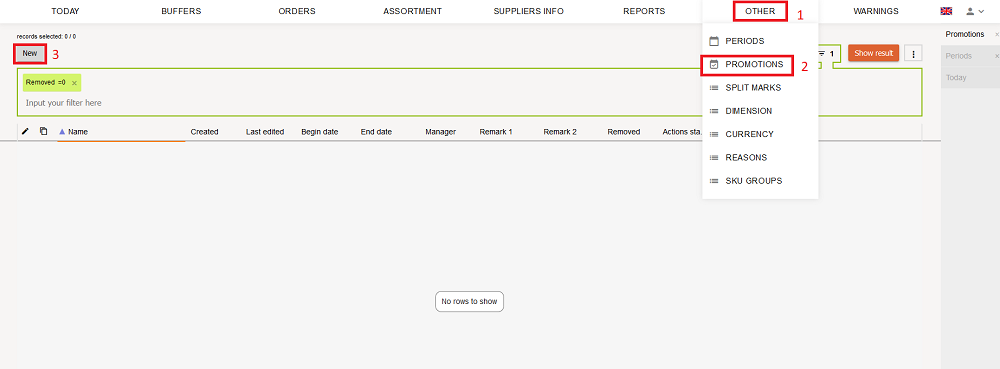
For the items, for which a promotion is being planned, you have to set promotions: STOCK-M -> „Other“ -> „Promotions“ -> click „NEW“.
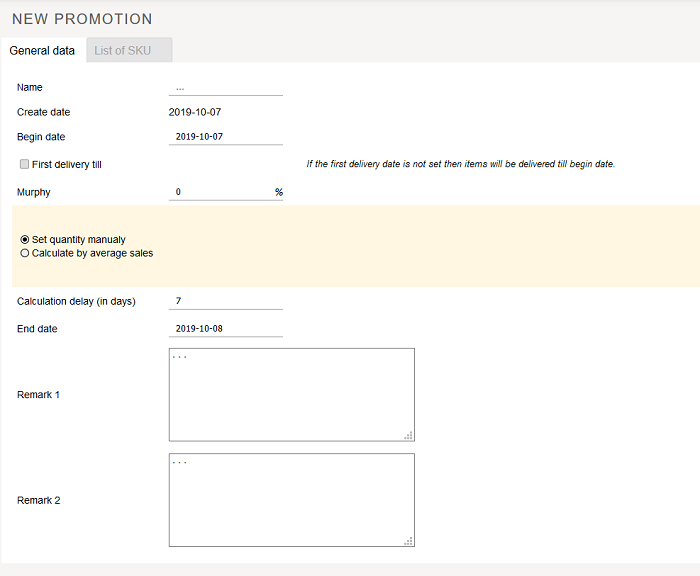
- Promo quantity (PQ) is managed in promotions. PQ for the start of the promotion period is either entered manually or calculated according to the average sales for selected period, then it is recalculated before each order, if there is a conversion delay (the size/amount can be specified in the description of the promotion).
- In promotions you can specify an additional Promo display Qty., called „Safety quantity“ (SQ) – size, managed only during promotions, entered manually and doesn‘t change during all promo validity period.
- PQ and SQ are involved into standard formula for ordered quantity.
1. General data. In the new opened promotion window enter the "head" information (information, set in the "head" will be applied to all items):
1) Name (name of the promo must be unique);
2) Start date, when the promo has to start (!!! The date must be today and newer);
3) First delivery till (if needed). When the supplier is unable (there is no sufficient time), within the last delivery before the promo starts, to deliver goods to all warehouses it is possible to specify an additional date: "First delivery till", which indicates date till when the first order should be delivered.
This date can be set manually by the user. The date can't be later than the start date of the promotion and earlier than today. If this date will not be specified, the goods will be delivered before the start date of the promotion:
- if "First delivery till" checkbox is selected, the field for entering date is visible;
- if „First delivery till“ checkbox is not selected – the field for entering date is not visible.
Primary PQ calculates and records automatically by itself for the last order, which arrives till the specified date (before the first delivery or the start date of the promotion).
4) Merfis. Merfis can be entered in the promotion:
- By default it is written/entered 0 (in the new or copied promotion 0);
- Field for editing is blocked with the start of actions;
- Merfis is added to the main promo quantity (PQ) and to the PQ, which is recalculated with every order in the promotion.
5) Calculation/entering of the primary promo quantity (PQ) (active action is marked by dot):
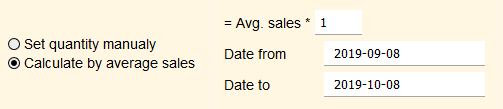
- Quantity is entered manually – mark, if you want to assign PQ for every item, which is participating in promotion.
- Calculate according to average sales – mark, if you want to calculate PQ according to average specified period sales, for all items, which are participating in promotion.
6) Conversion delay (in days) - PQ conversion delay i.e. Promo quantity will not be recalculated for a specified number of days from the start of the promotion.

7) End date – promotion ends that day.
8) Notes – enter the desired information.
2. Promotion data.

When you set up the rules for the promotion, you need to determine the list of items, for which promotion will be applied:
1 Way.
- Click the button "Add SKU" at the top of the promotion data window → Filter: Specific Item, etc. → put the check marks next to the goods/items, for which the rules will apply → click "Add items to promotion".
- If you want to involve all items, put the check mark at the top of the window, then all items will be marked.
- Selected items appear in the "Promotions" window. In this window you can open product graphic by clicking on the icon
 .
.
- If it is noted that the PQ is entered manually - don't forget to fill in PQ values.
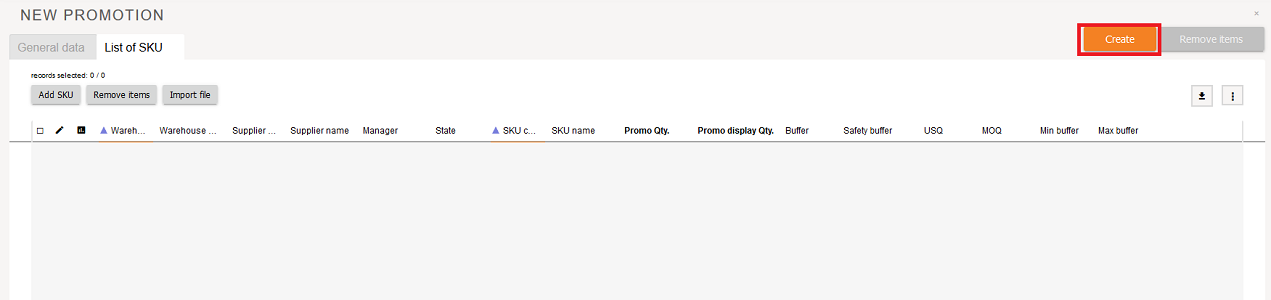
- Click „Create“.
2 Way.
- It is possible to involve items to the promotion with excel table help. Download items upload template through the button
 and in the saved excel document fill in ONLY „WHITE“ COLUMNS (Warehouse/shop code‘ SKU code).
If you need to determine PQ for each item (check mark „Quantity entered manually), then fill in PQ and Promo display Qty columns.
If you don‘t need to fill in PQ and Promo display Qty columns, leave them empty.
- Upload filled table to the Promotion data window by clicking the button „Upload file“.
The system checks if the table is filled in correctly. If there is an error in the table - the system opens a message, which shows in which row of the table is an error;
If everything is filled in correctly, the table is uploaded into STOCK-M and the items provided in the table (and their parameters) will appear in the "Promotions" window (in the promotion window you will see such an amount of PQ and Promo display qty, which you filled in the table).
- Click „Create“.
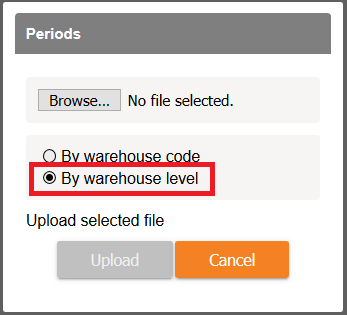
If you need to enter a lot of data, when creating a promotion for a customer who has a lot of warehouses, they can be uploaded / imported via a form / template (import data by level of warehouses)
- Need to download uploading form:
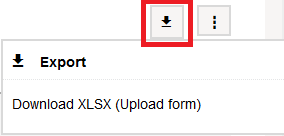
- To fill in the fields and upload the file:
Correcting promotion rules and items.
If you want to correct promotion rule, items: STOCK-M -> „Other“ -> „Promotions“ -> click  .
.
1. No corrections are restricted, while the promotion didn't start. Before the start of the promotion you can change:
1) Start date, but the date must be newer than today;
2) First delivery to date;
3) Change the values for the PQ calculation formula and the selected items PQ and Promo Display Qty values, if it is marked that quantity is entered manually.
- If it is marked that quantity is entered manually, then you can change the values for PQ and Promo display qty by by uploading data through the form. When you download the form, it will be filled in with all items in the promotion (if the promotion was saved). In the table you saved, change the PQ and Promo display qty values. Then import the table into STOCK-M, click "Upload File", select the table where you made the corrections.
4) End date, but the date must be newer than today and newer than promotion start date;
5) To insert new item, which will participate in the promotion. For the newly inserted item is valid the same start date, end date, actions, as for the other items, which participate in this promotion:
- You can insert a new item in the STOCK-M promotion window. In the table, where items are assigned for the promotion, select "Add SKU" → select the item, which you want to insert → click "Add item to promotion". Selected item will appear in the general list of items, which participate in promotion. Find the newly inserted item and enter the PQ and the Promo display qty for it (if it is set that the quantity is entered manually. If the quantity is not entered manually, then the PQ formula will be valid);
- You can upload a new item to the promotion. You can save the list of items, which are in the promotion, into excel by clicking „Download XLSX (upload form)“ in the export menu item. Enter the item you want to insert at the bottom of the Excel table list and fill in the "White columns". Upload the Excel table back into promotion by clicking "Upload File".
- NOTE: in the adjusted promotions window will be uploaded additional items, which were described in the inserted excel table.
6) Remove the item from the promotion. Mark the item in the promotion window, which you want to remove and click  .
.
If you want to remove all promotion – mark all the items, click , all items, which participate in the promotion, will be removed.
2. When the promotion starts, you can‘t change:
Can‘t change the „head“.
3. When the promotion starts, you can change:
1) You can add the item.
2) You can remove items during the promotion period.
3) You can remove all promotion.
4) You can put forward the end date, but the date must be newer than today and not later than promotion end date.
4. When you make changes, it is necessary to save it, by clicking the button  .
.
5. Item, for which the promotion has started, is highlighted by violet color (In the Inventory window, inside the order).
Creating new promotion based on old promotion.
If you need to set a promotion for items, for which the promotion has happened in the past or is happening now, you can create such promotion by using previous/existing promotion.
1. When you open promotion window near the promotion, which you want to copy, click the icon ... The system will create a new promotion (you will see the title of the old promotion in the name of promotion + the date of today) and items will be inserted to this promotion automatically, which participated in the previous promotion.
2. Fill again the "head" of promotion. Insert or remove items, if it is necessary, and click "Save".
Additional information.
• PQ is displayed in the SKU graph, the value is visible from the start of the actions to the end of the actions. Displayed amount PQ + DQ. Draw by a separate line - by taking on it shows different values (how many PQ and how many DQ).
• The start and the end of the promotion is showed in the SKU graph (start is with a green vertical line, end is with red vertical line).
• The buffer in the promotions is valued so:
1. The buffer doesn‘t participate while calculating primary PQ.
2. The buffer doesn‘t participate while recalculating PQ in the promotion. PQ is recalculated in the promotion by evaluating sales from the beginning of the promotion.
3. In the ordered quantity formula, when the item participates in the promotion:
- When PQ>BUF, PQ involved into the order, buffer is ignored,
- When PQ<=, the BUF is involved into the order, PQ is ignored.
Entering the primary PQ manually, you don‘t need to evaluate the buffer.
• PQ and DQ after the promotion is set to zero.
• The buffer is locked for all promotion period.
• During the promotion, orders are formed till the PQ or top of buffer, depends on which value is bigger.
• Promotional items in StockM are highlighted in violet color in all windows, where the SKU is visible (from start to finish).
• Overlapping promotions are showed in system warnings.
• The promotion start actions always occurs for the last order before the promotion.
Promotion module PROMO2
Promo2 is an additional optional module and has an extra cost. This module is activated only for the whole STOCKM program.
Functions of promotion module PROMO2
Promotion module Promo2 :
• Information on promotions can be brought from the customer\'s accounting;
• Promotions can be brought up in StockM directly (goods can be entered separately or a list of items via a template);
• Each item is managed separately;
• The system will perform the promotion if it is marked as active;
• The promotion quantity (PQ) managed in the promotion, for which one of the 4 algorithms can be selected for calculation:
- Manual setting- is specified manually;
- According to the average sales from the specified period;
- According to the last promotion:
- Coefficient by old promotion - the average sales of the last promotion are multiplied by this coefficient.
- Coefficient by date - in this case, when the program does not find the former promotions in the history, the calculation takes place by multiplying the average sales by a coefficient.
- According to the previous discounted promotions. The program looks for the former last promotion based on the specified discount percentage/-5%. After finding a match, the sales of the former promotion are used. If the last promotion is not found, sales will take from the specified period.
- If no such promotion is found, the system PQ calculates on the basis of previous promotions (according to the last campaign).
- Coefficient by date – in the case of non-finding of promotions, the calculation shall take place by multiplying the average sales by a coefficient.
- Overlapping/intersecting promotions can be managed. Multiple promotions can be applied to the same item at the same time. In this case, promotion, which ends later, will remain active in the system, and PQ will be an amount of the both promotions. Overlapping promotions are shown in the system warnings;
- There is a possibility to copy a promotion from another item, in which case all the assigned terms of the former promotion are copied. After copying, the conditions can be changed because each promotional item is managed separately in the PROMO2 module.
- Inactive promotions are shown in the system warnings. Inactive promotions for which action is taken sooner than after 3 days must be approved or removed.
The Promo2 module has the standard function for the promotion module:
• Additional exposure quantity may be indicated in the promotion, the quantity is being managed only through promotions, entered manually and unchanged throughout the lifetime of the promotion;
• The buffer is not involved in the calculation of the initial promotional quantity;
• Buffer is being freezed for the whole campaign Period
• The quantity to be ordered formula when the item participates in the promotion:
- When the PQ > buffer, in the order is included PQ, the buffer is ignored;
- When PQ < = buffer, in the order is included buffer, the PQ is ignored.
• PQ is recalculated in the promotion taking into account sales from the start of the promotion;
• You can specify a Murphy in the promotion. By default, 0 is entered. With the start of actions when the campaign starts, the edit field is blocked. Murphy is attached to the original PQ and to the PQ, recalculated with each order;
• PQ is rendered in the product graph from the start to the end of the campaign action. Represented the sum of the PQ + exposure quantity. The amount shown in the item chart with the mouse pointing on the PQ and the platen line of exposure quantity is displayed in separate values;
• The initial PQ is counted and recorded for the last order that has to arrive before the specified date indicated day (before the first delivery or until the start date of the promotion);
• While the promotion is not started (actions have not begun), you can change settings, parameters , algorithm;
• No correction is possible when the promotion starts;
• There is a possibility to specify the first order to be delivered by the date. If no date is specified, the items will be delivered before the campaign start date.
• In StockM, the promotional items are highlighted with a lilac color (from the beginning of the promotion to the end) in all the windows where the item is visible;
• The item chart shows the start and end of the promotion (starting with a green vertical line, ending with a red vertical line);
• You can remove an item from the campaign.
Creating new Promotion in the PROMO2 module and setting rules.
When promotion is set manually, enter the items: StockM-> "Other"-> "PROMOTIONS"-> "NEW"
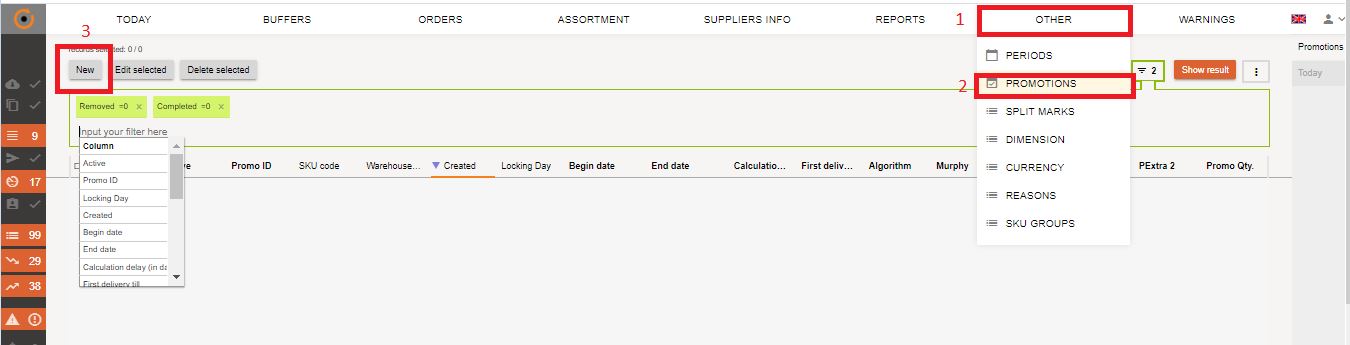
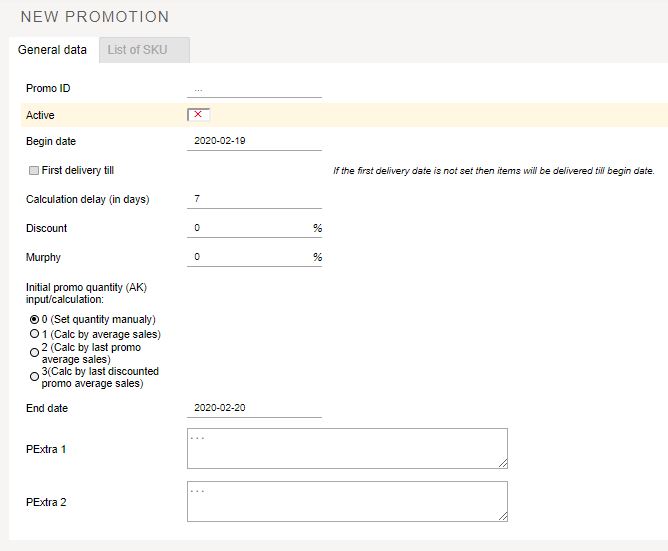
In the window that opens, fill in the fields:
1. General data.
- Promo ID-the name of the promotion must be unique;
- Active-promotion can be active or not. The system will carry out the promotion if it is marked as active;
- Start date-date of start of promotion;
- First delivery - till date- in case the supplier is not able to deliver the goods with the last shipment to all departments/warehouses till the start of the promotion, specify the delivery date until when the first order must be delivered. The initial PQ is counted and recorded for the last order that is to arrive before the specified date (before the first delivery or until the start date of the promotion);
- PQ recalculation delay (in days) – the specified number of days from the start of the promotion will not be recalculated in the promotional quantity.
- Discount – Campaign discount percentage;
- Murphy – a percentage of Murphy can be entered in the promotion;
- Introduction/Calculation of initial promotional quantity (PQ) – Select one of the 4 algorithms for calculating the promotional quantity (PQ):
- 0 (Set quantity manualy) – Specify manually;
- 1 (Calc by average sales)-from the specified period;
- 2 (Calc by last promo average sales)-by the last promotion;
- Coefficient by old promotions - the calculated average sales of the last promotion is multiplied by this coefficient;
- Coefficient by date – in the case of non-finding of former promotions, the calculation will take place by multiplying the average sales by a coefficient.
- 3 (by last discounted promo average sales) – the program searches for the specified discount percentage (/-5% of the last promotion). Uses sales of the found promotion. When the last promotion is not found, it takes sales from the specified period;
- If no such promotion is found, the system will calculate the ' PQ ' on the basis of the previous promotions (according to the last promotion);
- Coefficient by date – in the case of non-finding of former promotions, the calculation takes place by multiplying the average sales by a coefficient;
- End Date: The end date of the promotion;
- Pextra 1 – additional information;
- Pextra 2 – additional information.
2. List of items in the promotion.
After you specify the promotion general data, indicate the items that will be present in the promotion:

- Method.
- Click the button "Add SKU" → Filter: Specific Item, etc. → put the check marks next to the items, for which the promotion rules will apply → click "Add items to promotion".
- If you want to add all items, put the check mark at the top of the window, then all items will be marked.
- Selected items appear in the "Promotions" window
.
- If it is noted that the PQ is entered manually - don't forget to fill in PQ values.
- Click „Create“.
2. Method.
- You can add items to a promotion with excel table help. Download the item upload template using the button
 -> Download XLSX (order form) and in a saved Excel document fill ONLY YELLOW COLUMNS (SKU code; Warehouse code). If you need to set the promotion quantity (PQ) for each item, the "0 (Set quantity manually)" check box is selected, and then fill in the columns: the quantity of the promotion; promotion display quantity. If you do not need to fill in the promotion quantity and promotion display quantity columns, leave them blank.
 - Load the filled table in the campaign data window by pressing the "Upload file" button. If everything is filled in correctly, the table is uploaded to StockM, and the items provided in the table will appear in the "Promotions" window “List of SKU”.
- Click "Create".
After the promotion is created, the items are visible in the "Promotions" window:

PROMO2 rules, editing of the items.
To edit promo settings and items: STOCK-M → "Other" → "promotions"
- The Promotion will take place if the promotion is marked as active.
- All amendments are available until the promotion has begun. You can change up to the start of the promotion:
- Activity;
- Promo ID (name of the promotion);
- Start date;
- First delivery to... Date;
- The delay in the recalculation (in days);
- The discount percentage;
- The percentage of Murphy;
- The algorithm and the initial PQ calculation algorithm;
- The end date;
- PExtra 1 (PASTABA1);
- PExtra 2 (PASTABA2);
- The quantity of the promotion (PQ), if it is marked that quantity is filled in manually;
- The promotional display level if it is marked that quantity is filled in manually;
If there is a mark that the quantity is entered by hand, you can change the values for the PQ and the promotional display quantity by uploading the data using the form. When the form is downloaded, it will be filled in with all the items in the promotion (if the promotion has been saved). In the saved table, change the values for the PQ and promotional display quantity. Import the table into StockM: Click "Upload File" and select the table where you made corrections.
- Insert a new item to participate in the promotion. You can copy a promotion from another item, in which case all the assigned terms of the promotion. After copying, the conditions can be changed because in the PROMO2 module, the promotional items are managed individually.
- Remove the item from the promotion. In the Promotion window, select the item you want to remove and click "Delete selected".
- The start-up actions of the campaign always are accomplished for the last order before the promotion start.
- When the promotion starts, you can change:
- An item can be added;
- An item can be removed;
- You can set the earlier end date, but the date must be later than today but not later than the end date of the promotion;
- The buffer in the promotions is valued as follow:
- The buffer is not involved in the calculation of the primary PQ;
- The buffer is frozen over the whole promotional period;
- The buffer does not participate in recalculation of the PQ in the promotion. PQ in the promotion is recalculated evaluating sales from the start of the promotion;
- During the promotion, orders are formed up to the top of the PQ or buffer value, depending on which value is higher:
- When the PQ > buffer, PQ is included in the order, the buffer is ignored;
- When the PQ < = buffer, the buffer is included in the order, the PQ is ignored.
- After the end of the promotion, the PQ and the promotional display quantity are set to zero.
„Kanibalų“ grupės prekės
„Cannibal“ group items
„Kanibalais“ vadiname prekes, kurios akcijos metu “atiminėja“ viena kitos pardavimus.
Prekės „Kanibalai“ valdomos taip pat, kaip ir kitos prekės esančios StockM. Jos turi savo buferį konkrečiame sandėlyje/parduotuvėje/filiale. Tačiau norint automatiškai suvaldyti tokias prekes akcijos metu, reikia jas sujungti į grupę:
- sukurti prekių grupę: StockM -> Kita -> SKU grupės -> Naujas
"Cannibals" are the items that "eat" sales of each other during the promotion. The "Cannibals" items are managed in the same way as other items in StockM. They have their own buffer in a specific warehouse/store/branch. However, in order to manage such items during a promotion automatically, you must combine them into a group:
create item group: StockM -> Other -> SKU group -> New

• Specify the name of the group;
• Place a check mark to make the group active;
• Enter the "eaten sales" coefficient (<1). The coefficient shows how much the quantity ordered will decrease for an item that is not participating in the promotion:
○ 0 – indicates that there is no „cannibalism“;
○ 1 – cannibalism 100 %, that means if there are 2 products in a group and there is a promotion organized for one item, it takes away („eat“) all sales of the other product;
○ For example 0,5. If sales increase by 10 units, entering a coefficient of 0,5 means that sales of the item not participating in the promotion decreases by 5 units (50 %).
• Specify group type „Cannibal“

• Assign a SKU group to the items that "eat" sales of each other (enter items into a group).
Press  , in order you could specify groups for the items;

In the SKU Group window, you'll see how many items are combined into a group.

• When the group is described and is active, the actions will take place automatically during the promotion. The promotion quantity (PQ) is managed in the promotions. All actions will begin when the promotion is activated:
○ If at least one item enters in the promotion, orders will be reduced for the other items in that group;
○ During order formation PQ is calculated for the promotional item and for the items dot not participating in the promotion according to the indicated coefficient (negative PQ is calculated for non-promotional items);
Negative PQ is calculated daily during data exchange for all non-promotional items belonging to those groups which have active promotional items. If the group no longer contains promotional items, the PQ value becomes zero automatically.
○ At the end of the promotion orders will recover, that means orders will be formed as it was before the promotion, according to the indicated buffer.