Changes for page AKCIJOS NUSTATYMO TAISYKLĖS
Summary
-
Page properties (1 modified, 0 added, 0 removed)
Details
- Page properties
-
- Content
-
... ... @@ -205,84 +205,115 @@ 205 205 ))) 206 206 207 207 208 -== AkcijųmodulisPROMO2 ==208 +== Promotion module PROMO2 == 209 209 210 -**Promo2 yrapapildomaiapmokestinamasirpasirenkamas modulis,aktyvuojamastikvisaiStockM programai.210 +**Promo2 is an additional optional module and has an extra cost. This module is activated only for the whole STOCKM program.** 211 211 212 -=== AkcijųmodulioPROMO2fiunkcijos===212 +=== Functions of promotion module PROMO2 === 213 213 214 - AkcijųPROMO2modulyje:214 +Promotion module Promo2 : 215 215 216 -* informaciją apie akcijas galima suvesti iš kliento apskaitos; 217 -* akcijos gali būti suvedamos pačiame StockM’e (prekes galima suvesti atskirai arba užkelti prekių sąrašą per šabloną); 218 -* kiekviena prekė valdoma atskirai; 219 -* sistema vykdys akciją, jei ji bus pažymėta kaip aktyvi; 220 -* akcijoje valdomas Akcijinis kiekis (AK), kurio paskaičiavimui gali būti pasirinktas vienas iš 4 algoritmų: 221 -** rankinis nustatymas – nurodoma rankiniu būdu; 222 -** pagal vidutinius pardavimus iš nurodyto laikotarpio; 223 -** Pagal paskutinę vykusią akciją; 224 -*** koeficientas pagal senas akcijas –paskutinės akcijos vidutinius pardavimus padaugina iš šio koeficiento; 225 -*** koeficientas pagal datą – tokiu atveju, kai istorijoje programa neranda įvykusių akcijų, skaičiavimas vyksta vidutinius pardavimus dauginant iš koeficiento. 226 -** pagal ankstesnes nukainuotas akcijas. Programa ieško buvusios paskutinės akcijos pagal nurodytą nuolaidos procentą +/- 5%. Radus atitikmenį - naudojami buvusios akcijos pardavimai. Jei neranda atitinkamos paskutinės akcijos, ima pardavimus iš nurodyto laikotarpio. 227 -*** jei tokia akcija nerandama, sistema AK skaičiuoja pagal ankstesnes akcijas (pagal paskutinę vykusią akciją); 228 -*** koeficientas pagal datą – tokiu atveju, kai neranda įvykusių akcijų, skaičiavimas vyksta vidutinius pardavimus dauginant iš koeficiento. 229 -* galima valdyti persidengiančias/susikertančias akcijas. Gali būti taikomos kelios akcijos tai pačiai prekei tuo pačiu metu. Tokiu atveju sistemoje liks aktyvi ta akcija, kuri baigiasi vėliau, o AK sumuosis abiejų akcijų. Persidengiančios akcijos rodomos sisteminiuose įspėjimuose; 230 -* yra galimybė nukopijuoti akciją nuo kitos prekės – tokiu atveju nukopijuojamos visos priskirtos buvusios akcijos sąlygos. Nukopijavus, sąlygas galima keisti, nes modulyje PROMO2 kiekviena akcijinė prekė valdoma atskirai; 231 -* Neaktyvios akcijos rodomos sisteminiuose įspėjimuose. Neaktyvias akcijas, kurioms numatyti veiksmai anksčiau nei po 3 dienų, reikia patvirtinti arba pašalinti. 216 +• Information on promotions can be brought from the customer\'s accounting; 232 232 233 -Promo 2modulyjegaliojastandartinio akcijosmoduliofunkcijos:218 +• Promotions can be brought up in StockM directly (goods can be entered separately or a list of items via a template); 234 234 235 -* akcijoje galima nurodyti papildomą ekspozicinį kiekį – dydis valdomas tik per akcijas, įvedamas ranka ir nesikeičia visą akcijos galiojimo laikotarpį; 236 -* buferis nedalyvauja apskaičiuojant pradinį akcijinį kiekį; 237 -* buferis įšaldomas visam akcijos laikotarpiui; 238 -* užsakomo kiekio formulė, kai prekė dalyvauja akcijoje: 239 -** kai AK > buferis, į užsakymą traukiamas AK, buferis ignoruojamas; 240 -** kai AK <= buferis, į užsakymą traukiamas buferis, AK ignoruojamas. 241 -* AK perskaičiuojamas akcijoje vertinant pardavimus nuo akcijos pradžios; 242 -* akcijoje galima nurodyti Merfį. Pagal nutylėjimą įrašomas 0. Su veiksmų pradžia prasidėjus akcijai, lauko redagavimas užblokuojamas. Merfis pridedamas prie pradinio AK ir prie AK, perskaičiuojamo su kiekvienu užsakymu akcijoje; 243 -* AK atvaizduojamas prekės grafike nuo akcijos veiksmų pradžios iki pabaigos. Atvaizduojama suma AK + ekspozicinis kiekis. Prekės grafike, užvedus su pelės žymekliu ant AK ir ekspozicinio kiekio linijos, suma parodoma atskiromis reikšmėmis; 244 -* pradinis AK suskaičiuojamas ir įrašomas paskutiniam užsakymui, kuris spėja atvykti iki nurodytos datos (iki pirmo pristatymo arba iki akcijos pradžios datos); 245 -* kol akcija neprasidėjus (veiksmai neprasidėjo) galima keisti nustatymus, parametrus, algoritmą; 246 -* prasidėjus akcijai, jokios korekcijos negalimos; 247 -* yra galimybė nurodyti iki kurios datos pristatyti pirmą užsakymą. Jei datos iki kada pristatyti užsakymą nurodyta nebus, prekės bus pristatomos iki akcijos pradžios datos; 248 -* StockM'e, visuose languose kur yra matoma prekė, akcijinės prekės paryškinamos alyvine spalva (nuo akcijos pradžios iki pabaigos); 249 -* prekės grafike parodoma akcijos pradžia ir pabaiga (pradžia žalia vertikalia linija, pabaiga raudona vertikalia linija); 250 -* galima pašalinti prekę iš akcijos. 220 +• Each item is managed separately; 251 251 252 - ===**NaujosakcijosPROMO2 modulyjesukūrimasirtaisykliųnustatymas.**===222 +• The system will perform the promotion if it is marked as active; 253 253 254 - Vedant akcijąrankiniubūdu,prekessuveskite/užkelkite:StockM-> „KITA“ -> „AKCIJOS“ -> „Naujas“224 +• The promotion quantity (PQ) managed in the promotion, for which one of the 4 algorithms can be selected for calculation: 255 255 226 +* Manual setting- is specified manually; 227 +* According to the average sales from the specified period; 228 +* According to the last promotion: 256 256 257 -[[image:Naujas.png]] 230 +* Coefficient by old promotion - the average sales of the last promotion are multiplied by this coefficient. 231 +* Coefficient by date - in this case, when the program does not find the former promotions in the history, the calculation takes place by multiplying the average sales by a coefficient. 258 258 259 -Atsid ariusiame lange užpildykite laukus:233 +* According to the previous discounted promotions. The program looks for the former last promotion based on the specified discount percentage/-5%. After finding a match, the sales of the former promotion are used. If the last promotion is not found, sales will take from the specified period. 260 260 261 -**1.Bendrieji duomenys.** 235 +* If no such promotion is found, the system PQ calculates on the basis of previous promotions (according to the last campaign). 236 +* Coefficient by date – in the case of non-finding of promotions, the calculation shall take place by multiplying the average sales by a coefficient. 262 262 263 -* Promo ID - akcijos pavadinimas turi būti unikalus; 264 -* Aktyvus - akcija gali būti aktyvi arba ne. Sistema vykdys akciją, jei ji bus pažymėta kaip aktyvi; 265 -* Pradžios data – akcijos pradžios data; 266 -* Pirmas pristatymas iki - kai tiekėjas nespėja į visus padalinius/sandėlius pristatyti prekių per paskutinį vežimą iki akcijos pradžios, nurodykite pristatymo datą iki kada turi būti pristatytas pirmas užsakymas. Pradinis AK suskaičiuojamas ir užrašomas paskutiniam užsakymui, kuris spėja atvykti iki nurodytos datos (iki pirmo pristatymo arba iki akcijos pradžios datos); 267 -* AK perskaičiavimo uždelsimas (dienomis) – nurodytą dienų skaičių nuo akcijos pradžios nebus perskaičiuojamas Akcijinis kiekis. 268 -* Nuolaida – akcijos nuolaidos procentas; 269 -* Merfis – akcijoje galima įvesti Merfio procentą; 270 -* Pradinio akcijinio kiekio (AK) įvedimas/apskaičiavimas – pasirinkite vieną iš 4 algoritmų , kokiu būdu apskaičiuoti Akcijinį kiekį (AK): 271 -** 0 (rankinis nustatymas) – nurodoma rankiniu būdu; 272 -** 1 (pagal vidutinius pardavimus) - iš nurodyto laikotarpio; 273 -** 2 (pagal ankstesnеs akcijas) - pagal paskutinę vykusią akciją; 274 -*** koeficientas pagal senas akcijas – apskaičiuotus paskutinės akcijos vidutinius pardavimus padaugina iš šio koeficiento; 275 -*** koeficientas pagal datą – tokiu atveju, kai neranda įvykusių akcijų, skaičiavimas vyksta vidutinius pardavimus dauginant iš koeficiento. 276 -** 3 (pagal ankstesnes nukainotas akcijas) – programa ieško pagal nurodytą nuolaidos procentą (+/- 5% paskutinės akcijos). Radusi akciją naudoja jos pardavimus. Neradus paskutinės akcijos, ima pardavimus iš nurodyto laikotarpio; 277 -*** jei tokia akcija nerandama, sistema AK skaičiuoja pagal ankstesnias akcijas (pagal paskutinę vykusią akciją); 278 -*** koeficientas pagal datą – tokiu atveju, kai neranda įvykusių akcijų, skaičiavimas vyksta vidutinius pardavimus dauginant iš koeficiento; 279 -* Pabaigos data – akcijos pabaigos data; 280 -* Pextra 1 – papildoma informacija; 281 -* Pextra 2 – papildoma informacija. 238 +* Overlapping/intersecting promotions can be managed. Multiple promotions can be applied to the same item at the same time. In this case, promotion, which ends later, will remain active in the system, and PQ will be an amount of the both promotions. Overlapping promotions are shown in the system warnings; 239 +* There is a possibility to copy a promotion from another item, in which case all the assigned terms of the former promotion are copied. After copying, the conditions can be changed because each promotional item is managed separately in the PROMO2 module. 240 +* Inactive promotions are shown in the system warnings. Inactive promotions for which action is taken sooner than after 3 days must be approved or removed. 282 282 283 - [[image:naujaAkcija.png]]242 +The Promo2 module has the standard function for the promotion module: 284 284 285 285 245 +• Additional exposure quantity may be indicated in the promotion, the quantity is being managed only through promotions, entered manually and unchanged throughout the lifetime of the promotion; 246 + 247 +• The buffer is not involved in the calculation of the initial promotional quantity; 248 + 249 +• Buffer is being freezed for the whole campaign Period 250 + 251 +• The quantity to be ordered formula when the item participates in the promotion: 252 + 253 +* When the PQ > buffer, in the order is included PQ, the buffer is ignored; 254 +* When PQ < = buffer, in the order is included buffer, the PQ is ignored. 255 + 256 +• PQ is recalculated in the promotion taking into account sales from the start of the promotion; 257 + 258 +• You can specify a Murphy in the promotion. By default, 0 is entered. With the start of actions when the campaign starts, the edit field is blocked. Murphy is attached to the original PQ and to the PQ, recalculated with each order; 259 + 260 +• PQ is rendered in the product graph from the start to the end of the campaign action. Represented the sum of the PQ + exposure quantity. The amount shown in the item chart with the mouse pointing on the PQ and the platen line of exposure quantity is displayed in separate values; 261 + 262 +• The initial PQ is counted and recorded for the last order that has to arrive before the specified date indicated day (before the first delivery or until the start date of the promotion); 263 + 264 +• While the promotion is not started (actions have not begun), you can change settings, parameters , algorithm; 265 + 266 +• No correction is possible when the promotion starts; 267 + 268 +• There is a possibility to specify the first order to be delivered by the date. If no date is specified, the items will be delivered before the campaign start date. 269 + 270 +• In StockM, the promotional items are highlighted with a lilac color (from the beginning of the promotion to the end) in all the windows where the item is visible; 271 + 272 +• The item chart shows the start and end of the promotion (starting with a green vertical line, ending with a red vertical line); 273 + 274 +• You can remove an item from the campaign. 275 + 276 +=== **Creating new Promotion in the PROMO2 module and setting rules.** === 277 + 278 +When promotion is set manually, enter the items: StockM-> "Other"-> "PROMOTIONS"-> "NEW" 279 + 280 +[[image:1.JPG]] 281 + 282 + 283 +In the window that opens, fill in the fields: 284 + 285 + 286 +**~1. General data.** 287 + 288 + 289 +* Promo ID-the name of the promotion must be unique; 290 +* Active-promotion can be active or not. The system will carry out the promotion if it is marked as active; 291 +* Start date-date of start of promotion; 292 +* First delivery - till date- in case the supplier is not able to deliver the goods with the last shipment to all depar__t__ments/warehouses till the start of the promotion, specify the delivery date until when the first order must be delivered. The initial PQ is counted and recorded for the last order that is to arrive before the specified date (before the first delivery or until the start date of the promotion); 293 +* PQ recalculation delay (in days) – the specified number of days from the start of the promotion will not be recalculated in the promotional quantity. 294 +* Discount – Campaign discount percentage; 295 +* Murphy – a percentage of Murphy can be entered in the promotion; 296 +* Introduction/Calculation of initial promotional quantity (PQ) – Select one of the 4 algorithms for calculating the promotional quantity (PQ): 297 + 298 +* 0 (Set quantity manualy) – Specify manually; 299 +* 1 (Calc by average sales)-from the specified period; 300 +* 2 (Calc by last promo average sales)-by the last promotion; 301 + 302 +* Coefficient by old promotions - the calculated average sales of the last promotion is multiplied by this coefficient; 303 +* Coefficient by date – in the case of non-finding of former promotions, the calculation will take place by multiplying the average sales by a coefficient. 304 + 305 +* 3 (by last discounted promo average sales) – the program searches for the specified discount percentage (/-5% of the last promotion). Uses sales of the found promotion. When the last promotion is not found, it takes sales from the specified period; 306 + 307 +* If no such promotion is found, the system will calculate the ' PQ ' on the basis of the previous promotions (according to the last promotion); 308 +* Coefficient by date – in the case of non-finding of former promotions, the calculation takes place by multiplying the average sales by a coefficient; 309 + 310 +* End Date: The end date of the promotion; 311 +* Pextra 1 – additional information; 312 +* Pextra 2 – additional information. 313 + 314 +[[image:2.JPG]] 315 + 316 + 286 286 **2. Akcijos prekių sąrašas** 287 287 288 288 Nurodžius akcijos bendruosius duomenis, nurodykite prekes, kurios dalyvaus akcijoje: ... ... @@ -324,7 +324,7 @@ 324 324 325 325 Norint pakoreguoti akcijos parametrus bei prekes: STOCK-M → „Kita“ → „Akcijos“ 326 326 327 -* 358 +* 328 328 ** Akcija vyks, jei akcija pažymėta, kaip aktyvi. 329 329 ** Kol akcija neprasidėjo, visos korekcijos galimos. Iki akcijos pradžios galite pakeisti: 330 330 *** aktyvumą; ... ... @@ -343,8 +343,8 @@ 343 343 344 344 Jei pažymėta, jog kiekis įvedamas ranka, AK ir ekspozicinio kiekio reikšmes galite pakeisti suvesdami duomenis per formą. Parsisiunčiant formą, ji bus užpildyta visomis akcijoje esančiomis prekėmis (jei akcija buvo išsaugota). Išsaugotoje lentelėje pakeiskite AK ir ekspozicinio kiekio reikšmes. Importuokite lentelę į StockM‘ą: spauskite „Įkelti failą“ ir pasirinkite lentelę, kurioje darėte korekcijas. 345 345 346 -* 347 -** 377 +* 378 +** 348 348 *** įterpti naują prekę, kuri dalyvaus akcijoje. Galima nukopijuoti akciją nuo kitos prekės – tokiu atveju nukopijuojamos visos priskirtos akcijos sąlygos. Nukopijavus, sąlygas galima keisti, nes PROMO2 modulyje akcijinės prekės valdomos kiekviena atskirai. 349 349 *** pašalinti prekę iš akcijos. Akcijos lange pažymėkite prekę, kurią norite pašalinti ir spauskite „Ištrinti pasirinktas“. 350 350 ** Akcijos pradžios veiksmai visada įvyksta paskutiniam užsakymui prieš akciją. ... ... @@ -353,7 +353,7 @@ 353 353 *** galima šalinti prekę; 354 354 *** galima paankstinti pabaigos datą, bet data turi būti naujesnė nei šiandien ir ne vėlesnė nei akcijos pabaigos data; 355 355 356 -* 387 +* 357 357 ** Buferis akcijose vertinamas sekančiai: 358 358 *** buferis nedalyvauja apskaičiuojant pradinį AK; 359 359 *** buferis įšaldomas visam akcijos laikotarpiui;
StockM has 2 promotion modules: Promo and Promo2. Standard, a Promo module is installed with the STOCKM STD module. Meanwhile, module Promo2 is designed for companies that are more likely to use the promotion feature, requiring deeper pricing and inventory analytics.
Promo2 is an additional optional module and has an extra cost. This module is activated only for the whole STOCKM program.
Only one of the modules can be used at the same time: Promo or PROMO2.
Promotion module PROMO
Creating new promotion and setting rules.
Promo module is designed to manage short-term promotions with a strictly defined date.
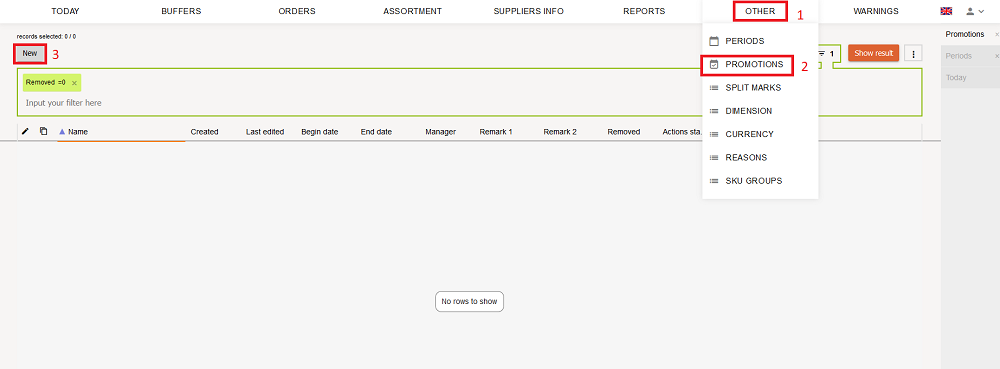
For the items, for which a promotion is being planned, you have to set promotions: STOCK-M -> „Other“ -> „Promotions“ -> click „NEW“.
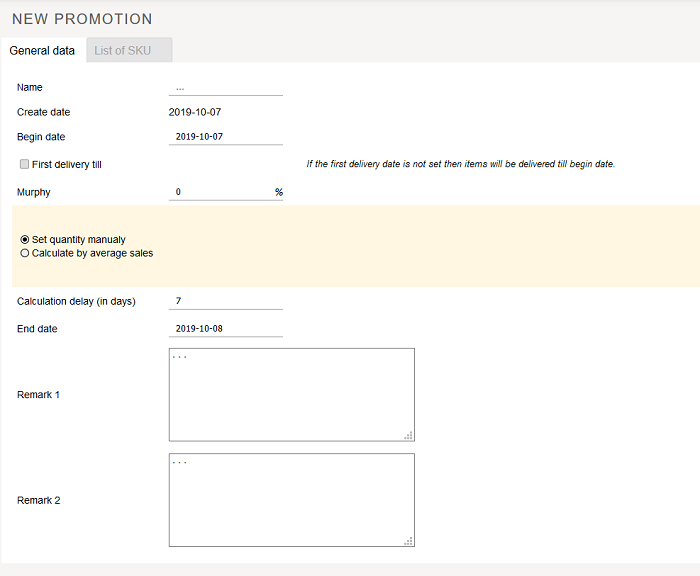
- Promo quantity (PQ) is managed in promotions. PQ for the start of the promotion period is either entered manually or calculated according to the average sales for selected period, then it is recalculated before each order, if there is a conversion delay (the size/amount can be specified in the description of the promotion).
- In promotions you can specify an additional Promo display Qty., called „Safety quantity“ (SQ) – size, managed only during promotions, entered manually and doesn‘t change during all promo validity period.
- PQ and SQ are involved into standard formula for ordered quantity.
1. General data. In the new opened promotion window enter the "head" information (information, set in the "head" will be applied to all items):
1) Name (name of the promo must be unique);
2) Start date, when the promo has to start (!!! The date must be today and newer);
3) First delivery till (if needed). When the supplier is unable (there is no sufficient time), within the last delivery before the promo starts, to deliver goods to all warehouses it is possible to specify an additional date: "First delivery till", which indicates date till when the first order should be delivered.
This date can be set manually by the user. The date can't be later than the start date of the promotion and earlier than today. If this date will not be specified, the goods will be delivered before the start date of the promotion:
- if "First delivery till" checkbox is selected, the field for entering date is visible;
- if „First delivery till“ checkbox is not selected – the field for entering date is not visible.
Primary PQ calculates and records automatically by itself for the last order, which arrives till the specified date (before the first delivery or the start date of the promotion).
4) Merfis. Merfis can be entered in the promotion:
- By default it is written/entered 0 (in the new or copied promotion 0);
- Field for editing is blocked with the start of actions;
- Merfis is added to the main promo quantity (PQ) and to the PQ, which is recalculated with every order in the promotion.
5) Calculation/entering of the primary promo quantity (PQ) (active action is marked by dot):
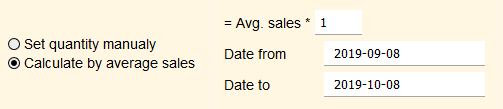
- Quantity is entered manually – mark, if you want to assign PQ for every item, which is participating in promotion.
- Calculate according to average sales – mark, if you want to calculate PQ according to average specified period sales, for all items, which are participating in promotion.
6) Conversion delay (in days) - PQ conversion delay i.e. Promo quantity will not be recalculated for a specified number of days from the start of the promotion.

7) End date – promotion ends that day.
8) Notes – enter the desired information.
2. Promotion data.

When you set up the rules for the promotion, you need to determine the list of items, for which promotion will be applied:
1 Way.
- Click the button "Add SKU" at the top of the promotion data window → Filter: Specific Item, etc. → put the check marks next to the goods/items, for which the rules will apply → click "Add items to promotion".
- If you want to involve all items, put the check mark at the top of the window, then all items will be marked.
- Selected items appear in the "Promotions" window. In this window you can open product graphic by clicking on the icon
 .
.
- If it is noted that the PQ is entered manually - don't forget to fill in PQ values.
- Click „Create“.
2 Way.
- It is possible to involve items to the promotion with excel table help. Download items upload template through the button
 and in the saved excel document fill in ONLY „WHITE“ COLUMNS (Warehouse/shop code‘ SKU code).
If you need to determine PQ for each item (check mark „Quantity entered manually), then fill in PQ and Promo display Qty columns.
If you don‘t need to fill in PQ and Promo display Qty columns, leave them empty.
- Upload filled table to the Promotion data window by clicking the button „Upload file“.
The system checks if the table is filled in correctly. If there is an error in the table - the system opens a message, which shows in which row of the table is an error;
If everything is filled in correctly, the table is uploaded into STOCK-M and the items provided in the table (and their parameters) will appear in the "Promotions" window (in the promotion window you will see such an amount of PQ and Promo display qty, which you filled in the table).
- Click „Create“.
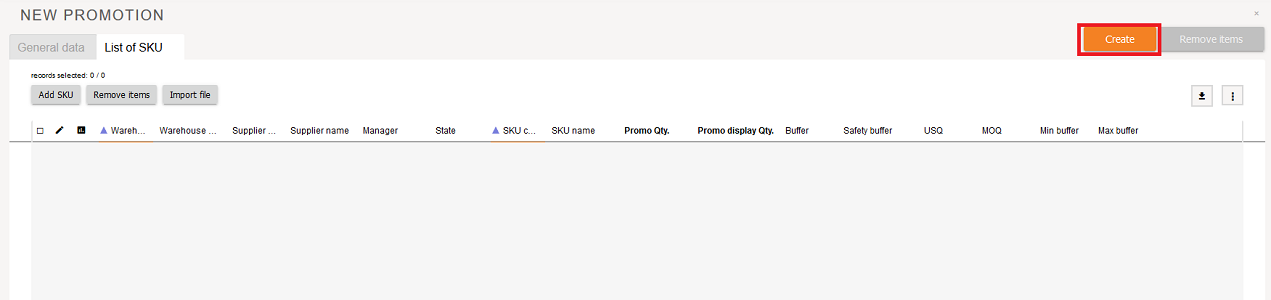
If you need to enter a lot of data, when creating a promotion for a customer who has a lot of warehouses, they can be uploaded / imported via a form / template (import data by level of warehouses)
- Need to download uploading form:
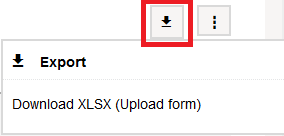
- To fill in the fields and upload the file:
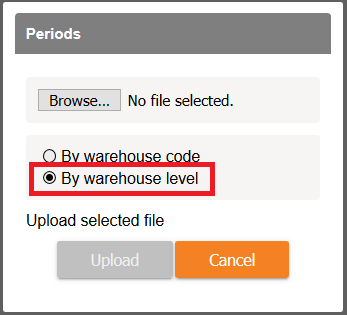
Correcting promotion rules and items.
If you want to correct promotion rule, items: STOCK-M -> „Other“ -> „Promotions“ -> click  .
.
1. No corrections are restricted, while the promotion didn't start. Before the start of the promotion you can change:
1) Start date, but the date must be newer than today;
2) First delivery to date;
3) Change the values for the PQ calculation formula and the selected items PQ and Promo Display Qty values, if it is marked that quantity is entered manually.
- If it is marked that quantity is entered manually, then you can change the values for PQ and Promo display qty by by uploading data through the form. When you download the form, it will be filled in with all items in the promotion (if the promotion was saved). In the table you saved, change the PQ and Promo display qty values. Then import the table into STOCK-M, click "Upload File", select the table where you made the corrections.
4) End date, but the date must be newer than today and newer than promotion start date;
5) To insert new item, which will participate in the promotion. For the newly inserted item is valid the same start date, end date, actions, as for the other items, which participate in this promotion:
- You can insert a new item in the STOCK-M promotion window. In the table, where items are assigned for the promotion, select "Add SKU" → select the item, which you want to insert → click "Add item to promotion". Selected item will appear in the general list of items, which participate in promotion. Find the newly inserted item and enter the PQ and the Promo display qty for it (if it is set that the quantity is entered manually. If the quantity is not entered manually, then the PQ formula will be valid);
- You can upload a new item to the promotion. You can save the list of items, which are in the promotion, into excel by clicking „Download XLSX (upload form)“ in the export menu item. Enter the item you want to insert at the bottom of the Excel table list and fill in the "White columns". Upload the Excel table back into promotion by clicking "Upload File".
- NOTE: in the adjusted promotions window will be uploaded additional items, which were described in the inserted excel table.
6) Remove the item from the promotion. Mark the item in the promotion window, which you want to remove and click  .
.
If you want to remove all promotion – mark all the items, click , all items, which participate in the promotion, will be removed.
2. When the promotion starts, you can‘t change:
Can‘t change the „head“.
3. When the promotion starts, you can change:
1) You can add the item.
2) You can remove items during the promotion period.
3) You can remove all promotion.
4) You can put forward the end date, but the date must be newer than today and not later than promotion end date.
4. When you make changes, it is necessary to save it, by clicking the button  .
.
5. Item, for which the promotion has started, is highlighted by violet color (In the Inventory window, inside the order).
Creating new promotion based on old promotion.
If you need to set a promotion for items, for which the promotion has happened in the past or is happening now, you can create such promotion by using previous/existing promotion.
1. When you open promotion window near the promotion, which you want to copy, click the icon ... The system will create a new promotion (you will see the title of the old promotion in the name of promotion + the date of today) and items will be inserted to this promotion automatically, which participated in the previous promotion.
2. Fill again the "head" of promotion. Insert or remove items, if it is necessary, and click "Save".
Additional information.
• PQ is displayed in the SKU graph, the value is visible from the start of the actions to the end of the actions. Displayed amount PQ + DQ. Draw by a separate line - by taking on it shows different values (how many PQ and how many DQ).
• The start and the end of the promotion is showed in the SKU graph (start is with a green vertical line, end is with red vertical line).
• The buffer in the promotions is valued so:
1. The buffer doesn‘t participate while calculating primary PQ.
2. The buffer doesn‘t participate while recalculating PQ in the promotion. PQ is recalculated in the promotion by evaluating sales from the beginning of the promotion.
3. In the ordered quantity formula, when the item participates in the promotion:
- When PQ>BUF, PQ involved into the order, buffer is ignored,
- When PQ<=, the BUF is involved into the order, PQ is ignored.
Entering the primary PQ manually, you don‘t need to evaluate the buffer.
• PQ and DQ after the promotion is set to zero.
• The buffer is locked for all promotion period.
• During the promotion, orders are formed till the PQ or top of buffer, depends on which value is bigger.
• Promotional items in StockM are highlighted in violet color in all windows, where the SKU is visible (from start to finish).
• Overlapping promotions are showed in system warnings.
• The promotion start actions always occurs for the last order before the promotion.
Akcijų modulis PROMO2
Promotion module PROMO2
Promo2 yra papildomai apmokestinamas ir pasirenkamas modulis, aktyvuojamas tik visai StockM programai.
Akcijų modulio PROMO2 fiunkcijos
Akcijų PROMO2 modulyje:
- informaciją apie akcijas galima suvesti iš kliento apskaitos;
- akcijos gali būti suvedamos pačiame StockM’e (prekes galima suvesti atskirai arba užkelti prekių sąrašą per šabloną);
- kiekviena prekė valdoma atskirai;
- sistema vykdys akciją, jei ji bus pažymėta kaip aktyvi;
- akcijoje valdomas Akcijinis kiekis (AK), kurio paskaičiavimui gali būti pasirinktas vienas iš 4 algoritmų:
- rankinis nustatymas – nurodoma rankiniu būdu;
- pagal vidutinius pardavimus iš nurodyto laikotarpio;
- Pagal paskutinę vykusią akciją;
- koeficientas pagal senas akcijas –paskutinės akcijos vidutinius pardavimus padaugina iš šio koeficiento;
- koeficientas pagal datą – tokiu atveju, kai istorijoje programa neranda įvykusių akcijų, skaičiavimas vyksta vidutinius pardavimus dauginant iš koeficiento.
- pagal ankstesnes nukainuotas akcijas. Programa ieško buvusios paskutinės akcijos pagal nurodytą nuolaidos procentą +/- 5%. Radus atitikmenį - naudojami buvusios akcijos pardavimai. Jei neranda atitinkamos paskutinės akcijos, ima pardavimus iš nurodyto laikotarpio.
- jei tokia akcija nerandama, sistema AK skaičiuoja pagal ankstesnes akcijas (pagal paskutinę vykusią akciją);
- koeficientas pagal datą – tokiu atveju, kai neranda įvykusių akcijų, skaičiavimas vyksta vidutinius pardavimus dauginant iš koeficiento.
- galima valdyti persidengiančias/susikertančias akcijas. Gali būti taikomos kelios akcijos tai pačiai prekei tuo pačiu metu. Tokiu atveju sistemoje liks aktyvi ta akcija, kuri baigiasi vėliau, o AK sumuosis abiejų akcijų. Persidengiančios akcijos rodomos sisteminiuose įspėjimuose;
- yra galimybė nukopijuoti akciją nuo kitos prekės – tokiu atveju nukopijuojamos visos priskirtos buvusios akcijos sąlygos. Nukopijavus, sąlygas galima keisti, nes modulyje PROMO2 kiekviena akcijinė prekė valdoma atskirai;
- Neaktyvios akcijos rodomos sisteminiuose įspėjimuose. Neaktyvias akcijas, kurioms numatyti veiksmai anksčiau nei po 3 dienų, reikia patvirtinti arba pašalinti.
Promo2 modulyje galioja standartinio akcijos modulio funkcijos:
- akcijoje galima nurodyti papildomą ekspozicinį kiekį – dydis valdomas tik per akcijas, įvedamas ranka ir nesikeičia visą akcijos galiojimo laikotarpį;
- buferis nedalyvauja apskaičiuojant pradinį akcijinį kiekį;
- buferis įšaldomas visam akcijos laikotarpiui;
- užsakomo kiekio formulė, kai prekė dalyvauja akcijoje:
- kai AK > buferis, į užsakymą traukiamas AK, buferis ignoruojamas;
- kai AK <= buferis, į užsakymą traukiamas buferis, AK ignoruojamas.
- AK perskaičiuojamas akcijoje vertinant pardavimus nuo akcijos pradžios;
- akcijoje galima nurodyti Merfį. Pagal nutylėjimą įrašomas 0. Su veiksmų pradžia prasidėjus akcijai, lauko redagavimas užblokuojamas. Merfis pridedamas prie pradinio AK ir prie AK, perskaičiuojamo su kiekvienu užsakymu akcijoje;
- AK atvaizduojamas prekės grafike nuo akcijos veiksmų pradžios iki pabaigos. Atvaizduojama suma AK + ekspozicinis kiekis. Prekės grafike, užvedus su pelės žymekliu ant AK ir ekspozicinio kiekio linijos, suma parodoma atskiromis reikšmėmis;
- pradinis AK suskaičiuojamas ir įrašomas paskutiniam užsakymui, kuris spėja atvykti iki nurodytos datos (iki pirmo pristatymo arba iki akcijos pradžios datos);
- kol akcija neprasidėjus (veiksmai neprasidėjo) galima keisti nustatymus, parametrus, algoritmą;
- prasidėjus akcijai, jokios korekcijos negalimos;
- yra galimybė nurodyti iki kurios datos pristatyti pirmą užsakymą. Jei datos iki kada pristatyti užsakymą nurodyta nebus, prekės bus pristatomos iki akcijos pradžios datos;
- StockM'e, visuose languose kur yra matoma prekė, akcijinės prekės paryškinamos alyvine spalva (nuo akcijos pradžios iki pabaigos);
- prekės grafike parodoma akcijos pradžia ir pabaiga (pradžia žalia vertikalia linija, pabaiga raudona vertikalia linija);
- galima pašalinti prekę iš akcijos.
Naujos akcijos PROMO2 modulyje sukūrimas ir taisyklių nustatymas.
Vedant akciją rankiniu būdu, prekes suveskite/užkelkite: StockM -> „KITA“ -> „AKCIJOS“ -> „Naujas“
Promo2 is an additional optional module and has an extra cost. This module is activated only for the whole STOCKM program.
Functions of promotion module PROMO2
Promotion module Promo2 :
• Information on promotions can be brought from the customer\'s accounting;
• Promotions can be brought up in StockM directly (goods can be entered separately or a list of items via a template);
• Each item is managed separately;
• The system will perform the promotion if it is marked as active;
• The promotion quantity (PQ) managed in the promotion, for which one of the 4 algorithms can be selected for calculation:
- Manual setting- is specified manually;
- According to the average sales from the specified period;
- According to the last promotion:
- Coefficient by old promotion - the average sales of the last promotion are multiplied by this coefficient.
- Coefficient by date - in this case, when the program does not find the former promotions in the history, the calculation takes place by multiplying the average sales by a coefficient.
- According to the previous discounted promotions. The program looks for the former last promotion based on the specified discount percentage/-5%. After finding a match, the sales of the former promotion are used. If the last promotion is not found, sales will take from the specified period.
- If no such promotion is found, the system PQ calculates on the basis of previous promotions (according to the last campaign).
- Coefficient by date – in the case of non-finding of promotions, the calculation shall take place by multiplying the average sales by a coefficient.
- Overlapping/intersecting promotions can be managed. Multiple promotions can be applied to the same item at the same time. In this case, promotion, which ends later, will remain active in the system, and PQ will be an amount of the both promotions. Overlapping promotions are shown in the system warnings;
- There is a possibility to copy a promotion from another item, in which case all the assigned terms of the former promotion are copied. After copying, the conditions can be changed because each promotional item is managed separately in the PROMO2 module.
- Inactive promotions are shown in the system warnings. Inactive promotions for which action is taken sooner than after 3 days must be approved or removed.
The Promo2 module has the standard function for the promotion module:
• Additional exposure quantity may be indicated in the promotion, the quantity is being managed only through promotions, entered manually and unchanged throughout the lifetime of the promotion;
• The buffer is not involved in the calculation of the initial promotional quantity;
• Buffer is being freezed for the whole campaign Period
• The quantity to be ordered formula when the item participates in the promotion:
- When the PQ > buffer, in the order is included PQ, the buffer is ignored;
- When PQ < = buffer, in the order is included buffer, the PQ is ignored.
• PQ is recalculated in the promotion taking into account sales from the start of the promotion;
• You can specify a Murphy in the promotion. By default, 0 is entered. With the start of actions when the campaign starts, the edit field is blocked. Murphy is attached to the original PQ and to the PQ, recalculated with each order;
• PQ is rendered in the product graph from the start to the end of the campaign action. Represented the sum of the PQ + exposure quantity. The amount shown in the item chart with the mouse pointing on the PQ and the platen line of exposure quantity is displayed in separate values;
• The initial PQ is counted and recorded for the last order that has to arrive before the specified date indicated day (before the first delivery or until the start date of the promotion);
• While the promotion is not started (actions have not begun), you can change settings, parameters , algorithm;
• No correction is possible when the promotion starts;
• There is a possibility to specify the first order to be delivered by the date. If no date is specified, the items will be delivered before the campaign start date.
• In StockM, the promotional items are highlighted with a lilac color (from the beginning of the promotion to the end) in all the windows where the item is visible;
• The item chart shows the start and end of the promotion (starting with a green vertical line, ending with a red vertical line);
• You can remove an item from the campaign.
Creating new Promotion in the PROMO2 module and setting rules.
When promotion is set manually, enter the items: StockM-> "Other"-> "PROMOTIONS"-> "NEW"
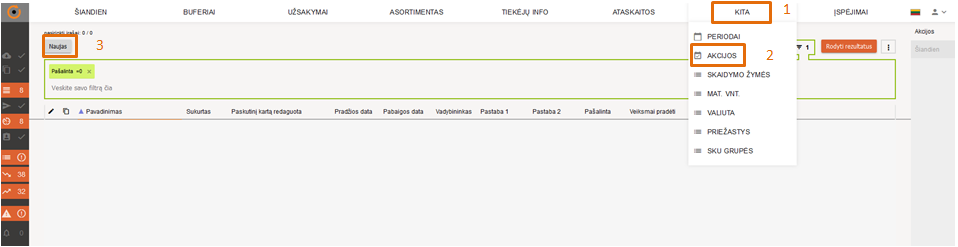

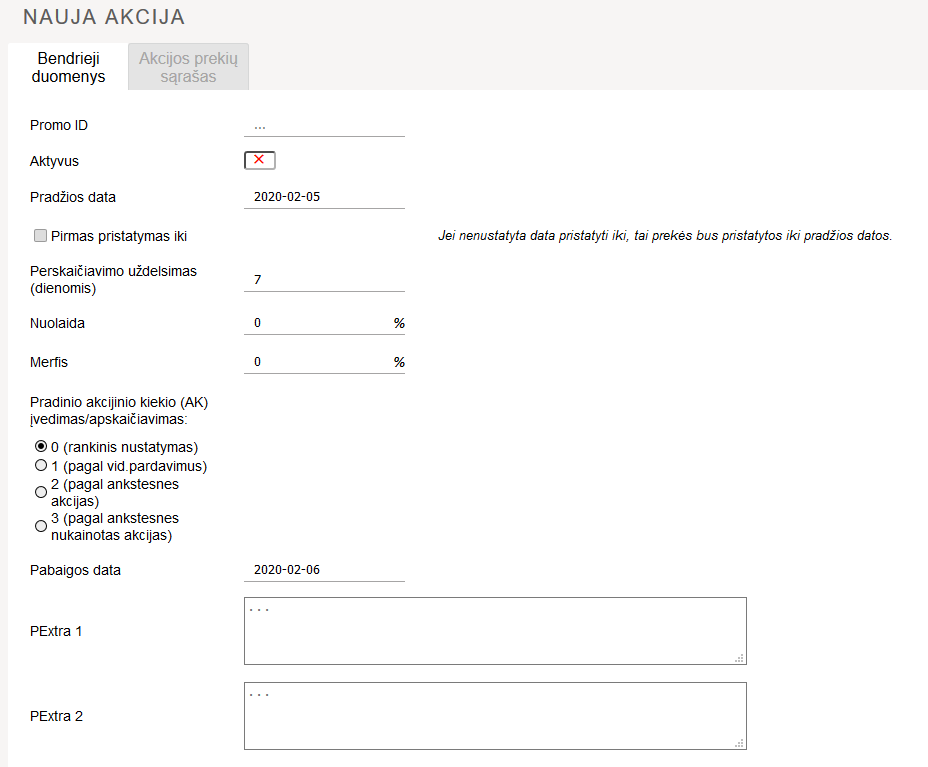
Atsidariusiame lange užpildykite laukus:
1.Bendrieji duomenys.
- Promo ID - akcijos pavadinimas turi būti unikalus;
- Aktyvus - akcija gali būti aktyvi arba ne. Sistema vykdys akciją, jei ji bus pažymėta kaip aktyvi;
- Pradžios data – akcijos pradžios data;
- Pirmas pristatymas iki - kai tiekėjas nespėja į visus padalinius/sandėlius pristatyti prekių per paskutinį vežimą iki akcijos pradžios, nurodykite pristatymo datą iki kada turi būti pristatytas pirmas užsakymas. Pradinis AK suskaičiuojamas ir užrašomas paskutiniam užsakymui, kuris spėja atvykti iki nurodytos datos (iki pirmo pristatymo arba iki akcijos pradžios datos);
- AK perskaičiavimo uždelsimas (dienomis) – nurodytą dienų skaičių nuo akcijos pradžios nebus perskaičiuojamas Akcijinis kiekis.
- Nuolaida – akcijos nuolaidos procentas;
- Merfis – akcijoje galima įvesti Merfio procentą;
- Pradinio akcijinio kiekio (AK) įvedimas/apskaičiavimas – pasirinkite vieną iš 4 algoritmų , kokiu būdu apskaičiuoti Akcijinį kiekį (AK):
- 0 (rankinis nustatymas) – nurodoma rankiniu būdu;
- 1 (pagal vidutinius pardavimus) - iš nurodyto laikotarpio;
- 2 (pagal ankstesnеs akcijas) - pagal paskutinę vykusią akciją;
- koeficientas pagal senas akcijas – apskaičiuotus paskutinės akcijos vidutinius pardavimus padaugina iš šio koeficiento;
- koeficientas pagal datą – tokiu atveju, kai neranda įvykusių akcijų, skaičiavimas vyksta vidutinius pardavimus dauginant iš koeficiento.
- 3 (pagal ankstesnes nukainotas akcijas) – programa ieško pagal nurodytą nuolaidos procentą (+/- 5% paskutinės akcijos). Radusi akciją naudoja jos pardavimus. Neradus paskutinės akcijos, ima pardavimus iš nurodyto laikotarpio;
- jei tokia akcija nerandama, sistema AK skaičiuoja pagal ankstesnias akcijas (pagal paskutinę vykusią akciją);
- koeficientas pagal datą – tokiu atveju, kai neranda įvykusių akcijų, skaičiavimas vyksta vidutinius pardavimus dauginant iš koeficiento;
- Pabaigos data – akcijos pabaigos data;
- Pextra 1 – papildoma informacija;
- Pextra 2 – papildoma informacija.
In the window that opens, fill in the fields:
1. General data.
- Promo ID-the name of the promotion must be unique;
- Active-promotion can be active or not. The system will carry out the promotion if it is marked as active;
- Start date-date of start of promotion;
- First delivery - till date- in case the supplier is not able to deliver the goods with the last shipment to all departments/warehouses till the start of the promotion, specify the delivery date until when the first order must be delivered. The initial PQ is counted and recorded for the last order that is to arrive before the specified date (before the first delivery or until the start date of the promotion);
- PQ recalculation delay (in days) – the specified number of days from the start of the promotion will not be recalculated in the promotional quantity.
- Discount – Campaign discount percentage;
- Murphy – a percentage of Murphy can be entered in the promotion;
- Introduction/Calculation of initial promotional quantity (PQ) – Select one of the 4 algorithms for calculating the promotional quantity (PQ):
- 0 (Set quantity manualy) – Specify manually;
- 1 (Calc by average sales)-from the specified period;
- 2 (Calc by last promo average sales)-by the last promotion;
- Coefficient by old promotions - the calculated average sales of the last promotion is multiplied by this coefficient;
- Coefficient by date – in the case of non-finding of former promotions, the calculation will take place by multiplying the average sales by a coefficient.
- 3 (by last discounted promo average sales) – the program searches for the specified discount percentage (/-5% of the last promotion). Uses sales of the found promotion. When the last promotion is not found, it takes sales from the specified period;
- If no such promotion is found, the system will calculate the ' PQ ' on the basis of the previous promotions (according to the last promotion);
- Coefficient by date – in the case of non-finding of former promotions, the calculation takes place by multiplying the average sales by a coefficient;
- End Date: The end date of the promotion;
- Pextra 1 – additional information;
- Pextra 2 – additional information.

2. Akcijos prekių sąrašas
Nurodžius akcijos bendruosius duomenis, nurodykite prekes, kurios dalyvaus akcijoje:

1 būdas.
- Spauskite mygtuką „Pridėti SKU“ → Filtras: konkreti prekė ir t.t. → sužymėkite varneles ties prekėmis, kurios dalyvaus akcijoje → spauskite „Pridėti prekę į akciją“.
Jei norite įtraukti visas prekes, lango viršuje pažymėkite varnelę. Tokiu būdu bus pažymėtos visos prekės.
- Pasirinktos prekės atsiranda „Akcijos prekių sąrašas“ lange.
Jei pažymėta, kad AK įvedamas ranka - nepamirškite užpildyti AK reikšmių.
- Spauskite "sukurti".
2 būdas.
- Prekes į akciją įtraukti galima excel lentelės pagalba. Parsisiųskite prekių sukėlimo šabloną naudojant mygtuką -> Atsisiųsti XLSX (užsakymo formą) ir išsaugotame excel dokumente užpildykite TIK „GELTONUS“ STULPELIUS (SKU kodas; Sandėlio kodas).
Jeigu kiekvienai prekei reikės nustatyti Akcijos kiekį (AK), pažymėta varnelė „0 (rankinis nustatymas), tuomet užpildykite stulpelius: Akcijos kiekis; Ekspozicinis kiekis.
Jeigu Akcijos kiekio ir ekspozicinio kiekio stulpelių užpildyti nereikia, juos palikite tuščius.
- Užpildytą lentelę įkelkite į akcijos duomenų langą paspaudus mygtuką „Įkelti failą“.
Jei viskas užpildyta teisingai, lentelė įkeliama į StockM‘ą, o lentelėje “pateiktos prekės” matomos „Akcijos prekių sąrašas“ lange.
- Spauskite „Sukurti“.
Sukūrus akciją, prekės matomos „Akcijos“ lange:

PROMO2 taisyklės, prekių koregavimas
Norint pakoreguoti akcijos parametrus bei prekes: STOCK-M → „Kita“ → „Akcijos“
- Akcija vyks, jei akcija pažymėta, kaip aktyvi.
- Kol akcija neprasidėjo, visos korekcijos galimos. Iki akcijos pradžios galite pakeisti:
- aktyvumą;
- Promo ID (Akcijos pavadinimą);
- pradžios datą;
- pirmo pristatymo iki ... datą;
- perskaičiavimo uždelsimą (dienomis);
- nuolaidos procentą;
- merfio procentą;
- pirminio AK paskaičiavimo algoritmą;
- pabaigos datą;
- PExtra 1 (Pastaba1);
- PExtra 2 (Pastaba2);
- akcijos kiekį (AK), jei pažymėta, kad kiekis įvedamas ranka;
- еkspozicinį kiekį, jei pažymėta, kad įvedamas ranka;
- Akcija vyks, jei akcija pažymėta, kaip aktyvi.
- Kol akcija neprasidėjo, visos korekcijos galimos. Iki akcijos pradžios galite pakeisti:
- aktyvumą;
- Promo ID (Akcijos pavadinimą);
- pradžios datą;
- pirmo pristatymo iki ... datą;
- perskaičiavimo uždelsimą (dienomis);
- nuolaidos procentą;
- merfio procentą;
- pirminio AK paskaičiavimo algoritmą;
- pabaigos datą;
- PExtra 1 (Pastaba1);
- PExtra 2 (Pastaba2);
- akcijos kiekį (AK), jei pažymėta, kad kiekis įvedamas ranka;
- еkspozicinį kiekį, jei pažymėta, kad įvedamas ranka;
Jei pažymėta, jog kiekis įvedamas ranka, AK ir ekspozicinio kiekio reikšmes galite pakeisti suvesdami duomenis per formą. Parsisiunčiant formą, ji bus užpildyta visomis akcijoje esančiomis prekėmis (jei akcija buvo išsaugota). Išsaugotoje lentelėje pakeiskite AK ir ekspozicinio kiekio reikšmes. Importuokite lentelę į StockM‘ą: spauskite „Įkelti failą“ ir pasirinkite lentelę, kurioje darėte korekcijas.
- įterpti naują prekę, kuri dalyvaus akcijoje. Galima nukopijuoti akciją nuo kitos prekės – tokiu atveju nukopijuojamos visos priskirtos akcijos sąlygos. Nukopijavus, sąlygas galima keisti, nes PROMO2 modulyje akcijinės prekės valdomos kiekviena atskirai.
- pašalinti prekę iš akcijos. Akcijos lange pažymėkite prekę, kurią norite pašalinti ir spauskite „Ištrinti pasirinktas“.
- Akcijos pradžios veiksmai visada įvyksta paskutiniam užsakymui prieš akciją.
- Prasidėjus akcijai, galima keisti:
- galima pridėti prekę;
- galima šalinti prekę;
- galima paankstinti pabaigos datą, bet data turi būti naujesnė nei šiandien ir ne vėlesnė nei akcijos pabaigos data;
- įterpti naują prekę, kuri dalyvaus akcijoje. Galima nukopijuoti akciją nuo kitos prekės – tokiu atveju nukopijuojamos visos priskirtos akcijos sąlygos. Nukopijavus, sąlygas galima keisti, nes PROMO2 modulyje akcijinės prekės valdomos kiekviena atskirai.
- pašalinti prekę iš akcijos. Akcijos lange pažymėkite prekę, kurią norite pašalinti ir spauskite „Ištrinti pasirinktas“.
- Akcijos pradžios veiksmai visada įvyksta paskutiniam užsakymui prieš akciją.
- Prasidėjus akcijai, galima keisti:
- galima pridėti prekę;
- galima šalinti prekę;
- galima paankstinti pabaigos datą, bet data turi būti naujesnė nei šiandien ir ne vėlesnė nei akcijos pabaigos data;
- Buferis akcijose vertinamas sekančiai:
- buferis nedalyvauja apskaičiuojant pradinį AK;
- buferis įšaldomas visam akcijos laikotarpiui;
- buferis nedalyvauja perskaičiuojant AK akcijoje. AK akcijoje perskaičiuojamas vertinant pardavimus nuo akcijos pradžios;
- akcijos metu užsakymai formuojami iki AK arba buferio viršaus, priklausomai nuo to, kuri reikšmė didesnė:
- kai AK > buferį, į užsakymą traukiamas AK, buferis ignoruojamas;
- kai AK <= buferį, į užsakymą traukiamas buferis, AK ignoruojamas.
- pasibaigus akcijai, AK ir ekspozicinis kiekis išnulinami.
- Buferis akcijose vertinamas sekančiai:
- Buferis akcijose vertinamas sekančiai:
- buferis nedalyvauja apskaičiuojant pradinį AK;
- buferis įšaldomas visam akcijos laikotarpiui;
- buferis nedalyvauja perskaičiuojant AK akcijoje. AK akcijoje perskaičiuojamas vertinant pardavimus nuo akcijos pradžios;
- akcijos metu užsakymai formuojami iki AK arba buferio viršaus, priklausomai nuo to, kuri reikšmė didesnė:
- kai AK > buferį, į užsakymą traukiamas AK, buferis ignoruojamas;
- kai AK <= buferį, į užsakymą traukiamas buferis, AK ignoruojamas.
- pasibaigus akcijai, AK ir ekspozicinis kiekis išnulinami.
- Buferis akcijose vertinamas sekančiai: