Изменения документа PERIODO NUSTATYMO TAISYKLĖS
на 2022/09/09 09:58
на 2022/10/27 15:30
Комментарий
-
Свойства страницы (1 изменено, 0 добавлено, 0 удалено)
Подробности
- Свойства страницы
-
- Содержимое
-
... ... @@ -5,11 +5,11 @@ 5 5 6 6 Мы рекомендуем использовать эту функцию в тех случаях, когда предполагается пополнение товара поставщиком 2 и более раз за период. Если пополнение происходит 1 раз за период, используйте Специальный заказ для заказа необходимых товаров. (См. Формирование специального заказа) 7 7 8 -Принадлежность товара к какому-либо периоду отображается в столбце "Период" окна "АССОРТИМЕНТ - "ЗАПАСЫ". Чтобы столбец был активен, включите его видимость через "Выбор столбцов".8 +Принадлежность товара к какому-либо периоду отображается в столбце "Период" окна "АССОРТИМЕНТ. Чтобы столбец был активен, включите его видимость через "Выбор столбцов". 9 9 10 10 [[image:data:image/png;base64,iVBORw0KGgoAAAANSUhEUgAAApkAAAG5CAYAAADF6y/5AAAgAElEQVR4nO3dT2wk533n/zryzgNPDBAsDOYSIJccuBvUngk09rCgQRsBNoAXmx+Qy6QOiWn4IOQXICcb2D1kDZdW8m6gjtVsJdz8DpoQhtwb7S4niWek0VCxLcnNdmtojYaaEecfOaTnz/d36K7up6qep/50Vz/9dPH9Ar6QyO6ufqo4850Pn3qqyxMAAACgYt68BwAAAID6IWQCAACgcoRMAAAAVI6QCQAAgMppQ+aLFy/knXfeke9+97vyyiuvUBRFURRFUdSovvvd78qPfvQjefHiRbmQ+c4778x98BRFURRFUZTb9c4775QLmd/73vfmPmiKoiiKoijK7fre975XLmTOe8AURVEURVHUYhQhk6IoiqIoiqq8CJkURVEURVFU5UXIpCiKoiiKoiovQiZFURRFURRVeREyKYqiKIqiqMqLkElRFEVRFEVVXoRMiqIoiqIoqvIiZFIURVEURVGVl6WQeVUORURObsjrDuw0VYd6XW6cJP+EHsrVuY+LoiiKoqhXXpl1yLx6aHyDw6vz33lqUWsYMA+vOjAWiqIoilrA+va35dux731bvv3tat9jZiHz9eE00yBMJmYyh+Hz5Mbr8zu41OLW6zfkhFlLiqIoipq4/vSPvi5f//ofyZ++8oq88sq35Y+/8XX5+jf+WL5d4XvMJmS+fkNORJ1pSp8uH+RMNSgkT3+qj0WvP5RD5Tmj2dDo/eREbryeeI32eRH1+ckavz7GtE+jbSvjTr2f+p45ry+6T5nHTTOGw6vmfZNDuVpkv0w/78LvkTdu3alw5TlXD0VObsiNQ9Prk3/eou2V/POWentmTimKoqj61CBofkO+MYOA+corr2hTgMi0ITM1U5kOmdqZzlQAib5Ohqvo8WEAU0LO6D2VU/Wx98gIvvEyBWN9SHx9lFiUsHL1UNSQWOr1ZfYp77hF+1zg51Jov3THaZL3MI47++v0mJLvkRcyCx4348+eoiiKoupQwxnM0YxmtWViN2TqTp/HvqcJKsPHD6++MgpkJycno7Dz+o0TOTxUnjMaX87M36jKhMyrcigncpKcLSscMjWvL7JPecftqm7/s/ex0H5pftal3iP3510sZKqvz1yekdzeBH/eCJkURVFUvWp8ivyP/2g2QdNkyjWZ+bOG6unyeEAYVsGQeXLj9XEgu3FDDuVQrr7yutw4OZEbN9QANJ4NjW0zL2TGaE5dn9yQqzdO5OTG1dQp2cF+5YdM7esL7FPecdM+rttHQ8g07Zdak7xH/s87Z2ZTF2wz/7zoQ2ru640/e4qiKIpa5EqvwfzTGQRNk5le+JOaiapqJvPG1UEQe/2qHJ7ckNfV56SCSfnT5fFtRI+fDC9CSa/7S6471YdMw+tL7NNsZjLN+xWrOcxkjo+NvZnM/P2kKIqiKEotE8sfYTTpmsx06Hj9xsn4FLMmkKmnniX2nsnKC0fJmdGc9ZCvGEKm6fVF9qns2sJS6yVN+5VznCysycxfQ1n9mkw+EYGiKIqiypXJHD6MvcjV5eoVxcrpS3VmK2P2Mp55D+VG4nS2dswpRYKK6bXR0KP1jqbXF9+nya4uz/q55AUwTZV+j6xxJ0OuaQyJ1xuCcspobBNcXZ51DCiKoiiKipWJY7eVXLQ7Bg3Gqzu1OrgWaFH2o1519TAZgCmKoiiKmlURMmc4XkKmW0XIpCiKoih7RcikKIqiKIqiKq8FCZkURVEURVHUIhUhk6IoiqIoiqq8CJkURVEURVFU5UXIpCiKoiiKoiovQiZFURRFURRVeREyKYqiKIqiqMqLkElRFEVRFEVVXoRMiqIoiqIoqvIiZFIURVEURVGVFyGToiiKoiiKqrwImRRFURRFUVTlVSpkAgAAANMgZAIAAKByhEwAAABUjpAJAACAyhEyAQAAUDlCJgAAACpHyAQAAEDlCJkAAACoHCETAAAAlSNkAgAAoHKETAAAAFSOkAkAAIDKVRIy373iiefp68q7VbwD5qX72rrm53pF+LECVXhXriT/fs2saXbltXVNn6ZJ1xb9G/NWXchcf0266je7r8k6IXOhvXvFk/XXuvlPBFDeu1fE85J/x6IgWHUQeFeueOvCX+fLg/4NF1QXMpNpkpC52LqvyXryFwcA1cjpj9pf3Kd6u3UCx2VC/4YjrIfM5PR9uvElTumMNmA41ROdlr9yRTzdb+rvKt8fzhxknT7Q7ctgzNFzBuMwN+zB6a/4JhKnxAr95Y+/Zvx+mtNroxrvf/ZxzjiW0djevTI4DoljpttO8lgk/4HU/vnI2QZQZ7khUu2fxr6lbiP5dzreC9+9MthWfGlTol++e2XQ52Lvp+mpw7Fpl0VFjyX7tvL3fzAGc6/SzeImnxNvJ9G+Z4w1cZzo3+ZjQf9GlayGzGRziZ6j/gGN/wEf/IVM/wHWfV//3Nj2oiYaf8KMQ+awqaSabNbpsERjNs16GL6ff5zTjX/0uuGxGjc5dZzJY0yTAsor8mde/5x4L4oMe4zyd27wvKgHKKEk3pDjfWIUSMbbj29HtD0n9RzpymvrifdWe1lqnOr+DJ9v3Bcx9rP19fRs7aiPTRwy6d/0b0yjgpBp+EOW/AuUObM5/ItQ+BS7PlCmG1bieXMImVn/KBi3kWz+JrrjVeQ4l2hSqZ9FbGw0KaC8nL//ImL6O6rrJ/oeo77evM4z/Uu4YZZw+M3ua+uF1t+PT8+nX58XcuL7U6TXR9t5Ta7ExjYIu1eurE8cMunf9G9Mx17INP3FS50WKrI43fCXPO89rYdMfTMwvY/+/TLoGlKR41y4SWnGoNkOTQooo9qQaTr1Pn6uuQ/Ftqfrj9FzjNs3nMIezViq75118VHyFLA6JlM/S4ald5UZ1PEY3n1t0pBJ/87bV/o38lQQMnVrWMQQ+HL+0JueY3hP43rO4Zummm/RkKldL5P4LTL5+HhH003KtAYnq0kVWfdjbFLFmktuk9KOIb1/hZqUae0QTQqXTrWny00hIBkyte+n9osiIbMbX485mCjNPh2ctb4zHlQH750OvnlrGMf7p86URv/f1YRM+nf8uJm2M/qa/o0JTR8yY79RJr9fdCZTvTBnipnM2PtonjOzmUx13U6x34SzzO43YcM6qdFLk6fOZvWbsLruiiaFy6fUhT+xb5ecyRx+Pz+IivHvvLr9oh9XN15HqfSa1PMKnAov9G+C0kNiM6iD1+lCJv17vB36N2Zp+pD57hV9s0z+BSrSNE2/EaffNON00/CxK1fS4XeGp8vHjSw+s6v/ByDnL6YDa3pMvzwUORaFTreMjjtNCpdQTq/LPwWe/b3k33H9zFaiD2SsyVTXV5ourkn2etOazHi/T/aYxPpR03GK9e3kGNfltdeuGGb16N/0b9g0ZcjM+AOm+ctS/upy02+S2WuaRtP7yeZgfSYz+ZhuezrJ/S64BjW2/9Ndnagdp2E7/CYMTGCCD2Of7OpyZbupPlTk6vLkcqJ0T1D3I7uHp3tlekzx/pXel+yrpJOhd/KZzORjWT8DFf0biEwRMrM+7yte6dMo+seGz4ivg8lYV2L8g60Jr4OXVRcyzWtUCnzOWol1p5nrfzJmQ4zHefQPSfq3XN1v7RN/XpsyZv0616IXUgF1Vu62kuaAY7hwJvM5ujM9w1lA43Z021CCWGo2VBOI1OcoIXXURzUzqkX60Po4lcp6Mijnrcmkf9O/MRNTh8zsU9tFnjMDhdd2Ylayr0gE4Bz6Jobo36hKLUMmf0Hmj58BsGAImRiif6MqtQqZ6bs7YF5oUsCCIWRiiP6NqlRyW0kAAABANXXIvLi4kMPDQ7l586Zcv36doijKibp165b0ej25uLiooldWir5JUZSLVXXfnCpkXlxcyAcffCD9fl+Oj4/l3r17FEVRTtTx8bF8+umncvPmTTk/P6+kYVaBvklRlKtVdd+cKmQeHh5Kv9+Xs7MzefHixdSDAYCqvHjxQs7OzqTf78vh4eG8hzNC3wTgqqr75lQh8+bNm/L48eOpBwEAs/L48WO5devWvIcxQt8E4Lqq+uZUIfP69ev8Jg7AaS9evJDr16/Pexgj9E0Arquqb04dMgHAdS71KpfGAgAmhMxF9OBDefuNN+SNN96QN97Yl9vzHg9wCbjUq1way8KgbwLWLVjIvC37oyah1tvy4YNpRrE4Hnz49qXaX8AVLgU7+mY59E1gPhYwZCYbhe57dfVAPnz7DdnnV3DAusUOmfRN+iZgX/1CZuyUiPpc3fOSjyu/5e/fTrxm+LixU5lmCxIVvd44Tt22ho8/+FDefmNf9vfHj42Hkzw2mrG/oXsdgCJqHTLpm5qv6ZvAtGoWMgdNYdQIbu8ra2/ir729rzapwW+640b4QD7c/1AeKK958OHbGY3S9PrxY/GXZo0zelwz7mGDLbJ/mTMVw6ZLvwSKq2/IpG/SN4HZqFfI1DadqLnEn/f2hx8mmpCusUSvyTndYny9iLZZZo4z+lrTBIvun/ZYGX7LB1BIbUMmfZO+CcxI/ULm29FvwiLxRqU2vn25ndmE1G0Pm0tsu8mnmV6fHIPyfOM4JfEbc/I3cvV9dPunO1aD/Xh79OBlWo8FVKPWIZO+qTlW9E1gWvULmXm/sX64P2waWU0oue1BU3rb1F0yT6NM8Bt5rJkmm176t+zcZql9P5olUEatQyZ9s+BxoW8CZdQrZCZ/80ytvXnD0ITy1xYVObVTdm2RfpzDdU/jzpleExU9Zmyqia+TY7+9n72uKvNr4HKqbcikb9I3gRmpWciUnKsk864qzLpKctiojL95614vYvz4DO04h40p87dn9X3Sv9WbrsocfE5c9L397H8oaJZASn1DptA36ZvATCxYyEQpt/dpckBFXOpVLo2lduibQGUImXVGswQq41KvcmkstUPfBCoz95B58+ZNubi4mHoQADArFxcXcuvWrXkPY4S+CcB1VfXNqUJmt9uVzz77bOpBAMCsfPbZZ3J4eDjvYYzQNwG4rqq+OVXIPD8/l/fff18+++wzfjMH4JSLiwu5c+eOvP/++3J+fj7v4YzQNwG4quq+OVXIFBk0zG63Kzdv3pTr169TFEU5Ubdu3ZLDw0OnAmaEvklRlItVdd+cOmReXFzI4eEhzZKiKKfq1q1b0uv1nJwtpG9SFOV6dbvdqXvdVCHz4uJCPvjgA+n3+3J8fCz37t2jKIpyoo6Pj+XTTz+VmzdvOjWbOVhQ/4E8uNeXF2e3RZ5+Gqu32jvyj//4j9LtdnPr2rVr0m63UtugKOpy1/n5udy+fVvu3Lkj9+/fl5OTk1g9ePBg9F+1Hj58KI8ePZLj42O5fn3OV5cfHh5Kv9+f+z8mFEVRpur3+05d+HN4eCgP7vWN/zj0f3FTdnZa8uqrr+bWzk5Luh+9N/d/0CiKcqtqETJv3rwp9+7dk7OzM3nx4sXUgwGAqrx48ULOzs7k3r17zn2E0bPTo7n/I0RRVH2rFiHz+vXrcnZ2NvUgAGBWzs7OKmmWVaFvApi12oRMZjABuOzFixfOhUz6JoBZqk3IBADXudSrXBoLgHq6FCHz6OhI2u12oQXs7XZb+v3+NMMBAC2Xgp1LYwFQT3kh8/Hjx3J6eiqPHz9e3JD51ltvlfwojnbpMfRCXzzPG1XQmXBnANSWS8HOpbEAqKeskPno0SM5PT2V3/7t304FzYUKma+++mqhgBnVq6++Wur9O4Ennh9KL/pGLxSfoAkgwaVg59JYANSTKWRGAfM3fuM35Hd/93fl93//92NBk5AZ6QTxgKl+P0qZvVB8P5TOaLbTl7DXk9CPZj4D6aiv8zzxw56yqfhzYrOmapIt8z7SkcD0ddnx5qZp9bXx8D3YNy+1z8Z9BBaYS8GOZUYAZk0XMqOA+Zu/+ZuysbEh3/rWt+Q73/mO/MVf/MUoaBIyhzqBYcZyGNR6gyeJ7/ujEBUFqHEGjT+mPnewHX+0rV7oK6F2EN5G71/ifWLjm3a8Sjg0HaNRUFRCeez7SsjN3EdggS1SyJz1MqPMJUbDs0GetpRfhjWP0ysAd+hC5unpqXz1q1+Vb37zm/Laa6/J3/7t38rVq1el0+nI22+/Laenp4TMgZ6Evi/ajKWEtniYGnydnKmMvu4EngTBeHYw+nrweEcCL/F+nfhzi75PKhx2gtgYSo13/FT9cUjOwgad1PeVgWTuI7DIFilkFumb+/v7E/1yHv9FUmTw996L/xKs6w/q9409BIArsmYyTcVM5ogmEA2NwlQqiGZ93ZPQD6TTC8WPgpgfShgFueGp9FSVfp90OBx/XXa86lg0xyIxZn88APMyA+M+AoutTiFzd3dXVlZWpNlsTtA3JwyQE4fMwXuGsSVAye3qZ0PVGVdjCM4Y1+D1hjFrv2ZWFvVxKT7CaLYzmbpGMPitfPD9jLWPya+j2c9hyBwEPyXUmYJZ3nZTX+sei5ru5NsZB2vlCCW+11EDs66DZu4jsNgWMWRub29rA+by8rJ4nieNRqNc3zT+HVf66UxCpnKBZidQ1pYnJguS7zEaq/K8wiFz+L6FQmbGOIAFRcis4sKf2G/Fw9m9xEU/44cTX6sNNwpe0W+zfii9VKhT3kt97zLvE3tsOF7tYwXHO3qqZn1molGOQmbs+4MxaJcEpI4vsLgWLWQ2Gg3xPE82Nze1AXNjY6N838xY/qLvD4pUmCu6JlP9xV8kc6mTaaZ1gpDZC30JwoxgnBkkTeMAFgchs4KPMDKeEo4ei5+XNgaz8f8rDVEX8pIL4Eu+T/w0ty9hGMQvzCkxXu2C/ATTleLa01BZ+wgsuEULmc1mU5aWlkZB0xQwqwmZFcxklljrrVsyZOo7o8fUyYPMC5IC6UhHgujMVImQmTUOYNEQMqsImQBQwKKFzG63Owqaa2trsr6+rg2Y7qzJNM1QJkOm+rzELKcxqGaEYM24wtBPPzf3dHmRcQCL41KETBt3/AGAPIsYMrvdruzt7cnq6qp4nidbW1tT/3IeuxhGRCq7ujxzJlP/UWr64DcIoPE15WVCpqfffokLhtRxAIvqUoTMfr8vrVar0IcK7+zsSLfbnWY4AKC1qCGz2+1Kq9US3/fl4OBgJsuM0p+TWfWaTF+CQH91eWxJjx9I4KuftqH5lIsCIVM7I2n6/E/1c5C14wAW06UImQDgApd61eVaZmT+uLm5S667B2qEkAkAlrjUqy7XMiNCJjAPhEwAsMSlXsUyIwCzRsgEAEtc6lUujQVAPREyAcASl3qVS2MBUE+ETACwxKVe5dJYANQTIRMALHGpV7k0FgD1dClC5tHRkbTb7UIL2NvttvT7/WmGAwBaLgU7l8YCoJ4uRcic2UdxmD5Yl3vOAtBwKdi5NBYA9XQpQubMPlS4yF0pAGDIpWDn0lgA1BMh00rIHN43NzXD2ZHACyQMNbc6S2zDdK/f9DYTt0FjVhVwhkvBjmVGAGaNkGkhZHYCT/xheuyF/vj+t1FQjO720AnGgTC2jShQ6rcpnWC8DelJ6JvDKoD5WaSQOes7/sTu02285ziARUbInHnITN7ObDB7OX5Mba5KQFS20Qt9CcLkNpOzmtF7EDIBVy1SyCzSN/f39ye6d3kv9JVfjEWiXug7ed9HAJMiZFoJmcnT11EITN9PtxMMQ+doGx0J/FB66jZT76sGy0QAJWQCzqhTyNzd3ZWVlRVpNpslQ2byl+ShVI9Tl/tkLC1KPV/5xT3Z/zL6aGxJUuzskG6iQLMUadL3ytpm6vhkLYWadhs5x3jSJVran030mowzd9Hxz/zZpn8x6QQsEXMJIdNKyDT9gU82r/RMZhj6idCp26a6nWEozRsjAOsWMWRub29rA+by8rJ4nieNRqNc34wFONUgeKT7nUjm0qJkH836hdz4WGJJUkbINC5/mvS9srYZOzwZ209sw3iMM7eRdYwnXaKV8bNRt5k4cxdfUpb1s/XF93VBm3/zXEHItLwmM928vPFfKPWx6Le32NcFttkJ4g2KkAk4Y9FCZqPREM/zZHNzUxswNzY2yvfNZI+KPZQdMrVLi9JbGf8SXjD4pZYkGUNmxvKnSd8rc0mVIjcgmiYeymzDdIyrWqJlONOmnrnTjVv3+uREjIhIJxA/CPg3zyGETOtXlyebiS9BYLq6POO0j+7URdbndmpnDgDYtGghs9lsytLS0ihomgJmNSEzbybTsLRI+Tp1ujbr9HDhJUnJkGlY/jTpe2VtM3Z4ip+ON4bw3JCZt3xLt/38JVran834wez9Nr1eDaiDQUroq4EVLiBkThMyp5b3W1tJvVB80ykSQiYwd4sWMrvd7ihorq2tyfr6ujZgzmZNZlbITIYcwy/kBYKZfklS8up304yeYfyl3itrSVXB7Vc2k5l1jCdZopXxsxHlArDR95VfNPJeH3uNEjYJmU65FCFz1h/FMTlCJnCZLGLI7Ha7sre3J6urq+J5nmxtbU39y7npwpfREiDTmRvj0qJkcFJnF7OCn3lJ0ph5TWb+OIq91/TrKStck6k7xlnbz1qilfWzMS41yFuCkP7Z9kJffF//ywLm61KEzH6/L61Wq9CHCu/s7Ei3251mOACgtaghs9vtSqvVEt/35eDgoJozQLHTpInPyTTMZGqXFkli1tEPJDCddtcEP/OSpPh7668uz1iLWOq9TEuqMo5JkSVUpbaRfYwnXaKl/9kkZiyT41JCbKGfrTqRQsh0yqUImQDgApd61WItM6r4rA80JjjGnD1DDkImAFjiUq9arGVGhMzZI2SieoRMALDEpV7FMiMAs0bIBABLXOpVLo0FQD0RMgHAEpd6lUtjAVBPhEwAsMSlXuXSWADUEyETACxxqVe5NBYA9UTIBABLXOpVLo0FQD0RMgHAEpd6lUtjAVBPhEwAsMSlXuXSWADUEyETACxxqVfljeXo6Eja7Xahz8lst9vS7/ctjdwVHQmUWx/GbosJQEQImQBgjUu9at53/Indkzp57/IFMdoH7m4DaBEyAcASl3pVFfcu39/fn+je5b3QTwSzjgSeJz73jQRqhZAJAJa41KumDZm7u7uysrIizWazZMjsSOAF0kl+uxeKH/v+IHgOZjqH99ROPifzNcnnjWdNvWjadKrtjb8ezGjm7dNwW6MpW8O2pSeh78VmebXbBhYAIRMALHGpVxUNmdvb29qAuby8LJ7nSaPRKBcyO4Hh9PIgXA0ymPr/ymtyQmEnUGZD1feJPa8noV8stBbbXhQWs0NmbFtZ21bHpxkTsEgImQBgiUu9qkjIbDQa4nmebG5uagPmxsZG+dPlnUCZzUs+NAyWpmCVGQqTM6QdCbQzoKbvT7a9XuhLEOaMtxeK7ynBMWvbhEzUCCETACxxqVcVCZnNZlOWlpZGQdMUMKsJmcrsZS8UXzfbmTztrc4gpsJYcsZy/JrRDOJU2wukE11hnhmKldP9se8btp0MoIRMLDBCJgBY4lKvKnq6PAqaa2trsr6+rg2Yla/JnOlMZtHT5fnbC6OPLsod7+CU+jhbZ81kjj8aSbvPwAIhZAKAJS71qjIX/uzt7cnq6qp4nidbW1vaC4FKX12uucBmvGYxsSYzdtq5ijWZhtPypbbnGbYf29Hx9ztBbJ+N207O9BIyscAImQBgiUu9quzV5a1WS3zfl4ODg6lDpogMQ1fW52TO8OpyUzgsub1UCE7ugia0ji/w0Wxbe/o+MWZggRAyAcASl3pVFZ+TOVXIRFrWWlRCJhYQIRMALHGpV837jj/QIGSiZgiZAGCJS70qbyz9fl9arVahe5fv7OxIt9u1NHIAi4KQCQCWuNSrXBoLgHoiZAKAJS71KpfGAqCeCJkAYIlLvcqlsQCoJ0ImAFjiUq9yaSwA6omQCQCWuNSrXBoLgHoiZAKAJS71KpfGAqCeCJkAYIlLvcqlsQCoJ0ImAFjiUq/KG8vR0ZG02+1Cn5PZbrel3+9bGrkrOhIMPyC9F/qa22ICIGQCgCUu9ap53/GnF/o59y5332gfuBsPoEXIBABLXOpVVdy7fH9/f6J7l/dCPxHMOhJ4nvhhz/gaAIuHkAkAlrjUq6YNmbu7u7KysiLNZrNkyOxI4AXSSX67F4of+/4geA5mOn0Je5rnZL4m+bzxrKkXTZtOtb3x14MZTdM+ebEZW6/I9rX7r37txWdQE+8zmhUust9F/j+5j7HHhuNaxKlozBwhEwAscalXFQ2Z29vb2oC5vLwsnudJo9EoFzI7geH0ck9CPwpI6v8rr8kJhZ1AmQ1V3yf2vJ6EfrHQWmx7UfgrEJyLbt+0/7ptSkeCKIQnHy+y34VCZmIflcdi+wAkEDIBwBKXelWRkNloNMTzPNnc3NQGzI2NjfKnyzuBcdarEwyDVSpIDWWGtuQMqRK+Us8rEjKLba8X+hKEsxxvzjZTlO0W2e8C/5/ax+ixXii+GnCBBEImAFjiUq8qEjKbzaYsLS2NgqYpYFYTMpXZu14ovm62M+v0cyp8JWfuxq8ZzbxNtb1AOtEV5pOE4rztmy4mMrxXJzDtg2m/i4ZMzT6OtkvARDZCJgBY4lKvKnq6PAqaa2trsr6+rg2Yla/JnOlMZtHT5fnbC6OPLprpeHO2OTyVHV+HWd3pcu0+qgF0QT8ZAHYQMgHAEpd6VZkLf/b29mR1dVU8z5OtrS3thUClry7XBKXx2r7EmsTY6dkq1mQaTsuX2l7ywpsZrsnMCuDar03hWrPfmf9v2Ef1/zuBfj0qIIRMALDGpV5V9uryVqslvu/LwcHB1CFTRIbhJOtzMmd4dbkpHJbcnjYEqibdvmn/De8V+8xRP5AgFibzr0ZP1ej0eLGg2wn4rFDoETIBwBKXelUVn5M5VciEm7LWgwIlETIBwBKXetW87/gDRxEyUSFCJgBY4lKvyhtLv9+XVqtV6N7lOzs70u12LY0cwKIgZAKAJS71KpfGAqCeCJkAYIlLvcqlsQCoJ0ImAFjiUq9yaSwA6omQCQCWuK4ZieYAACAASURBVNSrXBoLgHoiZAKAJS71KpfGAqCeCJkAYIlLvcqlsQCoJ0ImAFjiUq9yaSwA6omQCQCWuNSr8sZydHQk7Xa70Odktttt6ff7lkYOYFEQMgHAEpd61bzv+BO737b23uUAFh0hEwAscalXVXHv8v39/YnuXd4LffFity7sSOB54oc942sALB5CJgBY4lKvmjZk7u7uysrKijSbzZIhsyOBF0gn+e1eKH7s+4PgOZjp9CXsqV8PKwqqvVD81KxoxvNjjynvGRvD8DlMsQITI2QCgCUu9aqiIXN7e1sbMJeXl8XzPGk0GuVCZidIzGJGehL6UUBU/z/xGm0Y9WU0CZp8PPV8kU6gzJoath17DoCJEDIBwBKXelWRkNloNMTzPNnc3NQGzI2NjfKnyzuBcXawEwyDpSYYjmQ9NthKfKZUG0oNITV6bi8UXw2uACZCyAQAS1zqVUVCZrPZlKWlpVHQNAXMakKmMnvZC8XXznaKMWR2AvXUeEbITL2+J6Gvhszo9Hyx3QFgRsgEAEtc6lVFT5dHQXNtbU3W19e1AbPyNZmlZjIHaydHuTU3VBaYyUxuE8BECJkAYIlLvarMhT97e3uyuroqnufJ1taW9kKg0leXa4LieA1kYk1mVgDVfp2xRlOKrcmUTpAYI4CyCJkAYIlLvars1eWtVkt835eDg4OpQ6aIDENc1udkJq8uH35bExpjn7npBxKYAqp22+bA2gk8w0VKAIogZAKAJS71qio+J3OqkAmg9giZAGCJS71q3nf8AVB/hEwAsMSlXpU3ln6/L61Wq9C9y3d2dqTb7VoaOYBFQcgEAEtc6lUujQVAPREyAcASl3qVS2MBUE+ETACwxKVe5dJYANQTIRMALHGpV7k0FgD1RMgEAEtc6lUujQVAPREyAcASl3qVS2MBUE+ETACwxKVe5dJYANQTIRMALHGpV+WN5ejoSNrtdqHPyWy329Lv9y2NHMCiIGQCgCUu9ap53/Endr9x7b3LcVn0Ql/80c3pJ9qA+Nxj3kmETACwxKVeVcW9y/f39ye6d3kv9MWLhYKOBJ43XdDAYqooIE4dVDEThEwAsMSlXjVtyNzd3ZWVlRVpNpslQ2ZHAi+QTvLbvVD82PcHwXMw0+lL2FO/HlYUTnqh+KlZ0Yznxx5T3jM2huFzklOsyXFmjluzn5rXDGZ1k18PtjEKTsN9TAapTpB8nyL7lv56sB21EsdB+1jycV+i4Zm3F9cJ1FnsnoS+4XWFjrvheGNuCJkAYIlLvapoyNze3tYGzOXlZfE8TxqNRrmQ2QkSs5iRQcAYBA71/xOv0YaLcbjJDyODYOOP05B227HnxIaZH9ai1/VCPx1SU6+JQpoSpmJheLhvvVB8zxff1wW8Au+fNe7kzyQ1PtPxNfycMrenSgbDnoS+4b0K/lxZduEWQiYAWOJSryoSMhuNhnieJ5ubm9qAubGxUf50eSfQBy9RQoIxlOQ8NthKPLjkznglg1wgnWGg0559zQw7iUBWYNa2F/oShFkhLD62MPRjoc4PgmLvnzXuMvuU9bpCxyjxvNgvHNOFTE6Zu4eQCQCWuNSrioTMZrMpS0tLo6BpCpjVhExlVixrnZ4hsMRPzxY/TRwLNqPT7oaAKepzip5a1mxrNIaOBH4oPcOsnKeerlcD8OAgSehHgbjA+2eOW/fagiHTuJ7StL3YTmrW5mYF4exT8IRM9xAyAcASl3pV0dPlUdBcW1uT9fV1bcCsfE1mqZnMQZgZ5dbSa/c0M5nJbWa9fyrkFVgXmJyVNO5vInh7gXTUcBl0ir9/znGJXYw17Uxm5vYSY0qGTNNpdmYyFxIhEwAscalXlbnwZ29vT1ZXV8XzPNna2tJeCFT66nJNUBwHhMRavzJhI3mqe8I1mdIJ9LNvJdZkGtefRrNymveNr+PUhcxhmPL1AbXQvqW+zlp3mbX8wPRzylknO5LYdnKWmzWZC4+QCQCWuNSryl5d3mq1xPd9OTg4mDpkisgwxGV9Tqb+qmXTDNb4CvJAAlNA1W4754rrZEgsdXV51rpO0xgTV1jrLtxRZwCLvn/GuFMXKMVmTb2ci3jS72feXlp8HW7ydLjyqQBcXb6QCJkAYIlLvaqKz8mcKmQCIuPAbFrfmbnuU30ap8pdRMgEAEtm16v25a9e+0QuKhzLrO/4A0R6oT+4Sn7SkFkwiMI+QiYAWDK7XvWuXPGW5N+WCJp5Y+n3+9JqtQrdu3xnZ0e63e70uwGgVgiZAGDJbEOmJ16JoEnfBDBrhEwAsGS6XhUFybwqFjTpmwBmjZAJAJZYC5nf/7mcznQsAJCPkAkAlnC6HMBlQsgEAEvK9aoL+eS1v5L9Qs+t/sIfAJgWIRMALCneqy7kk9f+rSx5V+TdQs+v/iOMAGBahEwAsKRYr4oCpide4ZA5q7EAwOQImQBgSX6vUgNmXk0XQPPGcnR0JO12u9DnZLbbben3+1OMBkAdETIBwJL8XnUqP/++GyFzZnf8ybpHNfeeBmqFkAkAlizS6fIi9y7f398vf+/yXii+Lkyavg9gYREyAcCS2V34U/1Y8kLm7u6urKysSLPZnEHI7EiQNcuZmA0NOoZtp95L3a55e160wcKB2LBd7evyxj3cVtDJ3p/EY73QT7x31r4W22bmY9McC+1strr/gYShP/y+L2FPfbFp+z0J/bJ/ZqLX6PZx+D5+KL3cYw0TQiYAWDK7jzCqfixRyNze3tYGzOXlZfE8TxqNxoxCphIuij6WEzI7gSd+9MJOMAgQqef1JPSH2y8YrNTt9kJ/HFJjio07NsbCoS8KXmX3tcTxq/JYZP6clHAXjb3Ifqk/N+02TY8p21S+Hxt7zrGGGSETACxxqVcVCZmNRkM8z5PNzU1twNzY2JjR6fLsUBA3mPnq6J6X2mZyxk0XJk3fLzjW1PuYaMbdC8XP2m9D6OuFvgThJPtq3mbuY9MciwIhc5xN1fCYsV+ZITMpsZ3Y8Q+kk/HnL32skYWQCQCWuNSrioTMZrMpS0tLo6BpCpjzCJmdQHNaNOs0bGobyRnL8WviM4nx7QUd3ViT75k8xVt03InXFQp9HQmSp3RL7Gu541fRscgNmfHXdALdeyX2yxQc8479+EHzmLOONTIRMgHAEpd6VdHT5VHQXFtbk/X1dW3AtH+63LCesZKZzIzT5akZL912TYqMO+M5hteEoW8IezOeyZzmWJQKmUVnMocB0LhN83HthX5i7eVgrWby+fpjjSyETACwxKVeVebCn729PVldXRXP82Rra0t7IVD1IbNM2CkQoKTMmkzDzJk2WGWtE8zYb9O41TWIuaHPM661nPmazMqPRWI2NEp4iW0Yt98J4us/i/6ZUf+smf4M5hxrmBEyAcASl3pV2avLW62W+L4vBwcHMw6Zwyt+jbNSw5mn6NSmH0iQFwpHb1Lw6vJYmMg7RZzcrvlUedFxdwL1qmbN54kqjxlnPTP3ddKQWdGxKDCTGQQlri43HSflZ6k/9voZy9G4ohCbe6xhQsgEAEtc6lVVfE7mRCET0+mF4utmB2sjvSYzl+mY1P5YuY+QCQCWuNSr5nbHH0yn9sGJkFknhEwAsMSlXpU3ln6/L61Wq9C9y3d2dqTb7VoaOYBFQcgEAEtc6lUujQVAPREyAcASl3qVS2MBUE+ETACwxKVe5dJYANQTIRMALHGpV7k0FgD1RMgEAEtc6lUujQVAPREyAcASl3qVS2MBUE+ETACwxKVe5dJYANQTIRMALHGpV+WN5ejoSNrtdqHPyWy329Lv9y2NHMCiIGQCgCUu9aq53fEn6z7T3A8aqBVCJgBY4lKvquLe5fv7++XvXd4LxdeFSdP3ASwsQiYAWOJSr5o2ZO7u7srKyoo0m83qQ2byOQRQYCERMgHAEpd6VdGQub29rQ2Yy8vL4nmeNBoNQiYALUImAFjiUq8qEjIbjYZ4niebm5vagLmxsTGb0+WETKAWCJkAYIlLvapIyGw2m7K0tDQKmqaAOZuQyUVBwKIjZAKAJS71qqKny6Oguba2Juvr69qAyUwmAB1CJgBY4lKvKnPhz97enqyurornebK1taW9EIiQCSCJkAkAlrjUq8peXd5qtcT3fTk4OCBkAiiEkAkAlrjUq6r4nMyJQiaAS4OQCQCWuNSr5nbHHwCXBiETACxxqVfljaXf70ur1Sp07/KdnR3pdruWRg5gURAyAcASl3qVS2MBUE+ETACwxKVe5dJYANQTIRMALHGpV7k0FgD1RMgEAEtc6lUujQVAPREyAcASl3qVS2MBUE+ETACwxKVe5dJYANQTIRMALHGpV7k0FgD1RMgEAEtc6lV5Yzk6OpJ2u13oczLb7bb0+31LIwewKAiZAGCJS71qbnf86YXie5542uL+5ECdEDIBwBKXelUV9y7f398vf+/yXii+Lkyavg9gYREyAcASl3rVtCFzd3dXVlZWpNlsziBkdiTwAglDfzjD6UvY07++F/qxGdDe6DWe+NGLku+p/Xo8oxp0dM/rSOB54o0ejGSMNWvbprFKT0I/a4Z3OI7M75d4XdaxyTnWnYCZaGQjZAKAJS71qqIhc3t7Wxswl5eXxfM8aTQaMwqZnnh+KD0RkU4wDjC656mPRa+RjgRR4MsMmcrzko8p/98J1CCoyhhr3rZ1Y5WehL45VKvj6IW+Enoz3ivrdYVDZuJYd4LxPuu2AwghEwCscalXFQmZjUZDPM+Tzc1NbcDc2NiY0enyQaAZz/opwUt5Xi/0JQhN4aZoyNS9LhGyeqH4yRnK2PMNY83atmmsmSEzESRj28sKmRmvKxgyU8e61DHFZUXIBABLXOpVRUJms9mUpaWlUdA0BczZhMx4UOsEwyA3el5HAj+UnmZ7o9O4sdm67FO78VO/apDSnAKPyRhr1rZNY00GUe1solrRe+eFTMPrso5N7rFObpeQiThCJgBY4lKvKnq6PAqaa2trsr6+rg2Ysw+Z6ZnMMPQToTO1QQn9ZDA1vZdhHaYashLrKccyxpq1bdNYo0BnHGvWDGxWyDS8rsBMpulY90J/fMqcmUxoEDIBwBKXelWZC3/29vZkdXVVPM+Tra0t7YVAM1mTGaUzdf1fNPOmCTfxNYoFQ6b2Mc1p9thaS1XeWPXbNo61E8QvLspYWxlfF5k1A5rxutxjoz/WeWtAARFCJgBY41KvKnt1eavVEt/35eDgwFLI9CUITFeXm2YHE1dmF7m4ReJXeXt+IIEhnHYCL36xS95Ys7atG2vWZ4jGwmTyVPlwW5kX4uhel3NsMo51PCTr3g8gZAKANS71qio+J3OikFlIep2juyoca+yK8wLfBxxHyAQAS1zqVXO7408hhMxC3wccR8gEAEtc6lV5Y+n3+9JqtQrdu3xnZ0e63a6lkQNYFIRMALDEpV7l0lgA1BMhEwAscalXuTQWAPVEyAQAS1zqVS6NBUA9ETIBwBKXepVLYwFQT4RMALDEpV7l0lgA1BMhEwAscalXuTQWAPVEyAQAS1zqVS6NBUA9ETIBwBKXelXeWI6OjqTdbhf6nMx2uy39ft/SyAEsCkImAFjiUq+a2x1/su7Pzb2vgVohZAKAJS71qiruXb6/v1/+3uW9UHxdmDR9H8DCImQCgCUu9appQ+bu7q6srKxIs9mcQcjsSOAFEob+cIYzeW/wjgS62c/EtnuhH3u8N9qeJ360weTMaqCOzPA+0pPQN8zCGsegbmtYo/uRm95H8xrD+wAuImQCgCUu9aqiIXN7e1sbMJeXl8XzPGk0GjMKmUoI6wSx8NUJlJDYCcbP021DDWWxUDcMrrHX9CT0x4HW+D6J58W2kTUGw/6r79MLfSXoKuPMfB/ATYRMALDEpV5VJGQ2Gg3xPE82Nze1AXNjY2NGp8sH4Ww8qaiGusEs5/j1+sDYC30JQlMQM4VMNdRlvE/BkKkdQ2r/E0Ey9r6ETCw2QiYAWOJSryoSMpvNpiwtLY2CpilgziZkxk+Rd4Jh6Ey9Xgl8o8c6Evih9AyzhrHT4onT5fHT6Ib3SQZQbfgzjEEbMpOnxNX3yQqZ8dfFzvQDDiBkAoAlLvWqoqfLo6C5trYm6+vr2oA5+5BZbiYzDH1DIFW3pwutBd8nCpC6seeNQRsyTTOSJWYymdmEgwiZAGCJS72qzIU/e3t7srq6Kp7nydbWlvZCoJmsyYym5mLrIfPWZHraNZrxtY5ZIXM8I2h8n04Qv0BIN8OoXSeq33/z2s8iM6Y5xxWYI0ImAFjiUq8qe3V5q9US3/fl4ODAUsj0JQgmubpcOW2sCZCpq8iTp53VGUrd+2R9zufo9LhpDKb9V99HXfeZGA+ny7FgCJkAYIlLvaqKz8mcKGQWkl6T6YzYVeoFvg9cYoRMALDEpV41tzv+FELIBOqAkAkAlrjUq/LG0u/3pdVqFbp3+c7OjnS7XUsjB7AoCJkAYIlLvcqlsQCoJ0ImAFjiUq9yaSwA6omQCQCWuNSrXBoLgHoiZAKAJS71KpfGAqCeCJkAYIlLvcqlsQCoJ0ImAFjiUq9yaSwA6omQCQCWuNSrXBoLgHoiZAKAJS71qryxHB0dSbvdLvQ5me12W/r9vqWRA1gUhEwAsMSlXjW3O/5k3ftbd09zAAuLkAkAlrjUq6q4d/n+/n75e5f3QvF1YdL0fQALi5AJAJa41KumDZm7u7uysrIizWaz4pDZkSA5w8k9wYGFRMgEAEtc6lVFQ+b29rY2YC4vL4vnedJoNGYzk8nMJrDwCJkAYIlLvapIyGw0GuJ5nmxubmoD5sbGxuxOlxMygYVHyAQAS1zqVUVCZrPZlKWlpVHQNAVMQiYAHUImAFjiUq8qero8Cppra2uyvr6uDZiETAA6hEwAsMSlXlXmwp+9vT1ZXV0Vz/Nka2tLeyEQIRNAEiETACxxqVeVvbq81WqJ7/tycHBAyARQCCETACxxqVdV8TmZE4VMAJcGIRMALHGpV83tjj8ALg1CJgBY4lKvyhtLv9+XVqtV6N7lOzs70u12LY0cwKI4Pz+Xn/zkJ/LWW2/J97///VSFYTj6r1o7Ozvy3nvvETIBoCiXepVLYwFQT+fn5/LWW2/J0dGRnJ2djer09FROT0/l/v378sUX9+X4+Au5e/dYPvvsjvzyl325efOW/M3f/A0hEwCKcqlXuTQWAPV0fn4u3/ve92Lh8tGjx/Lg4UM5OXkgt2//Sn75y0+le/hL+fjjrnxw60P53//nmhwc/Iv85X/9S0ImABTlUq9yaSwA6ikKmdHM5ePHj+XBg4fy5Zcncu/efel2fykfffQL+enPPpKDg5/KP/7TdfmHf/i/cvPmLUImAJThUq9yaSwA6kkNmU+ePJGHDx+NAubdu1/IRx//Qv7lX34uH3zwody48YFcu/YT+V//6//I++9/QMgEgDJc6lUujQVAPREyAcASl3qVS2MBUE+ETACwxKVe5dJYANQTIRMALHGpV+WN5ejoSNrtdqHPyWy329Lv9y2NHMCiIGQCgCUu9aq53fGnF4rveeIlyg970+8UAKcQMgHAEpd6VRX3Lt/f3y9/7/JeKL4XSCf2zY4Eni/kTKBeCJkAYIlLvWrakLm7uysrKyvSbDYrCJk9CX1Pgo7IIHBGM5zx5/VC3zDzaXpNRwIvkHD0OiXIJmdUA+WdEo+NHkqOXf068dhgrOOvO0Fy9jZ5DID6IWQCgCUu9aqiIXN7e1sbMJeXl8XzPGk0GtOHzF4o/jAAdoJxgOyF/jj89ULx/VAGj8RnPo2vicJn9LpOMA53sXH0JPSj7SVmVTOCpPmxKPQOv+4E4zGYjgFQQ4RMALDEpV5VJGQ2Gg3xPE82Nze1AXNjY2PC0+XpNZnjWUz1tPlgJrKT2oj6vKzXDMLeeJJSCZOpUGg6Xa9sr2DI7IW+BGHBcArUGCETACxxqVcVCZnNZlOWlpZGQdMUMKc/XR5RT3t76VPcopx2Ts5Wal+TDo+dYBg6E2E3eeFR/PR2mZDZkcAPpZfaz+Q4CZmov2TIfPLkVJ48Gdxe8uHDR3Lnzl05OvpMPv30SHq9T+Xg4KeETACYhEu9qujp8ihorq2tyfr6ujZgVhsyi4Sv5BrOrO2pIdM0k5k8XW5Yh1kgZIahr4TYxBrN6JQ5M5m4JJIh8+zsqfybf/2v5T9+4xuy/c1vjuq//Of/LP9zd1c++eSQkAkAk3CpV5W58Gdvb09WV1fF8zzZ2trSXghUTciMr69U1zLG11qqIdP8mtHs4fiJhqCnbE8bJHXBVDQh0zNsP2OdJ1BjupD5h//pP8n/+O//Xf7u7/5uVO+884788z//MyETACblUq8qe3V5q9US3/fl4OBgpiEzflo5OQtpuBrc+JpBuAuCAleXKxfmqFexe34gga8/xR577fAx3QxoPCAXOQZAPXC6HAAscalXVfE5mROFTKssfP5m7Kp3ACpOlwOAJS71qrnd8ccqQiYwT5wuBwBLXOpVeWPp9/vSarUK3bt8Z2dHut2upZEDWBScLgcAS1zqVS6NBUA9cbocACxxqVe5NBYA9aQLmf/vn/2Z/M/dXfnxj388qmvXrskHH3xAyASASbnUq1waC4B64nQ5AFjiUq9yaSwA6onbSgKAJS71KpfGAqCeCJkAYIlLvcqlsQCoJ0ImAFjiUq9yaSwA6omQCQCWuNSr8sZydHQk7Xa70Odktttt6ff7lkYOYFEQMgHAEpd61dzv+NMJ0vf/jj9BuR+5Jx73+gYWDiETACxxqVdVce/y/f39ie5d3gv9VGjsBPGg2QlmfDtIADNHyAQAS1zqVdOGzN3dXVlZWZFms1kyZJruJ96T0Pck6Ayf44cSBtEsJoETWESETACwxKVeVTRkbm9vawPm8vKyeJ4njUajXMjsBJpT4wm9UHzPEz9KlkVeA8A5hEwAsMSlXlUkZDYaDfE8TzY3N7UBc2Njo/zp8k4g3mC60qwXih87nW6a/QTgMkImAFjiUq8qEjKbzaYsLS2NgqYpYJYKmb1Q/EIzmWrI7EnoEzKBRUPIBABLXOpVRU+XR0FzbW1N1tfXtQFzJmsymckEFp4aMh8/fiwPHjyUe/fuy/HxF/L553flZz/7WA4Ofirvv39LfvKT9+T/7v+T/LjzLiETAMpyqVeVufBnb29PVldXxfM82dra0l4IVP3V5eM1mb3QZ00msICikPnkyZNRwLx791ju3Lkrv/rVHTk4+Bd5//0P5CfX35Nr1/5Z3v3f+/LOj/+BkAkAZbnUq8peXd5qtcT3fTk4OJg6ZIpIyc/J5DMygUV0fn4ub775phwdHcnDhw+Hp8rvyRdf3JPj4y+k2z2Ujz/+hXz08Sfy859/JD/96c/lww9/Kv/0Tz+RZrNJyASAolzqVVV8TuZUIRNA7Z2fn8u1a9fkzTfflL/8r39ZuJrNpvzoRz8iZAJAUS71qrnf8QdA7Z2fn8vt27flzp07cv/+fTk5OYnVgwcPRv9V6+HDh/Lo0SNCJgAU5VKvyhtLv9+XVqtV6N7lOzs70u12LY0cwKIgZAKAJS71KpfGAqCeCJkAYIlLvcqlsQCoJ0ImAFjiUq9yaSwA6omQCQCWuNSrXBoLgHoiZAKAJS71KpfGAqCeCJkAYIlLvcqlsQCoJ0ImAFjiUq9yaSwA6omQCQCWuNSr8sZydHQk7Xa70Odktttt6ff7lkYOYFEQMgHAEpd61dzv+JN773IAi46QCQCWuNSrqrh3+f7+/kT3Lu+FvnheIB3le52AoAnUDSETACxxqVdNGzJ3d3dlZWVFms1myZDZkcDzJewlv9+T0Pck6ETPCSQM/eFMp+75AFxHyAQAS1zqVUVD5vb2tjZgLi8vi+d50mg0yoXMTlBgxrIjgXoKvROkZj4BuI+QCQCWuNSrioTMRqMhnufJ5uamNmBubGyUP13eCcQbTFdmPUkCL5rVFBnMcjKbCSwaQiYAWOJSryoSMpvNpiwtLY2CpilglgqZvVD8QjOZ8VDZCdTQCWAREDIBwBKXelXR0+VR0FxbW5P19XVtwJzNmkz1OcxkAouIkAkAlrjUq8pc+LO3tyerq6vieZ5sbW1pLwSq9ury4ZrMaOqy0DpOAK4hZAKAJS71qrJXl7daLfF9Xw4ODqYOmSKS8zmZg5nMIODqcmCRETIBwBKXelUVn5M5VcjMZDqlDmCREDIBwBKXetXc7/iTiZAJ1AEhEwAscalX5Y2l3+9Lq9UqdO/ynZ0d6Xa7lkYOYFEQMgHAEpd6lUtjAVBPhEwAsMSlXuXSWADUEyETACxxqVe5NBYA9UTIBABLXOpVLo0FQD0RMgHAEpd6lUtjAVBPhEwAsMSlXuXSWADUky5kPnr0SE5PT431+PFjQiYAlOVSr3JpLADqSRcyT09P5Xd+53fkK1/5inzlK1+R3/qt35Lf+73fkz/8wz+U73znO3J6ekrIBICyXOpVeWM5OjqSdrtd6HMy2+229Pt9SyMHsCiyZjK/+tWvyh/8wR/It771LWk2m9LpdJjJBIBJudSr5n7Hn8x7l6O8jgTq8fQC6UQP9ULx1a8H35TQ98QLOobHTa8DijOtyYyC5p/8yZ9Iq9WS69evjwImazIBYAIu9aoq7l2+v78/0b3Le6EfD0Ei0gkImpMbBMygM/5OL/THxzMVFgcBc/R8QiZmJAqZn3/+uXz55Zexi3seP34sp6en8tZbb8UCJiETACbgUq+aNmTu7u7KysqKNJvNkiHTdF9yNfh0JPACCUN/OCuXfL46a2easRs+R01eo+ckX2vYXjTbp5shTAawVCAzbTP5mC9hLzkLOQzciW3qwrn+vRPHOfZ4ImAaX5/xfaCgKGR+8cUXcnJyIg8fPozVkydP5OzsTJ48eRL7/qNHj+Tx48eETAAoyqVeVTRkbm9vawPm8vKyeJ4njUajXMjsBAVmLIehK3peJ4iFq07giR+lTnV7SiiKPUelCU7GSUcl1AAACVBJREFU7UlPQl8JuOprc0Jm9jaVkGcYf3qbURDVhb5hGDYd19F2NAHTcEwyvw8UFIXML7/8chQei9Tjx48JmQBQhku9qkjIbDQa4nmebG5uagPmxsZG+dPlnSA9u5h+UuL0rxr2BrOcndhzEzN2vVB87WypGGYcDdubOGQWGKNutzO22Qt9CcKc0Bdb55octy9+NCurnd0lZKJ6Uch88OCBMUyqoTJZToTMmzdvysXFxdSDAIBZubi4kFu3bs17GCN5ffPVV1+VZrMpS0tLo6BpCpilQmYvFL/QTGY8JHaCYejUri9UA5zu9Hri/TNPc2cE2lTILHgqPTnG3BnH5NcdCTSnzzOpQXs41sHM6iDAx2Z5CZmYkShkmoLkkydPRv/VlRMhs9vtyp07d6YeBADMyp07d+Tw8HDewxjJ65vR6fIoaK6trcn6+ro2YM5mTab6nJIzmZoLYcZvU2YmcxjudK+1OJMZhr4hYEeb188OG4N5aqbX8DMp9AsBYBaFTFOIzCsnQub5+bm8//778tlnnzGjCcApFxcXcufOHXn//ffl/Px83sMZyeub6oU/e3t7srq6Kp7nydbWlvZCoGqvLk9ctJNYx1lkTWZyHafy5sXXZCbD2yzWZOZu08u4Sny0B5pQnR1sY1efD8cbD6qDcWrXtQIFRSHz+Ph44pp7yIx2pNvtys2bN+X69esURVFO1K1bt+Tw8NCpgBmhb1IU5Xp1u92pe93UIRMAAABIImQCAACgcoRMAAAAVI6QCQAAgMoRMgEAAFA5QiYAAAAqR8gE5ujly5cURc2wAMwPIROwTP0H8MWLF6N6/vw5RVEVlPr3isAJzA8hE7AoGS6fP38uz549k2fPnsmvf/1riqIqqOjvlBo4CZqAfYRMwBI1YEbh8uLiQs7Pz+Xp06ejOjs7oyhqglL/Hp2fn8vFxUUsbBI0AbsImYAlasD89a9/LU971+Xsv/17efJn/4qiqBnU2X/79/L0F/vy61//OhY0AdhByAQsiULms2fPBrMtb/4/c/9HmKLqXmdvfEOePn0qz549I2QClhEyAQvUWczz83N59OjR3P/xpajLUo8ePZLz83NmMwHLCJmABeos5tnZmdy/f3/u//BS1GWp+/fvy9nZGbOZgGWETMACNWSenp7K8fHx3P/hpajLUsfHx3J6ekrIBCwjZAIWvHz5cnTBz+npqdy9e3fu//BS1GWpu3fvyunp6egCIEImYAchE7AgGTI///zzuf/DS1GXpT7//HNCJjAHhEzAAjVkPnnyhJBJURbr888/lydPnhAyAcsImYAFhEyKml8RMoH5IGQCFhAyKWp+RcgE5oOQCVhAyKQWq/5cnss1uRh+/fS92/Lyva85MK7JipAJzAchE7CAkEktVn1Nnp2IPP/75P8vZhEygfkgZAIWuBUy/1yeG0c6nr2iLnn9oCWjKNb78/mPZ4oiZALzQcgELHAxZKZmpv7+mhAyqToWIROYD0ImYMFihszkjGcygA5Oo4rmOU/fu204Erfl2Q/+VXyWTLv9+HuP1wNGY48/Ht8X87gGrx+OIbbfg+/ljjtzbAWO8w9a8jLjGOTuR+/PC4yxyDHK+tlmH6PUfv39teHYWoPxamY9n753W+SkJU8JmcClQsgELFi8kDl4jhqgBuEmHQTjYUMfRFNBTA1bqW0lx5d+LPY+sQCUN65kgIq2lwhVpnFnjq1syPxaPHTF9uNr6cD2g5a8jAW47DGaj1HezzbvGGX8rFI/i7xjZKcImcB8EDIBCxYtZOpnnpKhJhFGpg6Zw6///lrqvS96MgxcurGXGVf8sYueyMvetcRYMsadObYCxzm134bnF1q6UDQIx5+b/7PNO0bj7ae3pRmTA8swCJnAfBAyAQsWLWSaglPs+z9oycvUbFmZkJkw3K7xdLAxZJYZlxKgftCSlycteaoNfvpxZ49Nf5zTlPcynDIvdnq5TMgcH6P8n23eMVL3Kx2Y42M3jZGQCVwGhEzAgjqGzFQQmmomM2+mrViAyh9XFKC+Js9O1LWRJUJm4bWFOTOZw7WMulPvboRM0zEab/+iJ5pxKu+fDPxzKkImMB+ETMCCRQuZutPCyVBz0StyWrRoyFRCTubpVfOp4Oh72eMaBKjnvduJmc8Sp8sLh6bskJkOe7M/XT7adoHT5eZjlF6TmRxDtG9P37ttmOW1W4RMYD4ImYAFCxcy8y4O0QWzCi78GYccSV308lx5TB17uXFpLoopEzIzx1bgOCvvlZytjE7Fqx+AngqhJS78MR6jQhf+ZB2jAhf7jJYBmNaf2i1CJjAfhEzAgsULmWrYiCRDiEGRIJSxJlP/3rr1gJOMq+jFOFlrCU1jKxcykx9R9PK9VuL56Y8wio8n7+py3THK+9kWGXf68YtechvDsc/xY4sImcD8ETIBC9wKmdOW+SNpZn96tORHBlkbl0s1/48McmMM4yJkAvNByAQsIGTaCC+EzPxjZKm06z7nV4RMYD4ImYAF9QqZ8ywHApTzNe9jpL8YaJ5FyATmg5AJWEDIpKj5FSETmA9CJmABIZOi5leETGA+CJmABYRMippfETKB+SBkAhaoIfP09JSQSVEW6/PPP5fT01NCJmAZIROwIBky7969O/d/eCnqstTdu3cJmcAcEDIBC16+fCkvXryQZ8+eETIpynJFIfPZs2fy4sULQiZgCSETsEANmWdnZ3J8fCxP3vjG3P/xpaja11/9Bzk+PpazszNCJmAZIROwIAqZz58/l6dPn8q9e/fk8xtX5cn3/938/xGmqLrW9/+dHP/k/5N79+7J06dP5fnz54RMwCJCJmBJFDQvLi7kwYMH8qtf/Up+9rOfSbvdllarJT/84Q/lhz/8ofz1X/81RVFT1Jtvvintdlt+9rOfya9+9St58OCBXFxcEDABywiZgCXJU+b379+Xo6MjOTw8lE8++UQ+/vhj+eijjyiKmqI+/vhj+eSTT+Tw8FCOjo7k/v37nCoH5oSQCVjy8uXLWNB8+vSpPHz4UL788ku5d+/eqL744guKoiYo9e/Rl19+KQ8fPpSnT5/GAiYhE7CHkAlYpAbN6CONLi4u5OLiQs7PzymKqqCiv1PRRxYRMIH5IGQClkX/2EVhM6rnz59TFFVBqX+v1L9vAOwiZAJzpP4DSFFU9QVgfgiZAAAAqNz/D8fdNiVuJow2AAAAAElFTkSuQmCC]] 11 11 12 -Для товаров, подверженных колебаниям спроса из-за сезонных изменений необходимо создавать периоды: STOCK-M → „ИНТЕРВАЛЫ ВРЕМЕНИ“ → „ПЕРИОДЫ“ → „Новый“.12 +Для товаров, подверженных колебаниям спроса из-за сезонных изменений необходимо создавать периоды: "МОДУЛИ“ → „ПЕРИОДЫ“ → „Новый“. 13 13 14 14 **Общие данные:** 15 15 ... ... @@ -60,7 +60,7 @@ 60 60 61 61 * __Рассчитать по максимальным суммарным продажам__ - установите этот переключатель, чтобы рассчитать буфер для товаров на основе максимальной суммы продаж за указанный период. 62 62 63 - 63 + [[image:slenk.PNG]] 64 64 65 65 Необходимо указать следующее: 66 66 ... ... @@ -149,17 +149,17 @@ 149 149 150 150 * Скачайте шаблон 151 151 152 - 152 + [[image:data:image/png;base64,iVBORw0KGgoAAAANSUhEUgAAAC8AAAAtCAYAAAA+7zKnAAAAiElEQVRoge3TQQqAIBBG4bmVh6rzeBjPEYH3KFpOq0CioAyckd6DfxtfoqIdJ9aAL4G3CrxV4K16hM85mwz88bFtXZoMPHjw4MF7xycdRVSODQk8+NtNUUOJPi9End3ir0694vS5NvX44gdewp3g68eD/Re+62sDHjx48OBbD7zXwFsF3irwVu0le7uo6pW4CAAAAABJRU5ErkJggg==]] 153 153 154 154 * Выполните Импорт файла: 155 155 156 - 156 + [[image:data:image/png;base64,iVBORw0KGgoAAAANSUhEUgAAAQMAAADBCAYAAADLhtXAAAAV6ElEQVR4nO2dS2/bVp+H+TEMb99vMOMAuQhGlgZiTN7ZdTHTNLt4YDcRECOrmYnbAmk3dY24wNTvjBO0mbpBNm0xg9hIE3nXi1MHKSrHjWErsRyMQzuOYpuibs1vFiKpQ/LwIokSZen3Bx4gFnkuJM95eM6hQilwRLlURCGvQdcOCSFdSiGvoVwq2vq+4hRB3JUkhLSPUrEolwFHBIT0FoW8JpdB3BUjhLQfyoAQAl2jDAghBpQBIQS6RhkQQgwoA0IIdI0yIIQYUAaEEOhaRDKYmprClStXcOnSpZ7jypUrmJqaiv1CEtIsTcvg408+xtTUFLa3t1GpVHqO7e1tTE1N4eNPPo79YhLSDE3LYHx8HKqqolQqYX9/v+colUpQVRXj4+OxX0xCmqFpGVy6dAmVSiX2ThknlUoFly5div1iEtIMkcigXC7jzZs3PUu5XKYMyJEnMhnkcrno+G0KJxUFiqJAUf4F/xNl3i2gbTJYuY6EMooF89+J61jtgEbU/DGZ19o4NhILkcng9evXoXj82Unjwlc5+dljyfaT+OxxuPw6gfpkcBdjioKx+cYu2Or0KevcNZpHp1A9llP4fCX+upCIZFAqlfDq1atAHk2ehKKM4Hvrs+8xoig4OfnI+PsRJk8qGPk+OK9OolQqBcvAdgeskZhOx94I4iGNzxNHX2jdRGQy2N3dDeA7jCgKRr5zfP7dCBRlBN/t7mJ3eRInlBGMjNQ6i7n/8uQJe0ca+a6Wx/IkTljbTmByWSzzBCYnR6x0JyaXQ9S1PgJlMD8q3MnFkUH138rYXWNf42+BWme5izHxLrpyHQnbXdWZ1uuO68hH+resfFk+DrlZ0xZnnpKyjCnP2JjPsU6PSqRZxznyrAdpqQx2dnb8Wf4UJ5QL+Na17VtcUE7g02VzHwUXvjW2fXsBipFm+dML1X2sNOZ+4r/tacxtyoVvhW0nhHyiIUgGC2PuDm81YFenFhDXCBwNe2HM2eHvYsxj3/AyqN6trY5nKz9MPqLkwshAOA/zo8KagUOS86PecvM5R5RBfUQig3w+j7W1NX9unYdy7CMsurbdwnlFwflbxj7KedySbbOlWcRHx8KkuYXzyjF8tBiUX3Pk83kfGTg6mGvNwP/OXOsEwn7zo0hMX5eka1IGrs7vN5T363ghZGDr/M7z4ieakOeIMqibyGTw9OlTf1If4ZhyHl+5tn1V7bAp2T6paqf/yvj7q/NWA7B9duwjpKRphLxl+UWEvwzqGRlUt9nF4WzoaXyeGMWCdNoQVgbOtQuxg7rXNbxl4NjXZ7pTPaaw4nHW37nN7xx5HFsHdLZOJxIZaJqG1dXVAL7Ee4qC9750fP7le1CU9/Cltc8xfHA/IM3qfXxwTMGxD+470jvThM2vOTRNi2bNQHq3dMhgetTdscy0gXN22Ta/u7Uf7jIWxiSd3iY8v9FDyJFBmHPEkUFDRCaDlZWVQO5NDEBRzuGm9dlNnFMUDEzcs/a5eU6Bcu5m9e+b56AMTODeyj1MnJvAPSvdPUwMmOkcedw8J5RxE+eUAUzcW5FsE/NYwcq9CQwI+96bGDDKDj6uQBlYHSLgaYJz/cA2VzbE4dHh3aOPCNYMtEOsTo+GzEdMG0YGjjr7yUwUQOA58j+22jkiLZHB4eEhfv/991AsXB2wdYaBqwuOfW7gXWv7u7hhfH7jXUdHGriKBTPNwlUMWNsGcHVBlpdz2wKuDgjlL1zFgLB94eqAvQwfDg8PI/uegfg9AmVs1DUEdq81GI3c825Zjwxq5bifEMiPw/tpgmyq4VeWe/3Aa6jvf44og9hl8Ntvv3Ug/4V/Vv4e/z7f2nLqkwEJhsP7OIhEBgcHB3j8+HEHUpXBv91tbTkHBweUQaRQBnHQtAzGx8exubmJ3d1dPHr0qMP4G/5J+Tv86/+2rozd3V1sbm7yvzBHCmUQB03L4JNPPsbk5CS2trZwcHDQc2xtbWFychKf8OUm5IjTtAx07RDXrl3D+Ph47K8gi4Px8XFcu3Yt9gtJSLNEIgNCyNGHMiCEQNcoA0KIAWVACIGuUQaEEAPKgBACXaMMCCEGlAEhBLrmIYNCXou9YoSQ9lHIa3IZlEvF2CtHCGkf5VJJLgNTCBwhENLdFPIayqWire+7ZMBgMHozKAMGgwGAMmAwGEZQBgwGAwBlwGAwjKAMGAwGAMqAwWAYQRkwGAwAlAGDwTCCMmAwGAD4dWRCepLAryPzPyoR0luUikW5DDgiIKS38PwvzHFXjBDSfigDQgh0jTIghBhQBoQQ6BplQAgxoAwIIdA1yoAQYkAZEEKga5QBIcSAMiCEQNdaLIPZ2VkMDw+jv78f/f39GD5zBrOzs7EfNCHETUtk8H8vXuDs2bM4fvw45ubmsLa2hrW1NczNzSGRSGBoaAiZ9fXYD54QUqMlMjh79ixGRkagqir29vZsqKqKy5cvY2hoyCP9XYwpChQpo1jogJNGSDcSuQxmZ2dx/PhxqQhEEomEx5ThLsaUU/h8xfH5ynUkKANCWkbkMhg+cwZzc3O+Itjb28Pc3ByGh4cleYSVQRqfJ4RRQ+I6Vj3rJeZppLP2D8pHMlIZuwtdO8TCWO3fJqvTp1yf2Y9BVo53/VanT/mPkMQ8Dcbmw9U/XHrSK0Qug/7+fqytrQXKYG1tDf39/ZI8wsjA6DBCo14Y8xOCkOf8qJAuTD53MSZ0PpsA5kcdU5dqfvLOVO2U1W3V/RLT6YD6GTIQ62M7D2KeQv1sdfKpf6j0pFc4mjKQThncDdudp6OzhsnHsY9vZ/KbyrjEEaJ+WpAMQpTjW/9660m6meinCcPD4acJZ85I8gghg/lRySjAebd15ikZAofJZ+U6EsI+zs4k/u03RXB16jD1k6XzEZjnNMKn/oHpSc/QkgXERCLR2gXEhmQgufOGyccxbHd1JqteflOEMDJoZGRQ68S2+oqd2bf+IdKTnqEljxaHhoZw+fJlTxFcuXIFp0+f9kjfymnCob2xh8hnYcwuGPed1ejA03UO38PUTwuQgUxmjvS+9Q+RnvQOLZFBZn0dQ0NDSCQS0i8dnT592udLRy1eQLTd+YPycdfF8wmCc5VeWoeaZOxTCq/6SaYeThlInyyYeQXUPzA96SVaIgOT2dlZDJ85U/s68vBwiK8jt/rR4qGjE3jl4/flJ/njucBHcrbHeM4Vf2f9TiGRkKwjyBYEbXma0glXf+/08TdO0l5aKoOjjYeUNL91g7jr3GD9CdEoAx/Cd6bV6VMeC5dHo/6E6Bpl0BzmsN93ikLI0YAyIIRA1ygDQogBZUAIga5RBoQQg5bKgK89I+To0BIZ8LVnhBw9WiIDvvaMkKNH5DJwvvbs4sWL6OvrQ19fHy5evMjXnhHSoUQuA/G1ZxcvXnTd3d9///22v/bM//VkRnnzXv9vIKAsyWvD/N4kZP9/EV5vGgo5EuJr1EiERC4D8U1HfX19robX19fX/tee+b6ezGzcjv82HLasletIiPW1/V2fDJzHEOaFKHyNGomKoymDht5n4PV6Mlk64bOgsiKTgVc9PP47MV+jRiIm+mmC8Noz2TTBXDdo72vP/F5PJitPyCuoLMmw2H6H9lsIdW6X10MmOL5GjURNSxYQxdeetWQBsQEZeL+eLAoZiOkD7va+I4MoZcDXqJH6aMmjxc577dkhvF9PFvE0wSalemQg6/jNThPc+/E1asSLlsig8157VkX+ejL3AqI9rzoXEBseGTi3hXmVG1+jRqKjJTIw6ZzXnol5eIwCxkZ98mrfo0Xbo7+gY+Jr1EiEtFQGHUdD0wtSO098c1I301MykL+ejDIIB2XQ7fSGDHxfT0YZEKJrvSIDQkgglAEhBLpGGRBCDCgDQgh0jTIghBhQBoQQ6BplQAgxoAwIIdA1DxkU8lrsFSOEtI9CXpPLoFwqxl45Qkj7KJdKchmYQuAIgZDuppDXUC4VbX3fJQMGg9GbQRkwGAwAlAGDwTCCMmAwGAAoAwaDYQRlwGAwAFAGDAbDCMqAwWAAoAwYDIYRlAGDwQBAGTAYDCMoAwaDAYAyYDAYRlAGjLojlVSQTAFABjODg5jJ9EbZ3R5uGaSSjh/XTCLV/np1YWQwM+j84dIjem4zMxg0j6HaM+tI12QHbrRsRmDYZSC5WKmkAmVwBhkwGg/exQBEIwNGyyJ4mpCZwaB4BxPNbGAJ2rUtiRRSSCqDmEmJ22r5pZJuw2dmBq3PUkkhP2u/FJJiuWYaJYmU9A5sMDiDjLE99E1Fcrz2eng0bvG8ZWYwmEzZj8UmWP9zFHjeJeejOsIz8wizPcRx+J53jxDqPZhMYlAZRDI5aByDo8w6j9FZdvXvLhl9xRCBMrCPDNwXpNrAhUbvalTVNO6LZvxta5QAxM7q2aAd9bAakfPCyxp5IzIQ8rD9HbITmVMvoVDZefU8R0HnPS4ZeJ53qxDb/pYMax80foySsjMzg3bJOm9kDN/wlEHtLhZwMsUL6iMDe+cL6tiyMr3TpJKDmJlxSsXcL34ZyO+eYtqgcySJujt79DLwPu9CGa7OGTCiCXmMsrIpg+YicGTg3ZAlQzFPGcg75KDxoThVEKcI9jrU9rc1DGMI7h5h+JdtH0r6zGMlQ1dnPdxTEbhl4Fp3EaUUfI7k5dk7ivcQuYHtkuMIf97NUyfrnOJx1n+MfmVTBs1FiEeL4gWrXSjrAoYaGQQ0dOui+d215SODVNLIu04ZuO+SfndGcZuzHpIF12TKPU1oSgYB570FIwPpcYQ+7+apq0cG4Y/Rq2zKoLmoTwayRt30NKFWRnLG/+KlkvaGk5wx7hDOetjKCTNN8JFQYAN25G+eI+cConRBMOQ0Iei8t2KaIDuO0OddVoZ5zB7ThLDH6FM2ZdBc2GUguUP6LvZZQ2gjTcgFRNnjSmslWGix9ovrHhnY6tLJIwNzalLHAqJte9B5b/PIIPi8y86VsA4lTgnDtq0QZbummJRBXeEeGUgfD9bC9njMenQozOW8RgZJ4ctMsu8tuO4agGt+73i0OGhvvU2sGfgsYgU+WvSYh7saoqNc16NF/3Pke94jkUGY4wh73j3O3+Cg76PFMMcoL7t2bm3HSBnUFW34OnLAirEZPX3hQp6jox780lFHR8fIIDMz6FhV7qWgDBjxR/wyMIeRPf2VZ8qAEX/wfy0yGAwAlAGDwTCCMmAwGAAoAwaDYQRlwGAwAFAGDAbDiIZk8PbtW9Ij8NofXVomA7GQP//806JSqZAuQ7y+4vXmte98nNeuHjGEkoFTApVKBeVyGeVyGaVSiXQZ5rX1anC89p2LeO2cUmhaBqIIzIZQLBZRKBSg67pFPp8nRxzxehYKBRQKBVdjMz/nte8snNeuWCzapBBGCKFkYIqgVCohm83i119/xeLiIulyHj58iOfPn1uNTPv5v5Gf+SsOJ/5COhz9b/8IfWkOpVLJJoRIZFAul6HrOh4+fBh7IyXtIZVK4ZdffsHBwQEODg4ogiNGfuav0HUd5XK5eRmIo4JCoYD9/f3YGyhpnwgePHiABw8eYGdnBzs7O7E3blI/+/v7KBQKoUYHoWRQLpeRz+fx6tWr2Bspaa8M7t+/j62tLbx48SL2hk3q59WrV8jn86FGB6FloGkaVFWNvZGS9svg+fPneP78eewNm9SPqqrQNC0aGZgLh5qm4eXLl7E3UtJeGfzwww949uwZMplM7A2b1M/Lly+haZq1kBiZDLa3t2NvpKT9MshkMpTBEWV7ezt6GRweHlIGPYQog42NDWxsbMTesEljMjg8PKQMCGXQ61AGhDIglAGhDAhlQCgD0jMySGeRy+Us1PWl2DtNt9KpMtCXs7UGmvkw9vp0Ot0pg3QWuWzaJYZsOv6O0410nAxu3MZbAG+X36l9Nv8jAKAyH3+n61S6UwYu0siao4OldajCiMEuiep+ORtZpI3Ps2n79mq6JayrObt8DJbWVeTUdSw5Rik5dR1LVnkq1peEdOkscsZnS+uqoy4mZhqzXpRBjQ9RcYrAJoQfUZxwjBpskUX5Ri0f54iimBH3EfYz+4FVbvVzm3xu3MZbM60hLDHiFlVPyKDaqbJILy5icWnJ6IjuzufduUwJGHk409nysKfJphexmF4XtlXlUZ22OGVgluPMS0zjUQZl4OrwXqKwd7p3UH4tk4fZyYWOb3VguzBq+Yl/B8ngHeiueouSoQwiRLiLW3di7/2qHcpfBvbPxQ4q6azprF0e0nR2GaSzOajZLFTKoGH05Szw+ra9o/l2fD8ZZFFe/tHapi9nUVkWOvT8j66yihkYo4kAGYQSFWUQPcbUwOo0nlOFemRQ7bzm9MCaEnh1XqFM+7TE6PhL61DVdSwtrdctA/kUhDKIRAY3PkTl9W3oE++g/PpHFIUO7TnVEGTgDtlIoxaUQRuwOq5rMbHRkYFdBrZ9ltahSkcFzo5tymAJ66oghYZHBt7rF70ig2inCdWOW8wAlYwxQnDKwFM8ASMD14ImRwZtotZJ7B24GRlU8xQ/M/NeWld9O2StDlUZZLPC/k3JYDGw7K6XQcgFxHpk4F74Ezt0HeIR0tamE5RBS0lnHR3XuUIvDKXNFft6ZWBblDSxpgKqY8FQ3E94siFbmIxgZNDu71R0lgz+Yg2/bR3L89FiCBm48vZ54nDjNirL7wTKwDmqMKcclEGLhOB+FFfrMLUvI62HHhm4Hzk69zPydszbXY8IZVOLJmQgz7uHZWBQfQxohOeXjpqRgSAEK7yeNDjTVsu1+s/ybY4MjgZhV+07Y3WfMiCUQdwySGdjWc2PG8qgO6AMIpOBuBYQd30pA0IZEMqAUAaEMiCUAaEMSGfKgG9H7i34duTuoCVvR+bvJvQW/N2E7iDS300Qf1GJMugdxF9UevbsGZ49exZ7wyaNyyDSn1fL5/NQVRVLS733mK0XMWXw008/YXNzE5ubmzj8j3+IvXGT8GhfnIWqqtH+1mKlUoGu69jd3cWTJ08ohB4glUrh559/Rjqdtn549eX9L6B9cTb2Rk7CiWB38T+xu7sLXdeb/xVmUQjFYhG5XA4vXrzAkydPcOfOHdy+fRtzc3OYm5vD119/TbqEb775Bnfu3MHKygqy2SxUVYWqqshms7z2HY557Z48eYIXL14gl8uhWCwGiqAuGYg/y761tYWNjQ2sra3h6dOn+OOPP0iX8PTpU6ytrWFjYwPZbBY7OzvY39/H/v4+dnZ2kM1mee07FPHabW1t1fVz7KFlIApB13W8efMGe3t72N3dtdjZ2SFHHPF67u3tIZfLIZ/Po1gsolgsIp/PI5fL8dp3IM5r9+bNG+i6bhNB0zJwCsF81Gg2kEKhQLoM89qWSiWUy2VUKhVUKhWUy2Ve+w5HvHbiOkGQCELLQBSCKQUTs6GQ7kG8vuL15rXvfJzXLqwI6pKBlxhId8Nrf3SpNxqSAYPB6L6gDBgMBgDKgMFgGEEZMBgMAJQBg8EwgjJgMBgAKAMGg2HE/wMPNZsKVl0X1AAAAABJRU5ErkJggg==]] 157 157 ))) 158 158 159 159 == **Изменение параметров и товаров периода** == 160 160 161 161 162 -Чтобы изменить параметры периода, выберите STOCK-M →„ДРУГОЕ“ → „ПЕРИОДЫ“ → нажмите [[image:redaguoti piestukas.PNG]] для требуемого периода.162 +Чтобы изменить параметры периода, выберите „МОДУЛИ“ → „ПЕРИОДЫ“ → нажмите [[image:redaguoti piestukas.PNG]] для требуемого периода. 163 163 164 164 ~1. До начала периода Вы можете изменить: 165 165 ... ... @@ -187,11 +187,11 @@ 187 187 188 188 * //__Удалить SKU и выполнить процедуру завершения__// - товар будет удален из периода, и будет выполнено "Действие в конце", указанное на вкладке параметров периода. 189 189 190 -(% style="letter-spacing: ;" %)//__Если Вы желаете удалить весь период, __//нажмите кнопку [[image:data:image/png;base64,iVBORw0KGgoAAAANSUhEUgAAAJQAAAAhCAYAAAA/O4ISAAACbklEQVR4nO2YTW6DMBBGe5deKtepchDW3IAbsOMKLFi2ajaVogjEdAGU8XhsTDQkcfUhvUX4MzN+tsd5+/76JACsePv5eCcArIBQwBQIBUyBUMAUCAVMgVDAFAgFTIFQwBQIBUyBUMAUCAVMgVDAlAOEOlF/IaJLSVdx7dp0RFTT7QUCB8dwzAxV1UTUUV/w85NoY3N6etDgOA5a8uZZqj2v56pazE7zPc4xXy9KGsWVoWLvV66v7z7TIGVmgk+zpHYsz5xpkO0Fme4Nv8u/Zx1QSzvu9bXdeBx6+3L2j+Q4L6H84G8tuYLJjuPCFSd3uZSJLEoa+ZLqyCo7Ykl66oy5Xyhf9pCc/PfyXayDnTi34ph+8+/3S4pIjrMTineYk2QeLDsXDVYkZodQt5ZobGul/QcIVdVeLbkOLK0d/k3xOK5Np9SpMqY9OX55odYA+qYTs9OSeDk62e/Yspcq1HKfKnRcKOdQNhgpQgWX16BQUrhwHP6ML59PyHF2QrE1XCbOG2E82KoWzyhTd7A+WzriRP2FdcjdM5RSD+4Rao+MqlB6HClCRXOcp1DhpN5a0Zks2K166ypnPEWooe3ESL1/yfPaSxRq1zLOvmmtsSJxKMupjCmW40yF8gvHYAezYKWEy9IxJZonPSSUKHYNZij97460otyRsShp+KuRFHGT49goyjdynJlQrA7xRnZoq83vd7e7Y1POyQ/8aaoIFe7kNKH8bwrHGW9Lvk/I5hyRHVrSu6WMsRxnJdS2bNouKry0/Ef27CbzyTGEehoQCjyo03MGQgFTIBQwBUIBUyAUMAVCAVMgFDAFQgFTfgGooA2C3yy2sQAAAABJRU5ErkJggg==]] , весь период будет удален.190 +(% style="letter-spacing:0.1px" %)//__Если Вы желаете удалить весь период, __//нажмите кнопку [[image:data:image/png;base64,iVBORw0KGgoAAAANSUhEUgAAAJQAAAAhCAYAAAA/O4ISAAACbklEQVR4nO2YTW6DMBBGe5deKtepchDW3IAbsOMKLFi2ajaVogjEdAGU8XhsTDQkcfUhvUX4MzN+tsd5+/76JACsePv5eCcArIBQwBQIBUyBUMAUCAVMgVDAFAgFTIFQwBQIBUyBUMAUCAVMgVDAlAOEOlF/IaJLSVdx7dp0RFTT7QUCB8dwzAxV1UTUUV/w85NoY3N6etDgOA5a8uZZqj2v56pazE7zPc4xXy9KGsWVoWLvV66v7z7TIGVmgk+zpHYsz5xpkO0Fme4Nv8u/Zx1QSzvu9bXdeBx6+3L2j+Q4L6H84G8tuYLJjuPCFSd3uZSJLEoa+ZLqyCo7Ykl66oy5Xyhf9pCc/PfyXayDnTi34ph+8+/3S4pIjrMTineYk2QeLDsXDVYkZodQt5ZobGul/QcIVdVeLbkOLK0d/k3xOK5Np9SpMqY9OX55odYA+qYTs9OSeDk62e/Yspcq1HKfKnRcKOdQNhgpQgWX16BQUrhwHP6ML59PyHF2QrE1XCbOG2E82KoWzyhTd7A+WzriRP2FdcjdM5RSD+4Rao+MqlB6HClCRXOcp1DhpN5a0Zks2K166ypnPEWooe3ESL1/yfPaSxRq1zLOvmmtsSJxKMupjCmW40yF8gvHYAezYKWEy9IxJZonPSSUKHYNZij97460otyRsShp+KuRFHGT49goyjdynJlQrA7xRnZoq83vd7e7Y1POyQ/8aaoIFe7kNKH8bwrHGW9Lvk/I5hyRHVrSu6WMsRxnJdS2bNouKry0/Ef27CbzyTGEehoQCjyo03MGQgFTIBQwBUIBUyAUMAVCAVMgFDAFQgFTfgGooA2C3yy2sQAAAABJRU5ErkJggg==]] , весь период будет удален. 191 191 192 192 __//Если значения буфера, буфера безопасности не были установлены во время периода, они не будут восстанавливаться в первоначальные значения по окончании периода !!!//__ 193 193 194 -(% style="letter-spacing: ;" %)2. Если действие Периода началось, (%%)изменение параметров, относящихся к началу периода, невозможно. Если необходимо изменить параметры периода, необходимо удалить действующий период и создать новый с новыми параметрами.194 +(% style="letter-spacing:0.1px" %)2. Если действие Периода началось, (%%)изменение параметров, относящихся к началу периода, невозможно. Если необходимо изменить параметры периода, необходимо удалить действующий период и создать новый с новыми параметрами. 195 195 196 196 3. Если действие Периода началось, Вы можете изменять следующее: 197 197
Создание нового периода и настройка правил
Функционал "ПЕРИОД" используется, когда система должна быть подготовлена к предстоящему известному изменению спроса на товары (например, предстоящий период потребует больше запасов для "сезона").
Мы рекомендуем использовать эту функцию в тех случаях, когда предполагается пополнение товара поставщиком 2 и более раз за период. Если пополнение происходит 1 раз за период, используйте Специальный заказ для заказа необходимых товаров. (См. Формирование специального заказа)
Принадлежность товара к какому-либо периоду отображается в столбце "Период" окна "АССОРТИМЕНТ - "ЗАПАСЫ". Чтобы столбец был активен, включите его видимость через "Выбор столбцов".
Принадлежность товара к какому-либо периоду отображается в столбце "Период" окна "АССОРТИМЕНТ. Чтобы столбец был активен, включите его видимость через "Выбор столбцов".

Для товаров, подверженных колебаниям спроса из-за сезонных изменений необходимо создавать периоды: STOCK-M → „ИНТЕРВАЛЫ ВРЕМЕНИ“ → „ПЕРИОДЫ“ → „Новый“.
Для товаров, подверженных колебаниям спроса из-за сезонных изменений необходимо создавать периоды: "МОДУЛИ“ → „ПЕРИОДЫ“ → „Новый“.
Общие данные:
1) Название периода (должно быть уникальным);
2) Дата начала периода (должна быть больше либо равна текущей дате);
3) Действия с буфером перед началом периода:

- Буфер будет изменен в указанную дату – буфер будет изменен в дату начала периода;
- Буфер будет изменен перед заказом, который прибудет до указанной даты - буфер будет изменен для создания заказа, который прибудет до указанной даты начала периода.
4) Тип настройки буфера:
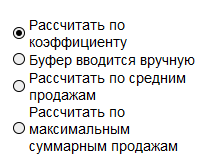
- Рассчитать по коэффициенту — установите этот переключатель, чтобы ко всем товарам применить одинаковый коэффициент пересчета относительно текущего буфера. Мы рекомендуем использовать этот тип расчета буфера для управления рекламными акциями и сезонностью.
Буфер для периода: 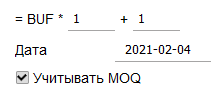
Формула расчета буфера:
- Если требуется увеличить/уменьшить буфер на определенный процент, введите соответствующий коэффициент умножения в первое поле (например, для увеличения на 40% введите коэффициент 1.4, для уменьшения на 30% введите коэффициент 0.7 и т. д.).;
- Если требуется увеличить буфер НА определенное количество единиц, введите числовое значение во второе поле формулы (например, для увеличения буфера на 10 единиц, введите число 10). Уменьшение буфера невозможно.
Дата. Укажите буфер за какую дату использовать при расчете. Дата должна быть не позднее даты начала периода.
Учитывать MOQ:
* По умолчанию флажок установлен и формула расчета буфера: Новый буфер = (Буфер на указанную дату - MOQ) * коэффициент + константа + MOQ.
* Если флажок не установлен, то: Новый буфер = Буфер на указанную дату * коэффициент + константа
- Буфер вводится вручную – установите этот переключатель, чтобы вручную установить буфер для каждого товара в периоде.
- Рассчитать по средним продажам - установите этот переключатель, чтобы пересчитать буфер по всем товарам в периоде по средним продажам товара за период:
Буфер для периода: 
Этот тип настройки буфера позволяет рассчитать буфер на основе средних продаж за период, умноженных на определенный коэффициент. Мы рекомендуем использовать этот метод расчета при высоких значениях MOQ, но низких продажах.
Средние продажи рассчитываются за выбранный период времени, который должен быть ранее начала периода, и умножаются на коэффициент.
- Рассчитать по максимальным суммарным продажам - установите этот переключатель, чтобы рассчитать буфер для товаров на основе максимальной суммы продаж за указанный период.
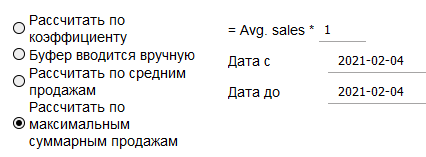
Необходимо указать следующее:
* период, из которого программа должна взять максимальный объем продаж в течение цикла поставки (RD). Если период указан слишком коротким ( * коэффициент - рассчитанная сумма будет умножена на указанный коэффициент (если сумма не рассчитана из-за неверно указанного периода, текущий существующий буфер будет умножен на этот коэффициент). 5) Приостановка смены буфера во время / после периода. * Когда в начале периода / сезона продажи увеличиваются, но нет необходимости сразу пополнять увеличенный запас, увеличение буфера может быть отложено. * В поле даты указывается дата, до наступления которой система не предлагает увеличение буфера согласно установкам периода. После наступлении даты и установленном флажке система будет предлагать изменения буфера. : 6) Дата окончания периода используется, когда по окончании периода необходимо произвести какие-то действия. 1) "Период без конца" используется, когда нет необходимости автоматически отслеживать окончание периода. 2) Дата конца - установите дату окончания периода. Дата изменения буфера зависит от выбранного типа периода. · Если в начале периода буфер изменяется в дату начала периода, обратное изменение буфера происходит в дату окончания периода. · Если в начале периода буфер изменяется перед заказом, приходящим к дате начала периода, обратное изменение буфера происходит перед первым заказом, приходящим после даты окончания периода. Действия по окончании периода: Восстановить первоначальные – по окончания периода будет восстановлен буфер, который действовал до начала периода. Установить метку OUT (вывести из ассортимента) – по окончании периода автоматически устанавливается метка OUT Mover (товар выводится из ассортимента). Изменить статус на DTO – по окончании периода установить статус DTO. Рассчитать буфер для последнего заказа - перед последним заказом в периоде система рассчитает такой буфер, которого хватит до конца периода. !!!Если значения буфера / буфера безопасности не были установлены до начала периода, то по окончании периода буфер, установленный в периоде не изменится. Товары для периода 1) После того, как установлены параметры периода, необходимо установить, к каким товарам будут применяться настройки периода: 1 способ. 2 способ. Если необходимо установить буфер для каждого товара (выбрана ручная установка буфера), заполните столбцы буфера и буфера безопасности. Если нет необходимости устанавливать вручную буфер, оставьте столбцы пустыми. Если система содержит хотя бы одну из вышеуказанных ошибок, открывается окно с указанием, в каких строках содержатся ошибки; Если ошибок нет, данные будут загружены в Stock-M, а товары, перечисленные в файле, появятся в окне Период с заполненными из файла параметрами. . ПРИМЕЧАНИЕ: если Вы заполнили в файле значения буфера и буфера безопасности, убедитесь, что установлен тип начала периода "Ручной ввод буферов". Если Вам необходимо импортировать для периода много данных по разным местам хранения, воспользуйтесь Импортом файла по уровню склада (шаблон данных по уровню склада) Чтобы изменить параметры периода, выберите STOCK-M → „ДРУГОЕ“ → „ПЕРИОДЫ“ → нажмите Чтобы изменить параметры периода, выберите „МОДУЛИ“ → „ПЕРИОДЫ“ → нажмите 1. До начала периода Вы можете изменить: 1) Дату начала (новая дата начала должны быть позднее текущей даты); 2) Дату окончания (новая дата окончания должны быть позднее текущей даты и позднее даты начала периода); 3) Действия по окончании периода; 4) Формулу изменения буферов или значения буферов, если выбран тип установки вручную. 5) Добавить в период новые товары. 6) Удалить товары из периода. В окне товаров периода отметьте товары, которые необходимо удалить и нажмите кнопку Если Вы желаете удалить весь период, нажмите кнопку Если Вы желаете удалить весь период, нажмите кнопку Если значения буфера, буфера безопасности не были установлены во время периода, они не будут восстанавливаться в первоначальные значения по окончании периода !!! 2. Если действие Периода началось, изменение параметров, относящихся к началу периода, невозможно. Если необходимо изменить параметры периода, необходимо удалить действующий период и создать новый с новыми параметрами. 2. Если действие Периода началось, изменение параметров, относящихся к началу периода, невозможно. Если необходимо изменить параметры периода, необходимо удалить действующий период и создать новый с новыми параметрами. 3. Если действие Периода началось, Вы можете изменять следующее: 1) Добавлять товары в период. Параметры периода для товаров будут установлены на следующий день. Если для периода выбрана ручная установка буферов, необходимо заполнить буферы и буферы безопасности для добавленных товаров.. 2) Удалять товары из периода. 3) Удалить весь период. 4) Изменить дату окончания периода, при этом дата окончания должна быть не ранее текущей даты. 5) Изменить действие по окончании периода. 6) Изменить буферы и буферы безопасности у товаров периода. 4. После изменения параметров необходимо сохранить изменения. 5. Товарная позиция, для которой началось действие периода закрашивается лиловым цветом в окнах заказов, запасов и т. д. Если Вам необходимо создать новый период для товаров, включенных в другой завершенный или действующий период, вы можете создать период на основании другого периода. 1. В списке периодов нажмите на иконку 2. Измените параметры нового периода и список товаров и нажмите 


 или график по товару, нажав на значок
  .
. . Необходимо заполнить только БЕЛЫЕ столбцы (Код склада/магазина, Формат, Код поставщика и т. д.) .
Изменение параметров и товаров периода
 для требуемого периода. для требуемого периода.
 . В окне подтверждения выберите вариант:
 , весь период будет удален. , весь период будет удален.
Создание нового периода на основании существующего периода
 в строке периода, на основании которого необходимо создать новый период. Система создаст новый период (наименование нового периода будет включать наименование исходного периода и дату создания копии) с теми же параметрами и списком товаров.