Changes for page KITI StockM SISTEMOS NUSTATYMAI IR FUNKCIJOS
Summary
-
Page properties (2 modified, 0 added, 0 removed)
Details
- Page properties
-
- Default language
-
... ... @@ -1,0 +1,1 @@ 1 +lt - Content
-
... ... @@ -1,3 +1,5 @@ 1 +{{toc/}} 2 + 1 1 == (% style="font-family: inherit; letter-spacing: 0.1px;" %)**Measurement units**(%%) == 2 2 3 3 This parameter is most often renewed from the client's accounting program. If the units of measurement are not renewed, then you have to describe and assign them to StockM: StockM → "Other" → "Dimension". ... ... @@ -10,7 +10,7 @@ 10 10 11 11 2) __Precision__ – entered number shows how many numbers after the comma is showed (0 – whole number/integer). According this settingorder quantity, buffer is rounded/not rounded. 12 12 13 -2. Assign the unit of measurement to the item - see: [[Item (SKU) settings>>doc: WebHome]]15 +2. Assign the unit of measurement to the item - see: [[Item (SKU) settings>>doc:SKU_Settings]] 14 14 15 15 3. If you want to correct unit of measurement: StockM -> „Other“ -> „Dimension“ – correct the dimension straight in the list. 16 16 ... ... @@ -24,7 +24,7 @@ 24 24 25 25 [[image:56_SupplierInfo.png]] 26 26 27 -**~ **3. In the opened column „SKU dimension in supplier ERP“ select unit of measurement, if you don‘t find it, so create it (see: [[Measurement units>>doc:WebHome]]). 29 +**~ **3. In the opened column „SKU dimension in supplier ERP“ select unit of measurement, if you don‘t find it, so create it (see: [[Measurement units>>doc:WebHome||anchor="HMeasurementunits"]]). 28 28 29 29 4. Enter the coefficient in the column „Dimension conversion ratio“ – it is the number, by which after multiplying STOCK-M units, we will get supplier's unit. (The supplier's multiplier is calculated according the formula: Supplier's unit = STOCK-M unit of measurement * Supplier's unit multiplier). 30 30 ... ... @@ -48,7 +48,7 @@ 48 48 If you want to select the currency, firstly need to describe it. 49 49 50 50 51 -~1. In menu point „Other“ select „Currency“. Create the desired currency in this menu point, by which you see order amount in money, which is formed for supplier (currency is assigned for each supplier in supplir card, see: [[Supplier settings>>doc: WebHome]]).53 +~1. In menu point „Other“ select „Currency“. Create the desired currency in this menu point, by which you see order amount in money, which is formed for supplier (currency is assigned for each supplier in supplir card, see: [[Supplier settings>>doc:Suppliers]]). 52 52 53 53 [[image:57_Currency.png]] 54 54 ... ... @@ -283,13 +283,13 @@ 283 283 284 284 * Click the button „Show“ – the table that opens shows the list of not confirmed supply schedules. 285 285 286 -* Confirm supply schedules (see: [[Supplier settings>>doc: WebHome]]).288 +* Confirm supply schedules (see: [[Supplier settings>>doc:Suppliers]]). 287 287 288 288 6. //__USQ<=0__// 289 289 290 290 * USQ (unbreakable supplier quantity) has to be bigger than 0 unit, otherwise will be formed wrong order for DTA item. Auto correct will set USQ = 1. 291 291 292 -* Correct item USQ in item card (see: [[Item (SKU) settings>>doc: WebHome]]; see: [[Supplier settings>>doc:WebHome]]), if USQ is not updated from client‘s accounting. Auto correct will set U USQ = 1).294 +* Correct item USQ in item card (see: [[Item (SKU) settings>>doc:SKU_Settings]]; see: [[Supplier settings>>doc:Suppliers]]), if USQ is not updated from client‘s accounting. Auto correct will set U USQ = 1). 293 293 294 294 * If USQ is not updated, then correct items in US! Accounting. 295 295 ... ... @@ -337,7 +337,7 @@ 337 337 338 338 ))) 339 339 340 -* If the items do not actually have to be updated/renewded to STOCK-M, then change the state of the items to NA, in the STOCK-M (see: [[Item (SKU) Settings>>doc: WebHome]]);342 +* If the items do not actually have to be updated/renewded to STOCK-M, then change the state of the items to NA, in the STOCK-M (see: [[Item (SKU) Settings>>doc:SKU_Settings]]); 341 341 342 342 ((( 343 343 ... ... @@ -389,7 +389,7 @@ 389 389 390 390 * Click the button „Show“ - in the table that opens you will see the list of items, for which is determined, that doesn‘t have to be in the center (DTO), but must be in the region (DTA): 391 391 392 -* Correct the status of item in the center (DTA – must be in the center) or in the region (DTO – shall not be in the region) or set the feature OUT (item, taken out from the assortment) (see: [[Item (SKU) settings>>doc: WebHome]]).394 +* Correct the status of item in the center (DTA – must be in the center) or in the region (DTO – shall not be in the region) or set the feature OUT (item, taken out from the assortment) (see: [[Item (SKU) settings>>doc:SKU_Settings]]). 393 393 394 394 7. //__Purchase price <=0; sale price <=0__// 395 395 ... ... @@ -404,7 +404,7 @@ 404 404 ))) 405 405 406 406 * Click the button „Show“ – in the table that opens you will get the list of suppliers, which RD>GD; 407 -* Correct supplier RD and GD (see: [[Supplier settings>>doc: WebHome]]).409 +* Correct supplier RD and GD (see: [[Supplier settings>>doc:Suppliers]]). 408 408 409 409 ((( 410 410
- Measurement units
- Suppliers measurement units for items (items measurements units conversion)
- Currency setting
- Orders (lines) change/cancellation and reasons of buffer change creation
- Item search in orders
- Report "Buffer dynamics"
- Report „Inventory dynamics“
- Report "Inventory level (DTA)"
- System warnings
- Filter
- Search according context in drop-down lists
- Sorting
- Selection of columns
- Table export to Excel (*.xlsx), to CSV (*.csv)
- Copying item code/name/other fields
- Item buffer schedule
- Order amount, balance amount
- Paging
Measurement units
This parameter is most often renewed from the client's accounting program. If the units of measurement are not renewed, then you have to describe and assign them to StockM: StockM → "Other" → "Dimension".
1. In the window that opens click the button „New“:
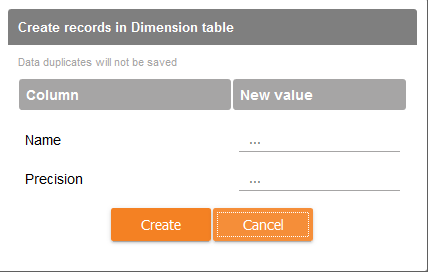
1) Name – enter the name of unit of measurement (short name of dimension, eg.: unit or kg).
2) Precision – entered number shows how many numbers after the comma is showed (0 – whole number/integer). According this settingorder quantity, buffer is rounded/not rounded.
2. Assign the unit of measurement to the item - see: Item (SKU) settings
3. If you want to correct unit of measurement: StockM -> „Other“ -> „Dimension“ – correct the dimension straight in the list.
4. If you want to remove the dimension (unit of measurement): StockM -> „Other“ -> „Dimension“ – mark the row of dimension and click the button  . You can delete only these dimensions, which are not assigned to any item.
Suppliers measurement units for items (items measurements units conversion)
1. Used when the item in STOCK-M is managed in one kind of dimension and ordered in other kind of dimension (eg. unit of measurement is 1 unit, but ordered from the supplier in boxes and 1 unit means 1 box, which contains 20 units).
2. In this case you have to determine units of measurement conversion for each item. You can do this in the "Supplier information" window.
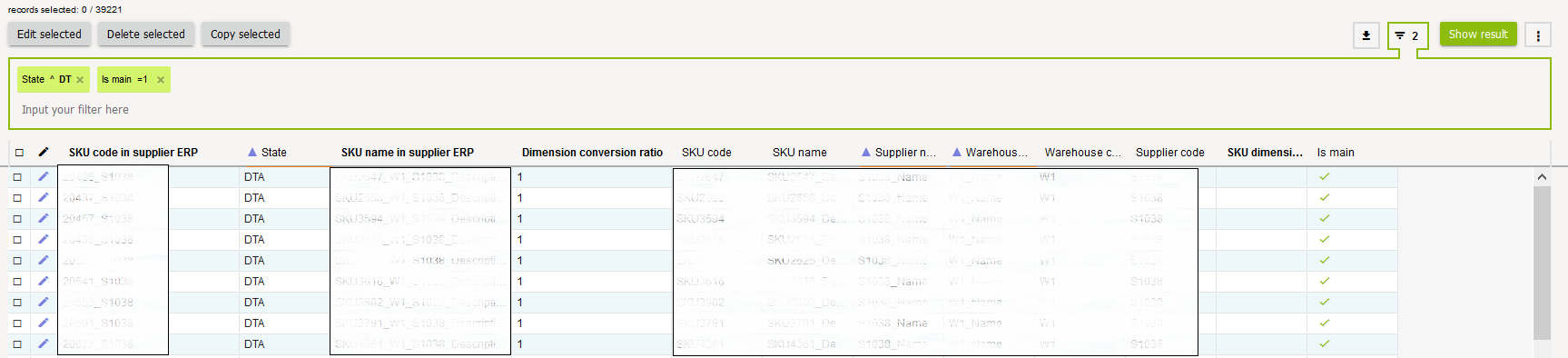
3. In the opened column „SKU dimension in supplier ERP“ select unit of measurement, if you don‘t find it, so create it (see: Measurement units).
4. Enter the coefficient in the column „Dimension conversion ratio“ – it is the number, by which after multiplying STOCK-M units, we will get supplier's unit. (The supplier's multiplier is calculated according the formula: Supplier's unit = STOCK-M unit of measurement * Supplier's unit multiplier).
For example: STOCK-< item measurement unit is 1 unit, supplier measurement unit is 1 box, where are 20 units, so you have to write/enter multiplier 0,05.
5. JIf there is set unit of measurement conversion for the item, so you can see ordered quantity STOCK-M unit of measurement in the STOCK-M new order. (column "Quantity") and the supplier unit of measurement (column "Quantity" (Supplier Units) ). In the order, sent to the supplier, will be specified quantity by supplier units of measurement.
6. If the same item can be supplied from several alternative suppliers, but is ordered in different units of measurement, so for each supplier must be assigned a unit of measurement conversion.
7. You can do edit in one row or edit selected rows.
8. In the supplier information window you can also enter the SKU code in the supplier system and the name in the supplier system. These values you can also enter during data exchange, if it is agreed at the beginning of the project.
Currency setting
When orders for the suppliers are sent to different countries, it is useful and necessary to see the orders in currencies, which is used by the supplier. For example, see in what amount (in monetary amount) a new order has formed, or while describing the terms of supplier optimization monetary amount.
If you want to select the currency, firstly need to describe it.
1. In menu point „Other“ select „Currency“. Create the desired currency in this menu point, by which you see order amount in money, which is formed for supplier (currency is assigned for each supplier in supplir card, see: Supplier settings).
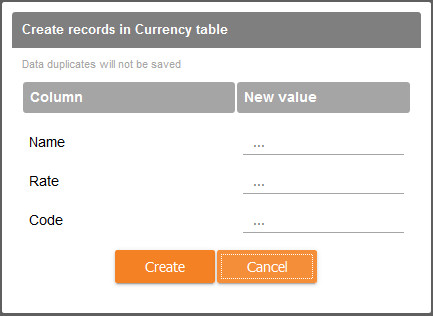
2. In the table that opens enter/write:
1) Name – name of the currency, which you want to enter (eg. Eur, USD);
2) Rate – rate of exchange with the main currency.
3) Code – short name (abbreviation) of the desired currency (eg. Eur, USD). If you want that rate of exchange would be renewed automatically, so abbreviation of currency must match with Lithuania Bank abbreciation of currency.
3. If you want to adjust the settings for a particular currency, you can do this on the list row. Adjustments are allowed for Title and Course.
4. If you want the rate of exchange would update regularly according the LB official rate - additional settings are required in the SM Admin section. Contact your project manager for settings.
Orders (lines) change/cancellation and reasons of buffer change creation
When editing a new order or changing the buffer, the system asks you to choose the reason for the edit. You need to create a reason before you can choose it.
1. In menu point „Other“ select „Reasons“.
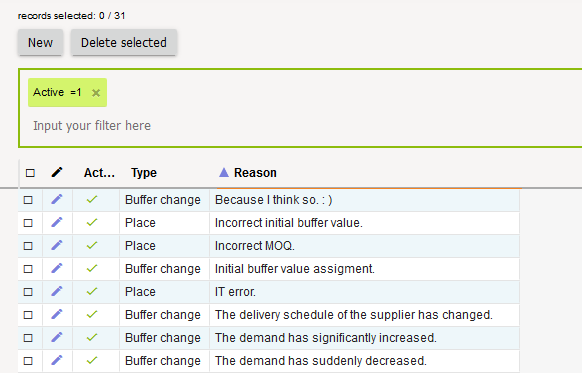
2. In the window that opens you see already created reasons. If you need to create new, click  .
.
3. In the table that opens, select:
1) Activity of reason;
2) Type of reason: editing and deleting a new order (send) or change of buffer;
3) Enter the content of the reason;
4) Click „Create“.
4. If you want to edit already entered reason, this you can do just in the desired row.
Item search in orders
1. It is possible to find the desired item in orders. When you enter into the order ("New Order" or "Placed Orders") you can find the desired item by item code (fragment) or by name (it's fragment). Call up the Item Search Filter in the opened window (Ctrl + F).
2. In the search table that appears  enter the SKU code of item you are looking for or fragment of name and click „Enter“, the system will highlight the item, which you are looking for.
1) If you entered a fragment of item and there is more than one item, which has such fragment, then press the arrow down or "Enter". The system will highlight the item, which is below, automatically, that has the fragment you are looking for.
2) If you need to go back to the previous not marked item, that has a fragment, then click the arrow up.
3. It is also possible to find in which sent order for the supplier the item is. When opening the placed orders window: Orders → Placed orders → In the filter select “Order SKU” and enter the item you want to find.

Report "Buffer dynamics"
1. A report, showing how many and in what status there are item names in every storage place: STOCK-M → "Reports" → "Buffer Dynamics" (data is collected and recorded daily).
2. This report shows daily situation of DTA goods (goods that must be in storage place), also it is possible to see the status of DTO and NM goods.
3. The reservation is evaluated in teh report, and the reserved quantity will be evaluated as sold. (for example: if the balance of the item is 100 pieces and the entire balance is reserved, the system will think that the item is sold and he item will enter the black zone in "Buffer status" report).
4. The report allows you to select by what "incision" you want to see goods situation daily: in whole company (how many names of DTA are missing, how many are at risk, what is optimal quantity, what is the right level of inventory, how many is DTO and NM goods), separately at each storage place, by selected supplier, by manufacturer, by group, by user.
5. When you take the mouse over the graph, you see the date and the number of items, which is on the selected day.
6. Meanings of colors:
 – items are not at the storage place (the balance of item compose <=3% of set item buffer).
 – the balance of item is risky low at the storage place (the balance of item compose 4-33% of set item buffer)..
 – the balance of item is optimal (the balance of item compose 34-66% of set item buffer).
 – the balance of item is safe (the balance of item compose 67-100% of set item buffer).
 – the balance of item is safe (the balance of item compose 67-100% of set item buffer).
 - quantity of items, which has DTO state (the balance is not estimated).
 - quantity of items, which has NM state (the balance is not estimated).
Report „Inventory dynamics“
1. Report, which shows the situation (in purchase prices, EUR) within the company/separate company storage places/individual suppliers inventory dynamics: STOCK-M → "Reports" → "Inventory dynamics".
2. In the opened Inventory dynamics reports window you can see information (data is collected and fixed every calendar week).
1)  - total weekly sales;
2)  – total average weekly inventory;
3)  – total lost sales of the company, due to the fact that you did not have the goods in storage place during the week;
4) – overstock inventory for the last day of the week;
5)  – how fast items "turns around" at the storage place during the year;
6)  - annual returns of inventory to investments, i.e. how much you earned from inventory (for example: ROI = 0% it means you didn't earn anything extra, you only got back, what you invested; ROI = 100% means you got what you invested and earned double).
- In this report you can see the date and meanings of all columns, after taking the mouse on selected columns block.
- This report can be exported into Excel. After selecting the desired storage place, supplier, group, click
 .
.
3. At the bottom of the graph select the incision, by which you want to analyze the report:
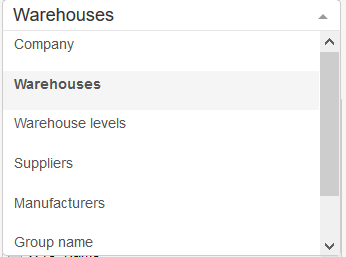
1) Company – inventory dynamics across the company;
2) Warehouse – inventory dynamics at each selected storage place;
3) Suppliers – inventory dynamics of the selected supplier (only for the goods and in these storage places, to which your selected supplier is assigned);
4) Manufacturers – inventory dynamics of the selected manufacturer within the company (for those goods and storage places, for which your selected manufacturer is assigned);
5) Group name – inventory dynamics via selected group;
6) Users – inventory dynamics of the selected user.
7) The purpose of this report is to see trends of inventory management. Information is provided for the last 52 weeks.
In order to make reading of big numbers easier / clearer, the significant numbers in Inventory Dynamics reduced to 3.
Significant digits are valid for values that are calculated in money.
Report "Inventory level (DTA)"
1. The report is designed to evaluate the level of DTA goods inventory: STOCK-M → "Reports" → "Inventory Level (DTA)" (data is collected and recorded daily).
2. DTA items are showed in the report with balance > 0 relation with all DTA items (SKU through all warehouses), expressed in %.
3. Information is depicted by two curves:
1)  - DTA goods/items, which balance is > 0. Expressed in %.
2)  - DTA goods/items, which (balance – amount (Safety buffer)) > 0. Expressed in %.
- In this report, after moving the mouse on selected curve, the date and values for both curves are showed.
- The report can be exported into excel. After selecting the desired storage place, supplier, group, click .
4. At the bottom of the graph select the incision, by which you want to review (analyze) the report:
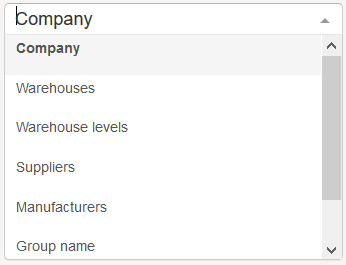
1) Company – inventory level through the company;
2) Warehouses – inventory level in each selected storage place;
3) Suppliers – inventory level of selected supplier (only those goods and in these storage places, for which your selected supplier is assigned);
4) Manufacturers – inventory level in the company of the selected manufacturer (those goods and in these storage places, for which is assigned your selected manufacturer);
5) Group name – inventory level through the selected group;
6) Users – inventory level of the selected user.
System warnings
1. The STOCK-M system records errors, that can lead to incorrectly managed inventory. These errors appears in the System Warning window and we recommend to review and correct them: STOCK-M → "Warnings".
2. Systematic warnings window is splitted in two parts „Critical warnings“ and „Other warnings“.
1) Critical warnings – this is warnings, which can influence inventory management directly. You have to check it daily and correct immediately. As a result of these errors, the goods will not be included into orders and the reports will be calculated wrong.
2) Other warnings – this is possible mistakes, which have to be reviewed and corrected. We recommend to check it at least once a week.
3. After clicking the button "Show", you will open a window with information about the error (item code, name, storage place, supplier, MOQ, BUFF, etc.). In most of the lists that appear, you can correct the errors immediately.
4. There are buttons „Fix“, near some errors, i.e. the system suggests how to correct these errors. After clicking this button, the system will correct the parameters to the required values.
„Critical warnings"
1. Buf < MinBuf or Buf
DTA items buffer can‘t be smaller than min. Buffer or MOQ (item might not be involved into the order). Auto fix will increase the buffer to min. Buffer or MOQ (depends on which is bigger).
- Click the button „Show“ – in the table that opens you will see the list of items, which buffer is smaller than minimum buffer or MOQ;
- If you wil click the button „Fix“ – the system will increase the buffer for all items to minimum buffer or MOQ.
2. MOQ
The minimum order quantity (MOQ) for an item can not be smaller than supplier's non-destructive quantity (USQ), otherwise an incorrect order will be formed for the DTA item. Check and fix MOQ and USQ for these items:
- if MOQ and USQ are updated from an accounting program, make changes in the accounting program;
- if MOQ and USQ are not updated from an accounting program, make changes in STOCK-M.
3. DTA items supplier don‘t have supply schedule
It is fixed that the item must be in storage place (DTA), but there is no orders formation schedule for the supplier, from which the item is delivered (the system will not place an order for the item).
- Click the button „Show“ – in the table that opens you will see the list of suppliers, with at least 1 item set as DTA, however the supplier is not active or not active orders formation schedule:
Set a schedule for order formation or adjust supplier settings at a specific storage place for your supplier (see 1. Order Management Rules or 4. New Supplier Entering Rules).
4. Items for which periods are overlapping
The same item can not participate in several periods if dates overlap.
For items, participating in two or more periods, if the dates of the periods overlap, two periods are executed at the same time - the end of the first period is not fulfilled and the second period shall be allowed to happen.
- click the button "Show" - the table that opens shows a list of items that are involved in multiple periods with overlapping dates, at the same time.
- Remove the item from one period and set a new period with other dates.
5. Not confirmed supply schedules (if it is agreed turning on of this function with project manager).
- Click the button „Show“ – the table that opens shows the list of not confirmed supply schedules.
- Confirm supply schedules (see: Supplier settings).
6. USQ<=0
- USQ (unbreakable supplier quantity) has to be bigger than 0 unit, otherwise will be formed wrong order for DTA item. Auto correct will set USQ = 1.
- Correct item USQ in item card (see: Item (SKU) settings; see: Supplier settings), if USQ is not updated from client‘s accounting. Auto correct will set U USQ = 1).
- If USQ is not updated, then correct items in US! Accounting.
7. Active items don‘t have active supplier.
- All active items will get into this list (not NA state and not NM state), for which inactive supplier is assigned. Items, which have OUT mover feature, will not be involved into the list.
8. Optimization: purchase price <= 0
When order is optimized according the amount, purchase prices are checked and if the active goods/items don't have the purchase price, the order is not optimized. The list will show items with Purchase Price <= 0 for suppliers, for which is set order optimization according the amount.
9. Items weight/volume = 0 (only DTA items are involved in system messages)
- When order optimization is set for the item supplier, but at least one item weight / volume = 0, then the order will not be optimized.
- Click the button "Show" - in the table that opens, you will see the list of items, that need to be filled in by weight or volume. Enter the weight / volume in the SKU list.
„Other warnings"
1. Item data are not updated more than 7 days
Items, which data are not updated, distort reports due to their false old data, because the last balance, received during data exchange, is saved and visible in the STOCK-M system.
- Click the button "Check", if there is at least 1 item that has not been updated for more than 7 days, then the button "Show" will appear (this system warning checking may take more time, because each item is checked and if data for them is updated).
- Check for what reasons listed items are not updated from the accounting.
- After clicking the button "Show" - in opened table you will see a list of items, which data have not been updated for more than 7 days.
- If the items do not actually have to be updated/renewded to STOCK-M, then change the state of the items to NA, in the STOCK-M (see: Item (SKU) Settings);
- If the items need to be updated to STOCK-M, then adjust the appropriate procedures in the accounting.
- If you click the button "Fix" - the system will turn off the entire list of items, which have not been updated for more than 30 days (will set to status NA).
2. Balance of item <0
The balance of item must be >=0, because in opposite way orders and reports will be distorted. Select for what reasons the quantities were updated with negative sign for the specified items from the accounting.
- If the balance is not negative, then correct it in the accounting program immediately.
3. Buffer update in the future
These are items for which the system will not offer to change the buffer, before the due date (30 days and longer). The buffer non-change setting is done by creating a new period, by placing the check mark "Do not allow for the system to change buffers automatically to a specified date" and by setting a date.
WE RECOMMEND: use in these cases, when you plan to sell all the balance in the end of promotion/season, however you don‘t need to keep a bigger level of inventory. Later additions must proceed to the buffer that was before the start of promotion/season.
- After clicking the button „Show“ check if there are no items, for which is set distant automatic buffer change date.
4. Volume of database
This information message shows how much space is occupied by the STOCK-M database.
5. MOQ<>n * USQ, n=1, 2, 3 ...
MOQ must be USQ iterative. The system will suggest to order the minimum quantity as specified in the MOQ, then the quantity of order will increase as specified USQ (eg: MOQ = 10, USQ = 3, this is the sequence of ordered quantities: 10, 13, 16, 19, 22, .. .).
- Click the button „Show“ – in the table that opens you will see the list of items, which MOQ is not USQ iterative.
- If you will click the button „Fix“ – the system will increase the MOQ to USQ iterative for all items in the list.
6. Item in the center DTO, region DTA, supplier central warehouse, but the item is not OUT mover
When only one storage place is managed, this warning is not relevant.
When there are managed more storage places and if in region item is set DTA (item to the region is delivered from the central warehouse), however the balance of the item is not supported (DTO) in the central warehouse, then regional warehouses will not receive the items, because these items are not ordered from the supplier.
- Click the button „Show“ - in the table that opens you will see the list of items, for which is determined, that doesn‘t have to be in the center (DTO), but must be in the region (DTA):
- Correct the status of item in the center (DTA – must be in the center) or in the region (DTO – shall not be in the region) or set the feature OUT (item, taken out from the assortment) (see: Item (SKU) settings).
7. Purchase price <=0; sale price <=0
Incorrect prices distort reports. You need to check and adjust prices in accounting that updates data to STOCK-M.
8. Very rare setting: RD>GD (In exceptional cases, may be RD>GD, used only then, when it is seeking to decrease the inventory fast. The setting is made only after agreement with the STOCK-M team).
Normally, the RD must be equal or lower than the GD.
- Click the button „Show“ – in the table that opens you will get the list of suppliers, which RD>GD;
- Correct supplier RD and GD (see: Supplier settings).
Filter
1. After opening the window of StockM, where you want to work, the filter table opens automatically:

1) In some windows (eg. inventory, placed orders history and etc.) filter is filled in by default.
2) If you want to filter only a specific item, supplier and etc., put the cursor to the location „Input your filter here“.
2. In the filter field, place your cursor to "Input your filter here":
Select the column you want to search by
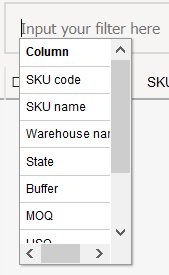
- select an operator (the condition, according which you want to run your search for);
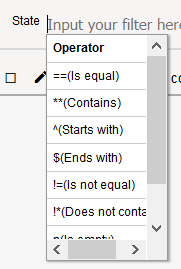
- write/enter the desired value;
- capture the entered filter condition by pressing "Enter" once. Captured filter condition must be green
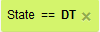 .
.
3. After entering all filter conditions and capturing it, click  or Enter. If the list, accordint to specified filter conditions, loaded button will be green
  .
.
4. If you entered the filter condition incorrectly, press  and enter filter condition again. If you only need to adjust the entered search value, you can do it without overwriting the entire condition again for the last filter condition, after clicking "Backspace" in the keyboard you will be able to edit the last filter condition from the end.
5. If you want to filter all the list, i.e. not to use the filter, then click Enter without using the filter or .
6. In order to see more filtered rows in the window – you can hide the filter after clicking  . If you click this icon one more time – filter input window will open again. The number in the icon indicates how many filter conditions are recorded in the filter.
7. In the filtered table there are only these fields, whose visibility you selected in the corresponding window.
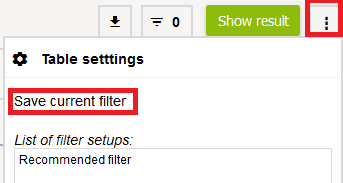
8. Each user can save the required / most often used filters. For example: if you are always working with a particular group of items, then select the column "group", the corresponding operator and values in the filter entering field. After capturing filter conditions - save it through the table settings window. You can save as many filter combinations as you need. You can also remove them from the list at any time if the filter becomes not relevant. Saved filters will be visible only to the user who saved them. Each time you reopen the window, you will be able to select the desired saved filter you need.
9. The search will not work, if in the text fields you will execute the search according to numerical values. All Extra and Wextra fields can be only text fields. Their names can be changed at the start of the project. If you want to know, what fields exactly are transferred via Extra and Wextra fields – contact your Project manager.
Search according context in drop-down lists
1. When you start to write any fragment, the list will be shortened according to it.
2. Such search is active in all windows, which have drop-down lists.
Sorting
1. In the STOCK-M window that opens, you can sort the values of the selected column (numeric - from the smallest to the biggest and opposite; text - according to alphabet from A to Z and
2. On the desired column name, which you want to sort, click with the left mouse button 1 time, the system will sort the column. Near the column name appears  , it means that it is sorted in ascending order (from the lowest to highest; from A to Z).
3. If you click one more time on the same column name with the left mouse button, the system will sort the column in a different order  , appears near the column name, it means that it is sorted in descending order (from the highest to the lowest; from Z to A).
Selection of columns
You can select which columns you need to see, while working with the inventory management system STOCK-M.
1. When you open STOCK-M window, where you want to work, after filtering the relevant item/storage place and other (or before filtering the list), click „Set visibility for columns“ in table settings.
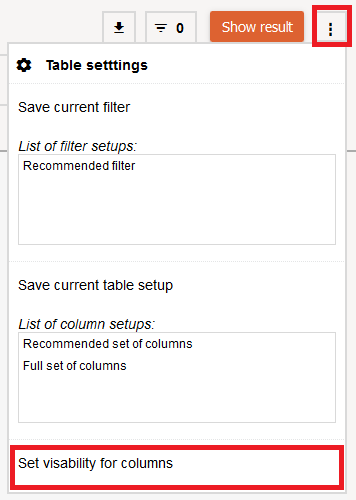
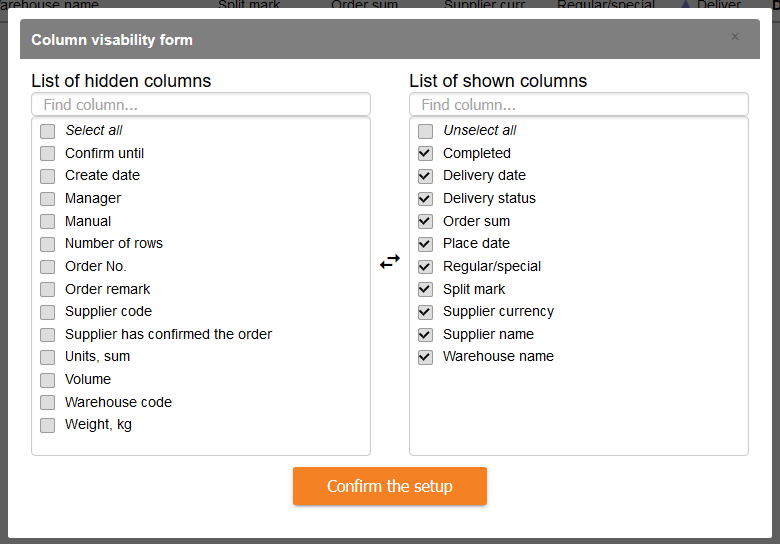
2. In the table that opens mark these columns, which you want to see in STOCK-M window and click the button „Confirm the setup“.
3. If you will sign in from the same device, the same window will be opened, which was opened before signing out with columns visibility and arrangement.
- this applies to every window in the STOCK-M system.
4. If you want to see columns again, select "All columns" in the opened STOCK-M window via Table settings window, in the columns settings list.
OR select „Select all“ in the columns visibility form
5. In the STOCK-M system window that opens, you can select the size of column, i.e. decrease or increase. Place the mouse on the right side of the column name, while appears  (double-sided arrow). Click the right button of the mouse and move the mouse to the left or right side (depending on whether you want to increase or decrease the size of the column).
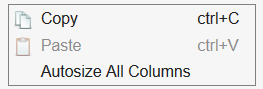
OR select „Autosize All Columns“ after clicking the right button of the mouse in any place of the table.
6. In the STOCK-M system window that opens, you can also change the place of each column, in the order you prefer. Place the mouse on the column name, which you want to move. Click the left button of the mouse and "drag" the column to the desired place.
7. You can "freeze" the desired column. Cick the right button of the mouse on the desired column name and drag it to the left side, while the icon  will appear. You will always see such column at the top of the list.
8. You can save the desired / mostly used column visibility and arrangement in the Table Settings, by selecting  , then you will not need to manage table rendering, just choose from the saved settings. The number of table settings, which is saved, is not limited and visible only to the user who made the saving.
Table export to Excel (*.xlsx), to CSV (*.csv)
When you work with inventory management system STOCK-M, you have a possibility to export the selected list to Excel or csv. In opened STOCK-M window at the top of any table find the icon  . Click the icon, select to what form you want to export the table, download the desired file and save the table to the desired place.
There are additional forms for export in some windows in the export list (for example, in the supply graphs window you can download full information form about suppliers).
Copying item code/name/other fields
1. In the STOCK-M window that opens, you can copy the value of one of the selected fields, e.g. item code, name, etc. mark the selected field with the left button of the mouse and press "Ctrl + C" on the keyboard - the value of the field is copied. Then press "Ctrl + V" at the selected place (STOCK-M filter, excel, word).
2. If you want to copy more than one field, then mark the desired place with the left button of the mouse, after clicking the right button of the mouse select "Copy" or "Copy With Headers" from the list and paste the copied values into the desired file (excel, word, etc.).
Item buffer schedule
You can see the schedule of each item movement in STOCK-M system.
1. The schedule of the item you can open in STOCK-M window, when you click the icon  near the selected item.
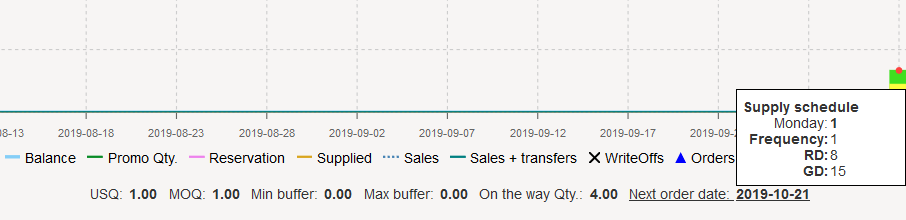
2. In the item graph window that opens, you see the 3-month dynamics of the item buffer and safety buffer (red zone - if the balance of item is in this zone, the inventory level is risky low; yellow zone - the level of item inventory is optimal; green zone - the level of item inventory is safe, above green areas - overstock). If you place the mouse on the green area, you will see the date of the buffer, the value of the buffer, and the reason for changing the buffer (if the buffer was changed that day, you'll see a red dot at the top of the buffer).
3. Also in the graph of an item you see curves: balance ( ), sales+transfers (
 ), supplied (
 ), sales (
 ) PTO (
 ). These curves you can take off and put on again. If you want to do this, you need to click on the desired curve in the a legend. Your made changes will be saved automatically, i.e. in other‘s items graph you will see only these curves, which you marked in previous item graph. If changes are not made, by default in item graph are showed all curves.
If you place the mouse on the selected curve (for example, balance) dot, you will see the date of that balance, value of that balance.
4. When you put the mouse on  you will see when the order was formed, how many pieces the system STOCK-M suggested to order and how many were ordered, so order placing date and number.
5. When you place the mouse in the graph on  , you will see written-off quantity if the item and date.
6. If you want to see the movement of the item through all the period (from the moment when item appears/system is installed), click the button  , which is at the top of the graph.
7. If you want to analyze only selected period ir to increase the selected part of the graph, then place the mouse on the graph desired to analyze period or at the start of the graph, click the left button of the mouse and drag the rectangle to the desired side.
8. If you want to return item graph to the primary view, click  .
.
9. If you want to save item graph, click  and select the place, where you want to save item graph.
10. If you want to export item graph to Excel, click the button .
11. There is provided other relevant information at the bottom of the graph: USQ, MOQ and other. An additional window appears with the information of supply graph, when you put the mouse on the next delivery date.
Order amount, balance amount
In the STOCK-M inventory windows (STOCK-M -> Inventory -> Buffers to increase, Buffers to decrease and others) click the icon  , which is at the bottom in the right corner of the table, here you can see information of the selected list of items:
1. Ordering amount – for what amount of money inventory shall be ordered according to set buffers of items;
2. Balance amount – what amount of money compose inventory of items.
Paging
STOCK-M shows 100 rows by default in a single window (the user can change the number of showed rows by selecting 200 or 500 rows, when user will open the page again, by default will be set 100). If you awork with a list of more than 100 rows, then more than 1 page will appear. Pages are showed in the center at the bottom of the window.
1. If you want to go to another window, click 
2. If you want to go to another page (eg. middle, 10 page, from page 20), to the field, in which is written the number of current page, enter the number of the desired page and click „Enter“ or the narrow  .
.
3. If you want to go to the last page, click  .
.
4. Do the same actions, when you want to come back to the previous pages, click  or
or  .
.