Changes for page NAUJIENOS
Summary
-
Page properties (1 modified, 0 added, 0 removed)
Details
- Page properties
-
- Content
-
... ... @@ -1,135 +1,88 @@ 1 -(% class="wikigeneratedid" %) 2 -= StockM Update 2020.09.24 = 1 += StockM Update 2020.12.17 = 3 3 4 -**Recipients of copy of orders.** 5 5 6 - Inthe past, copiesofanorderhavealways been received by the userwho sends the order and / oris responsiblefortheorder.Thesetting was company-wide.4 +**~1. Change of TOP / NON names in StockM (ABC analysis).** 7 7 8 - Sincethis update, this settingisavailableon thesuppliercard.Ifitisactive,acopy of thesupplier's orderwill be sentto thepersons responsible for the orderand / or whosentit.Acopy willnot besentif thissettingisinactive[[image:20200824a.png]]6 +In StockM, the names TOP / NON have changed in to the widely used ABC analysis and its usual terms: 9 9 10 -[[image:20200824.png]] 8 +* TOP name changed to “A”; 9 +* NON - to “C”; 10 +* Blank rows that were in the “Movers” and “WMovers” columns are now called as “B”. 11 11 12 +The logic of the calculation does not change, everything remains as it was. The names also changed in the reports. 12 12 13 - = StockMUpdate2020.09.17=14 +Column names that changed in StockM: 14 14 16 +* the column name “Movers” changed to “ABC”; 17 +* Wmovers - to LocABC. 15 15 16 - **~1.Search in theOrderwindow.**19 +If the item is new, you will see "New" in the "LocABC" column (if the "New to" date has not passed yet). 17 17 18 - Inall Order windows (New orders, Placedorders,Sentrders history) a quickfilter / search inputfield "Quick filter"has been created.21 +**2. New column in StockM "Next delivery".** 19 19 20 -* The filter / search works immediately with each character entry. 21 -* The filter / search works from all columns. 22 -* If at least one character is entered in the filter / search field, the edges of the field are marked by a green line (filter active) and at the same time all buttons in the order window are switched off (gray color). In other words, as long as the filter is active, the information is filtered in the window - a visible part of the order is only visible and no actions with order can be saved, sent, etc.). 23 +From now on, you can see the expected delivery date of the item in StockM. If the item is in multiple orders, the nearest expected delivery date is displayed. 23 23 24 - [[image:image_2020_09_17T13_51_19_877Z.png]]25 +The name of the new column is "Next delivery". It is visible in the Inventory, Suppliers Schedule windows and on the product card. 25 25 27 +p.s. if you don't see the column, open it through the column selection. 26 26 29 +(% class="wikigeneratedid" %) 30 += = 27 27 28 - **2.Newtypeof markOUT**32 += StockM Update 2020.11.12 = 29 29 30 - ThemarkOUT foritemsremovethemfromthe rangeof productswasused so far.34 +**Return of overstock to the company's central warehouse.** 31 31 32 - Since thisupdate,it ispossibletoselect theOUTtype:36 +We present a new opportunity to form return orders for overstock items from warehouses / stores to the central warehouse. 33 33 34 -* the current mark OUT. Nothing has changed. Recommended for use when the product is sold out and removed from the range. 35 -* a new mark CLN. For the items to be sold out that may be kept in the range further on or included in the range later again. The distribution and statuses of the items which are marked CLN operate on the same principle as OUT, but the final status remains DTO everywhere. After the stock balance ends, the mark CLN will be automatically removed. If we later receive the stock balance or some kind of movement of the items into StockM, the status of the items will remain DTO. 38 +In StockM window Orders -> Create Orders a new "Return Order" section has been created. To place a return order, you must specify: 36 36 37 -**3. Mass combining into groups of alternative items (ALT)** 40 +* a central warehouse to which you will return overstock; 41 +* warehouses / stores (and / or warehouse levels) from which returns must be made; 42 +* it is possible to indicate which groups of items will participate in the return (if none is selected, all are considered to be marked), 43 +* from what percentage of the BB indicator (balance and buffer ratio) items have to be returned (less than 100% cannot be specified). 38 38 39 -In SM Admin menu(ADMIN -> ACTIONS -> MERGE ALT GROUPS)windowthereisa draftofthetablefor masscombining oftheitems intoALTgroups.45 +In other words, the percentage indicates that the excess items above it are returned. 40 40 41 -[[image:2020 0918.jpg]]47 +[[image:20201112.png]] 42 42 49 +IMPORTANT: In order to return the items from the warehouse / store, it is necessary to create a supplier with the same supplier code as the warehouse code (Supplier code = Warehouse code). 43 43 44 -* Main SKU code: SKU code of the main item in the group. 45 -* Parameters SKU code: SKU code of the item, which parameters will be assigned to the main SKU. 46 -* Old Main SKU code: if the existing group of items is changed, indicate the existing (old) code of the main SKU in the group. The Main SKU code field must contain the new main SKU code. 51 +Other mandatory conditions: 47 47 48 - Ifa newgroupis being combined,do notspecifyanythingin this field.53 +• the item does not participate in the promotion in the branches / stores from which it is returned; 49 49 50 - *AltSKU code: SKUcode ofalternativeitem55 +• the product does not have the mark of being out of range or sold out (OUT, CLN) 51 51 52 -Note: If there is more than one ALT item code for the same main SKU code, they must be listed on separate rows, repeating the main SKU code on each row. 57 +(% class="wikigeneratedid" %) 58 += = 53 53 54 - Thecompletedtable needsto beimported into StockM.60 += StockM Update 2020.10.15 = 55 55 56 - =StockMUpdate2020.09.03=62 +**~1. Distribution of Safety buffer to stores from the central warehouse.** 57 57 64 +When distributing balances from the central warehouse to stores / branches, the quantity of the Safety Buffer in the central warehouse is not distributed. 58 58 59 - **~1.Additional buffer management setting.**66 +Since this update, it is possible to specify Safety buffers, which fall into the distribution of balances to branches / stores. If it is necessary to distribute the following quantities, the Safety buffers must be entered / indicated in columns: SB2, SB3 (In the inventory window or on the product card), or the information must be transferred during the data exchange. The quantities indicated in them will participate in the distribution of the balance from the central warehouse. 60 60 61 - Itispossible to specifya conditionforincreasingthebuffer in thesupplier'scard: do notincrease bufferif undelivered orderspresent. If thecheckmark is placed, the addition(IN)duringthelastreplenishmenttime ischecked:68 +**2. Visibility of lost sales, transfers, overstock and write-offs in StockM.** 62 62 63 -* if addition was - the buffer is increased. 64 -* if there was no addition, the existing buffer is retained. 70 +Since this update it is possible to see last week's lost sales, lost transfers, overstock and write-offs in the StockM window (new option). Now you can now see this information (excluding write-offs and transfers) in your weekly lost sales and overstock reports. New columns in StockM appear in the Inventory window (you only need to open them). 65 65 66 - Since thisupdate,anadditionalconditionismadeforincreasingthebuffer:donotincreasethebufferifshipments arenot full.When thiscondition is enabled,not onlythefactof replenishment,but alsothe quantity received is evaluated.Thebufferwill not beincreasedifthe amountofadditions duringthe replenishmentperiod issthan 0.5 × BUF + SafetyBuffer.72 +If you need to analyze a number of causes / problems, it is possible set such tasks to appear in the User Tasks window. The task would be visible to those managers whose products fall into these lists. A window will open with a list of items, where each item will need to be accompanied by the reasons for lost sales, overstock, etc. 67 67 74 +The number of reasons for lost sales, lost transfers, overstock, or write-offs is determined company-wide - you can choose how many reasons you want to analyze. The settings are made by a StockM team. 68 68 69 - **2.Addedpossibilities toopenSKUgraph.**76 +To enable Report Analysis in StockM, you must inform a StockM team. At the same time, you will be sent a more detailed description of how to use these reports. 70 70 71 - TheSKU graphcan be accessed by clickingon the graph icon intheline.78 += StockM Update 2020.09.24 = 72 72 73 - Sincehisupdate,additionally:80 +**Recipients of copy of orders.** 74 74 75 - *TheSKU graph canbeopenedinthe line by right-clickingand selecting“SKU graph”.82 +In the past, copies of an order have always been received by the user who sends the order and / or is responsible for the order. The setting was company-wide. 76 76 77 -[[image:20200 903a.png]]84 +Since this update, this setting is available on the supplier card. If it is active, a copy of the supplier's order will be sent to the persons responsible for the order and / or who sent it. A copy will not be sent if this setting is inactive[[image:20200824a.png]] 78 78 79 - * Once the graphis opened, you can navigatethrough the graphs of other items in the list from which the graph was opened.Icons have been made in the upper right window of thegraph, which can be used to:86 +[[image:20200824.png]] 80 80 81 -o [[image:20200903b.png]]– to open the graph of the next item in the list in the window; 82 - 83 -o[[image:20200903c.png]] – to open the graph of the previous item in the window; 84 - 85 - o[[image:20200903d.png]]– to capture an opened graph. The graph of the next item will be opened in a new window. 86 - 87 -= StockM Update 2020.08.20 = 88 - 89 - 90 -**~1. Setting: to reduce the quantity ordered by the SKU according to the supplier's balance.** 91 - 92 -A setting is made, which allows to reduce the quantity ordered by StockM, according to the free balance available from the supplier. If the supplier does not have enough free balance for the desired quantity, the order will be reduced to the balance available from the supplier. 93 - 94 -This setting is enabled on the supplier's card and only takes effect when the Supplier's balance of the item is visible in StockM. 95 - 96 -* The supplier's balance (in supplier's units) can be loaded to StockM from the accounting (via supplier_sku.csv file) during data exchange or entered in the StockM in the "Supplier SKU information" window (new column "Supplier balance") 97 -* Each warehouse can order as many units of the same item as are available from the supplier (we recommend using this setting when items are delivered from the supplier to the central warehouse). 98 -* In StockM, the order window also shows the column “Supplier balance”, but already in the basic units of measure (automatically converted into the basic units of measure specified in StockM, if they are different from the supplier units of measure). 99 - 100 -**2. Creating a new item (SKU) card in the Order window.** 101 - 102 -Until now, when creating an order and needing to create a new SKU card, it was only possible to create it in the Inventory window. After creating the card, it was necessary to reload the window of items to add in order the new item would appear in the list. 103 - 104 -Since this update it is possible to create a new SKU card in the Order window: New order -> Add SKU -> New. 105 - 106 -**3. Overstock report: columns of PTO and Reservation.** 107 - 108 -The PTO column in the overstock report (511) has so far shown the total amount of PTO (special orders) and reservation. 109 - 110 -After updating this report, the PTO and reservation will be displayed in separate columns. 111 - 112 -**4. Formation of orders several times a day**. 113 - 114 -There is a need to form orders several times a day, for the same supplier to the same warehouse. 115 - 116 -It is possible now to create orders several times a day (according to the same schedule, only at different times). If necessary, contact the project manager. 117 - 118 -**5. Periods: Buffer calculation based on maximum sales amount.** 119 - 120 -Until now, in the Periods window it was possible to choose: calculate the buffer according to the coefficient; enter the buffer manually; calculate the buffer on the basis of average sales. 121 - 122 - An additional option has been made to calculate the buffer based on the maximum sales amount. If you choose this option, you will need to specify: 123 - 124 -* The period from which the program will take the maximum amount of sales during the supply cycle (RD). If the period is specified too short (<RD), the program will take the buffer at the beginning of the period instead of the maximum sales amount. 125 -* Coefficient - the calculated amount will be multiplied by the specified coefficient (if the amount is not calculated due to an incorrectly specified period, the current buffer will be multiplied by this coefficient). 126 - 127 -(% class="wikigeneratedid" %) 128 -= = 129 - 130 -(% class="wikigeneratedid" %) 131 -= = 132 - 133 -= = 134 - 135 135
StockM Update 2020.09.24
StockM Update 2020.12.17
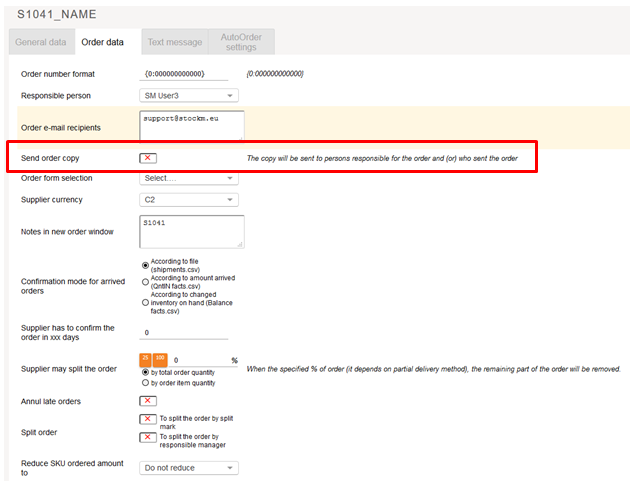
Recipients of copy of orders.
In the past, copies of an order have always been received by the user who sends the order and / or is responsible for the order. The setting was company-wide.
Since this update, this setting is available on the supplier card. If it is active, a copy of the supplier's order will be sent to the persons responsible for the order and / or who sent it. A copy will not be sent if this setting is inactive
1. Change of TOP / NON names in StockM (ABC analysis).
In StockM, the names TOP / NON have changed in to the widely used ABC analysis and its usual terms:
- TOP name changed to “A”;
- NON - to “C”;
- Blank rows that were in the “Movers” and “WMovers” columns are now called as “B”.
The logic of the calculation does not change, everything remains as it was. The names also changed in the reports.
Column names that changed in StockM:
- the column name “Movers” changed to “ABC”;
- Wmovers - to LocABC.
If the item is new, you will see "New" in the "LocABC" column (if the "New to" date has not passed yet).
2. New column in StockM "Next delivery".
From now on, you can see the expected delivery date of the item in StockM. If the item is in multiple orders, the nearest expected delivery date is displayed.
The name of the new column is "Next delivery". It is visible in the Inventory, Suppliers Schedule windows and on the product card.
p.s. if you don't see the column, open it through the column selection.
StockM Update 2020.09.17
StockM Update 2020.11.12
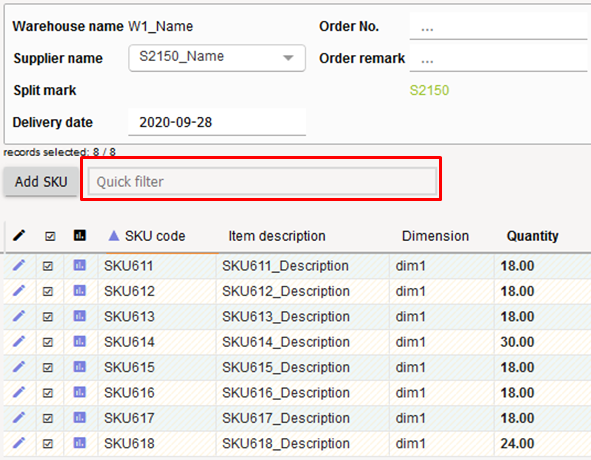
1. Search in the Order window.
In all Order windows (New orders, Placed orders, Sent orders history) a quick filter / search input field "Quick filter" has been created.
- The filter / search works immediately with each character entry.
- The filter / search works from all columns.
- If at least one character is entered in the filter / search field, the edges of the field are marked by a green line (filter active) and at the same time all buttons in the order window are switched off (gray color). In other words, as long as the filter is active, the information is filtered in the window - a visible part of the order is only visible and no actions with order can be saved, sent, etc.).
Return of overstock to the company's central warehouse.
We present a new opportunity to form return orders for overstock items from warehouses / stores to the central warehouse.
In StockM window Orders -> Create Orders a new "Return Order" section has been created. To place a return order, you must specify:
- a central warehouse to which you will return overstock;
- warehouses / stores (and / or warehouse levels) from which returns must be made;
- it is possible to indicate which groups of items will participate in the return (if none is selected, all are considered to be marked),
- from what percentage of the BB indicator (balance and buffer ratio) items have to be returned (less than 100% cannot be specified).
In other words, the percentage indicates that the excess items above it are returned.

2. New type of mark OUT
The mark OUT for items to remove them from the range of products was used so far.
Since this update, it is possible to select the OUT type:
- the current mark OUT. Nothing has changed. Recommended for use when the product is sold out and removed from the range.
- a new mark CLN. For the items to be sold out that may be kept in the range further on or included in the range later again. The distribution and statuses of the items which are marked CLN operate on the same principle as OUT, but the final status remains DTO everywhere. After the stock balance ends, the mark CLN will be automatically removed. If we later receive the stock balance or some kind of movement of the items into StockM, the status of the items will remain DTO.
3. Mass combining into groups of alternative items (ALT)
In SM Admin menu (ADMIN -> ACTIONS -> MERGE ALT GROUPS) window there is a draft of the table for mass combining of the items into ALT groups.

- Main SKU code: SKU code of the main item in the group.
- Parameters SKU code: SKU code of the item, which parameters will be assigned to the main SKU.
- Old Main SKU code: if the existing group of items is changed, indicate the existing (old) code of the main SKU in the group. The Main SKU code field must contain the new main SKU code.
If a new group is being combined, do not specify anything in this field.
- Alt SKU code: SKU code of alternative item
Note: If there is more than one ALT item code for the same main SKU code, they must be listed on separate rows, repeating the main SKU code on each row.
The completed table needs to be imported into StockM.
IMPORTANT: In order to return the items from the warehouse / store, it is necessary to create a supplier with the same supplier code as the warehouse code (Supplier code = Warehouse code).
Other mandatory conditions:
• the item does not participate in the promotion in the branches / stores from which it is returned;
• the product does not have the mark of being out of range or sold out (OUT, CLN)
StockM Update 2020.09.03
StockM Update 2020.10.15
1. Additional buffer management setting.
It is possible to specify a condition for increasing the buffer in the supplier's card: do not increase buffer if undelivered orders present. If the check mark is placed, the addition (IN) during the last replenishment time is checked:
- if addition was - the buffer is increased.
- if there was no addition, the existing buffer is retained.
Since this update, an additional condition is made for increasing the buffer: do not increase the buffer if shipments are not full. When this condition is enabled, not only the fact of replenishment, but also the quantity received is evaluated. The buffer will not be increased if the amount of additions during the replenishment period is less than 0.5 × BUF + Safety Buffer.
2. Added possibilities to open SKU graph.
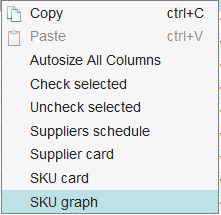
The SKU graph can be accessed by clicking on the graph icon in the line.
Since this update, additionally:
- The SKU graph can be opened in the line by right-clicking and selecting “SKU graph”.
- Once the graph is opened, you can navigate through the graphs of other items in the list from which the graph was opened. Icons have been made in the upper right window of the graph, which can be used to:
o  – to open the graph of the next item in the list in the window;
o – to open the graph of the previous item in the window;
o – to capture an opened graph. The graph of the next item will be opened in a new window.
1. Distribution of Safety buffer to stores from the central warehouse.
When distributing balances from the central warehouse to stores / branches, the quantity of the Safety Buffer in the central warehouse is not distributed.
Since this update, it is possible to specify Safety buffers, which fall into the distribution of balances to branches / stores. If it is necessary to distribute the following quantities, the Safety buffers must be entered / indicated in columns: SB2, SB3 (In the inventory window or on the product card), or the information must be transferred during the data exchange. The quantities indicated in them will participate in the distribution of the balance from the central warehouse.
2. Visibility of lost sales, transfers, overstock and write-offs in StockM.
Since this update it is possible to see last week's lost sales, lost transfers, overstock and write-offs in the StockM window (new option). Now you can now see this information (excluding write-offs and transfers) in your weekly lost sales and overstock reports. New columns in StockM appear in the Inventory window (you only need to open them).
If you need to analyze a number of causes / problems, it is possible set such tasks to appear in the User Tasks window. The task would be visible to those managers whose products fall into these lists. A window will open with a list of items, where each item will need to be accompanied by the reasons for lost sales, overstock, etc.
The number of reasons for lost sales, lost transfers, overstock, or write-offs is determined company-wide - you can choose how many reasons you want to analyze. The settings are made by a StockM team.
To enable Report Analysis in StockM, you must inform a StockM team. At the same time, you will be sent a more detailed description of how to use these reports.
StockM Update 2020.08.20
StockM Update 2020.09.24
1. Setting: to reduce the quantity ordered by the SKU according to the supplier's balance.
A setting is made, which allows to reduce the quantity ordered by StockM, according to the free balance available from the supplier. If the supplier does not have enough free balance for the desired quantity, the order will be reduced to the balance available from the supplier.
This setting is enabled on the supplier's card and only takes effect when the Supplier's balance of the item is visible in StockM.
- The supplier's balance (in supplier's units) can be loaded to StockM from the accounting (via supplier_sku.csv file) during data exchange or entered in the StockM in the "Supplier SKU information" window (new column "Supplier balance")
- Each warehouse can order as many units of the same item as are available from the supplier (we recommend using this setting when items are delivered from the supplier to the central warehouse).
- In StockM, the order window also shows the column “Supplier balance”, but already in the basic units of measure (automatically converted into the basic units of measure specified in StockM, if they are different from the supplier units of measure).
2. Creating a new item (SKU) card in the Order window.
Until now, when creating an order and needing to create a new SKU card, it was only possible to create it in the Inventory window. After creating the card, it was necessary to reload the window of items to add in order the new item would appear in the list.
Since this update it is possible to create a new SKU card in the Order window: New order -> Add SKU -> New.
3. Overstock report: columns of PTO and Reservation.
The PTO column in the overstock report (511) has so far shown the total amount of PTO (special orders) and reservation.
After updating this report, the PTO and reservation will be displayed in separate columns.
4. Formation of orders several times a day.
There is a need to form orders several times a day, for the same supplier to the same warehouse.
It is possible now to create orders several times a day (according to the same schedule, only at different times). If necessary, contact the project manager.
5. Periods: Buffer calculation based on maximum sales amount.
Until now, in the Periods window it was possible to choose: calculate the buffer according to the coefficient; enter the buffer manually; calculate the buffer on the basis of average sales.
An additional option has been made to calculate the buffer based on the maximum sales amount. If you choose this option, you will need to specify:
- The period from which the program will take the maximum amount of sales during the supply cycle (RD). If the period is specified too short (
- Coefficient - the calculated amount will be multiplied by the specified coefficient (if the amount is not calculated due to an incorrectly specified period, the current buffer will be multiplied by this coefficient).
Recipients of copy of orders.
In the past, copies of an order have always been received by the user who sends the order and / or is responsible for the order. The setting was company-wide.
Since this update, this setting is available on the supplier card. If it is active, a copy of the supplier's order will be sent to the persons responsible for the order and / or who sent it. A copy will not be sent if this setting is inactive
