Changes for page NAUJIENOS
Summary
-
Page properties (1 modified, 0 added, 0 removed)
Details
- Page properties
-
- Content
-
... ... @@ -1,3 +1,15 @@ 1 +(% class="wikigeneratedid" %) 2 += StockM Update 2020.09.24 = 3 + 4 +**Recipients of copy of orders.** 5 + 6 +In the past, copies of an order have always been received by the user who sends the order and / or is responsible for the order. The setting was company-wide. 7 + 8 +Since this update, this setting is available on the supplier card. If it is active, a copy of the supplier's order will be sent to the persons responsible for the order and / or who sent it. A copy will not be sent if this setting is inactive[[image:20200824a.png]] 9 + 10 +[[image:20200824.png]] 11 + 12 + 1 1 = StockM Update 2020.09.17 = 2 2 3 3 ... ... @@ -29,7 +29,7 @@ 29 29 [[image:20200918.jpg]] 30 30 31 31 32 -* Main SKU code: SKU code of the main item in the group. 44 +* Main SKU code: SKU code of the main item in the group. 33 33 * Parameters SKU code: SKU code of the item, which parameters will be assigned to the main SKU. 34 34 * Old Main SKU code: if the existing group of items is changed, indicate the existing (old) code of the main SKU in the group. The Main SKU code field must contain the new main SKU code. 35 35 ... ... @@ -41,7 +41,6 @@ 41 41 42 42 The completed table needs to be imported into StockM. 43 43 44 - 45 45 = StockM Update 2020.09.03 = 46 46 47 47 ... ... @@ -116,56 +116,9 @@ 116 116 (% class="wikigeneratedid" %) 117 117 = = 118 118 119 -= StockM Update 2020.08.06 = 120 - 121 - 122 -**Additional functionality of the right mouse button in StockM.** 123 - 124 -Additional functionality has been added - new options can be seen in any window by calling up the menu and right-clicking on any row: 125 - 126 -* Mark / Unmark selected / outlined rows (if there is no column for the selection in the table, such as in the Periods window, these selections will remain in the menu window, only will be off / in gray color). 127 - 128 -It is possible to select all lines of one page, which can be marked / unmarked by calling the menu, by pressing the combination “ctrl + a” in the keyboard. 129 - 130 -* 4 new links to windows: 131 - 132 -1. “Inventories” (with filters: SKU code, Warehouse code). The link will be visible between the options if there is an option to select the SKU code and the Warehouse code in the window where the menu is called; 133 -1. “Suppliers schedule” (with filters: Supplier name, Supplier code). The link will be between the selections if there is an option to select the Supplier name and the Supplier code in the window where the menu is called; 134 -1. “Suppliers card”. The link will be between the selections if there is an option to select the Supplier name and the Supplier code in the window where the menu is called; 135 -1. “SKU card” - product card. The link will be between the selections if there is an option to select an item code in the window where the menu is called. 136 - 137 -If the menu is called up in the Inventory window, the Inventory window will not be visible between the selections (same logic as with the Suppliers schedule). The menu item will also not be visible if the user does not have permission to see a specific window. 138 - 139 139 (% class="wikigeneratedid" %) 140 140 = = 141 141 142 -= StockMUpdate 2020.07.23=133 += = 143 143 144 - 145 -**~1. Entering of the Safety buffers with expiration date (SBX) into StockM.** 146 - 147 -Until now, safety buffers with dates could be transferred from accounting system to StockM during the data exchange in the file sbx.csv. 148 - 149 -Since this update, it is possible to create / edit / delete safety buffers with the expiration date in the StockM window: Time Intervals -> Safety Buffers. They can also be loaded via an excel template. 150 - 151 - 152 -Creating a New SBX: Time Intervals -> Safety Buffers -> New. 153 - 154 -* Only one active combination is possible at a time: SKU - Warehouse - Type (there are 3 types of safety buffer - SBX1, SBX2, SBX3). If you want to load / create an additional period for the same “SKU - Warehouse”, you need to select another type. 155 -* If the combination “SKU - Warehouse - Type” is loaded, which is already active in StockM, it will be changed to the new one. 156 -* When loading items to the window Time Intervals -> Safety Buffers -> New, a maximum of 3 items with the same combination “SKU - Warehouse” can be loaded (or copied) simultaneously, as there are 3 types of safety buffers to date. 157 -* In the window Time Intervals -> Safety Buffers -> New, it is possible to download the template of Safety Buffers. If there are added items in that window, those items will be added to the downloaded template. 158 -* It is possible to load items into the "New safety buffer" window from excel according to the Warehouse code or Warehouse level. 159 - 160 -Editing SBX: 161 - 162 -* Before the Safety buffer has started - all fields can be edited: Type, Value, Begin date, End date, Remark to safety buffer. 163 -* When the Safety buffer has started but has not expired (or not canceled) - only the fields can be changed: End date, Remark to safety buffer. 164 -* When the Safety buffer has expired or has been canceled - no fields can be changed. 165 - 166 -Delete SBX: 167 - 168 -* If the Safety buffer has started - after deleting the record, today's date is entered in the "Canceled" column and the validity of the safety buffer is suspended (the Safety buffer remains in the history). 169 -* If the Safety buffer has not yet started - after deleting the record, it is completely deleted from the table, without even leaving it in the history. 170 - 171 171
StockM Update 2020.09.17
StockM Update 2020.09.24
Recipients of copy of orders.
In the past, copies of an order have always been received by the user who sends the order and / or is responsible for the order. The setting was company-wide.
Since this update, this setting is available on the supplier card. If it is active, a copy of the supplier's order will be sent to the persons responsible for the order and / or who sent it. A copy will not be sent if this setting is inactive

StockM Update 2020.09.17
1. Search in the Order window.
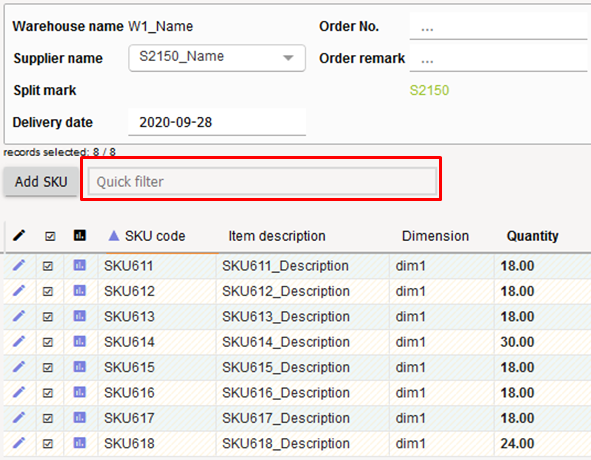
In all Order windows (New orders, Placed orders, Sent orders history) a quick filter / search input field "Quick filter" has been created.
- The filter / search works immediately with each character entry.
- The filter / search works from all columns.
- If at least one character is entered in the filter / search field, the edges of the field are marked by a green line (filter active) and at the same time all buttons in the order window are switched off (gray color). In other words, as long as the filter is active, the information is filtered in the window - a visible part of the order is only visible and no actions with order can be saved, sent, etc.).
2. New type of mark OUT
The mark OUT for items to remove them from the range of products was used so far.
Since this update, it is possible to select the OUT type:
- the current mark OUT. Nothing has changed. Recommended for use when the product is sold out and removed from the range.
- a new mark CLN. For the items to be sold out that may be kept in the range further on or included in the range later again. The distribution and statuses of the items which are marked CLN operate on the same principle as OUT, but the final status remains DTO everywhere. After the stock balance ends, the mark CLN will be automatically removed. If we later receive the stock balance or some kind of movement of the items into StockM, the status of the items will remain DTO.
3. Mass combining into groups of alternative items (ALT)
In SM Admin menu (ADMIN -> ACTIONS -> MERGE ALT GROUPS) window there is a draft of the table for mass combining of the items into ALT groups.

- Main SKU code: SKU code of the main item in the group.
- Parameters SKU code: SKU code of the item, which parameters will be assigned to the main SKU.
- Old Main SKU code: if the existing group of items is changed, indicate the existing (old) code of the main SKU in the group. The Main SKU code field must contain the new main SKU code.
If a new group is being combined, do not specify anything in this field.
- Alt SKU code: SKU code of alternative item
Note: If there is more than one ALT item code for the same main SKU code, they must be listed on separate rows, repeating the main SKU code on each row.
The completed table needs to be imported into StockM.
StockM Update 2020.09.03
1. Additional buffer management setting.
It is possible to specify a condition for increasing the buffer in the supplier's card: do not increase buffer if undelivered orders present. If the check mark is placed, the addition (IN) during the last replenishment time is checked:
- if addition was - the buffer is increased.
- if there was no addition, the existing buffer is retained.
Since this update, an additional condition is made for increasing the buffer: do not increase the buffer if shipments are not full. When this condition is enabled, not only the fact of replenishment, but also the quantity received is evaluated. The buffer will not be increased if the amount of additions during the replenishment period is less than 0.5 × BUF + Safety Buffer.
2. Added possibilities to open SKU graph.
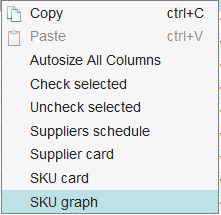
The SKU graph can be accessed by clicking on the graph icon in the line.
Since this update, additionally:
- The SKU graph can be opened in the line by right-clicking and selecting “SKU graph”.
- Once the graph is opened, you can navigate through the graphs of other items in the list from which the graph was opened. Icons have been made in the upper right window of the graph, which can be used to:
o  – to open the graph of the next item in the list in the window;
o – to open the graph of the previous item in the window;
o – to capture an opened graph. The graph of the next item will be opened in a new window.
StockM Update 2020.08.20
1. Setting: to reduce the quantity ordered by the SKU according to the supplier's balance.
A setting is made, which allows to reduce the quantity ordered by StockM, according to the free balance available from the supplier. If the supplier does not have enough free balance for the desired quantity, the order will be reduced to the balance available from the supplier.
This setting is enabled on the supplier's card and only takes effect when the Supplier's balance of the item is visible in StockM.
- The supplier's balance (in supplier's units) can be loaded to StockM from the accounting (via supplier_sku.csv file) during data exchange or entered in the StockM in the "Supplier SKU information" window (new column "Supplier balance")
- Each warehouse can order as many units of the same item as are available from the supplier (we recommend using this setting when items are delivered from the supplier to the central warehouse).
- In StockM, the order window also shows the column “Supplier balance”, but already in the basic units of measure (automatically converted into the basic units of measure specified in StockM, if they are different from the supplier units of measure).
2. Creating a new item (SKU) card in the Order window.
Until now, when creating an order and needing to create a new SKU card, it was only possible to create it in the Inventory window. After creating the card, it was necessary to reload the window of items to add in order the new item would appear in the list.
Since this update it is possible to create a new SKU card in the Order window: New order -> Add SKU -> New.
3. Overstock report: columns of PTO and Reservation.
The PTO column in the overstock report (511) has so far shown the total amount of PTO (special orders) and reservation.
After updating this report, the PTO and reservation will be displayed in separate columns.
4. Formation of orders several times a day.
There is a need to form orders several times a day, for the same supplier to the same warehouse.
It is possible now to create orders several times a day (according to the same schedule, only at different times). If necessary, contact the project manager.
5. Periods: Buffer calculation based on maximum sales amount.
Until now, in the Periods window it was possible to choose: calculate the buffer according to the coefficient; enter the buffer manually; calculate the buffer on the basis of average sales.
An additional option has been made to calculate the buffer based on the maximum sales amount. If you choose this option, you will need to specify:
- The period from which the program will take the maximum amount of sales during the supply cycle (RD). If the period is specified too short (
- Coefficient - the calculated amount will be multiplied by the specified coefficient (if the amount is not calculated due to an incorrectly specified period, the current buffer will be multiplied by this coefficient).
StockM Update 2020.08.06
Additional functionality of the right mouse button in StockM.
Additional functionality has been added - new options can be seen in any window by calling up the menu and right-clicking on any row:
- Mark / Unmark selected / outlined rows (if there is no column for the selection in the table, such as in the Periods window, these selections will remain in the menu window, only will be off / in gray color).
It is possible to select all lines of one page, which can be marked / unmarked by calling the menu, by pressing the combination “ctrl + a” in the keyboard.
- 4 new links to windows:
- “Inventories” (with filters: SKU code, Warehouse code). The link will be visible between the options if there is an option to select the SKU code and the Warehouse code in the window where the menu is called;
- “Suppliers schedule” (with filters: Supplier name, Supplier code). The link will be between the selections if there is an option to select the Supplier name and the Supplier code in the window where the menu is called;
- “Suppliers card”. The link will be between the selections if there is an option to select the Supplier name and the Supplier code in the window where the menu is called;
- “SKU card” - product card. The link will be between the selections if there is an option to select an item code in the window where the menu is called.
If the menu is called up in the Inventory window, the Inventory window will not be visible between the selections (same logic as with the Suppliers schedule). The menu item will also not be visible if the user does not have permission to see a specific window.
StockM Update 2020.07.23
1. Entering of the Safety buffers with expiration date (SBX) into StockM.
Until now, safety buffers with dates could be transferred from accounting system to StockM during the data exchange in the file sbx.csv.
Since this update, it is possible to create / edit / delete safety buffers with the expiration date in the StockM window: Time Intervals -> Safety Buffers. They can also be loaded via an excel template.
Creating a New SBX: Time Intervals -> Safety Buffers -> New.
- Only one active combination is possible at a time: SKU - Warehouse - Type (there are 3 types of safety buffer - SBX1, SBX2, SBX3). If you want to load / create an additional period for the same “SKU - Warehouse”, you need to select another type.
- If the combination “SKU - Warehouse - Type” is loaded, which is already active in StockM, it will be changed to the new one.
- When loading items to the window Time Intervals -> Safety Buffers -> New, a maximum of 3 items with the same combination “SKU - Warehouse” can be loaded (or copied) simultaneously, as there are 3 types of safety buffers to date.
- In the window Time Intervals -> Safety Buffers -> New, it is possible to download the template of Safety Buffers. If there are added items in that window, those items will be added to the downloaded template.
- It is possible to load items into the "New safety buffer" window from excel according to the Warehouse code or Warehouse level.
Editing SBX:
- Before the Safety buffer has started - all fields can be edited: Type, Value, Begin date, End date, Remark to safety buffer.
- When the Safety buffer has started but has not expired (or not canceled) - only the fields can be changed: End date, Remark to safety buffer.
- When the Safety buffer has expired or has been canceled - no fields can be changed.
Delete SBX:
- If the Safety buffer has started - after deleting the record, today's date is entered in the "Canceled" column and the validity of the safety buffer is suspended (the Safety buffer remains in the history).
- If the Safety buffer has not yet started - after deleting the record, it is completely deleted from the table, without even leaving it in the history.