Changes for page NAUJIENOS
Summary
-
Page properties (1 modified, 0 added, 0 removed)
Details
- Page properties
-
- Content
-
... ... @@ -1,127 +1,133 @@ 1 -= StockM Update 2020.0 9.03=1 += StockM Update 2020.08.06 = 2 2 3 3 4 -** ~1.Additionalbuffermanagement setting.**4 +**Additional functionality of the right mouse button in StockM.** 5 5 6 - Its possibleto specify a conditionfor increasingthebuffer inthe supplier's card:donotreasebufferifundeliveredrderspresent.If thecheck markisplaced,theaddition(IN)duringthe lastreplenishmenttimeischecked:6 +Additional functionality has been added - new options can be seen in any window by calling up the menu and right-clicking on any row: 7 7 8 -* if addition was - the buffer is increased. 9 -* if there was no addition, the existing buffer is retained. 8 +* Mark / Unmark selected / outlined rows (if there is no column for the selection in the table, such as in the Periods window, these selections will remain in the menu window, only will be off / in gray color). 10 10 11 - Sincethisupdate, an additional condition ismade for increasing thebuffer:donot increasethebuffer if shipmentsare not full.When this condition isenabled, notonly thefact of replenishment,butalsothequantityreceivedisevaluated.Thebufferwillnot beincreasediftheamountofadditions during thereplenishmentperiodislessthan 0.5 × BUF+SafetyBuffer.10 +It is possible to select all lines of one page, which can be marked / unmarked by calling the menu, by pressing the combination “ctrl + a” in the keyboard. 12 12 12 +* 4 new links to windows: 13 13 14 -**2. Added possibilities to open SKU graph.** 14 +1. “Inventories” (with filters: SKU code, Warehouse code). The link will be visible between the options if there is an option to select the SKU code and the Warehouse code in the window where the menu is called; 15 +1. “Suppliers schedule” (with filters: Supplier name, Supplier code). The link will be between the selections if there is an option to select the Supplier name and the Supplier code in the window where the menu is called; 16 +1. “Suppliers card”. The link will be between the selections if there is an option to select the Supplier name and the Supplier code in the window where the menu is called; 17 +1. “SKU card” - product card. The link will be between the selections if there is an option to select an item code in the window where the menu is called. 15 15 16 - TheSKUgraphcanbeaccessedbyclickingonthegraph icon intheline.19 +If the menu is called up in the Inventory window, the Inventory window will not be visible between the selections (same logic as with the Suppliers schedule). The menu item will also not be visible if the user does not have permission to see a specific window. 17 17 18 -Since this update, additionally: 19 19 20 -* The SKU graph can be opened in the line by right-clicking and selecting “SKU graph”. 22 +(% class="wikigeneratedid" %) 23 += = 21 21 22 - [[image:20200903a.png]]25 += StockM Update 2020.07.23 = 23 23 24 -* Once the graph is opened, you can navigate through the graphs of other items in the list from which the graph was opened. Icons have been made in the upper right window of the graph, which can be used to: 25 25 26 - o [[image:20200903b.png]]–to openhegraphof thenextiteminthelisthewindow;28 +**~1. Entering of the Safety buffers with expiration date (SBX) into StockM.** 27 27 28 - o[[image:20200903c.png]]–toopenthegraphofthepreviousitem in thewindow;30 +Until now, safety buffers with dates could be transferred from accounting system to StockM during the data exchange in the file sbx.csv. 29 29 30 - o[[image:20200903d.png]]–to captureanopenedgraph.Thegraphof thenext itemwill be opened ina newwindow.32 +Since this update, it is possible to create / edit / delete safety buffers with the expiration date in the StockM window: Time Intervals -> Safety Buffers. They can also be loaded via an excel template. 31 31 32 -= StockM Update 2020.08.20 = 33 33 35 +Creating a New SBX: Time Intervals -> Safety Buffers -> New. 34 34 35 -**~1. Setting: to reduce the quantity ordered by the SKU according to the supplier's balance.** 37 +* Only one active combination is possible at a time: SKU - Warehouse - Type (there are 3 types of safety buffer - SBX1, SBX2, SBX3). If you want to load / create an additional period for the same “SKU - Warehouse”, you need to select another type. 38 +* If the combination “SKU - Warehouse - Type” is loaded, which is already active in StockM, it will be changed to the new one. 39 +* When loading items to the window Time Intervals -> Safety Buffers -> New, a maximum of 3 items with the same combination “SKU - Warehouse” can be loaded (or copied) simultaneously, as there are 3 types of safety buffers to date. 40 +* In the window Time Intervals -> Safety Buffers -> New, it is possible to download the template of Safety Buffers. If there are added items in that window, those items will be added to the downloaded template. 41 +* It is possible to load items into the "New safety buffer" window from excel according to the Warehouse code or Warehouse level. 36 36 37 - A setting is made, which allowsto reduce the quantity ordered by StockM, accordingto the free balance available from the supplier. If the supplier does not have enough free balance for the desired quantity, the order will be reduced to the balance available from the supplier.43 +Editing SBX: 38 38 39 -This setting is enabled on the supplier's card and only takes effect when the Supplier's balance of the item is visible in StockM. 45 +* Before the Safety buffer has started - all fields can be edited: Type, Value, Begin date, End date, Remark to safety buffer. 46 +* When the Safety buffer has started but has not expired (or not canceled) - only the fields can be changed: End date, Remark to safety buffer. 47 +* When the Safety buffer has expired or has been canceled - no fields can be changed. 40 40 41 -* The supplier's balance (in supplier's units) can be loaded to StockM from the accounting (via supplier_sku.csv file) during data exchange or entered in the StockM in the "Supplier SKU information" window (new column "Supplier balance") 42 -* Each warehouse can order as many units of the same item as are available from the supplier (we recommend using this setting when items are delivered from the supplier to the central warehouse). 43 -* In StockM, the order window also shows the column “Supplier balance”, but already in the basic units of measure (automatically converted into the basic units of measure specified in StockM, if they are different from the supplier units of measure). 49 +Delete SBX: 44 44 45 -**2. Creating a new item (SKU) card in the Order window.** 51 +* If the Safety buffer has started - after deleting the record, today's date is entered in the "Canceled" column and the validity of the safety buffer is suspended (the Safety buffer remains in the history). 52 +* If the Safety buffer has not yet started - after deleting the record, it is completely deleted from the table, without even leaving it in the history. 46 46 47 - Untilnow, when creating an orderand needing tocreatea new SKU card,it was only possible to createit in the Inventory window.Aftercreating thecard, it wasnecessaryto reload the windowofitemstoaddinorderthenew item wouldappear inthelist.54 +**2. Transfer of the information of the supplier supplied items (SKU) during data exchange.** 48 48 49 -S incethis updateitspossibletocreate anewSKU cardin theOrderwindow:Neworder->AddSKU->New.56 +So far editing of the information in the window “Supplier info -> Supplier SKU information” took place only in StockM. 50 50 51 - **3.Overstockreport:columns ofPTOandReservation.**58 +Since this update it is possible to transfer information of the Supplier supplied items (SKU) to StockM during data exchange using new file supplier_SKU.csv. 52 52 53 - The PTO columnin theoverstockreport(511) hassofarshown the totalamountf PTO (specialorders)and reservation.60 +Information transferred to StockM via file is: 54 54 55 -After updating this report, the PTO and reservation will be displayed in separate columns. 62 +* supplier code; 63 +* item code (SKU); 64 +* SKU code in the supplier's ERP; 65 +* SKU name in supplier's ERP; 66 +* SKU unit of measure (dimension) is the supplier's ERP; 67 +* Supplier's minimum ordered quantity - MOQ (by supplier's unit of measure (dimension)); 68 +* Quantity of Supplier's minimum unbreakable packaging - USQ (by supplier's unit of measure (dimension)); 69 +* Conversion ratio to the supplier's unit of measure (dimension); 70 +* Supplier's purchase price - the price offered by the supplier without VAT per one unit of measurement (dimension) of the supplier, in the base currency. If there is no offer, 0 is displayed; 71 +* Supplier's balance - the free quantity of item in the supplier's warehouse in the supplier's units of measure (dimension). 56 56 57 - **4.Formationof orders severaltimesa day**.73 += StockM Update 2020.07.09 = 58 58 59 -There is a need to form orders several times a day, for the same supplier to the same warehouse. 60 60 61 - It is possiblenow to create ordersseveral times a day (accordingto thesame schedule, only at differenttimes).Ifnecessary, contactthe project manager.76 +**Changes in the "Supplier SKU info" window**. 62 62 63 - **5.Periods:Buffercalculationbasedonmaximumsalesamount.**78 +In StockM window: Suppliers info -> Supplier SKU info: 64 64 65 - Until now,in thePeriodswindowitwasossible tochoose:calculate thebufferaccordingto the coefficient;enterthebuffermanually;calculatethebufferonhebasisofaverageales.80 +~1. No warehouse information left in the window. Supplier's product (SKU) information (SKU code in the supplier's system, SKU name in the supplier's system, Unit of measure in the supplier's system, Conversion type and coefficient of Unit of measure) is specified only for a specific SKU and cannot be different in individual warehouses. 66 66 67 - Anadditional optionhasbeendetocalculatethebufferbasedontheaximumsales amount.If you choosethis option,youwillneedto specify:82 +2. There are additional information columns for information from the supplier's system: Supplier's MOQ, Supplier's USQ, Supplier's balance, Supplier's purchase price. This information can be entered manually. 68 68 69 -* The period from which the program will take the maximum amount of sales during the supply cycle (RD). If the period is specified too short (<RD), the program will take the buffer at the beginning of the period instead of the maximum sales amount. 70 -* Coefficient - the calculated amount will be multiplied by the specified coefficient (if the amount is not calculated due to an incorrectly specified period, the current buffer will be multiplied by this coefficient). 84 += StockM Update 2020.06.18 = 71 71 72 -(% class="wikigeneratedid" %) 73 -= = 74 74 75 - =StockMUpdate2020.08.06 =87 +**~1. New menu window.** 76 76 89 +A new menu window “Time intervals” has been created in StockM. Moved to it: 77 77 78 - **Additionalfunctionality of theght mouse button in StockM.**91 +• Periods 79 79 80 - Additionalfunctionality has been added - newoptionscan be seen in any window by calling up the menu and right-clicking on any row:93 +• Promotions 81 81 82 - *Mark / Unmark selected / outlinedrows (ifthere is no column for the selection in the table, such as in the Periods window, these selections will remain in the menu window, onlywillbe off/ in gray color).95 +• Security buffers 83 83 84 - Itis possible to select all lines of one page, which can bemarked / unmarked by callingthemenu, bypressingthe combination “ctrl + a” in the keyboard.97 +[[image:20200618.png]] 85 85 86 -* 4 new links to windows: 87 87 88 -1. “Inventories” (with filters: SKU code, Warehouse code). The link will be visible between the options if there is an option to select the SKU code and the Warehouse code in the window where the menu is called; 89 -1. “Suppliers schedule” (with filters: Supplier name, Supplier code). The link will be between the selections if there is an option to select the Supplier name and the Supplier code in the window where the menu is called; 90 -1. “Suppliers card”. The link will be between the selections if there is an option to select the Supplier name and the Supplier code in the window where the menu is called; 91 -1. “SKU card” - product card. The link will be between the selections if there is an option to select an item code in the window where the menu is called. 100 +**2. User activity.** 92 92 93 -I fthe menu is calledup inthe Inventorywindow,theInventory windowwill not be visible betweenthe selections (same logicas with the Suppliersschedule).The menu item willalsonotbe visibleif theuserdoesnothave permission tosee a specific window.102 +In the SM Admin module is specified activity for the created users (by ticking /or unchecking). Only an active user can log in to StockM. 94 94 95 -(% class="wikigeneratedid" %) 96 -= = 104 +You can also assign user to a user group Disabled. By indicating this group, the items remained assigned to the person until someone indicated otherwise, but the user himself could not log in to StockM. 97 97 98 - =StockMUpdate2020.07.23 =106 +Since this update: 99 99 108 +• All Disabled users became inactive (one-time change when installing this update); 100 100 101 - **~1.Entering oftheSafetybuffers with expiration date(SBX)intoStockM.**110 +• All inactive users lose the items (the items are assigned to the Unassigned Manager or to the manager responsible for the incompleted SKU data cards of Unassigned Manager). This can happen both when changing the manager on the items card - during card saving, and when receiving the code of inactive manager during data exchange. 102 102 103 - Until now, safety buffers with datescould betransferredfromaccountingsystem toStockM duringthedataexchange in the filesbx.csv.112 +Recommendation for the users: 104 104 105 - Since thisupdate,it is possibletocreate/ edit/ deletesafetybufferswiththe expiration dateintheStockMwindow:TimeIntervals->SafetyBuffers. Theycanlso beloadedviaanxceltemplate.114 +• When the user no longer works with the program, he needs to be deactivated and all his items will be assigned to an Unassigned Manager or indicated responsible manager instead of Unassigned. 106 106 116 +• If you want user to be disconnected temporarily, but the items must remain assigned to him, then assign the user group Disabled. 107 107 108 - Creatinga NewSBX: Time Intervals-> Safety Buffers-> New.118 += StockM Update 2020.06.04 = 109 109 110 -* Only one active combination is possible at a time: SKU - Warehouse - Type (there are 3 types of safety buffer - SBX1, SBX2, SBX3). If you want to load / create an additional period for the same “SKU - Warehouse”, you need to select another type. 111 -* If the combination “SKU - Warehouse - Type” is loaded, which is already active in StockM, it will be changed to the new one. 112 -* When loading items to the window Time Intervals -> Safety Buffers -> New, a maximum of 3 items with the same combination “SKU - Warehouse” can be loaded (or copied) simultaneously, as there are 3 types of safety buffers to date. 113 -* In the window Time Intervals -> Safety Buffers -> New, it is possible to download the template of Safety Buffers. If there are added items in that window, those items will be added to the downloaded template. 114 -* It is possible to load items into the "New safety buffer" window from excel according to the Warehouse code or Warehouse level. 115 115 116 -E diting SBX:121 +**~1. NEW mover calculation.** 117 117 118 -* Before the Safety buffer has started - all fields can be edited: Type, Value, Begin date, End date, Remark to safety buffer. 119 -* When the Safety buffer has started but has not expired (or not canceled) - only the fields can be changed: End date, Remark to safety buffer. 120 -* When the Safety buffer has expired or has been canceled - no fields can be changed. 123 +NEW mover - a new item mark, which is automatically assigned to all new items that have entered the system (by default, the new items mark is assigned for 3 months after the item appears in the system). It is not logical to assign the same NEW mark when different delivery times are. 121 121 122 - Delete SBX:125 +Since this update, it is possible to set the method for assigning the New mover mark. In the SM Admin module you can choose: 123 123 124 -* If the Safety buffer has started - after deleting the record, today's date is entered in the "Canceled" column and the validity of the safety buffer is suspended (the Safety buffer remains in the history). 125 -* If the Safety buffer has not yet started - after deleting the record, it is completely deleted from the table, without even leaving it in the history. 127 +• how many days after the product card is created in the warehouse it is considered as new (NEW) or 126 126 129 +• how many delivery periods (OLT - order lead time) of the item / order it must be considered with the NEW mover mark. 130 + 131 +The setting can only be made on a company-wide basis. 132 + 127 127
StockM Update 2020.09.03
StockM Update 2020.08.06
1. Additional buffer management setting.
It is possible to specify a condition for increasing the buffer in the supplier's card: do not increase buffer if undelivered orders present. If the check mark is placed, the addition (IN) during the last replenishment time is checked:
- if addition was - the buffer is increased.
- if there was no addition, the existing buffer is retained.
Since this update, an additional condition is made for increasing the buffer: do not increase the buffer if shipments are not full. When this condition is enabled, not only the fact of replenishment, but also the quantity received is evaluated. The buffer will not be increased if the amount of additions during the replenishment period is less than 0.5 × BUF + Safety Buffer.
2. Added possibilities to open SKU graph.
The SKU graph can be accessed by clicking on the graph icon in the line.
Since this update, additionally:
- The SKU graph can be opened in the line by right-clicking and selecting “SKU graph”.
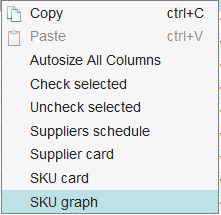
- Once the graph is opened, you can navigate through the graphs of other items in the list from which the graph was opened. Icons have been made in the upper right window of the graph, which can be used to:
o  – to open the graph of the next item in the list in the window;
o – to open the graph of the previous item in the window;
o – to capture an opened graph. The graph of the next item will be opened in a new window.
StockM Update 2020.08.20
1. Setting: to reduce the quantity ordered by the SKU according to the supplier's balance.
A setting is made, which allows to reduce the quantity ordered by StockM, according to the free balance available from the supplier. If the supplier does not have enough free balance for the desired quantity, the order will be reduced to the balance available from the supplier.
This setting is enabled on the supplier's card and only takes effect when the Supplier's balance of the item is visible in StockM.
- The supplier's balance (in supplier's units) can be loaded to StockM from the accounting (via supplier_sku.csv file) during data exchange or entered in the StockM in the "Supplier SKU information" window (new column "Supplier balance")
- Each warehouse can order as many units of the same item as are available from the supplier (we recommend using this setting when items are delivered from the supplier to the central warehouse).
- In StockM, the order window also shows the column “Supplier balance”, but already in the basic units of measure (automatically converted into the basic units of measure specified in StockM, if they are different from the supplier units of measure).
2. Creating a new item (SKU) card in the Order window.
Until now, when creating an order and needing to create a new SKU card, it was only possible to create it in the Inventory window. After creating the card, it was necessary to reload the window of items to add in order the new item would appear in the list.
Since this update it is possible to create a new SKU card in the Order window: New order -> Add SKU -> New.
3. Overstock report: columns of PTO and Reservation.
The PTO column in the overstock report (511) has so far shown the total amount of PTO (special orders) and reservation.
After updating this report, the PTO and reservation will be displayed in separate columns.
4. Formation of orders several times a day.
There is a need to form orders several times a day, for the same supplier to the same warehouse.
It is possible now to create orders several times a day (according to the same schedule, only at different times). If necessary, contact the project manager.
5. Periods: Buffer calculation based on maximum sales amount.
Until now, in the Periods window it was possible to choose: calculate the buffer according to the coefficient; enter the buffer manually; calculate the buffer on the basis of average sales.
An additional option has been made to calculate the buffer based on the maximum sales amount. If you choose this option, you will need to specify:
- The period from which the program will take the maximum amount of sales during the supply cycle (RD). If the period is specified too short (
- Coefficient - the calculated amount will be multiplied by the specified coefficient (if the amount is not calculated due to an incorrectly specified period, the current buffer will be multiplied by this coefficient).
StockM Update 2020.08.06
Additional functionality of the right mouse button in StockM.
Additional functionality has been added - new options can be seen in any window by calling up the menu and right-clicking on any row:
- Mark / Unmark selected / outlined rows (if there is no column for the selection in the table, such as in the Periods window, these selections will remain in the menu window, only will be off / in gray color).
It is possible to select all lines of one page, which can be marked / unmarked by calling the menu, by pressing the combination “ctrl + a” in the keyboard.
- 4 new links to windows:
- “Inventories” (with filters: SKU code, Warehouse code). The link will be visible between the options if there is an option to select the SKU code and the Warehouse code in the window where the menu is called;
- “Suppliers schedule” (with filters: Supplier name, Supplier code). The link will be between the selections if there is an option to select the Supplier name and the Supplier code in the window where the menu is called;
- “Suppliers card”. The link will be between the selections if there is an option to select the Supplier name and the Supplier code in the window where the menu is called;
- “SKU card” - product card. The link will be between the selections if there is an option to select an item code in the window where the menu is called.
If the menu is called up in the Inventory window, the Inventory window will not be visible between the selections (same logic as with the Suppliers schedule). The menu item will also not be visible if the user does not have permission to see a specific window.
StockM Update 2020.07.23
1. Entering of the Safety buffers with expiration date (SBX) into StockM.
Until now, safety buffers with dates could be transferred from accounting system to StockM during the data exchange in the file sbx.csv.
Since this update, it is possible to create / edit / delete safety buffers with the expiration date in the StockM window: Time Intervals -> Safety Buffers. They can also be loaded via an excel template.
Creating a New SBX: Time Intervals -> Safety Buffers -> New.
- Only one active combination is possible at a time: SKU - Warehouse - Type (there are 3 types of safety buffer - SBX1, SBX2, SBX3). If you want to load / create an additional period for the same “SKU - Warehouse”, you need to select another type.
- If the combination “SKU - Warehouse - Type” is loaded, which is already active in StockM, it will be changed to the new one.
- When loading items to the window Time Intervals -> Safety Buffers -> New, a maximum of 3 items with the same combination “SKU - Warehouse” can be loaded (or copied) simultaneously, as there are 3 types of safety buffers to date.
- In the window Time Intervals -> Safety Buffers -> New, it is possible to download the template of Safety Buffers. If there are added items in that window, those items will be added to the downloaded template.
- It is possible to load items into the "New safety buffer" window from excel according to the Warehouse code or Warehouse level.
Editing SBX:
- Before the Safety buffer has started - all fields can be edited: Type, Value, Begin date, End date, Remark to safety buffer.
- When the Safety buffer has started but has not expired (or not canceled) - only the fields can be changed: End date, Remark to safety buffer.
- When the Safety buffer has expired or has been canceled - no fields can be changed.
Delete SBX:
- If the Safety buffer has started - after deleting the record, today's date is entered in the "Canceled" column and the validity of the safety buffer is suspended (the Safety buffer remains in the history).
- If the Safety buffer has not yet started - after deleting the record, it is completely deleted from the table, without even leaving it in the history.
2. Transfer of the information of the supplier supplied items (SKU) during data exchange.
So far editing of the information in the window “Supplier info -> Supplier SKU information” took place only in StockM.
Since this update it is possible to transfer information of the Supplier supplied items (SKU) to StockM during data exchange using new file supplier_SKU.csv.
Information transferred to StockM via file is:
- supplier code;
- item code (SKU);
- SKU code in the supplier's ERP;
- SKU name in supplier's ERP;
- SKU unit of measure (dimension) is the supplier's ERP;
- Supplier's minimum ordered quantity - MOQ (by supplier's unit of measure (dimension));
- Quantity of Supplier's minimum unbreakable packaging - USQ (by supplier's unit of measure (dimension));
- Conversion ratio to the supplier's unit of measure (dimension);
- Supplier's purchase price - the price offered by the supplier without VAT per one unit of measurement (dimension) of the supplier, in the base currency. If there is no offer, 0 is displayed;
- Supplier's balance - the free quantity of item in the supplier's warehouse in the supplier's units of measure (dimension).
StockM Update 2020.07.09
Changes in the "Supplier SKU info" window.
In StockM window: Suppliers info -> Supplier SKU info:
1. No warehouse information left in the window. Supplier's product (SKU) information (SKU code in the supplier's system, SKU name in the supplier's system, Unit of measure in the supplier's system, Conversion type and coefficient of Unit of measure) is specified only for a specific SKU and cannot be different in individual warehouses.
2. There are additional information columns for information from the supplier's system: Supplier's MOQ, Supplier's USQ, Supplier's balance, Supplier's purchase price. This information can be entered manually.
StockM Update 2020.06.18
1. New menu window.
A new menu window “Time intervals” has been created in StockM. Moved to it:
• Periods
• Promotions
• Security buffers

2. User activity.
In the SM Admin module is specified activity for the created users (by ticking /or unchecking). Only an active user can log in to StockM.
You can also assign user to a user group Disabled. By indicating this group, the items remained assigned to the person until someone indicated otherwise, but the user himself could not log in to StockM.
Since this update:
• All Disabled users became inactive (one-time change when installing this update);
• All inactive users lose the items (the items are assigned to the Unassigned Manager or to the manager responsible for the incompleted SKU data cards of Unassigned Manager). This can happen both when changing the manager on the items card - during card saving, and when receiving the code of inactive manager during data exchange.
Recommendation for the users:
• When the user no longer works with the program, he needs to be deactivated and all his items will be assigned to an Unassigned Manager or indicated responsible manager instead of Unassigned.
• If you want user to be disconnected temporarily, but the items must remain assigned to him, then assign the user group Disabled.
StockM Update 2020.06.04
1. NEW mover calculation.
NEW mover - a new item mark, which is automatically assigned to all new items that have entered the system (by default, the new items mark is assigned for 3 months after the item appears in the system). It is not logical to assign the same NEW mark when different delivery times are.
Since this update, it is possible to set the method for assigning the New mover mark. In the SM Admin module you can choose:
• how many days after the product card is created in the warehouse it is considered as new (NEW) or
• how many delivery periods (OLT - order lead time) of the item / order it must be considered with the NEW mover mark.
The setting can only be made on a company-wide basis.