Changes for page NAUJIENOS
Summary
-
Page properties (1 modified, 0 added, 0 removed)
Details
- Page properties
-
- Content
-
... ... @@ -1,103 +1,95 @@ 1 -= StockM update 2019.11.28. = 1 +(% class="wikigeneratedid" %) 2 += StockM Update 2020.04.30 = 2 2 3 -**~ ** 4 4 5 -** ~1. Clarification of Auto sendsettingsinthe supplier‘scard.**5 +**New setting for calculating buffer by coefficient**. 6 6 7 - SelectionofAutosendsettingswindowin thesupplier‘s cardhaschanged:7 +In the Periods or Inventory window when calculating the buffer according to the specified coefficient, the buffer is calculated according to the formula: 8 8 9 -((( 10 -* Optimization for auto send works only into the increasing side; 11 -* If you want to decrease the order – to optimize into decreasing side, this you can do only by specifying the parameters manually. 12 -* To decrease the number of rows to ... – also possible only by specifying the parameters manually. 9 +New BUF = (BUF - MOQ) * coeff. + MOQ 13 13 14 - Auto send settings window: 15 -))) 11 +Since this update, this buffer calculation method has a selection / checkbox “Take into account MOQ” that allows you to select to take into account MOQ or not: 16 16 17 -* Select „No optimization“. 13 +* By default, the check mark is placed and the new buffer calculation formula remains as it was. 14 +* If the check mark is not placed, new buffer formula is: 18 18 19 - [[image:1_NoOptimization.png]]16 + New BUF = BUF * coeff. 20 20 21 21 19 += StockM Update 2020.04.23 = 22 22 23 -* Select „Fill transportation batch”. 24 24 25 -((( 26 -[[image:2_FillTransport.png]] 27 -))) 22 +**~1. Reservations by date (pto.csv).** 28 28 24 +There are 2 types of reservations in StockM: from the existing stock in the warehouse and special orders from customers (received in StockM via the pto.csv file). 29 29 30 - *Select“Optimize,ifthe target is not exceeded”.26 +Since this update, StockM immediately included received pto order in the nearest order to supplier, the date when the order had to be fulfilled was not estimated. In other words, program did not take into account the fact that the customer / buyer does not need these goods now and they can be delivered later with next orders. 31 31 32 -((( 33 -[[image:3_Optimize_.png]] 34 -))) 28 +Now StockM will check what delivery date of pto is. In the separate field “Activate before X d.” the number of days before the necessary delivery date can be specified, i.e. when the order must become active and can be already fulfilled. If in the field “Activate before X d.: 35 35 30 +* nothing is specified, the field is empty, the pto order will be processed immediately and it will be included in the nearest order to the supplier; 31 +* 0 is entered, the goods will be ordered with the last order, which will arrive before the specified delivery date; 32 +* certain number of days is entered, the order will become active in such a number of days before the “Delivery date” and will be included in the next order to supplier after this activation. 36 36 34 +(% style="letter-spacing:0.1px" %)**2. Verification by uploading data to StockM via Table L11**. 37 37 36 +When uploading data to StockM via table L11, the information was loaded only when there were no errors. If the program found errors, the information was not loaded. A list of items was displayed to the user and errors had to be corrected. 38 38 39 - Manual optimizationwindow:38 +Since this update, information will be loaded from those rows that do not contain errors, and a list of errors will be shown to the user (errors can be exported to excel as before). Once the errors are corrected, the data will have to be uploaded for specified rows once again by entering information into a new / separate L11 table template. 40 40 41 -[[image:4_pav.png]] 42 42 41 +**3. New filtering operator in StockM windows.** 43 43 44 - Showthe optimizationparameter,optimization purpose andoptimizationconditioninthiswindow,when youoptimize theordermanually.43 +An additional text field filtering operator has been added to StockM. It allows to specify / enter several values via a semicolon. 45 45 46 - **~1. Confirmation of supply graphs.**45 +[[image:operator_EN.PNG]] 47 47 48 - Thereis a possibility to import the supply graphs inStockM,from theaccounting (filescheduler.csv).47 += StockM Update 2020.04.09 = 49 49 50 -All recieved supply graphs from the accounting are confirmed automatically by system, after update. 51 51 52 -** 2.Templateofpromotionimport.**50 +1. **Combining of items into a group of alternative (ALT) items.** 53 53 54 - The templateofpromotion import haschangedafterupdate.52 +Until now, when combining items into the ALT product group, the main item had to be in all active warehouses, and the ALT product was not necessarily present. 55 55 56 - Download the newest template fromStockM,ifyou wanttoimportopromotion.54 +This situation created problems in the distribution of items from the central warehouse to the branches. When it was necessary to order a product from a central warehouse, an ALT product was offered to be transported to the branch if there was a sufficient ALT product balance in the center and it was not checked that the branch does not sell the ALT product. 57 57 58 - =StockMupdate2019.09.19.=56 +Since this update, the main and alternative items’ codes must be in all storage locations to combine ALT items. 59 59 60 - **Critical error:"Optimization:purchaseprice<=0"**58 +A warning has been made in the confirmation window of combining when saving settings that both main and alternative items will be distributed through the warehouses. Distribution takes place through all warehouses containing at least one product involved in the ALT combination. The message after combining of items will show how many new items (SKU) cards have been created through the warehouses. 61 61 62 - Whenorderisoptimizedaccordingtheamount, purchaseprices are checked andiftheactive goods/items don'thavethepurchase price,theorderis notoptimized.60 +**~ **2**. New setting in SM Admin “Divide product order amount”.** 63 63 64 - The listwillshowitemswithPurchasePrice<=0for suppliers,forwhichisset order optimization accordingtheamount.62 +If orders for the supplier are formed frequently, but the delivery / delivery time is long, there is no need to order the entire buffer immediately with the first orders. It is possible to create several orders in one delivery time and thus reduce the amount of ordered goods. In other words, “fill the buffer” not immediately, but in several deliveries (divide the ordered quantity of one item in time over several orders). 65 65 66 - =StockMupdate 2019.08.01.=64 +After the update, it is possible to enable the setting so that in case of frequent but long deliveries, the entire buffer would not be ordered at once in one order. If at least 2 regular orders can be formed during the delivery time, then a maximum limit is applied to the ordered quantity, which is calculated according to the ratio of delivery frequency and duration and buffer. The maximum quantity also includes a PTO and a reservation so that ordered quantity was not restricted for special needs. 67 67 66 +**Important:** The possibility to use this function has to be agreed separately and setting of this function works company-wide. If necessary, contact the project manager. 68 68 69 - **~1.Removingsupplieractivity**.68 += StockM update 2020.03.19 = 70 70 71 -Until now, it was not allowed to remove supplier activity if the supplier had active delivery schedules. 72 72 73 - Afterupdate, whensupplieractivity is removed,allactivities are automatically removed from supplier schedules as well. Supply schedules arenoteven visible.71 +**New menu icon / button “?”** 74 74 75 - Ifyouwill set activity onfor thesupplier,thesheduleswillbevisiblebutnotactive - you willneedto check and confirm it.73 +StockM you can see the new menu icon / button ”?” 76 76 77 - **2. New criticalnotification:„Active itemsdon‘thaveactivesupplier“**.75 +Clicking on it opens a list with links: 78 78 79 -There is created warning of critical error: “Active items don’t have active supplier”. All active items will get into this list (not NA state and not NM state), for which inactive supplier is assigned. Items, which have OUT mover feature, will not be involved into the list. 77 +* User Manual; 78 +* Stockm News; 80 80 81 - Forsuchitems youwillhavetoassignan activesupplier.80 +Clicking on them takes you to the appropriate page. 82 82 83 -[[image: Activeproducts.png]]82 +[[image:naujienos2.png]] 84 84 84 += StockM update 2020.02.06 = 85 85 86 -**3. The reason for changing the buffer, when the user disagrees with the system's suggested buffer**. 87 87 88 - Earlier,when the userdisagreed withthesystem's suggested buffer, heleftthe former buffer - thesystemaskedto specify the reason.87 +**Order formation several times a day.** 89 89 90 - Afterupdate,the reasonwillbeassignedautomatically,whentheuser willdisagreewiththesystem'soffertochangethe bufferand will leaveformerbuffer.89 +The orders are formed by StockM system once a day. They are only formed if the data are renewed on that date before the order's formation. 91 91 92 - If anotherbufferwillbespecified(not thatone,whichwasrecommendedbysystem),youwillhave tospecifythe reason.91 +Since this update, there is an option to form orders according to the time set in the 'Suppliers schedule '(data before order formation must be renewed). You can see the "Time" column in the 'Suppliers schedule ' to indicate the order formation time. The time is chosen from a list that is specified in SM Admin. 93 93 94 -** ~**93 +**Important:** usage of this function is agreed separately and is set for a whole company. If needed, contact the project manager. 95 95 96 -**4. New column in the new orders window: “Notes in new order window”**. 97 - 98 -In the window “New orders” you can see new column “Notes in new order window”, where you can see information from the field “Notes in new order window” in the supplier card. 99 - 100 -[[image:NotesNewOrderWindow.png]] 101 - 102 - 103 -[[image:Orderdata.png]] 95 +
StockM update 2019.11.28.
StockM Update 2020.04.30
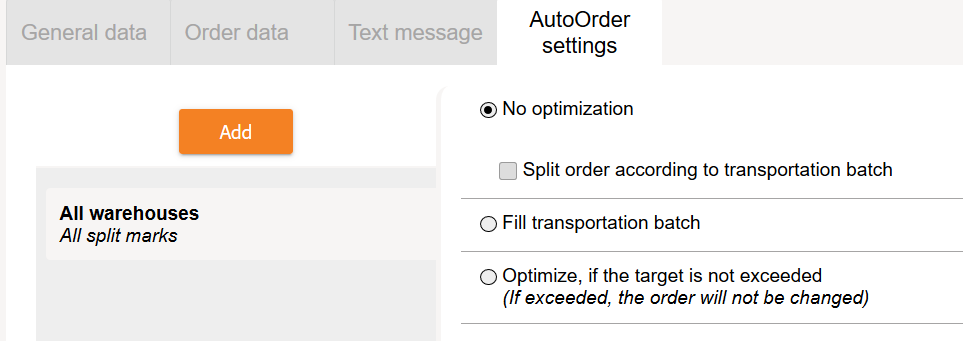
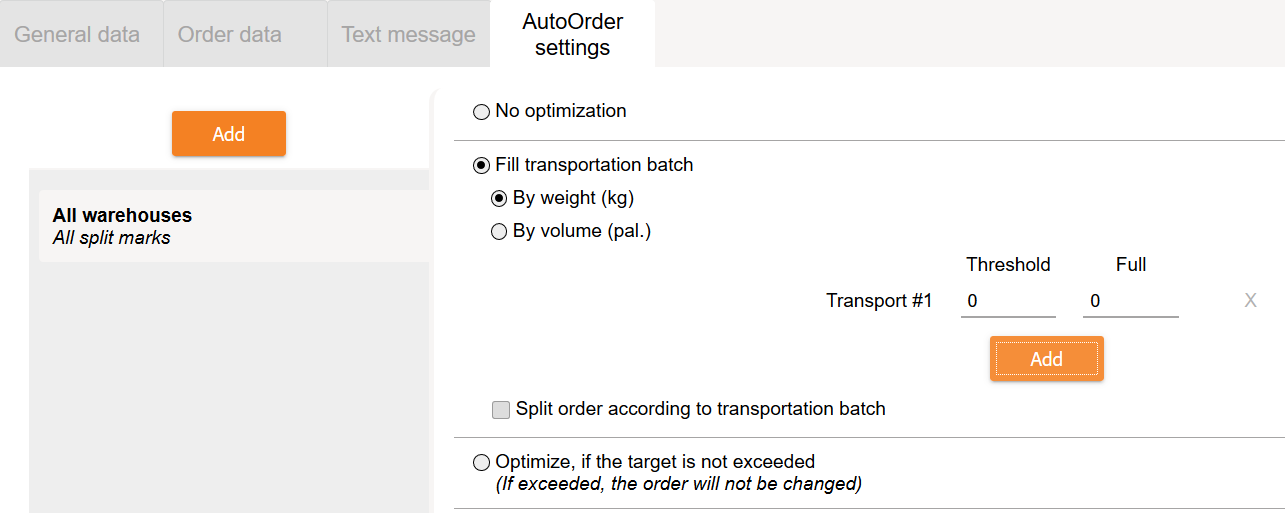
1. Clarification of Auto send settings in the supplier‘s card.
Selection of Auto send settings window in the supplier‘s card has changed:
- Optimization for auto send works only into the increasing side;
- If you want to decrease the order – to optimize into decreasing side, this you can do only by specifying the parameters manually.
- To decrease the number of rows to ... – also possible only by specifying the parameters manually.
Auto send settings window:
- Select „No optimization“.
New setting for calculating buffer by coefficient.
In the Periods or Inventory window when calculating the buffer according to the specified coefficient, the buffer is calculated according to the formula:
New BUF = (BUF - MOQ) * coeff. + MOQ
Since this update, this buffer calculation method has a selection / checkbox “Take into account MOQ” that allows you to select to take into account MOQ or not:
- By default, the check mark is placed and the new buffer calculation formula remains as it was.
- If the check mark is not placed, new buffer formula is:
New BUF = BUF * coeff.
- Select „Fill transportation batch”.
StockM Update 2020.04.23
1. Reservations by date (pto.csv).
There are 2 types of reservations in StockM: from the existing stock in the warehouse and special orders from customers (received in StockM via the pto.csv file).
Since this update, StockM immediately included received pto order in the nearest order to supplier, the date when the order had to be fulfilled was not estimated. In other words, program did not take into account the fact that the customer / buyer does not need these goods now and they can be delivered later with next orders.
Now StockM will check what delivery date of pto is. In the separate field “Activate before X d.” the number of days before the necessary delivery date can be specified, i.e. when the order must become active and can be already fulfilled. If in the field “Activate before X d.:
- nothing is specified, the field is empty, the pto order will be processed immediately and it will be included in the nearest order to the supplier;
- 0 is entered, the goods will be ordered with the last order, which will arrive before the specified delivery date;
- certain number of days is entered, the order will become active in such a number of days before the “Delivery date” and will be included in the next order to supplier after this activation.
2. Verification by uploading data to StockM via Table L11.
When uploading data to StockM via table L11, the information was loaded only when there were no errors. If the program found errors, the information was not loaded. A list of items was displayed to the user and errors had to be corrected.
Since this update, information will be loaded from those rows that do not contain errors, and a list of errors will be shown to the user (errors can be exported to excel as before). Once the errors are corrected, the data will have to be uploaded for specified rows once again by entering information into a new / separate L11 table template.
- Select “Optimize, if the target is not exceeded”.
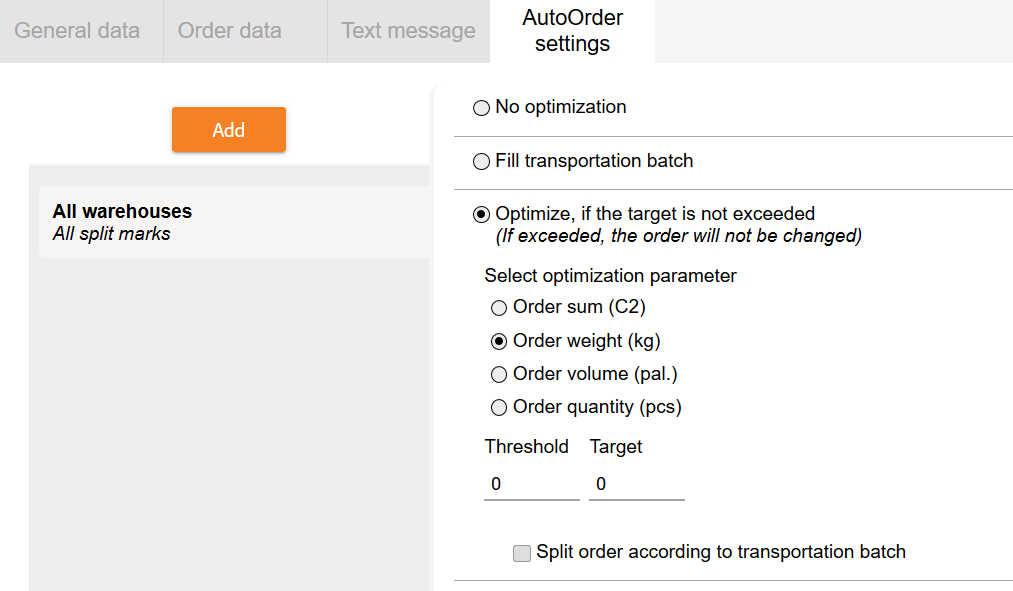
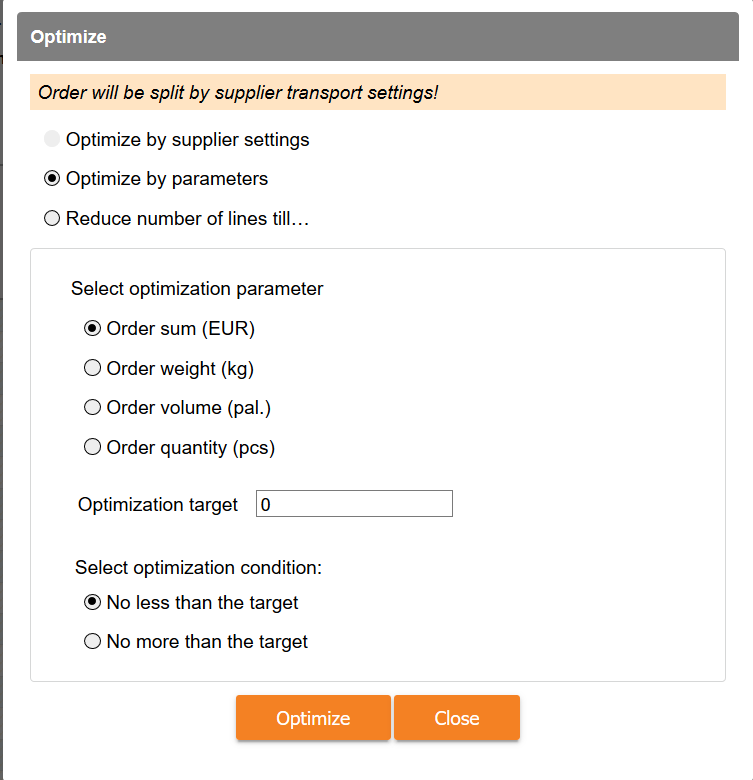
Manual optimization window:
3. New filtering operator in StockM windows.
An additional text field filtering operator has been added to StockM. It allows to specify / enter several values via a semicolon.

StockM Update 2020.04.09
Show the optimization parameter, optimization purpose and optimization condition in this window, when you optimize the order manually.
1. Confirmation of supply graphs.
There is a possibility to import the supply graphs in StockM, from the accounting (file scheduler.csv).
All recieved supply graphs from the accounting are confirmed automatically by system, after update.
2. Template of promotion import.
The template of promotion import has changed after update.
Download the newest template from StockM, if you want to import data into promotion.
- Combining of items into a group of alternative (ALT) items.
Until now, when combining items into the ALT product group, the main item had to be in all active warehouses, and the ALT product was not necessarily present.
This situation created problems in the distribution of items from the central warehouse to the branches. When it was necessary to order a product from a central warehouse, an ALT product was offered to be transported to the branch if there was a sufficient ALT product balance in the center and it was not checked that the branch does not sell the ALT product.
Since this update, the main and alternative items’ codes must be in all storage locations to combine ALT items.
A warning has been made in the confirmation window of combining when saving settings that both main and alternative items will be distributed through the warehouses. Distribution takes place through all warehouses containing at least one product involved in the ALT combination. The message after combining of items will show how many new items (SKU) cards have been created through the warehouses.
2. New setting in SM Admin “Divide product order amount”.
If orders for the supplier are formed frequently, but the delivery / delivery time is long, there is no need to order the entire buffer immediately with the first orders. It is possible to create several orders in one delivery time and thus reduce the amount of ordered goods. In other words, “fill the buffer” not immediately, but in several deliveries (divide the ordered quantity of one item in time over several orders).
After the update, it is possible to enable the setting so that in case of frequent but long deliveries, the entire buffer would not be ordered at once in one order. If at least 2 regular orders can be formed during the delivery time, then a maximum limit is applied to the ordered quantity, which is calculated according to the ratio of delivery frequency and duration and buffer. The maximum quantity also includes a PTO and a reservation so that ordered quantity was not restricted for special needs.
Important: The possibility to use this function has to be agreed separately and setting of this function works company-wide. If necessary, contact the project manager.
StockM update 2019.09.19.
StockM update 2020.03.19
Critical error: "Optimization: purchase price <= 0"
When order is optimized according the amount, purchase prices are checked and if the active goods/items don't have the purchase price, the order is not optimized.
The list will show items with Purchase Price <= 0 for suppliers, for which is set order optimization according the amount.
StockM update 2019.08.01.
1. Removing supplier activity.
Until now, it was not allowed to remove supplier activity if the supplier had active delivery schedules.
After update, when supplier activity is removed, all activities are automatically removed from supplier schedules as well. Supply schedules are not even visible.
If you will set activity on for the supplier, the shedules will be visible but not active - you will need to check and confirm it.
2. New critical notification: „Active items don‘t have active supplier“.
There is created warning of critical error: “Active items don’t have active supplier”. All active items will get into this list (not NA state and not NM state), for which inactive supplier is assigned. Items, which have OUT mover feature, will not be involved into the list.
For such items you will have to assign an active supplier.
New menu icon / button “?”
StockM you can see the new menu icon / button ”?”
Clicking on it opens a list with links:
- User Manual;
- Stockm News;
Clicking on them takes you to the appropriate page.


StockM update 2020.02.06
3. The reason for changing the buffer, when the user disagrees with the system's suggested buffer.
Order formation several times a day.
Earlier, when the user disagreed with the system's suggested buffer, he left the former buffer - the system asked to specify the reason.
The orders are formed by StockM system once a day. They are only formed if the data are renewed on that date before the order's formation.
After update, the reason will be assigned automatically, when the user will disagree with the system's offer to change the buffer and will leave former buffer.
Since this update, there is an option to form orders according to the time set in the 'Suppliers schedule '(data before order formation must be renewed). You can see the "Time" column in the 'Suppliers schedule ' to indicate the order formation time. The time is chosen from a list that is specified in SM Admin.
If another buffer will be specified (not that one, which was recommended by system), you will have to specify the reason.
Important: usage of this function is agreed separately and is set for a whole company. If needed, contact the project manager.
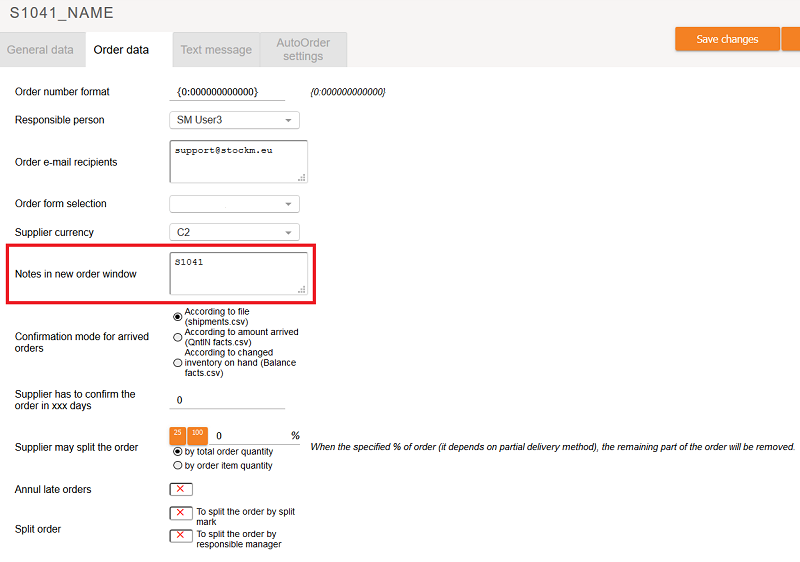
4. New column in the new orders window: “Notes in new order window”.
In the window “New orders” you can see new column “Notes in new order window”, where you can see information from the field “Notes in new order window” in the supplier card.