Changes for page NAUJIENOS
Summary
-
Page properties (1 modified, 0 added, 0 removed)
Details
- Page properties
-
- Content
-
... ... @@ -1,77 +1,87 @@ 1 -= StockM Update 2020.04.23 =1 += StockM update 2020.03.19 = 2 2 3 3 4 -** ~1.Reservationsbydate (pto.csv).**4 +**New menu icon / button “?”** 5 5 6 - There are 2 types of reservations inStockM:fromthe existingstockinthewarehouse and specialorders fromcustomers(received inStockMviathe pto.csvfile).6 +StockM you can see the new menu icon / button ”?” 7 7 8 - Since this update, StockMimmediately includedreceived ptoorder in thenearestorder to supplier, the date whenthe order hadto be fulfilled wasnotestimated. In otherwords, program did nottake into account thefact that the customer / buyer does not need these goods now and they can be delivered later withnext orders.8 +Clicking on it opens a list with links: 9 9 10 -Now StockM will check what delivery date of pto is. In the separate field “Activate before X d.” the number of days before the necessary delivery date can be specified, i.e. when the order must become active and can be already fulfilled. If in the field “Activate before X d.: 10 +* User Manual; 11 +* Stockm News; 11 11 12 -* nothing is specified, the field is empty, the pto order will be processed immediately and it will be included in the nearest order to the supplier; 13 -* 0 is entered, the goods will be ordered with the last order, which will arrive before the specified delivery date; 14 -* certain number of days is entered, the order will become active in such a number of days before the “Delivery date” and will be included in the next order to supplier after this activation. 13 +Clicking on them takes you to the appropriate page. 15 15 16 - (% style="letter-spacing:0.1px" %)**2. Verificationby uploading data toStockM via Table L11**.15 +[[image:naujienos1.png]] 17 17 18 - Whenuploading data toStockMvia table L11, the information was loaded only when there were no errors. If the program found errors, the information was not loaded. A list of items was displayedto the userand errors hadto becorrected.17 += StockM update 2020.02.06 = 19 19 20 -Since this update, information will be loaded from those rows that do not contain errors, and a list of errors will be shown to the user (errors can be exported to excel as before). Once the errors are corrected, the data will have to be uploaded for specified rows once again by entering information into a new / separate L11 table template. 21 21 20 +**Order formation several times a day.** 22 22 23 - **3. NewfilteringoperatorinStockMwindows.**22 +The orders are formed by StockM system once a day. They are only formed if the data are renewed on that date before the order's formation. 24 24 25 - Anadditionaltextfieldfilteringoperatorhas been addedto StockM.Itallowstospecify/enterseveralvaluesviaasemicolon.24 +Since this update, there is an option to form orders according to the time set in the 'Suppliers schedule '(data before order formation must be renewed). You can see the "Time" column in the 'Suppliers schedule ' to indicate the order formation time. The time is chosen from a list that is specified in SM Admin. 26 26 27 - [[image:operator_EN.PNG]]26 +**Important:** usage of this function is agreed separately and is set for a whole company. If needed, contact the project manager. 28 28 29 -= StockM Update 2020.04.09 = 30 30 29 += StockM update 2020.01.30 = 31 31 32 -1. **Combining of items into a group of alternative (ALT) items.** 33 33 34 - Untilnow, when combiningitems intothe ALT productgroup,the mainitem had to bein all active warehouses,andtheALT productwas not necessarily present.32 +**~1. Assignment of the manager to the items.** 35 35 36 -This situation created problems in the distribution of items from the central warehouse to the branches. When it was necessary to order a product from a central warehouse, an ALT product was offered to be transported to the branch if there was a sufficient ALT product balance in the center and it was not checked that the branch does not sell the ALT product. 34 +Until now it was possible to assign the manager to the goods in StockM in two ways: when transferring data from the accountancy system during data exchange or to enter manager on the supplier card in StockM as responsible for the supplier's goods. In the first way, the system automatically assigned the manager to the supplier's items after the data exchange. 35 +In case there are some managers working with different items of the same supplier – it would be wrong to specify just one manager. Therefore, according to the customer's request, we made it possible to assign a manager in StockM manually for each item. We recommend to use this function when it is not possible to transfer the manager from the accountancy system or assignment of one manager as responsible for all items of the supplier would be wrong. 37 37 38 -Since this update, the main and alternative items’ codes must be in all storage locations to combine ALT items. 37 +If you need to use this function, contact StockM – we'll need to change your settings. 38 +Important: The change of settings could be done for a whole company, i.e. several methods of assigning managers to the goods cannot be used. 39 39 40 -A warning has been made in the confirmation window of combining when saving settings that both main and alternative items will be distributed through the warehouses. Distribution takes place through all warehouses containing at least one product involved in the ALT combination. The message after combining of items will show how many new items (SKU) cards have been created through the warehouses. 41 41 42 -**~ **2**. New setting in SM Admin “Divide product order amount”.** 41 +**2. Conversion of supplier units of measure.** 42 +When a unit of measure of the supplier differs from the customer's unit of measure, it is possible to save the conversion of units of measure together with the rest parameters of the item in the supplier system. According to it the quantity in the supplier units of measure will be calculated. To do this, you must specify the conversion coefficient and its type: multiplier [[image:daugiklis.PNG]] or divider [[image:daliklis.PNG]], that is of how many supplier units consists 1 unit of the customer, or how many customer units are included in 1 unit of measure of the supplier (so far there was a possibility to specify a multiplier only). 43 43 44 -If orders for the supplier are formed frequently, but the delivery / delivery time is long, there is no need to order the entire buffer immediately with the first orders. It is possible to create several orders in one delivery time and thus reduce the amount of ordered goods. In other words, “fill the buffer” not immediately, but in several deliveries (divide the ordered quantity of one item in time over several orders). 44 +Examples: 45 +Quantity in StockM is controlled by bottles, but it is necessary to place an order to the supplier by litres. One bottle contains 1.5 L, in which case the coefficient = 1.5 should be specified and the conversion type is a multiplier. 46 +If StockM program offers to order 10 pieces, then according to the units of measure of supplier 10pcs. * 1.5 L = 15l. 47 +Quantity in StockM is controlled by units, but it is necessary to place an order to the supplier by boxes. One box contains 10pcs., in which case coefficient = 10 should be specified and the conversion type is a divider. 48 +If StockM program offers to order 60 pieces, then according to the units of measure of supplier 60pcs. / 10pcs. = 6 boxes 45 45 46 - After the update,it is possible to enable the setting so that in case of frequent but long deliveries, the entire buffer would not be ordered at once in one order. If at least 2 regular orders can be formed during the delivery time, thenamaximum limit is applied to the ordered quantity, which is calculated accordingto theratioof delivery frequency and duration and buffer. The maximum quantity also includes a PTO and a reservation so that ordered quantity wasnot restricted for special needs.50 +[[image:konversija.JPG]] 47 47 48 - **Important:**Thepossibility to use this functionhas tobeagreedseparately andsettingofthisfunctionworkscompany-wide.Ifnecessary,contacttheprojectmanager.52 + In the window of new order, you can select a column to see the supplier quantity going to be ordered. This value goes to the order form by default. 49 49 50 -= StockM update 2020.0 3.19=54 += StockM update 2020.01.16 = 51 51 56 +**Taking into account free balance (quantity in stock) when forming a spec. order (PTO).** 52 52 53 - **Newmenuicon/button“?”**58 +Some companies form spec orders (if such exists) using reservation which is transferred to StockM with the help of the PTO. csv file. 54 54 55 -S tockM you can seethenewmenuicon/button”?”60 +Since this update, new setting up in SM Admine is created by which you can choose whether to take into account the free warehouse balance, or to ignore it, when forming spec. order to the supplier. 56 56 57 - Clicking on it opensalist with links:62 +If it is set that free warehouse balance does not have to be evaluated, the spec. order (PTO) will be sent to the supplier regardless of the current free balance in the warehouse. In other words, even the balance in stock is enough, spec. order will be sent to the supplier from the PTO file (the quantity is rounded up to the full packing). 58 58 59 -* User Manual; 60 -* Stockm News; 64 +The setup works at company level — for all items in all warehouses. 61 61 62 -Clicking on them takes you to the appropriate page. 63 63 64 - [[image:naujienos2.png]]67 += StockM update 2020.01.09 = 65 65 66 - = StockMupdate2020.02.06 =69 +**Weight and volume amounts in Inventory window.** 67 67 71 +At the bottom of Inventory window, close to the balance and amount to be ordered, amount of weight and volume can be seen (according to the list of products filtered as seen in the window). 68 68 69 - **Orderformationseveraltimesaday.**73 +Since this update, by clicking on the icon on the right bottom corner the table will occur which shows complete information. 70 70 71 - The orders are formed by StockM system onceaday. Theyare only formed ifthe data are renewed on that date before the order's formation.75 +[[image:atnaujinimas20200108.png]] 72 72 73 - Sincethis update, there is an option to form orders according to the time set in the 'Suppliers schedule '(data before order formation must be renewed). Youcansee the "Time" column in the 'Suppliers schedule ' to indicatethe order formation time.The time is chosen from a list that is specified in SM Admin.77 += StockM update 2019.12.12. = 74 74 75 -** Important:**usage of this function isagreed separately and isset for a whole company.If needed, contact theprojectager.79 +**~ Maximum number of transports in optimization.** 76 76 77 - 81 + 82 + 83 +In the supplier‘s card near AutoOrder settings by describing transport (AutoOrder settings -> Fill transportation batch) you can show how many transports can be (the maximum number of transports). 84 + 85 +The system will choose one kind of transport, while optimizing an order, and will fill in only that kind of transport till the specified maximum number. 86 + 87 +[[image:picture_.png]]
StockM Update 2020.04.23
StockM update 2020.03.19
1. Reservations by date (pto.csv).
There are 2 types of reservations in StockM: from the existing stock in the warehouse and special orders from customers (received in StockM via the pto.csv file).
Since this update, StockM immediately included received pto order in the nearest order to supplier, the date when the order had to be fulfilled was not estimated. In other words, program did not take into account the fact that the customer / buyer does not need these goods now and they can be delivered later with next orders.
Now StockM will check what delivery date of pto is. In the separate field “Activate before X d.” the number of days before the necessary delivery date can be specified, i.e. when the order must become active and can be already fulfilled. If in the field “Activate before X d.:
- nothing is specified, the field is empty, the pto order will be processed immediately and it will be included in the nearest order to the supplier;
- 0 is entered, the goods will be ordered with the last order, which will arrive before the specified delivery date;
- certain number of days is entered, the order will become active in such a number of days before the “Delivery date” and will be included in the next order to supplier after this activation.
2. Verification by uploading data to StockM via Table L11.
When uploading data to StockM via table L11, the information was loaded only when there were no errors. If the program found errors, the information was not loaded. A list of items was displayed to the user and errors had to be corrected.
Since this update, information will be loaded from those rows that do not contain errors, and a list of errors will be shown to the user (errors can be exported to excel as before). Once the errors are corrected, the data will have to be uploaded for specified rows once again by entering information into a new / separate L11 table template.
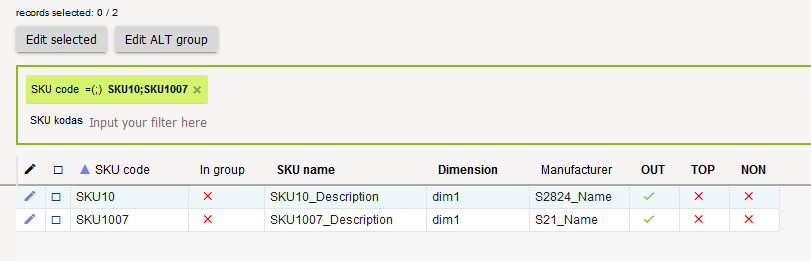
3. New filtering operator in StockM windows.
An additional text field filtering operator has been added to StockM. It allows to specify / enter several values via a semicolon.
StockM Update 2020.04.09
- Combining of items into a group of alternative (ALT) items.
Until now, when combining items into the ALT product group, the main item had to be in all active warehouses, and the ALT product was not necessarily present.
This situation created problems in the distribution of items from the central warehouse to the branches. When it was necessary to order a product from a central warehouse, an ALT product was offered to be transported to the branch if there was a sufficient ALT product balance in the center and it was not checked that the branch does not sell the ALT product.
Since this update, the main and alternative items’ codes must be in all storage locations to combine ALT items.
A warning has been made in the confirmation window of combining when saving settings that both main and alternative items will be distributed through the warehouses. Distribution takes place through all warehouses containing at least one product involved in the ALT combination. The message after combining of items will show how many new items (SKU) cards have been created through the warehouses.
2. New setting in SM Admin “Divide product order amount”.
If orders for the supplier are formed frequently, but the delivery / delivery time is long, there is no need to order the entire buffer immediately with the first orders. It is possible to create several orders in one delivery time and thus reduce the amount of ordered goods. In other words, “fill the buffer” not immediately, but in several deliveries (divide the ordered quantity of one item in time over several orders).
After the update, it is possible to enable the setting so that in case of frequent but long deliveries, the entire buffer would not be ordered at once in one order. If at least 2 regular orders can be formed during the delivery time, then a maximum limit is applied to the ordered quantity, which is calculated according to the ratio of delivery frequency and duration and buffer. The maximum quantity also includes a PTO and a reservation so that ordered quantity was not restricted for special needs.
Important: The possibility to use this function has to be agreed separately and setting of this function works company-wide. If necessary, contact the project manager.
StockM update 2020.03.19
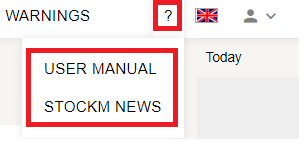
New menu icon / button “?”
StockM you can see the new menu icon / button ”?”
Clicking on it opens a list with links:
- User Manual;
- Stockm News;
Clicking on them takes you to the appropriate page.

StockM update 2020.02.06
Order formation several times a day.
The orders are formed by StockM system once a day. They are only formed if the data are renewed on that date before the order's formation.
Since this update, there is an option to form orders according to the time set in the 'Suppliers schedule '(data before order formation must be renewed). You can see the "Time" column in the 'Suppliers schedule ' to indicate the order formation time. The time is chosen from a list that is specified in SM Admin.
Important: usage of this function is agreed separately and is set for a whole company. If needed, contact the project manager.
StockM update 2020.01.30
1. Assignment of the manager to the items.
Until now it was possible to assign the manager to the goods in StockM in two ways: when transferring data from the accountancy system during data exchange or to enter manager on the supplier card in StockM as responsible for the supplier's goods. In the first way, the system automatically assigned the manager to the supplier's items after the data exchange.
In case there are some managers working with different items of the same supplier – it would be wrong to specify just one manager. Therefore, according to the customer's request, we made it possible to assign a manager in StockM manually for each item. We recommend to use this function when it is not possible to transfer the manager from the accountancy system or assignment of one manager as responsible for all items of the supplier would be wrong.
If you need to use this function, contact StockM – we'll need to change your settings.
Important: The change of settings could be done for a whole company, i.e. several methods of assigning managers to the goods cannot be used.
2. Conversion of supplier units of measure.
When a unit of measure of the supplier differs from the customer's unit of measure, it is possible to save the conversion of units of measure together with the rest parameters of the item in the supplier system. According to it the quantity in the supplier units of measure will be calculated. To do this, you must specify the conversion coefficient and its type: multiplier  or divider
  , that is of how many supplier units consists 1 unit of the customer, or how many customer units are included in 1 unit of measure of the supplier (so far there was a possibility to specify a multiplier only).
Examples:
Quantity in StockM is controlled by bottles, but it is necessary to place an order to the supplier by litres. One bottle contains 1.5 L, in which case the coefficient = 1.5 should be specified and the conversion type is a multiplier.
If StockM program offers to order 10 pieces, then according to the units of measure of supplier 10pcs. * 1.5 L = 15l.
Quantity in StockM is controlled by units, but it is necessary to place an order to the supplier by boxes. One box contains 10pcs., in which case coefficient = 10 should be specified and the conversion type is a divider.
If StockM program offers to order 60 pieces, then according to the units of measure of supplier 60pcs. / 10pcs. = 6 boxes

In the window of new order, you can select a column to see the supplier quantity going to be ordered. This value goes to the order form by default.
StockM update 2020.01.16
Taking into account free balance (quantity in stock) when forming a spec. order (PTO).
Some companies form spec orders (if such exists) using reservation which is transferred to StockM with the help of the PTO. csv file.
Since this update, new setting up in SM Admine is created by which you can choose whether to take into account the free warehouse balance, or to ignore it, when forming spec. order to the supplier.
If it is set that free warehouse balance does not have to be evaluated, the spec. order (PTO) will be sent to the supplier regardless of the current free balance in the warehouse. In other words, even the balance in stock is enough, spec. order will be sent to the supplier from the PTO file (the quantity is rounded up to the full packing).
The setup works at company level — for all items in all warehouses.
StockM update 2020.01.09
Weight and volume amounts in Inventory window.
At the bottom of Inventory window, close to the balance and amount to be ordered, amount of weight and volume can be seen (according to the list of products filtered as seen in the window).
Since this update, by clicking on the icon on the right bottom corner the table will occur which shows complete information.

StockM update 2019.12.12.
Maximum number of transports in optimization.
In the supplier‘s card near AutoOrder settings by describing transport (AutoOrder settings -> Fill transportation batch) you can show how many transports can be (the maximum number of transports).
The system will choose one kind of transport, while optimizing an order, and will fill in only that kind of transport till the specified maximum number.
