Changes for page NAUJIENOS
Summary
-
Page properties (1 modified, 0 added, 0 removed)
Details
- Page properties
-
- Content
-
... ... @@ -29,10 +29,16 @@ 29 29 = StockM update 2020.01.30 = 30 30 31 31 32 -**~1. Conversion ofsupplierunitsofmeasure.**32 +**~1. Assignment of the manager to the items.** 33 33 34 - 34 +Until now it was possible to assign the manager to the goods in StockM in two ways: when transferring data from the accountancy system during data exchange or to enter manager on the supplier card in StockM as responsible for the supplier's goods. In the first way, the system automatically assigned the manager to the supplier's items after the data exchange. 35 +In case there are some managers working with different items of the same supplier – it would be wrong to specify just one manager. Therefore, according to the customer's request, we made it possible to assign a manager in StockM manually for each item. We recommend to use this function when it is not possible to transfer the manager from the accountancy system or assignment of one manager as responsible for all items of the supplier would be wrong. 35 35 37 +If you need to use this function, contact StockM – we'll need to change your settings. 38 +Important: The change of settings could be done for a whole company, i.e. several methods of assigning managers to the goods cannot be used. 39 + 40 + 41 +**2. Conversion of supplier units of measure.** 36 36 When a unit of measure of the supplier differs from the customer's unit of measure, it is possible to save the conversion of units of measure together with the rest parameters of the item in the supplier system. According to it the quantity in the supplier units of measure will be calculated. To do this, you must specify the conversion coefficient and its type: multiplier [[image:daugiklis.PNG]] or divider [[image:daliklis.PNG]], that is of how many supplier units consists 1 unit of the customer, or how many customer units are included in 1 unit of measure of the supplier (so far there was a possibility to specify a multiplier only). 37 37 38 38 Examples: ... ... @@ -44,3 +44,38 @@ 44 44 [[image:konversija.JPG]] 45 45 46 46 In the window of new order, you can select a column to see the supplier quantity going to be ordered. This value goes to the order form by default. 53 + 54 += StockM update 2020.01.16 = 55 + 56 +**Taking into account free balance (quantity in stock) when forming a spec. order (PTO).** 57 + 58 +Some companies form spec orders (if such exists) using reservation which is transferred to StockM with the help of the PTO. csv file. 59 + 60 +Since this update, new setting up in SM Admine is created by which you can choose whether to take into account the free warehouse balance, or to ignore it, when forming spec. order to the supplier. 61 + 62 +If it is set that free warehouse balance does not have to be evaluated, the spec. order (PTO) will be sent to the supplier regardless of the current free balance in the warehouse. In other words, even the balance in stock is enough, spec. order will be sent to the supplier from the PTO file (the quantity is rounded up to the full packing). 63 + 64 +The setup works at company level — for all items in all warehouses. 65 + 66 + 67 += StockM update 2020.01.09 = 68 + 69 +**Weight and volume amounts in Inventory window.** 70 + 71 +At the bottom of Inventory window, close to the balance and amount to be ordered, amount of weight and volume can be seen (according to the list of products filtered as seen in the window). 72 + 73 +Since this update, by clicking on the icon on the right bottom corner the table will occur which shows complete information. 74 + 75 +[[image:atnaujinimas20200108.png]] 76 + 77 += StockM update 2019.12.12. = 78 + 79 +**~ Maximum number of transports in optimization.** 80 + 81 + 82 + 83 +In the supplier‘s card near AutoOrder settings by describing transport (AutoOrder settings -> Fill transportation batch) you can show how many transports can be (the maximum number of transports). 84 + 85 +The system will choose one kind of transport, while optimizing an order, and will fill in only that kind of transport till the specified maximum number. 86 + 87 +[[image:picture_.png]]
StockM update 2020.03.19
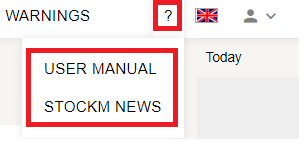
New menu icon / button “?”
StockM you can see the new menu icon / button ”?”
Clicking on it opens a list with links:
- User Manual;
- Stockm News;
Clicking on them takes you to the appropriate page.
StockM update 2020.02.06
Order formation several times a day.
The orders are formed by StockM system once a day. They are only formed if the data are renewed on that date before the order's formation.
Since this update, there is an option to form orders according to the time set in the 'Suppliers schedule '(data before order formation must be renewed). You can see the "Time" column in the 'Suppliers schedule ' to indicate the order formation time. The time is chosen from a list that is specified in SM Admin.
Important: usage of this function is agreed separately and is set for a whole company. If needed, contact the project manager.
StockM update 2020.01.30
1. Conversion of supplier units of measure.
1. Assignment of the manager to the items.
Until now it was possible to assign the manager to the goods in StockM in two ways: when transferring data from the accountancy system during data exchange or to enter manager on the supplier card in StockM as responsible for the supplier's goods. In the first way, the system automatically assigned the manager to the supplier's items after the data exchange.
In case there are some managers working with different items of the same supplier – it would be wrong to specify just one manager. Therefore, according to the customer's request, we made it possible to assign a manager in StockM manually for each item. We recommend to use this function when it is not possible to transfer the manager from the accountancy system or assignment of one manager as responsible for all items of the supplier would be wrong.
If you need to use this function, contact StockM – we'll need to change your settings.
Important: The change of settings could be done for a whole company, i.e. several methods of assigning managers to the goods cannot be used.
When a unit of measure of the supplier differs from the customer's unit of measure, it is possible to save the conversion of units of measure together with the rest parameters of the item in the supplier system. According to it the quantity in the supplier units of measure will be calculated. To do this, you must specify the conversion coefficient and its type: multiplier  or divider
  , that is of how many supplier units consists 1 unit of the customer, or how many customer units are included in 1 unit of measure of the supplier (so far there was a possibility to specify a multiplier only).
2. Conversion of supplier units of measure.
When a unit of measure of the supplier differs from the customer's unit of measure, it is possible to save the conversion of units of measure together with the rest parameters of the item in the supplier system. According to it the quantity in the supplier units of measure will be calculated. To do this, you must specify the conversion coefficient and its type: multiplier or divider , that is of how many supplier units consists 1 unit of the customer, or how many customer units are included in 1 unit of measure of the supplier (so far there was a possibility to specify a multiplier only).
Examples:
Quantity in StockM is controlled by bottles, but it is necessary to place an order to the supplier by litres. One bottle contains 1.5 L, in which case the coefficient = 1.5 should be specified and the conversion type is a multiplier.
If StockM program offers to order 10 pieces, then according to the units of measure of supplier 10pcs. * 1.5 L = 15l.
Quantity in StockM is controlled by units, but it is necessary to place an order to the supplier by boxes. One box contains 10pcs., in which case coefficient = 10 should be specified and the conversion type is a divider.
If StockM program offers to order 60 pieces, then according to the units of measure of supplier 60pcs. / 10pcs. = 6 boxes

In the window of new order, you can select a column to see the supplier quantity going to be ordered. This value goes to the order form by default.
StockM update 2020.01.16
Taking into account free balance (quantity in stock) when forming a spec. order (PTO).
Some companies form spec orders (if such exists) using reservation which is transferred to StockM with the help of the PTO. csv file.
Since this update, new setting up in SM Admine is created by which you can choose whether to take into account the free warehouse balance, or to ignore it, when forming spec. order to the supplier.
If it is set that free warehouse balance does not have to be evaluated, the spec. order (PTO) will be sent to the supplier regardless of the current free balance in the warehouse. In other words, even the balance in stock is enough, spec. order will be sent to the supplier from the PTO file (the quantity is rounded up to the full packing).
The setup works at company level — for all items in all warehouses.
StockM update 2020.01.09
Weight and volume amounts in Inventory window.
At the bottom of Inventory window, close to the balance and amount to be ordered, amount of weight and volume can be seen (according to the list of products filtered as seen in the window).
Since this update, by clicking on the icon on the right bottom corner the table will occur which shows complete information.

StockM update 2019.12.12.
Maximum number of transports in optimization.
In the supplier‘s card near AutoOrder settings by describing transport (AutoOrder settings -> Fill transportation batch) you can show how many transports can be (the maximum number of transports).
The system will choose one kind of transport, while optimizing an order, and will fill in only that kind of transport till the specified maximum number.
