Changes for page NAUJIENOS
Summary
-
Page properties (1 modified, 0 added, 0 removed)
Details
- Page properties
-
- Content
-
... ... @@ -1,3 +1,19 @@ 1 += StockM update on 2021.12.30. = 2 + 3 +**CROSS-DOCKING 3 (CD3) function.** 4 + 5 +The new CD3 function has been implemented. 6 + 7 +Cross-Docking functions are used, when SKU in central warehouse is only reloaded (distributed) to stores or regional warehouses. The balances of SKU are not stocked in a center. 8 + 9 +Cross-Docking functions: 10 + 11 +1. CD - orders are formed by stores, and the central warehouse sends one general order to a supplier. Arrived quantity is distributed to stores according to their orders. 12 +1. CD2 - orders for the supplier are formed by the central warehouse, by collecting the current day SKU demand from all stores. And arrived quantity is distributed according to the demand of the stores on the day of distribution. 13 +1. CD3 – orders for the supplier are formed by the central warehouse, collecting only the demand of those stores for which the dirstribution will take place on the day of arrtival of this order in the central warehouse. All incoming quantities will be distributed. 14 + 15 +To use the required function, assign the appropriate state (CD, CD2, CD3) for the SKU in central warehouse. If you do not see the state you want, contact StockM. 16 + 1 1 = StockM update on 2021.11.17. = 2 2 3 3 **The creation of a new card according to the received pto.csv file** ... ... @@ -135,7 +135,7 @@ 135 135 136 136 Until now, in the report of inventory dynamics, turnover has been displayed in times / year (t / y). From now on, it is possible to see it in days as well. Contact the StockM team if it is necessary. 137 137 138 -= StockM update on 2021.07. 15. =154 += StockM update on 2021.07.29. = 139 139 140 140 **~ Optimization of combined orders.** 141 141 ... ... @@ -146,113 +146,18 @@ 146 146 · All orders in general - the purpose must be specified one for all orders in general. 147 147 148 148 149 -= StockM update on 2021.07.15 = 150 150 151 151 152 -2) C mover – systematic parameter, set automatically (once / month, at the beginning of the month). This mark highlight goods that generate 5% of the company's total turnover during the last 3 months - slow moving goods. 153 153 168 + 154 154 155 - p.s.tillnow for C movers have been assigned goods that generate 2% of the company's total turnover during the last 3 months - slow moving goods.170 += = 156 156 172 += = 157 157 158 -= StockMupdate on 2021.07.01=174 += = 159 159 160 160 161 -Since this update, the reports/emails of exchange data and orders you can see in StockM window on dashboard and also via menu: 162 162 163 -• TODAY -> Data import. In this window you see information about the renewal of warehouses (you have seen such information in the Data import letter till now); 164 164 165 -• TODAY -> Orders created. In this window you see a list of orders that should have been created (according to schedule and demand) but not created. 166 - 167 - P.S. "Data import" and "New Order" e-mails will not be sent in the future. 168 - 169 - 170 -= StockM update on 2021.06.09 = 171 - 172 - 173 -**Warning of the items witch not be able to arrive for a period.** 174 - 175 -In the Period‘s window „List of SKU“, in the column “Warning to check the order” you can see 176 - 177 -the information about the items which not be able to arrive for a period. The warning is important when: 178 - 179 -• you include the items in the active period that will not arrive on time. 180 - 181 -• you are newly creating a period in which will not arrive any order of item 182 - 183 -p.s. In order to see this column, select it in the "Column Selection Form". 184 - 185 -= = 186 - 187 -= StockM Update 2021.04.22 = 188 - 189 - 190 -**New setting for automatic sending of orders** 191 - 192 -In supplier card in “Auto Order settings” there is a choice to split an order into transports. 193 - 194 -From now, it can be set individual SKU to be put in only one transport. With this setting, the SKU will be not split into several vehicles and will be put in one (except the SKU exceeds a vehicle). 195 - 196 -= StockM Update 2021.04.08 = 197 - 198 - 199 -1. **Combining of alternative items: assigned parameters includes promotions and periods.** 200 - 201 -If the item whose parameters are assigned to the main item by combining alternative items, participates or will participate in promotions/period that not started yet, these parameters of this item are assigned to main the item as well. 202 - 203 -**2. Confirmation mode of arrived orders: additional parameter** 204 - 205 -In supplier card window “Order data” the allowed percentage may be specified in setting “Supplier may split the order”. This setting (if it is set not 100%) works if delivered less than ordered. 206 - 207 -An additional setting is visible after the update: “Supplier may overfill order”. Setting is visible only if confirmation mode of arrived orders is chosen: according to amount arrived (QntIN facts.csv), or according to changed inventory on hand (Balance facts.csv) and according to split orders option: by order item quantity. 208 - 209 -By entering the percentage (less than 100) in the setting “Supplier may overfill order”: 210 - 211 -* If arrived qty is not more than (order qty*percent), all arrived quantity is assigned to the current order. The current order is closed and no quantity is transferred / closes the quantity of the next order on the list. 212 -* If arrived qty is more than (order qty*percent), the excess is assigned and closes the quantity of the next order on the list. 213 - 214 -[[image:20210408.jpg]] 215 - 216 -= = 217 - 218 -= StockM Update 2021.03.18 = 219 - 220 -**Upload PTO orders to StockM via form.** 221 - 222 -Records from file/template can be loaded in PTO order field. Template can be downloaded by clicking:[[image:20210318_1.png]] 223 - 224 -= [[image:20210318_2.png]] = 225 - 226 -When uploading a file/template, new PTO records are created and existing ones are edited: 227 - 228 -* If no creation date is specified for new records, the current date is used by default. 229 -* The delivery date cannot be earlier than the creation date. 230 -* SKU code – warehouse code - order No combinations cannot be duplicated. 231 -* Order quantity cannot be negative. 232 -* The order number must be indicated. 233 -* The warehouse code and SKU record must exist in that warehouse; 234 -* The delivery date and the ordered quantity must be indicated only for the records to be newly created; 235 -* Empty fields in the file, do not update the values, leave the former ones; 236 -* To cancel the number of validity days, enter "-1". 237 - 238 -= StockM Update 2021.03.04 = 239 - 240 -**~1. Return orders for overstock items.** 241 - 242 -When forming orders for the return of overstock items, it is possible to: 243 - 244 -* generate an excel form / report based on a special order form. 245 -* create an order for the return of overstock items from warehouses / stores to the central warehouse immediately**.** 246 - 247 -[[image:20210304_1.png]] 248 - 249 - 250 -**2. Mark CLN - Possibility to determine the final state.** 251 - 252 -Attribute CLN should be used for items to be sold out that may be in the range in the future. When this mark is assigned, the status of the item in the Central Warehouse automatically changes to DTO. After the stock balance ends, the mark CLN will be automatically removed and the final status of the item remains as specified in the SM Admin. 253 - 254 -Until now, the final state of the OUT type (OUT / CLN) could be specified as one that was valid for both OUT and CLN. 255 - 256 -These settings are now separated. The final states of the OUT types can be specified separately for the OUT mark and separately for the CLN. By default, the DTO status is assigned to CLN mark. 257 - 258 -Contact StockM if necessary to replace. 179 +
StockM update on 2021.11.17.
StockM update on 2021.12.30.
CROSS-DOCKING 3 (CD3) function.
The new CD3 function has been implemented.
Cross-Docking functions are used, when SKU in central warehouse is only reloaded (distributed) to stores or regional warehouses. The balances of SKU are not stocked in a center.
Cross-Docking functions:
- CD - orders are formed by stores, and the central warehouse sends one general order to a supplier. Arrived quantity is distributed to stores according to their orders.
- CD2 - orders for the supplier are formed by the central warehouse, by collecting the current day SKU demand from all stores. And arrived quantity is distributed according to the demand of the stores on the day of distribution.
- CD3 – orders for the supplier are formed by the central warehouse, collecting only the demand of those stores for which the dirstribution will take place on the day of arrtival of this order in the central warehouse. All incoming quantities will be distributed.
To use the required function, assign the appropriate state (CD, CD2, CD3) for the SKU in central warehouse. If you do not see the state you want, contact StockM.
StockM update on 2021.11.17.
The creation of a new card according to the received pto.csv file
Sometimes in the file of special order (pto.csv file) from accounting system to StockM are transfered SKU codes that don't exist in StockM.
From now on, receiving such SKUs in the pto.csv file, will automatically create new cards in StockM.
When creating a new card, will be entered the transfered SKU code, assigned ND status. The supplier will be assigned according to the order information. MOQ and USQ will be written as = 1. The other parameters of the item card will need to be arranged by the user.
If such an item card already exists in StockM but is not in that warehouse, it will be created in the warehouse in analogy.
StockM update on 2021.10.20.
- Additional columns in the ordered.csv file.
In the ordered.csv file, which is used to edit orders in StockM according to the information received from accounting system, it is possibility additionally specify:
• whether the supplier has confirmed the order (column “SupplierConfirmed”)
• Arrival date (“ArrivalDate” column)
If you need this information, you will need to add these columns to the ordered.csv file and inform StockM.
2. Additional information in the monthly report “Number of SKUs”.
In the monthly report 604 Monthly analysis (“SKU number”) you can additionally see:
• information about items marked B;
• new columns: “Transfers, Eur”; “Lost transfers, Eur”; "Lost transfers,%".
In the report, where is information about warehouses, the turnover for RMTA and RMTO items is calculated on the basis of transfers.
StockM update on 2021.10.07.
Order delivery date in the SKU schedule.
In the SKU schedule, by clicking on the order triangle, you can also see the delivery date of the order. The date is taken from the placed orders window.
StockM update on 2021.09.22.
- Uploading Supplier SKU Information.
In the SM Admin module, all supplier SKU fields can be loaded into StockM. Actions -> Import -> Import supplier SKU data:
• download the template;
• fill in the mandatory columns: SKU code and Supplier code;
• fill in the columns which information you want to upload;
• save the file, browse it and move it to StockM by clicking “Import file data”.
These actions can do only users with Admin rights.
2. New columns in the Inventory window - Current inventory (weight, volume, EUR).
In the inventory window, you can see information in additional columns:
· Current inventory (Weight)
· Current inventory (Volume)
· Current inventory (EUR)
If you don't see the columns, open them through the visibility of the columns.
3. Stock PROMO2 module: the new algorithm for calculating the initial promotional quantity.
There is new algorithm 4 (according to the information of the previous promotions in the PExtra fields) for calculating the initial promotional quantity - the program searches for the promotion according to the information specified in the additional fields PExtra 1 and PExtra 2.
• In case when the program finds promotion: it uses the information of promotion sales for calculation.
• In case when the program not find promotion: promotional quantity calculate according to sales of set period (estimating the specified coefficient).
StockM update on 2021.09.09.
Additional SKU’s buffer management setting.
Until now, the automatic setting of SKU buffer change (increase, decrease) was possible only in the supplier's card and it was the same for all supplier's SKUs.
Now in StockM is additional possibility to specify an automatic buffer change for each SKU, in each warehouse separately.
There are created the new columns in the inventory window and in the SKU card:
"Buffer Auto decrease";
"Buffer auto increase".
It is possibility to choose one of 3 options in this columns:
• Supplier Setting - will valid a setting in the Suppliers card.
• Allow - will allow automatically change the SKU buffer in the specified warehouse, no matter what is set in the Suppliers card.
• Forbid - will not allow automatically change the SKU buffer in the specified warehouse, no matter what is set on the supplier's card.
StockM update on 2021.09.01.
- Change the supplier in the order via the ordered.csv file.
In StockM, it is possible to change the supplier of order via the ordered.csv file, which is transferred to StockM from the customer's accounting:
- the supplier to be changed it must exist in the system and be active;
- after changing the supplier, the order number remains the same;
- the information is recorded only when all items are marked with the same supplier (supplier's code);
- if different supplier codes are specified for the same order for the items - no changes are imported for the order. In this case, an error is fixed and duplicates are displayed in the error file ftp, error directory.
2. Supplemented of the system warning “SKU in the center DTO, in the region DTA, supplier central warehouse, but the product is not OUT muveris”.
If the item in the region is DTA, the supplier is a central warehouse, but the supplier does not have the corresponding item card, StockM will inform you in this warning.
From now this warning sounds like this: „SKU in center is *TO or doesn't exist , in region is *TA, supplier is central warehouse, but SKU is not OUT mover
Check isn't it a mistake. The region may not receive the items.“
StockM update on 2021.08.26
- New warning Buffer < Lowest system buffer
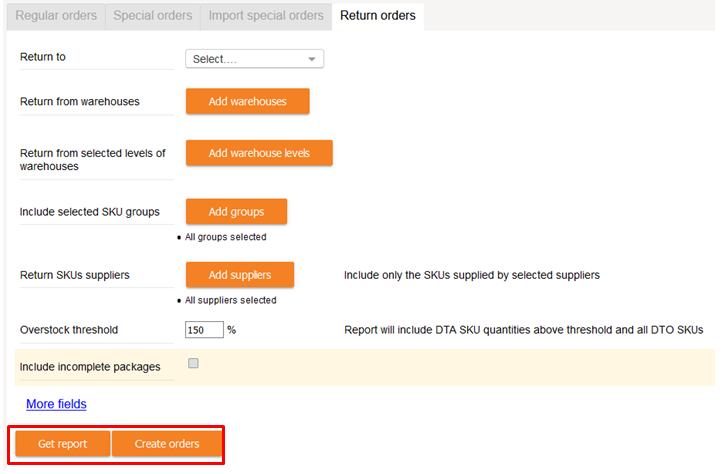
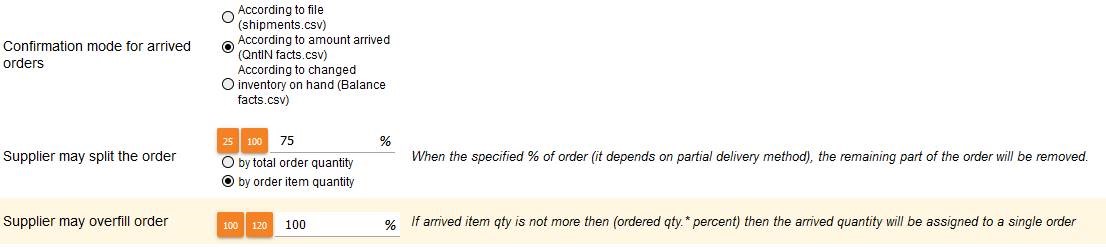
A new warning is displayed in StockM: Buffer Lowest system buffer – value, which is specified when desired that the buffer would not be less than coefficient (1-1.5) x MOQ (minimal order quantity). LowSysBuff is set for all goods at company level total or separate at warehouse level. 2. SKU schedule's changes. From now, the color display of the buffer is not displayed in the SKU schedule during the period when the item status is * TO. The value of the buffer is written "No * TA". 3. Representation of turnover rate in inventory dynamics. Until now, in the report of inventory dynamics, turnover has been displayed in times / year (t / y). From now on, it is possible to see it in days as well. Contact the StockM team if it is necessary. Optimization of combined orders. When optimizing combined orders, you can choose the way how to do it. Optimize: · Each order separately. In this case, the purpose must be specified for each order separately. · All orders in general - the purpose must be specified one for all orders in general. 2) C mover – systematic parameter, set automatically (once / month, at the beginning of the month). This mark highlight goods that generate 5% of the company's total turnover during the last 3 months - slow moving goods. p.s. till now for C movers have been assigned goods that generate 2% of the company's total turnover during the last 3 months - slow moving goods. Since this update, the reports/emails of exchange data and orders you can see in StockM window on dashboard and also via menu: • TODAY -> Data import. In this window you see information about the renewal of warehouses (you have seen such information in the Data import letter till now); • TODAY -> Orders created. In this window you see a list of orders that should have been created (according to schedule and demand) but not created. P.S. "Data import" and "New Order" e-mails will not be sent in the future. Warning of the items witch not be able to arrive for a period. In the Period‘s window „List of SKU“, in the column “Warning to check the order” you can see the information about the items which not be able to arrive for a period. The warning is important when: • you include the items in the active period that will not arrive on time. • you are newly creating a period in which will not arrive any order of item p.s. In order to see this column, select it in the "Column Selection Form". New setting for automatic sending of orders In supplier card in “Auto Order settings” there is a choice to split an order into transports. From now, it can be set individual SKU to be put in only one transport. With this setting, the SKU will be not split into several vehicles and will be put in one (except the SKU exceeds a vehicle). 1. Combining of alternative items: assigned parameters includes promotions and periods. If the item whose parameters are assigned to the main item by combining alternative items, participates or will participate in promotions/period that not started yet, these parameters of this item are assigned to main the item as well. 2. Confirmation mode of arrived orders: additional parameter In supplier card window “Order data” the allowed percentage may be specified in setting “Supplier may split the order”. This setting (if it is set not 100%) works if delivered less than ordered. An additional setting is visible after the update: “Supplier may overfill order”. Setting is visible only if confirmation mode of arrived orders is chosen: according to amount arrived (QntIN facts.csv), or according to changed inventory on hand (Balance facts.csv) and according to split orders option: by order item quantity. By entering the percentage (less than 100) in the setting “Supplier may overfill order”: Upload PTO orders to StockM via form. Records from file/template can be loaded in PTO order field. Template can be downloaded by clicking: When uploading a file/template, new PTO records are created and existing ones are edited: 1. Return orders for overstock items. When forming orders for the return of overstock items, it is possible to: 2. Mark CLN - Possibility to determine the final state. Attribute CLN should be used for items to be sold out that may be in the range in the future. When this mark is assigned, the status of the item in the Central Warehouse automatically changes to DTO. After the stock balance ends, the mark CLN will be automatically removed and the final status of the item remains as specified in the SM Admin. Until now, the final state of the OUT type (OUT / CLN) could be specified as one that was valid for both OUT and CLN. These settings are now separated. The final states of the OUT types can be specified separately for the OUT mark and separately for the CLN. By default, the DTO status is assigned to CLN mark. Contact StockM if necessary to replace. StockM update on 2021.07.15.
StockM update on 2021.07.29.
StockM update on 2021.07.15
StockM update on 2021.07.01
StockM update on 2021.06.09
StockM Update 2021.04.22
StockM Update 2021.04.08
StockM Update 2021.03.18


StockM Update 2021.03.04