Changes for page NAUJIENOS
Summary
-
Page properties (1 modified, 0 added, 0 removed)
Details
- Page properties
-
- Content
-
... ... @@ -1,146 +1,182 @@ 1 -= StockM updateon2021.06.09=1 += StockM Update 2021.02.25 = 2 2 3 +**Additional functions of the promo module (PROMO2).** 3 3 4 - **Warningofheitemswitchnotbe ableto arriveforaperiod.**5 +Additional functions have been made in the PROMO2 promo module: 5 5 6 -In the Period‘s window „List of SKU“, in the column “Warning to check the order” you can see 7 +* when several promotions are held at the same time, Promo display quantities are summed up (so far has been taken a bigger amount of display quantity). 8 +* after the start of the promotion, Promo display quantities and Expiration date of display Qty. can be changed. 9 +* promotions can be restarted (only those that have already started and have not yet ended): 7 7 8 - theinformation about theitemswhichnotbe abletoarriveforaperiod.The warningisimportantwhen:11 +o Changes of promotion parameters can be made by clicking a new column [[image:20210225_1.png]] icon with arrows; 9 9 10 - • youinclude theitemsinthe active periodthat willnot arrive on time.13 +o The „RESTART SELECTED“ button allows you to restart more than one selected promotion; 11 11 12 - • youarenewlycreatingaperiod inwhichwillnot arrive any orderof item15 +o After the promotion is restarted, the marked promotion is closed, end actions are performed and the reason for the end is assigned – „//__Restarted“__//. 13 13 14 - p.s.Inordertoseethiscolumn,selectitinthe"ColumnSelectionForm".17 +"RESTARTED ON {DATA}" is added to the promotion "Promo ID". At the same time, a new promotion is created with the changed parameters. 15 15 19 +o In the promotion window, in the column RESTARTED, it is possible to see whether the promotion has been restarted; 20 + 21 +[[image:20210225_2.png]] 22 + 16 16 (% class="wikigeneratedid" %) 17 -= 24 += = 18 18 19 -= StockM Update 2021.0 4.22=26 += StockM Update 2021.02.11 = 20 20 28 +**~1. Return orders of overstock items: additional options.** 21 21 22 - **Newsetting forautomaticsending of orders**30 +When forming orders for the return of overstock items, instead of creating an order, the system now generates an excel form / report based on a special order form. 23 23 24 - Insupplier cardin“AutoOrdersettings”thereisachoiceto splitanorder into transports.32 +Additional information columns are visible in this form. You can edit the list of items in it. Upload the final list / form via Import special orders. Only the information from the first 8 columns will be uploaded (as in the special order form). 25 25 26 - Fromnow, itcanbe setindividualSKUto be put in onlyonetransport.With this setting,theSKUwillbe not split into several vehiclesandwill be put inone (except the SKU exceeds a vehicle).34 +You can find the placed orders in the "New orders" window. 27 27 28 - =StockMUpdate2021.04.08 =36 +If the receiver of the overstock items return order is a central warehouse, then: 29 29 38 +* the columns will be filled in the excel form / report: Receiver BTB, Receiver's balance, Receiver's buffer; 39 +* Receiver‘s code will be the central warehouse code (not the central warehouse as the supplier code).[[image:20210211_0.png]] 30 30 31 - 1. **Combiningofalternativeitems:assignedparametersincludespromotionsand periods.**41 +To create an initial list of goods, the user will have to fill in the fields shown below: 32 32 33 - If theitemwhose parameters are assigned to the main item by combining alternative items,participates or will participate inpromotions/period that not started yet, these parameters of this item are assigned to main the item as well.43 +[[image:20210211.png]] 34 34 35 -**2. Confirmation mode of arrived orders: additional parameter** 36 36 37 - Insupplier cardwindow “Order data” the allowedpercentagemay be specified in setting “Supplier maysplittheorder”. This setting (ifitis setnot 100%) works if delivered lessthan ordered.46 +**2. Additional end actions of the promotion module (PROMO2).** 38 38 39 - Anadditional setting is visible after theupdate: “Supplierayoverfillorder”.Settingisvisibleonly if confirmationmodeofarrivedorders is chosen:accordingtoamountarrived(QntIN facts.csv),oraccording to changed inventoryon hand (Balancefacts.csv) and according to splitordersoption: by orderitem quantity.48 +In the promotion module (PROMO2) it is possible to specify end actions: make all OUT mover, make all CLN mover. 40 40 41 - Byentering the percentage(lessthan100)inthe setting“Supplier may overfillorder”:50 +When removing an item from a promotion while the promotion is still active, the OUT and CLN marks are not applied (marks are assigned company-wide and the item can only be removed from a specific warehouse). 42 42 43 -* If arrived qty is not more than (order qty*percent), all arrived quantity is assigned to the current order. The current order is closed and no quantity is transferred / closes the quantity of the next order on the list. 44 -* If arrived qty is more than (order qty*percent), the excess is assigned and closes the quantity of the next order on the list. 52 +**3. A / C mover calculation period.** 45 45 46 - [[image:20210408.jpg]]54 +When calculating A / C movers, it is possible to specify the number of months from which the data will be taken for the calculation (so far the last 3 months have been taken for the calculation). 47 47 48 - ==56 +The setting is made on a company-wide basis. Contact StockM if necessary. 49 49 50 -= StockM Update 2021.0 3.18=58 += StockM Update 2021.02.04 = 51 51 52 -** UploadPTO orderstoStockMvia form.**60 +**Added actions in the promotion module (PROMO2).** 53 53 54 - Recordsfromfile/template canbeloadedin PTO orderfield.Templatecan be downloadedbyclicking:[[image:20210318_1.png]]62 +In the promotion module (PROMO2) it is possible to change the end date of the promotion (both by uploading the promotion during data exchange and in StockM). 55 55 56 - =[[image:20210318_2.png]]=64 +It is not allowed to specify a date earlier than the current day. 57 57 58 - Whenuploadinga file/template, new PTO recordsare createdandexisting ones are edited:66 += StockM Update 2021.01.14 = 59 59 60 -* If no creation date is specified for new records, the current date is used by default. 61 -* The delivery date cannot be earlier than the creation date. 62 -* SKU code – warehouse code - order No combinations cannot be duplicated. 63 -* Order quantity cannot be negative. 64 -* The order number must be indicated. 65 -* The warehouse code and SKU record must exist in that warehouse; 66 -* The delivery date and the ordered quantity must be indicated only for the records to be newly created; 67 -* Empty fields in the file, do not update the values, leave the former ones; 68 -* To cancel the number of validity days, enter "-1". 68 +**Assignment of OUT type to items with ALT status.** 69 69 70 - = StockMUpdate2021.03.04=70 +For alternative items (ALT) may be specified: 71 71 72 -* *~1.Returnordersforoverstockitems.**72 +* The type OUT for a product that is taken out of the range. 73 73 74 -When fo rmingordersfor the returnof overstockitems,itispossibleto:74 +When the ALT item is out of stock in all warehouses, the item is dropped from the group and the status specified in the SM Admin is assigned. 75 75 76 -* generate an excel form / report based on a special order form. 77 -* create an order for the return of overstock items from warehouses / stores to the central warehouse immediately**.** 76 +* The type CLN for product on sale, which may be in the range in the future. 78 78 79 - [[image:20210304_1.png]]78 +When the ALT product is out of stock in all warehouses, the item is dropped from the group and the status DTO is assigned. 80 80 81 81 82 - **2. MarkCLN- Possibilityto determinethefinalstate.**81 +For ALT items, the OUT type can be assigned: 83 83 84 -Attribute CLN should be used for items to be sold out that may be in the range in the future. When this mark is assigned, the status of the item in the Central Warehouse automatically changes to DTO. After the stock balance ends, the mark CLN will be automatically removed and the final status of the item remains as specified in the SM Admin. 83 +* in the ALT items combination window "Alternative SKU" in the "OUT type" column (if you do not see the column in the window, open it via the column visibility selection); 84 +* by uploading it via SM Admin, via template to merge ALT items: Actions -> Merge ALT groups. 85 85 86 - Untilnow,thefinalstate of theOUT type(OUT/ CLN) couldbespecifiedasonethat wasvalid forbothOUT andCLN.86 +In the column “OUT type” next to the item it is necessary to indicate: 87 87 88 -These settings are now separated. The final states of the OUT types can be specified separately for the OUT mark and separately for the CLN. By default, the DTO status is assigned to CLN mark. 88 +* “1” to assign OUT to the item; 89 +* “2” if CLN 90 +* “0” to remove the assigned type 89 89 90 - Contact StockMif necessary to replace.92 +[[image:20210114.png]] 91 91 92 -= StockM Update 2021.02.25 = 94 +(% class="wikigeneratedid" %) 95 += StockM Update 2020.12.17 = 93 93 94 -**Additional functions of the promo module (PROMO2).** 95 95 96 - Additionalfunctionshavebeenmade in the PROMO2 module:98 +**~1. Change of TOP / NON names in StockM (ABC analysis).** 97 97 98 -* when several promotions are held at the same time, Promo display quantities are summed up (so far has been taken a bigger amount of display quantity). 99 -* after the start of the promotion, Promo display quantity and Expiration date of display Qty. can be changed. 100 -* promotions can be restarted (only those that have already started and have not yet ended): 100 +In StockM, the names TOP / NON have changed in to the widely used ABC analysis and its usual terms: 101 101 102 - o Changes of promotion parameters can be made by clicking a new column [[image:20210225_1.png]] icon with arrows; 102 +* TOP name changed to “A”; 103 +* NON - to “C”; 104 +* Blank rows that were in the “Movers” and “WMovers” columns are now called as “B”. 103 103 104 - The„RESTART SELECTED“ buttonallowsyoutorestart morethanoneselectedpromotion;106 +The logic of the calculation does not change, everything remains as it was. The names also changed in the reports. 105 105 106 - After the promotionis restarted,the marked promotionisclosed, end actions are performed and the reasonfor theend is assigned– „//__Restarted“__//.108 +Column names that changed in StockM: 107 107 108 - "RESTARTED ON {DATA}" is added to the promotion "Promo ID". At the same time, a new promotion is created with the changed parameters; 110 +* the column name “Movers” changed to “ABC”; 111 +* Wmovers - to LocABC. 109 109 110 - oInthepromotion window,in the columnRESTARTED,itis possible tosee whetherthepromotionhasbeenrestarted.113 +If the item is new, you will see "New" in the "LocABC" column (if the "New to" date has not passed yet). 111 111 112 - [[image:20210225_2.png]]115 +**2. New column in StockM "Next delivery".** 113 113 114 - ==117 +From now on, you can see the expected delivery date of the item in StockM. If the item is in multiple orders, the nearest expected delivery date is displayed. 115 115 116 - =StockMUpdate2021.02.11=119 +The name of the new column is "Next delivery". It is visible in the Inventory, Suppliers Schedule windows and on the product card. 117 117 118 - **~1.Returnorders ofoverstockitems:additionaloptions.**121 +p.s. if you don't see the column, open it through the column selection. 119 119 120 -When forming orders for the return of overstock items, instead of creating an order, the system now generates an excel form / report based on a special order form. 123 +(% class="wikigeneratedid" %) 124 += = 121 121 122 - Additionalinformationcolumnsare visible in this form. You can edit the list of items in it.Uploadthe final list/ form via Import specialorders.Only the information from the first 8 columns will be uploaded (as in the special order form).126 += StockM Update 2020.11.12 = 123 123 124 - Youcan findthe placedordersinthe"Neworders"window.128 +**Return of overstock to the company's central warehouse.** 125 125 126 - If the receiver of the overstock items returnorder isacentral warehouse, then:130 +We present a new opportunity to form return orders for overstock items from warehouses / stores to the central warehouse. 127 127 128 -* the columns will be filled in the excel form / report: Receiver BTB, Receiver's balance, Receiver's buffer; 129 -* Receiver‘s code will be the central warehouse code (not the central warehouse as the supplier code).[[image:20210211_0.png]] 132 +In StockM window Orders -> Create Orders a new "Return Order" section has been created. To place a return order, you must specify: 130 130 131 -To create an initial list of goods, the user will have to fill in the fields shown below: 134 +* a central warehouse to which you will return overstock; 135 +* warehouses / stores (and / or warehouse levels) from which returns must be made; 136 +* it is possible to indicate which groups of items will participate in the return (if none is selected, all are considered to be marked), 137 +* from what percentage of the BB indicator (balance and buffer ratio) items have to be returned (less than 100% cannot be specified). 132 132 133 - [[image:20210211.png]]139 +In other words, the percentage indicates that the excess items above it are returned. 134 134 141 +[[image:20201112.png]] 135 135 136 - **2.Additionalendactionsof thepromotion module (PROMO2).**143 +IMPORTANT: In order to return the items from the warehouse / store, it is necessary to create a supplier with the same supplier code as the warehouse code (Supplier code = Warehouse code). 137 137 138 - Inthepromotionmodule (PROMO2) itis possible to specifyendactions:make all OUT mover, make all CLN mover.145 +Other mandatory conditions: 139 139 140 - Whenremoving an itemfromapromotion while the promotion isstill active, theOUT and CLN marksarenot applied (marksareassigned company-wide andthe item canonly beremovedfroma specificwarehouse).147 +• the item does not participate in the promotion in the branches / stores from which it is returned; 141 141 142 - **3.A/Cmovercalculationperiod.**149 +• the product does not have the mark of being out of range or sold out (OUT, CLN) 143 143 144 -When calculating A / C movers, it is possible to specify the number of months from which the data will be taken for the calculation (so far the last 3 months have been taken for the calculation). 151 +(% class="wikigeneratedid" %) 152 += = 145 145 146 -The setting is made on a company-wide basis. Contact StockM if necessary. 154 += StockM Update 2020.10.15 = 155 + 156 +**~1. Distribution of Safety buffer to stores from the central warehouse.** 157 + 158 +When distributing balances from the central warehouse to stores / branches, the quantity of the Safety Buffer in the central warehouse is not distributed. 159 + 160 +Since this update, it is possible to specify Safety buffers, which fall into the distribution of balances to branches / stores. If it is necessary to distribute the following quantities, the Safety buffers must be entered / indicated in columns: SB2, SB3 (In the inventory window or on the product card), or the information must be transferred during the data exchange. The quantities indicated in them will participate in the distribution of the balance from the central warehouse. 161 + 162 +**2. Visibility of lost sales, transfers, overstock and write-offs in StockM.** 163 + 164 +Since this update it is possible to see last week's lost sales, lost transfers, overstock and write-offs in the StockM window (new option). Now you can now see this information (excluding write-offs and transfers) in your weekly lost sales and overstock reports. New columns in StockM appear in the Inventory window (you only need to open them). 165 + 166 +If you need to analyze a number of causes / problems, it is possible set such tasks to appear in the User Tasks window. The task would be visible to those managers whose products fall into these lists. A window will open with a list of items, where each item will need to be accompanied by the reasons for lost sales, overstock, etc. 167 + 168 +The number of reasons for lost sales, lost transfers, overstock, or write-offs is determined company-wide - you can choose how many reasons you want to analyze. The settings are made by a StockM team. 169 + 170 +To enable Report Analysis in StockM, you must inform a StockM team. At the same time, you will be sent a more detailed description of how to use these reports. 171 + 172 += StockM Update 2020.09.24 = 173 + 174 +**Recipients of copy of orders.** 175 + 176 +In the past, copies of an order have always been received by the user who sends the order and / or is responsible for the order. The setting was company-wide. 177 + 178 +Since this update, this setting is available on the supplier card. If it is active, a copy of the supplier's order will be sent to the persons responsible for the order and / or who sent it. A copy will not be sent if this setting is inactive[[image:20200824a.png]] 179 + 180 +[[image:20200824.png]] 181 + 182 +
StockM update on 2021.06.09
StockM Update 2021.02.25
Warning of the items witch not be able to arrive for a period.
In the Period‘s window „List of SKU“, in the column “Warning to check the order” you can see
the information about the items which not be able to arrive for a period. The warning is important when:
• you include the items in the active period that will not arrive on time.
• you are newly creating a period in which will not arrive any order of item
p.s. In order to see this column, select it in the "Column Selection Form".
StockM Update 2021.04.22
New setting for automatic sending of orders
In supplier card in “Auto Order settings” there is a choice to split an order into transports.
From now, it can be set individual SKU to be put in only one transport. With this setting, the SKU will be not split into several vehicles and will be put in one (except the SKU exceeds a vehicle).
StockM Update 2021.04.08
1. Combining of alternative items: assigned parameters includes promotions and periods.
If the item whose parameters are assigned to the main item by combining alternative items, participates or will participate in promotions/period that not started yet, these parameters of this item are assigned to main the item as well.
2. Confirmation mode of arrived orders: additional parameter
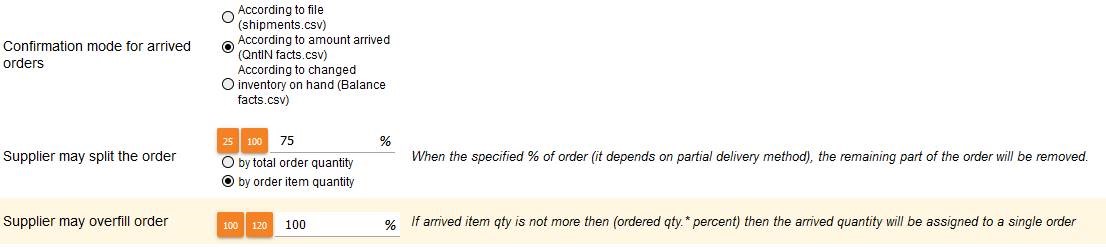
In supplier card window “Order data” the allowed percentage may be specified in setting “Supplier may split the order”. This setting (if it is set not 100%) works if delivered less than ordered.
An additional setting is visible after the update: “Supplier may overfill order”. Setting is visible only if confirmation mode of arrived orders is chosen: according to amount arrived (QntIN facts.csv), or according to changed inventory on hand (Balance facts.csv) and according to split orders option: by order item quantity.
By entering the percentage (less than 100) in the setting “Supplier may overfill order”:
- If arrived qty is not more than (order qty*percent), all arrived quantity is assigned to the current order. The current order is closed and no quantity is transferred / closes the quantity of the next order on the list.
- If arrived qty is more than (order qty*percent), the excess is assigned and closes the quantity of the next order on the list.
StockM Update 2021.03.18
Upload PTO orders to StockM via form.
Records from file/template can be loaded in PTO order field. Template can be downloaded by clicking:

When uploading a file/template, new PTO records are created and existing ones are edited:
- If no creation date is specified for new records, the current date is used by default.
- The delivery date cannot be earlier than the creation date.
- SKU code – warehouse code - order No combinations cannot be duplicated.
- Order quantity cannot be negative.
- The order number must be indicated.
- The warehouse code and SKU record must exist in that warehouse;
- The delivery date and the ordered quantity must be indicated only for the records to be newly created;
- Empty fields in the file, do not update the values, leave the former ones;
- To cancel the number of validity days, enter "-1".
StockM Update 2021.03.04
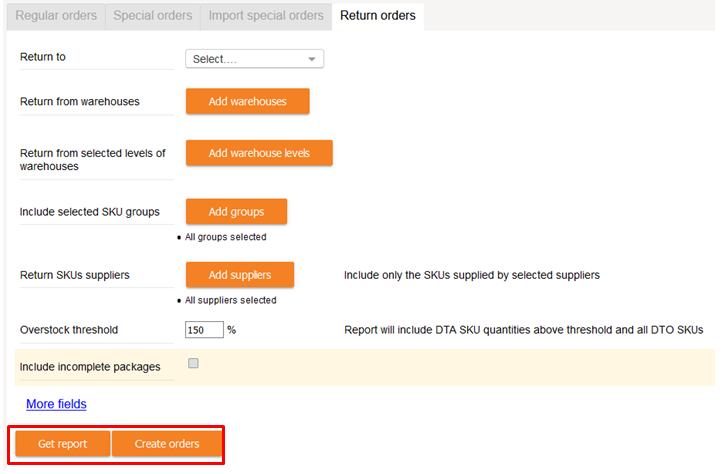
1. Return orders for overstock items.
When forming orders for the return of overstock items, it is possible to:
- generate an excel form / report based on a special order form.
- create an order for the return of overstock items from warehouses / stores to the central warehouse immediately.
2. Mark CLN - Possibility to determine the final state.
Attribute CLN should be used for items to be sold out that may be in the range in the future. When this mark is assigned, the status of the item in the Central Warehouse automatically changes to DTO. After the stock balance ends, the mark CLN will be automatically removed and the final status of the item remains as specified in the SM Admin.
Until now, the final state of the OUT type (OUT / CLN) could be specified as one that was valid for both OUT and CLN.
These settings are now separated. The final states of the OUT types can be specified separately for the OUT mark and separately for the CLN. By default, the DTO status is assigned to CLN mark.
Contact StockM if necessary to replace.
StockM Update 2021.02.25
Additional functions of the promo module (PROMO2).
Additional functions have been made in the PROMO2 module:
Additional functions have been made in the PROMO2 promo module:
- when several promotions are held at the same time, Promo display quantities are summed up (so far has been taken a bigger amount of display quantity).
- after the start of the promotion, Promo display quantity and Expiration date of display Qty. can be changed.
- after the start of the promotion, Promo display quantities and Expiration date of display Qty. can be changed.
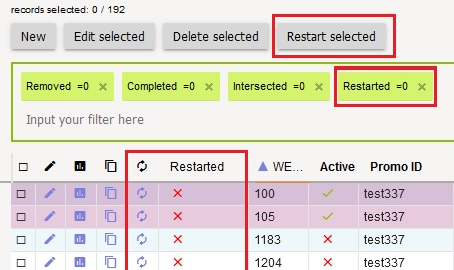
- promotions can be restarted (only those that have already started and have not yet ended):
o Changes of promotion parameters can be made by clicking a new column  icon with arrows;
o Changes of promotion parameters can be made by clicking a new column icon with arrows;
o The „RESTART SELECTED“ button allows you to restart more than one selected promotion;
o The „RESTART SELECTED“ button allows you to restart more than one selected promotion;
o After the promotion is restarted, the marked promotion is closed, end actions are performed and the reason for the end is assigned – „Restarted“.
o After the promotion is restarted, the marked promotion is closed, end actions are performed and the reason for the end is assigned – „Restarted“.
"RESTARTED ON {DATA}" is added to the promotion "Promo ID". At the same time, a new promotion is created with the changed parameters;
"RESTARTED ON {DATA}" is added to the promotion "Promo ID". At the same time, a new promotion is created with the changed parameters.
o In the promotion window, in the column RESTARTED, it is possible to see whether the promotion has been restarted.
o In the promotion window, in the column RESTARTED, it is possible to see whether the promotion has been restarted;
StockM Update 2021.02.11
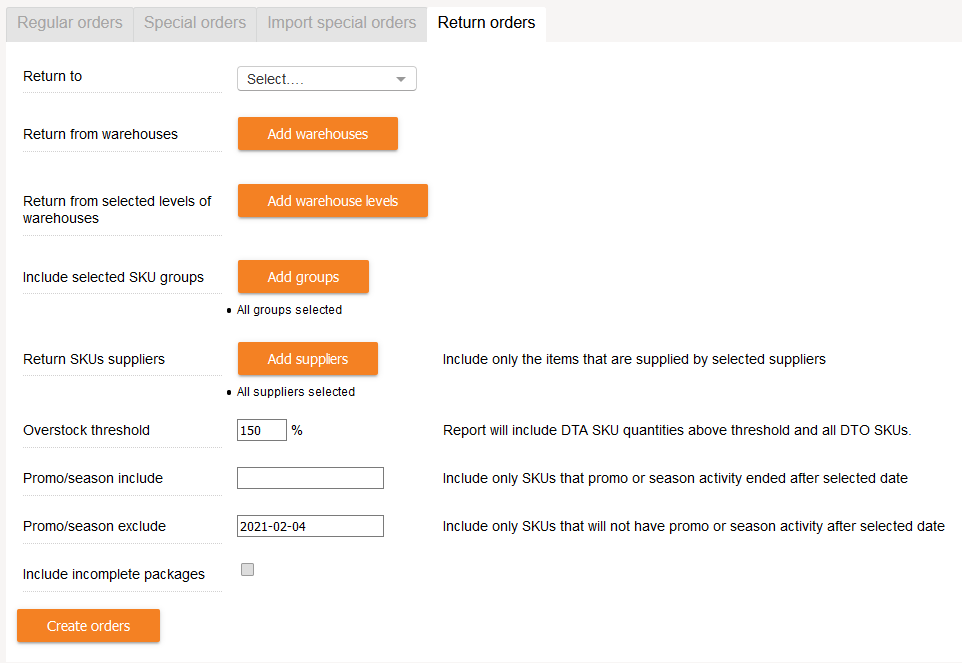
1. Return orders of overstock items: additional options.
When forming orders for the return of overstock items, instead of creating an order, the system now generates an excel form / report based on a special order form.
Additional information columns are visible in this form. You can edit the list of items in it. Upload the final list / form via Import special orders. Only the information from the first 8 columns will be uploaded (as in the special order form).
You can find the placed orders in the "New orders" window.
If the receiver of the overstock items return order is a central warehouse, then:
- the columns will be filled in the excel form / report: Receiver BTB, Receiver's balance, Receiver's buffer;
- Receiver‘s code will be the central warehouse code (not the central warehouse as the supplier code).

To create an initial list of goods, the user will have to fill in the fields shown below:
2. Additional end actions of the promotion module (PROMO2).
In the promotion module (PROMO2) it is possible to specify end actions: make all OUT mover, make all CLN mover.
When removing an item from a promotion while the promotion is still active, the OUT and CLN marks are not applied (marks are assigned company-wide and the item can only be removed from a specific warehouse).
3. A / C mover calculation period.
When calculating A / C movers, it is possible to specify the number of months from which the data will be taken for the calculation (so far the last 3 months have been taken for the calculation).
The setting is made on a company-wide basis. Contact StockM if necessary.
StockM Update 2021.02.04
Added actions in the promotion module (PROMO2).
In the promotion module (PROMO2) it is possible to change the end date of the promotion (both by uploading the promotion during data exchange and in StockM).
It is not allowed to specify a date earlier than the current day.
StockM Update 2021.01.14
Assignment of OUT type to items with ALT status.
For alternative items (ALT) may be specified:
- The type OUT for a product that is taken out of the range.
When the ALT item is out of stock in all warehouses, the item is dropped from the group and the status specified in the SM Admin is assigned.
- The type CLN for product on sale, which may be in the range in the future.
When the ALT product is out of stock in all warehouses, the item is dropped from the group and the status DTO is assigned.
For ALT items, the OUT type can be assigned:
- in the ALT items combination window "Alternative SKU" in the "OUT type" column (if you do not see the column in the window, open it via the column visibility selection);
- by uploading it via SM Admin, via template to merge ALT items: Actions -> Merge ALT groups.
In the column “OUT type” next to the item it is necessary to indicate:
- “1” to assign OUT to the item;
- “2” if CLN
- “0” to remove the assigned type

StockM Update 2020.12.17
1. Change of TOP / NON names in StockM (ABC analysis).
In StockM, the names TOP / NON have changed in to the widely used ABC analysis and its usual terms:
- TOP name changed to “A”;
- NON - to “C”;
- Blank rows that were in the “Movers” and “WMovers” columns are now called as “B”.
The logic of the calculation does not change, everything remains as it was. The names also changed in the reports.
Column names that changed in StockM:
- the column name “Movers” changed to “ABC”;
- Wmovers - to LocABC.
If the item is new, you will see "New" in the "LocABC" column (if the "New to" date has not passed yet).
2. New column in StockM "Next delivery".
From now on, you can see the expected delivery date of the item in StockM. If the item is in multiple orders, the nearest expected delivery date is displayed.
The name of the new column is "Next delivery". It is visible in the Inventory, Suppliers Schedule windows and on the product card.
p.s. if you don't see the column, open it through the column selection.
StockM Update 2020.11.12
Return of overstock to the company's central warehouse.
We present a new opportunity to form return orders for overstock items from warehouses / stores to the central warehouse.
In StockM window Orders -> Create Orders a new "Return Order" section has been created. To place a return order, you must specify:
- a central warehouse to which you will return overstock;
- warehouses / stores (and / or warehouse levels) from which returns must be made;
- it is possible to indicate which groups of items will participate in the return (if none is selected, all are considered to be marked),
- from what percentage of the BB indicator (balance and buffer ratio) items have to be returned (less than 100% cannot be specified).
In other words, the percentage indicates that the excess items above it are returned.

IMPORTANT: In order to return the items from the warehouse / store, it is necessary to create a supplier with the same supplier code as the warehouse code (Supplier code = Warehouse code).
Other mandatory conditions:
• the item does not participate in the promotion in the branches / stores from which it is returned;
• the product does not have the mark of being out of range or sold out (OUT, CLN)
StockM Update 2020.10.15
1. Distribution of Safety buffer to stores from the central warehouse.
When distributing balances from the central warehouse to stores / branches, the quantity of the Safety Buffer in the central warehouse is not distributed.
Since this update, it is possible to specify Safety buffers, which fall into the distribution of balances to branches / stores. If it is necessary to distribute the following quantities, the Safety buffers must be entered / indicated in columns: SB2, SB3 (In the inventory window or on the product card), or the information must be transferred during the data exchange. The quantities indicated in them will participate in the distribution of the balance from the central warehouse.
2. Visibility of lost sales, transfers, overstock and write-offs in StockM.
Since this update it is possible to see last week's lost sales, lost transfers, overstock and write-offs in the StockM window (new option). Now you can now see this information (excluding write-offs and transfers) in your weekly lost sales and overstock reports. New columns in StockM appear in the Inventory window (you only need to open them).
If you need to analyze a number of causes / problems, it is possible set such tasks to appear in the User Tasks window. The task would be visible to those managers whose products fall into these lists. A window will open with a list of items, where each item will need to be accompanied by the reasons for lost sales, overstock, etc.
The number of reasons for lost sales, lost transfers, overstock, or write-offs is determined company-wide - you can choose how many reasons you want to analyze. The settings are made by a StockM team.
To enable Report Analysis in StockM, you must inform a StockM team. At the same time, you will be sent a more detailed description of how to use these reports.
StockM Update 2020.09.24
Recipients of copy of orders.
In the past, copies of an order have always been received by the user who sends the order and / or is responsible for the order. The setting was company-wide.
Since this update, this setting is available on the supplier card. If it is active, a copy of the supplier's order will be sent to the persons responsible for the order and / or who sent it. A copy will not be sent if this setting is inactive
